
Operations Scheduler
Every scheduled job in REDA Financials lives on one screen: the Admin Console's Operations tab — twelve cards, one per automation, each with its schedule, last outcome, pending-work counter and a Run Now. Configure the fleet once and the system runs its own nights. This is the map.
Access you'll need. The Admin Console is an administrator's screen: the Accounting Admin v2 permission set reaches it in full, and Accounting Controller v2 can open it too. The Accounts Payable v2 and Accounts Receivable v2 sets can't see it — scheduling batches is a Core/Admin task.
Opening the Operations tab
The scheduler doesn't live on any accounting record — it lives in the app's administration area. If you have never opened it before:
Open the Admin Console
From the app navigation, open the tab named REDA Financials Admin Console (its subtitle reads "Platform configuration, data seeding, and territory management"). It opens on the Subscription tab by default.
Switch to Operations
The console has six tabs — Subscription, Financial Setup, CoA & Tax Seeding, Territory Management, Accounting Periods, and Operations. Click the last one.
Read the banner, then expand a card
The tab introduces itself: "Monitor and control automated batch jobs. Schedule the Recurring Transactions and Journal Entry Auto-Reversal batches to run daily at configured times, view last run outcomes, and trigger one-time manual runs." Below it sit the twelve cards, each with a Scheduled / Not Scheduled chip; expand a card to reach its schedule and run controls.
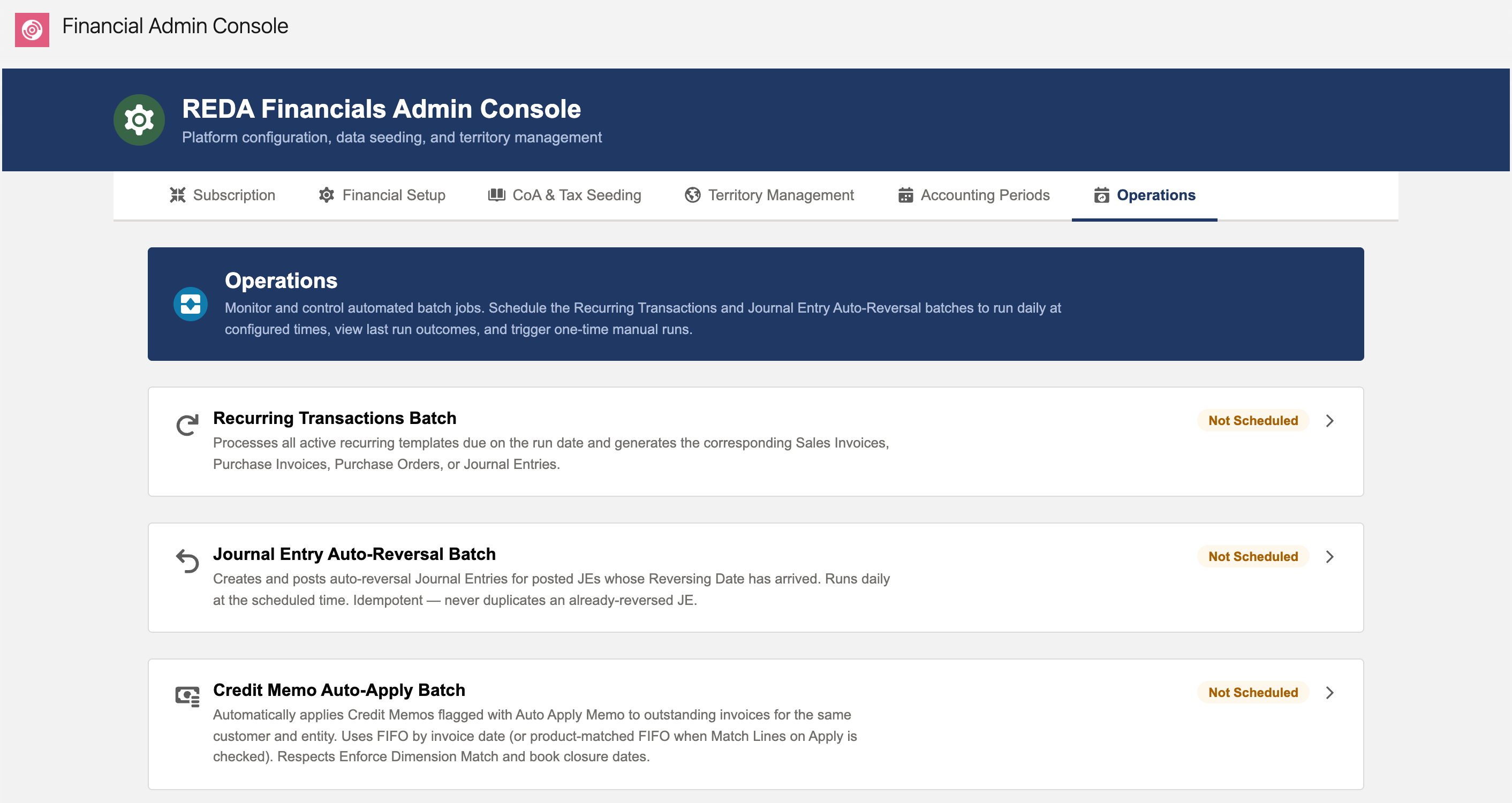
The twelve cards
| Card | What it automates | Default |
|---|---|---|
| Recurring Transactions Batch | Generates documents from active recurring templates | 01:00 |
| Journal Entry Auto-Reversal Batch | Creates and posts reversing entries whose date has arrived — idempotent by design | 06:00 |
| Credit Memo Auto-Apply | The four auto-apply sweeps — flagged documents applied FIFO to open invoices, closure dates and dimension matching respected; batch size tunable (1–50, default 10) | 07:00 |
| Cash Receipt Auto-Apply | ||
| Cash Disbursement Auto-Apply | ||
| Vendor Memo Auto-Apply | ||
| Expense Auto-Allocation Batch | Distributes flagged bills across entities — details | 07:00 |
| Aging Snapshot Batch | Point-in-time AR/AP aging snapshots per entity | 02:00 |
| OCR Document Processing | The document-reading loop — a Start/Stop 15-minute cycle, not a daily time | 15-min loop |
| FX Rate Sync | Daily exchange rates into your dated rates (multi-currency orgs; the card explains itself when MC is off) | 02:00 UTC |
| Asset Depreciation Posting | Posts due depreciation and amortization | 02:00 |
| E-Invoice Status Poll | Transmits queued e-invoices and asks the tax authority for its verdict on submitted ones — the second Start/Stop 15-minute loop, not a daily time | 15-min loop |
Every card, verbatim
When you're standing in front of the screen, this is the reference to match against — each card's exact title, the description printed on it, the name its scheduled job runs under, and the run time the card suggests by default:
| # | Card | What the card itself says | Scheduled job name | Default time |
|---|---|---|---|---|
| 1 | Recurring Transactions Batch | "Processes all active recurring templates due on the run date and generates the corresponding Sales Invoices, Purchase Invoices, Purchase Orders, or Journal Entries." | REDA Recurring Transactions Daily | 01:00 |
| 2 | Journal Entry Auto-Reversal Batch | "Creates and posts auto-reversal Journal Entries for posted JEs whose Reversing Date has arrived. Runs daily at the scheduled time. Idempotent — never duplicates an already-reversed JE." | REDA Journal Entry Reversal Daily | 06:00 |
| 3 | Credit Memo Auto-Apply Batch | "Automatically applies Credit Memos flagged with Auto Apply Memo to outstanding invoices for the same customer and entity. Uses FIFO by invoice date (or product-matched FIFO when Match Lines on Apply is checked). Respects Enforce Dimension Match and book closure dates." | REDA Credit Memo Auto-Apply Daily | 07:00 |
| 4 | Cash Receipt Auto-Apply Batch | "Automatically applies Cash Receipts flagged with Auto Apply Receipt to outstanding invoices for the same customer and entity. Uses FIFO by invoice date (or dimension-matched FIFO when Enforce Dimension Match on Apply is checked). Respects book closure dates." | REDA Cash Receipt Auto-Apply Daily | 07:00 |
| 5 | Cash Disbursement Auto-Apply Batch | "Automatically applies Cash Disbursements with unapplied amounts to outstanding Purchase Invoices for the same vendor and entity. Uses FIFO by invoice date. Respects book closure dates and dimension matching." | REDA Cash Disbursement Auto-Apply Daily | 07:00 |
| 6 | Vendor Memo Auto-Apply Batch | "Automatically applies Vendor Memos flagged with Auto Apply Memo to outstanding Purchase Invoices for the same vendor and entity. Uses FIFO by invoice date. Respects book closure dates and dimension matching." | REDA Vendor Memo Auto-Apply Daily | 07:00 |
| 7 | Expense Auto-Allocation Batch | "Automatically allocates expenses on Posted Purchase Invoices flagged with Auto Allocate Expenses. Uses the assigned Expense Allocation List to create allocation batches and post intercompany journal entries. One PI per batch scope for error isolation." | REDA Expense Auto-Allocation Daily | 07:00 |
| 8 | Aging Snapshot Batch | "Generates point-in-time AR and AP aging snapshots for all entities with aging enabled. Uses entity book closure dates to determine eligible periods. Existing snapshots are recalculated in place. One entity per batch scope for error isolation." | REDA Aging Snapshot Daily | 02:00 |
| 9 | OCR Document Processing | "Automatically processes incoming documents through AI extraction and creates purchase invoices. Runs every 15 minutes when active." | OCR Processing - <timestamp> | None — a Start/Stop loop, not a daily time |
| 10 | FX Rate Sync | "Automatically sync exchange rates from Open Exchange Rates into Salesforce Dated Conversion Rates. Requires multi-currency to be enabled." | REDA FX Rate Sync | 02:00 (UTC) |
| 11 | Asset Depreciation Posting | "Post due depreciation & amortization entries to the General Ledger" | REDA Asset Depreciation Posting | 02:00 |
| 12 | E-Invoice Status Poll | "Send queued e-invoices and advance them to Accepted or Rejected" | REDA E-Invoice Status Poll - <timestamp> | None — a Start/Stop 15-minute loop, not a daily time |
Two small notes on the job names: the four auto-apply jobs append your chosen batch size to the name you'll see in the job list, and the OCR loop stamps each cycle with a timestamp because it re-schedules itself every 15 minutes. Several cards also carry their own workload counters — Active Templates and Due Today on the recurring card, a Document Queue (Pending / Extracting / Errors) on the OCR card, an Active Currencies count on FX, and pending-work callouts such as "3 Purchase Invoices are pending auto-allocation and will be processed on the next run."
Anatomy of a card
- Status: Scheduled / Not Scheduled badge, Next Scheduled Run, Last Run and Outcome (Success / Partial Failure / Failed), a View Audit Log link to the receipts.
- Daily Schedule: a 24-hour Run Time (org time zone; the FX card runs on UTC) with Schedule / Reschedule / Unschedule.
- Manual Run: Run Now with a confirm — several cards add parameters (the recurring batch's Run Date for backfills, the auto-apply batch size) and pending-work counters ("5 Cash Receipts are flagged for auto-application and will be processed on the next run.").
- Safety rails everywhere: parallel runs refused, per-record/per-template/per-entity isolation, failures logged with CSV detail when numerous.
Scheduling a card, step by step
Every daily card schedules the same way. Using the Recurring Transactions Batch as the example:
Expand the card and find Daily Schedule
Each card splits its controls into two sections: Daily Schedule (the standing appointment) and Manual Run (a one-time run right now).
Enter the Run Time
The Run Time field takes a 24-hour time; its help text says exactly what it does: "Time in 24-hour format. The batch will run at this time daily." On every card except FX Rate Sync, the schedule description adds: "The org's default time zone applies." (FX runs on UTC — see below.)
Click Schedule
The badge flips to Scheduled, Next Scheduled Run fills in, and a toast confirms — for example "Recurring Transactions Batch scheduled daily at 01:00." From here the button becomes Reschedule: change the time and click it to move the appointment.
Unschedule when you no longer want it
Unschedule asks "Remove Daily Schedule?" before removing the standing job, then confirms — "Recurring Transactions Batch has been removed from the daily schedule." The card keeps its history; only the appointment goes.
Or run once, manually
Run Now triggers a single run immediately, with a confirmation first. Some cards take parameters here: the recurring card asks for a Run Date ("Templates with Next Run Date on or before this date will be processed.") so you can backfill missed days, and warns "No active templates are due on or before this date. The batch will run but generate no documents." when there's nothing to do. The auto-apply cards take a Batch Size (1–50, default 10). A manual-run toast tells you it's away — "Recurring Transactions Batch is running for 02/07/2026. Job ID: 707xx0000012345. Check the Audit Log for results once complete."
Messages you may meet
The scheduler validates what you type and tells you plainly when something can't start:
| The message | What it means / what to do |
|---|---|
| "Invalid time format. Expected HH:MM." | The Run Time isn't in 24-hour HH:MM form — type 07:00, not 7am. |
| "Invalid time value. Hour must be 0-23, minute 0-59." | The format is right but the numbers aren't a real time — 25:00 or 07:75 won't fly. |
| "Failed to schedule job: {0}" | The platform refused the schedule; the reason is quoted in place of {0}. Read it, correct what it names, and schedule again. |
| "Failed to start batch: {0}" | A Run Now couldn't launch — the quoted reason says why. Each batch also refuses to start while another instance of itself is still running, so a very long run plus an impatient click resolves itself: wait, then retry. |
| "Failed to unschedule job: {0}" | The standing job couldn't be removed; the quoted reason explains why. Refresh the card and try again, or pass the message to your administrator. |
| "Failed to load batch status: {0}" | The card couldn't read its own status. Refresh the page; if it persists, note the quoted reason for your administrator. |
| "No runs recorded yet" | Not an error — this card's batch has simply never run. Last Run and Last Run Outcome fill in after the first run. |
The two odd ones out: the Start / Stop loops
Ten cards want a daily time. Two don't. The OCR Document Processing card is the first — documents arrive all day, so its batch runs as a self-repeating loop every 15 minutes, and the card swaps the time picker for three buttons whose on-screen descriptions explain themselves:
- Start — "Start the OCR processing loop. The batch will process pending documents and automatically reschedule itself every 15 minutes." Toast on success: "OCR Processing started. Job ID: 707xx0000067890".
- Stop — "Stop the OCR processing loop. Pending documents will remain in the queue until processing is restarted." A confirmation explains the consequence first: "This will stop the automatic OCR processing loop. Documents already being processed will complete, but no new cycles will start. You can restart at any time." Then: "OCR Processing has been stopped."
- Run Now — "Run a single batch cycle immediately to process pending documents without starting the continuous loop." Its modal, "Run OCR Processing Now", adds: "This will start a single batch cycle to process all pending and extracting documents. The batch will self-reschedule after completion."
The card's Document Queue counters show how much work is waiting — Pending, Extracting, and Errors — and the status reads Running now while a cycle executes. Try to start it twice and the card politely declines: "OCR Processing is already running." (or, on Run Now, "OCR Processing is already running. It will pick up pending records on the next cycle."). The loop itself is covered in depth in OCR by Email.
The E-Invoice Status Poll card is the second. It works the same way — Start, Stop, Run Now, no time to pick — and re-arms itself about every fifteen minutes while running. Each cycle transmits the Trails sitting at Queued and asks the authority for a verdict on those at Submitted, moving them to Accepted, Rejected or Error. On an org that files nothing electronically the card says so plainly ("No active e-invoicing setup exists yet") and can be ignored; where it does apply, nothing moves until somebody presses Start. The runbook is E-Invoice Status Poll.
FX Rate Sync: the multi-currency card
The FX Rate Sync card is the one card that can refuse to work at all: it needs Salesforce multi-currency, and when that isn't enabled the card disables itself with "Multi-currency is not enabled. FX rate sync is only available for multi-currency orgs." When multi-currency is on, three things distinguish it:
- It runs on UTC, not your org's time zone. Its schedule description: "Schedule the FX rate sync to run automatically once per day at the specified time (UTC)." The confirmation toast repeats it — "FX rate sync scheduled daily at 02:00 UTC."
- Run Now is called Sync Now. Description: "Trigger a one-time FX rate sync immediately. Rates are fetched and applied for today." The modal, "Sync Exchange Rates Now", spells out the effect: "This will fetch the latest exchange rates and update Dated Conversion Rates for all active currencies. The sync runs in the background." Then: "FX rate sync started. Job ID: 707xx0000024680. Check the audit log for results."
- Unscheduling warns about the consequence: "This will stop the daily FX rate sync. Rates will no longer be updated automatically. You can reschedule at any time." — followed by "FX rate sync schedule has been removed."
An Active Currencies count on the card shows how many currencies each sync will cover.
Every run leaves a receipt
Each batch writes a summary row to the Audit Log when it finishes — the record behind the card's Last Run and Last Run Outcome (Success / Partial Failure / Failed), one click away via View Audit Log. The summary states how many records were processed, succeeded, and failed; when individual rows fail on the recurring and auto-apply batches, a CSV file listing each failed row and its exact error is attached to that log entry. That CSV is your morning to-do list after a Partial Failure: open it, fix the causes, and either wait for tonight's run or click Run Now.
A Meridian morning
Meridian Properties Group runs all four regions from one org, so its controller starts each day on this screen. At 08:15 on July 2nd the sweep takes two minutes: the Recurring Transactions card shows Last Run Outcome Success and Due Today already back at a comfortable 0 — last night's 01:00 run generated the month's rent invoices. The aging, FX, and depreciation cards all report Success from their 02:00 wave. The Cash Receipt Auto-Apply card, though, shows Partial Failure: View Audit Log opens the run's summary, and the attached CSV names one receipt that couldn't apply because its invoice sits in a closed period. The controller fixes that one record, clicks Run Now with the default batch size, and the card goes green — no support ticket, no guesswork, because every card carries its own evidence.
Common mistakes to avoid
| Mistake | Why it hurts | Do this instead |
|---|---|---|
| Reordering the waves — applications before generation | Auto-apply sweeps run against documents that don't exist yet; a day's automation quietly does nothing | Keep the sequence: generate (01:00) → value (02:00) → reverse (06:00) → apply (07:00), even if you shift the clock times |
| Looking for a daily time on the OCR or E-Invoice Status Poll card | There isn't one — it's a Start/Stop loop; an "unscheduled-looking" card may be exactly right | Check for the Start button and the Document Queue counters; Start once and let it cycle every 15 minutes |
| Forgetting FX runs on UTC | Every other card uses the org's default time zone; a 02:00 FX schedule may land mid-working-day in your local time | Convert deliberately — the card and its toast both say UTC for a reason |
| Unscheduling an auto-apply card "temporarily" and forgetting it | The warning is literal: "Cash Receipt Auto-Apply schedule removed. Flagged CRs will not be auto-applied until rescheduled." — flagged documents pile up unapplied | If you must pause, note it; the Not Scheduled badge on this screen is the reminder to come back |
| Treating "Partial Failure" as good enough | The successes posted, but the failed rows are real work someone expected done — and they'll fail again tomorrow for the same reason | Open View Audit Log, read the CSV of failed rows, fix causes, re-run |
Where to go next
- Operations Scheduler (Bulk Operations) — the admin-side companion.
- Recurring Batch Scheduler — card #1 in depth.
- The Admin Console — the tab's home.
Frequently asked questions
Whichever features you use: recurring templates → card 1; reversing accruals → card 2; auto-apply flags → the 07:00 quartet; assets → depreciation; multi-currency → FX; OCR email → the processing loop. Unused features can stay unscheduled — the cards wait politely.
The run completed but some records failed individually — the audit log (and its CSV attachment) lists each with the exact error. Fix the causes; the next run or a Run Now picks the stragglers up.
No — scheduled batches run as the system's automated process. Seats are for humans; the nights are free.
Every daily card except one states it plainly: "The org's default time zone applies." The exception is FX Rate Sync, whose schedule is explicitly "at the specified time (UTC)" — its confirmation toast even repeats "UTC" back to you.
No. Each batch refuses to start while another instance of itself is still active — a scheduled run and an eager Run Now can't collide. If a manual run is declined, wait for the current run to finish and try again; the OCR card says it best: "OCR Processing is already running. It will pick up pending records on the next cycle."
Same batch, same rules — just once, right now, instead of daily. The only twists are the parameters some cards offer: the recurring card's Run Date lets a manual run backfill missed days ("Templates with Next Run Date on or before this date will be processed."), and the auto-apply cards let you set the batch size (1–50, default 10) for that run.
Was this article helpful?