
Reporting Framework Builder
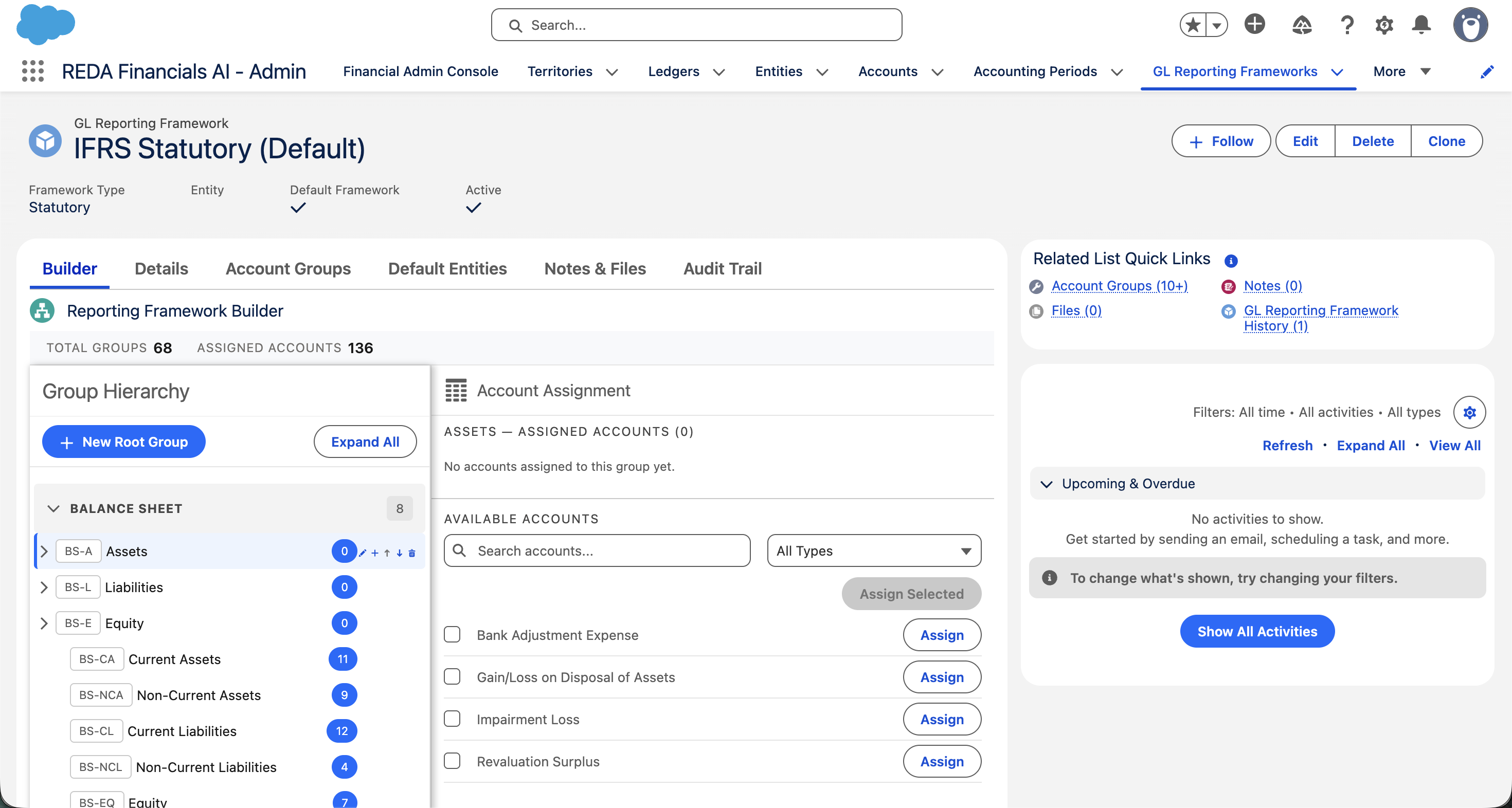
The Reporting Framework Builder is the visual tool for assembling a framework — building its group hierarchy and assigning accounts — all on one screen. Instead of editing group and membership records by hand, you shape your financial statement directly and watch it take form.
It’s a genuine differentiator: building statement structures visually is something most Salesforce accounting apps simply don’t offer.
Access you'll need. Building and editing frameworks requires the Accounting Admin v2 or Accounting Controller v2 permission set. The Accounts Payable v2, Accounts Receivable v2, and Read Only v2 sets can view frameworks and the statements they drive but not change them.
Opening the builder
On the GL Reporting Frameworks tab, open (or create) a framework record. The builder is embedded right on the framework’s record page, scoped to that framework — everything you do in it applies to the framework you opened.
The two panels
The builder is split into two working areas, with counters above them — Total Groups, Assigned Accounts, and Unassigned Accounts — that track your progress as you build:
| Panel | What you do there |
|---|---|
| Group Hierarchy (left) | Your statement structure as a collapsible tree. Create groups, rename them, set their parent, and reorder them. Selecting a group here drives the right panel. |
| Account Assignment (right) | For the selected group: an Available Accounts list you can search and filter, and an Assigned Accounts list showing what’s already in the group. Assign accounts, remove them, reorder them, and set an override label. |
Every action has a labelled button — here is the full set:
| Control | What it does |
|---|---|
| New Root Group | Creates a top-level section (no parent) — a headline line like Assets. |
| New Child Group | Creates a group underneath the one currently selected in the tree. |
| Edit Group | Opens the selected group to change its name, code, statement, parent, or sort order. |
| Delete Group | Removes the selected group — after the confirmation “Are you sure you want to delete this group? This action cannot be undone.” |
| Move Up / Move Down | Reorders the selected group among its siblings — the builder adjusts sort orders for you. |
| Expand All / Collapse All | Opens or folds the whole tree at once. |
| Assign Selected | Moves the accounts you ticked in Available Accounts into the selected group. |
| Unassign | Removes an account from the group, returning it to the available list. |
| Search accounts… / Filter by Type | Narrows the available list by name or by account type (All Types shows everything). |
The builder confirms each action with a toast — “Group saved successfully.”, “Group deleted successfully.”, “Account(s) assigned successfully.”, “Account(s) removed from group successfully.”, “Sort order updated successfully.” — so you always know a change committed.
Building a framework, step by step
Create your top-level sections
Click New Root Group and add the headline groups for each statement — e.g. Total Assets, Total Liabilities, Equity on the Balance Sheet. Root groups have no parent; they sit at the top.
Add sub-sections and lines beneath them
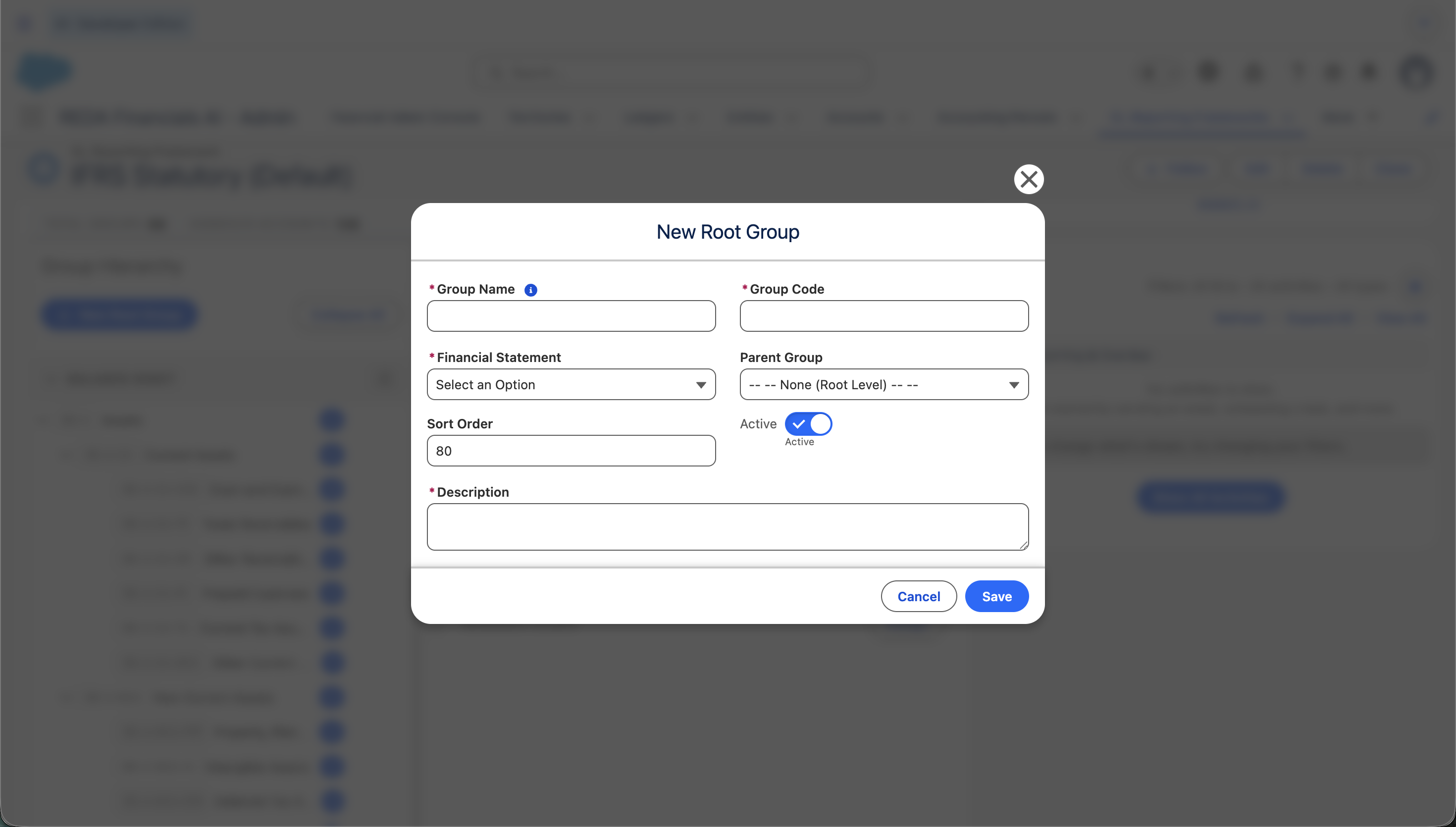
Select a group and click New Child Group to build beneath it (Current Assets under Total Assets; Trade Receivables under Current Assets). Use Move Up / Move Down to get the order right.
Select a line group and assign its accounts
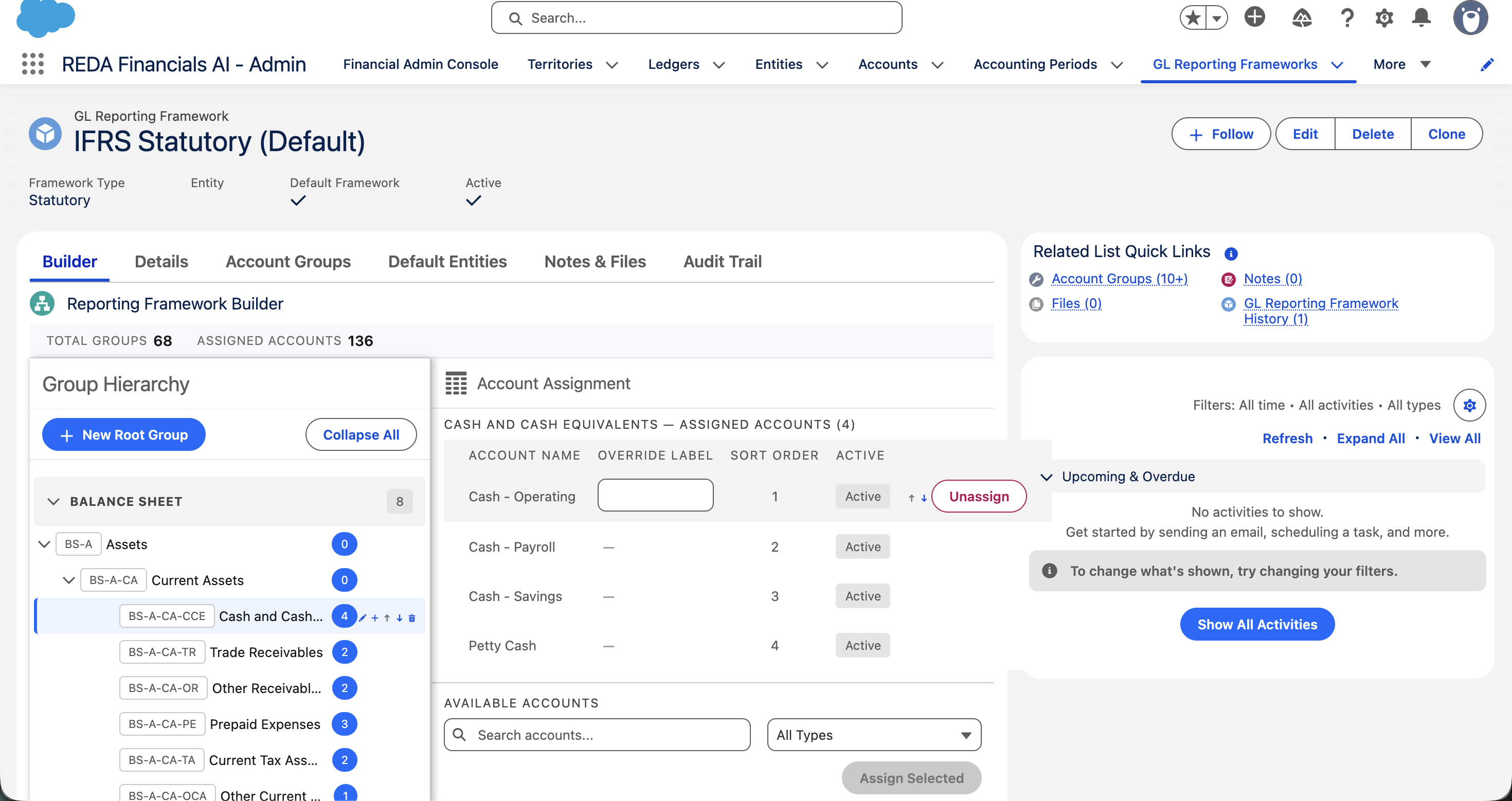
Click a leaf group in the tree, then in the right panel search or filter the Available Accounts list, tick the accounts that belong to this line, and click Assign Selected. REDA creates the memberships and moves those accounts to the Assigned Accounts list.
Fine-tune presentation
Reorder accounts within a group, and add an override label where an account should read differently on this framework’s statements.
Drive the Unassigned Accounts counter to zero
Work through the tree until every account that should appear has a home. The Unassigned Accounts counter shows what won’t appear on this framework’s statements — intentional or not, now you can see it.
What the builder protects you from
As you work, REDA enforces the integrity rules for you, so the framework can’t end up inconsistent:
- An account can be assigned to only one group in the framework — once placed, it leaves the unassigned list, so you can’t double-count it.
- A group’s parent must be in the same framework, and the tree can’t form a loop.
- A group with assigned accounts can’t be deactivated out from under them.
Common mistakes to avoid
| Mistake | Why it hurts | Do this instead |
|---|---|---|
| Restructuring a live framework during the reporting cycle | The builder edits the real groups and memberships — the next statement anyone runs reflects your half-finished changes. | Restructure between cycles, or build the new presentation as a separate framework and switch when it’s ready. |
| Ignoring the Unassigned Accounts counter | Unassigned accounts simply don’t appear on this framework’s statements — balances silently go missing. | Treat a non-zero counter as unfinished work; make assigning new accounts part of your chart-of-accounts routine. |
| Deleting a group to “move” it | Deletion is permanent, and its account assignments have to be rebuilt. | Use Edit Group to change its parent — re-parenting keeps the group and its accounts intact. |
| Renaming accounts to suit one statement | The account’s real name changes everywhere — every framework, every ledger view. | Set an override label on the assignment instead; it applies to this framework only. |
Where to go next
- Reporting Frameworks — what frameworks are and how the default one is chosen.
- Group Hierarchy Tree — nesting, sort order, and the integrity rules behind the tree you’re building.
- GL Account Groups — the records the builder creates and edits for you.
- Financial Reports — run a statement and see your framework’s structure in action.
Frequently asked questions
Yes — the builder edits the real groups and memberships, and statements are generated live from them. The next report you run reflects your changes. Build and review in a sandbox first if you’re restructuring a framework in active use.
It’s already assigned to a group in this framework — an account can only be in one group per framework, so once placed it leaves the unassigned list. Find it by browsing the groups, or remove it from its current group to free it up.
Yes. Each group is tagged with the statement it belongs to (Balance Sheet, Income Statement, or Cash Flow), so one framework’s builder covers all three statements — you’re structuring the whole presentation in one place.
Set its override label in the right-hand panel. It changes the wording on this framework’s statements only — the account’s real name and every other framework are unaffected.
Check two things: a group must be selected in the tree (with none selected, the right panel says “Select a group from the hierarchy to manage its account assignments.”), and at least one account must be ticked in the Available Accounts list. If the available list is empty and reads “All active accounts are assigned to groups in this framework.”, there’s simply nothing left to assign.
The groups and memberships are ordinary records, so they can be edited directly — but the builder is faster and safer: it scopes everything to the framework you opened, keeps sort orders consistent when you move things, and shows the unassigned count as you work. Direct edits are mainly useful for bulk loads during implementation.
Was this article helpful?