
Creating Budgets & Budget Lines
Meridian budgets the year in five numbers: repairs $120,000, utilities $45,000, other operating costs $60,000, professional fees $30,000, depreciation $85,000. Here's how those numbers become a live, enforceable budget.
Access you'll need. Creating and editing budgets and their lines, and posting them, requires the Accounting Admin v2 or Accounting Controller v2 permission set. The Accounts Payable v2, Accounts Receivable v2, and Read Only v2 sets can view budgets but not change them.
Set up the header
Create a new Budget
Name it so a colleague knows instantly what it governs — FY2026 Operating Budget. Pick the Entity and the Budget Type (Operating / Capital / Project).
Dates and Fiscal Year
Start and End Date bound the budget (1 Jan – 31 Dec 2026 for Meridian; End must be after Start). These dates are what matters for enforcement — a purchase document finds its governing budget when its date falls inside this range (same entity, posted budget). Set Fiscal Year to the plain calendar year — 2026 — as a tidy label for reporting and search; it does not drive matching, so a blank or fancy value ("FY26") won't hide the budget from the spend checks.
The full header, for reference:
| Field | Notes |
|---|---|
| Budget Name | Free text, typed by you — make it self-explanatory (FY2026 Operating Budget) |
| Entity (required) | Must be active: "The selected Entity is inactive. Budgets can only be created for active Entities." |
| Budget Type (required) | Operating / Capital / Project — an entity can run several budgets of different types for the same period |
| Start Date / End Date (required) | "End Date must be after Start Date." The period a purchase's date must fall within for this budget to govern it — this is the match key the spend checks use |
| Fiscal Year | The plain calendar year, e.g. 2026 — a reporting/search label; it does not drive which budget a transaction matches |
| Description | The plan's context — what it assumes, who signed it off |
| Status / Approval Status | Draft/Posted/Void and the approval state — both managed through actions, not typed |
| Currency | Always the entity's home currency: "Budget currency must match the entity's functional currency (…). Budgets are always in the entity's home currency." |
Add the lines
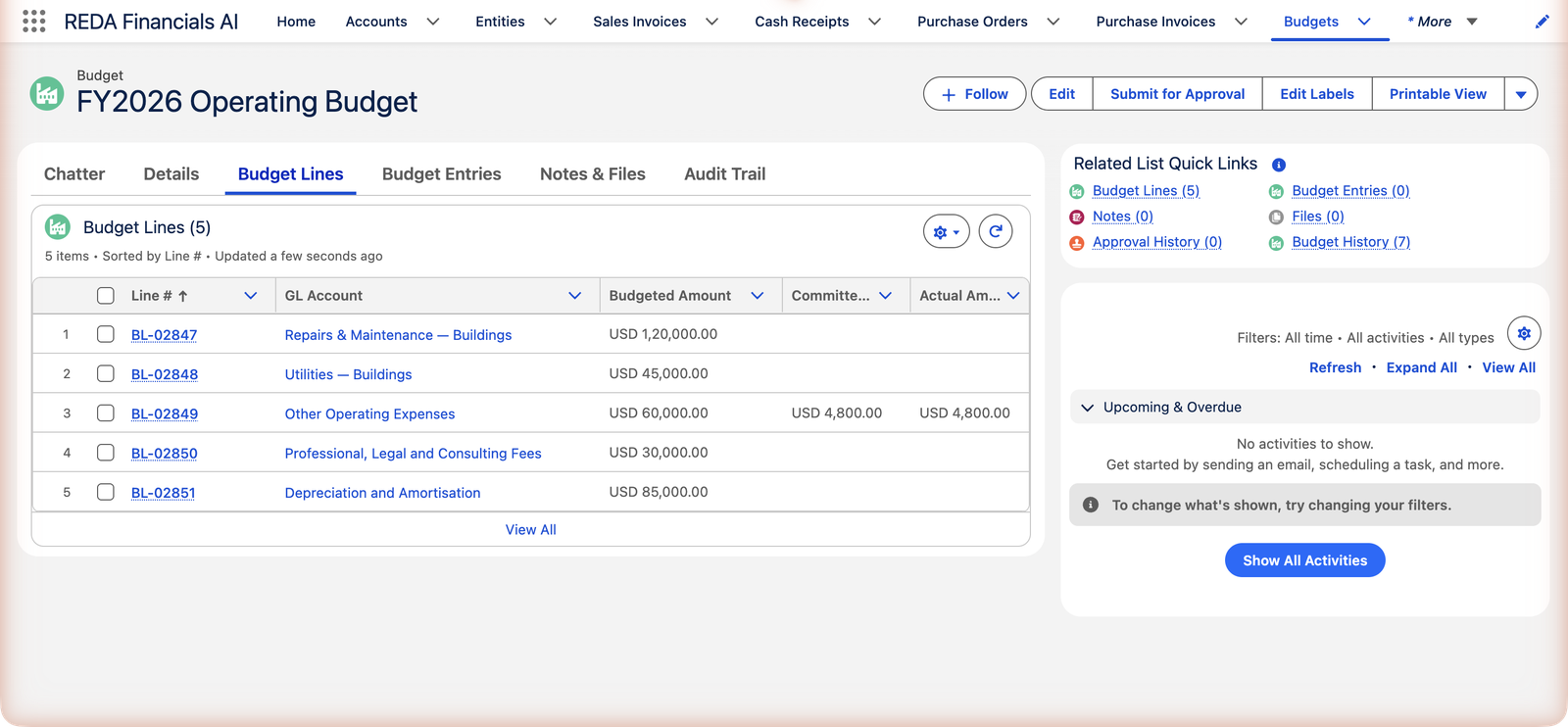
- Each line is a GL account, optionally split by dimension. Pick the GL Account, then — if you want to budget that account separately by location, department, or the like — fill the Cost Center (and any other dimensions your administrator has enabled for budgeting). Leave them blank to budget the account as a single pot. So Repairs can be one overall line, or two lines — Repairs for the North office and Repairs for the South office — each with its own ceiling.
- Each account-and-dimension combination once per budget. You can list the same account twice if the lines differ by Cost Center or another dimension; you can't list the identical combination twice. A duplicate is refused: "A budget line already exists for this GL Account and dimension combination (e.g. Cost Center) in this budget. Each GL Account and dimension combination can be budgeted only once."
- Budgeted Amount is the annual allocation, never negative (decreases later are amendments, not negative budgets).
- The account must fit the entity — a global account or one scoped to this entity/territory; expense accounts are the natural citizens here.
- Lots of lines? Import them. The budget form's CSV import takes a spreadsheet — Download Template, fill account names and amounts, Choose CSV File. Accounts are matched by name; success confirms "… budget lines loaded from CSV." Mind the warning — "This will replace all existing lines." — an import replaces everything in the grid.
| Line field | Notes |
|---|---|
| GL Account (required) | The spending account this line governs — global or scoped to this budget's entity/territory |
| Cost Center (optional) | Splits the account so you can budget it separately by location, department, or the like. Leave blank to budget the account as one pot. Your administrator may expose further dimensions here for budgeting |
| Budgeted Amount (required) | The annual allocation — positive, never negative |
| Notes | Your commentary — assumptions, carry-forward reasoning, one-offs |
Matching is exact, blanks included: a bill with no cost center draws on the line that has no cost center; a bill tagged to the North office draws on the North-office line. A purchase against a combination you haven't budgeted simply finds no line and proceeds unbudgeted.
Meridian's five lines, as they'll read on the posted budget:
| GL Account | Budgeted Amount |
|---|---|
| Repairs & Maintenance — Buildings | $120,000.00 |
| Utilities — Buildings | $45,000.00 |
| Other Operating Expenses | $60,000.00 |
| Professional Legal and Consulting Fees | $30,000.00 |
| Depreciation and Amortisation | $85,000.00 |
| Total Budgeted | $340,000.00 |
Each line starts life with Effective = Budgeted, and Committed, Actual and Utilization at zero — the system columns fill themselves as the year's purchases arrive.
Post it — the budget goes live
Use Save Draft while numbers are still moving; Post when the budget is agreed. Posting requires at least one line with a GL account and a positive amount, and — where your organization routes budgets through approval — an approved status first ("Budget must be approved before it can be posted. Submit the budget for approval first."). Once posted:
- Purchase orders in its entity and year can commit against it, and enforcement (if switched on) applies.
- The numbers lock. "Cannot modify a posted budget. Use Budget Entries for amendments." — every change from here on is an auditable Budget Entry.
- Reopening to Draft is possible only while nothing has happened yet — a budget with commitments or actuals stays posted, amendments only.
If the form stops you
| The message | What it means / what to do |
|---|---|
| "Each Budget Line needs a GL Account and a positive Budgeted Amount." | A line is incomplete — every line needs both its account and its allocation. |
| "Budgeted Amount cannot be negative. Use a Budget Entry with type Reduction to decrease an approved budget." | Budgets never go below zero; decreases to a live budget are amendments. |
| "A budget line already exists for this GL Account and dimension combination (e.g. Cost Center) in this budget. Each GL Account and dimension combination can be budgeted only once." | You've listed the same account-and-Cost-Center pairing twice — merge them, or give one a different Cost Center to split the account legitimately. |
| "The selected GL Account belongs to a different entity. Choose a global GL Account (no entity) or one that matches this budget's entity." | The account lives in another company's chart. |
| "This GL Account is restricted to a different territory. Select a GL Account that is either global or scoped to this entity's territory." | The regional variant of the same rule. |
| "Budget must be approved before it can be posted. Submit the budget for approval first." | Your organization routes budgets through approval — get the sign-off, then post. |
| "CSV upload failed. Check the file format and try again." | Start from Download Template so columns and account names line up. |
| "Cannot modify a posted budget. Use Budget Entries for amendments." | The budget already went live — changes are now Budget Entries. |
Common mistakes to avoid
| Mistake | Why it hurts | Do this instead |
|---|---|---|
| Start/End dates that don't cover the whole spending period | The budget posts and looks healthy — but purchases dated outside the range never find it, so nothing is checked against them | Set Start Date and End Date to span the full period; those dates (not the Fiscal Year label) are the match key |
| Two identical lines — same account and same Cost Center (or no dimension on both) | Refused as a duplicate: each account-and-dimension combination can be budgeted only once, so "available" stays unambiguous | Budget the combination once. To split an account, give the lines different Cost Centers (North vs South) — that's allowed and encouraged |
| Entering next year's decreases as negative amounts | Refused — Budgeted Amount is never negative | Budget the real allocation; later decreases are Reduction entries |
| Posting before the numbers are agreed | Every rethink now needs a formal amendment with a reason | Stay in Draft while the plan is fluid — drafts rework for free |
| CSV import over hand-typed lines | The import replaces all existing lines, as the warning says | Finish the sheet first, import once |
Where to go next
- Budget Entries (Amendments) — supplements, reductions, transfers.
- Budget Enforcement on POs — switching the teeth on.
- Understanding Budgets — the concepts behind the form.
Frequently asked questions
The spending accounts you actually steer — operating expense categories, project cost accounts. There's no need to budget every account in the chart; a purchase against an unbudgeted account simply notes "no budget line found" and proceeds.
Different types, yes — Operating and Capital side by side is normal. Avoid two posted budgets of overlapping accounts for the same entity and year: a purchase can only honor one ceiling per account, and ambiguity helps no one.
Budgets are always in the entity's home currency ("Budget currency must match the entity's functional currency"). If the currency looks wrong, the entity selection is wrong — recreate the budget under the right entity.
If nothing has committed against it yet, reopen it: Edit shows "Continuing will reopen this budget as Draft…" — fix and re-post. The moment a PO commits, that door closes ("This budget has related Purchase Orders or Purchase Invoices. Use Budget Entries for amendments instead.") and Budget Entries take over.
Void it — the action asks for a reason and a void date, and warns what it means: "Voiding this budget will prevent it from being referenced on new Purchase Orders and Purchase Invoices. You can reopen it later if needed." The record and its history stay on file; only new references stop.
Accounting Controller and Accounting Admin — budgets are a controller-owned function. AP, AR and Read Only roles see every figure (including budget warnings on their own purchase orders) but can't change the plan.
Was this article helpful?