
Creating a Payment Batch
When it's time to pay everyone — the weekly check run, the month-end settlement — you don't create payments one at a time. A Payment Batch groups many vendor payments into one auditable unit, created in one guided pass. This article walks the batch wizard and shows what the finished batch looks like.
Access you'll need. Creating and posting these requires the Accounts Payable v2 permission set (AP clerks & managers) or Accounting Admin v2 (system administrators). The Accounting Controller v2, Accounts Receivable v2, and Read Only v2 sets can view but not create or post.
The wizard, in three steps
Step 1 — Pick the bills to pay
The wizard lists your outstanding posted invoices, filterable by entity, vendor and due dates. Tick what this run should settle — for Meridian's June run: CityClean's May bill and Hudson Elevator's May and June bills.
Step 2 — Review the proposed payments
The wizard groups your selection into payments — one payment per vendor (or per vendor-and-dimension combination if dimension matching is on). Meridian's three bills became two payments: CityClean $2,200 and Hudson $1,900 covering two bills. Early-payment discounts are suggested automatically for invoices still inside their discount window — adjust or clear them, and fine-tune amounts, before continuing.
Step 3 — Create the batch
Set the batch's payment date, bank account and payment method, and confirm. REDA Financials creates the batch, generates each payment posted, assigns check numbers where the method is Check, applies every payment to its invoices, and reports the results — payments created, applications made, and anything that couldn't be processed with the reason why.
What you end up with
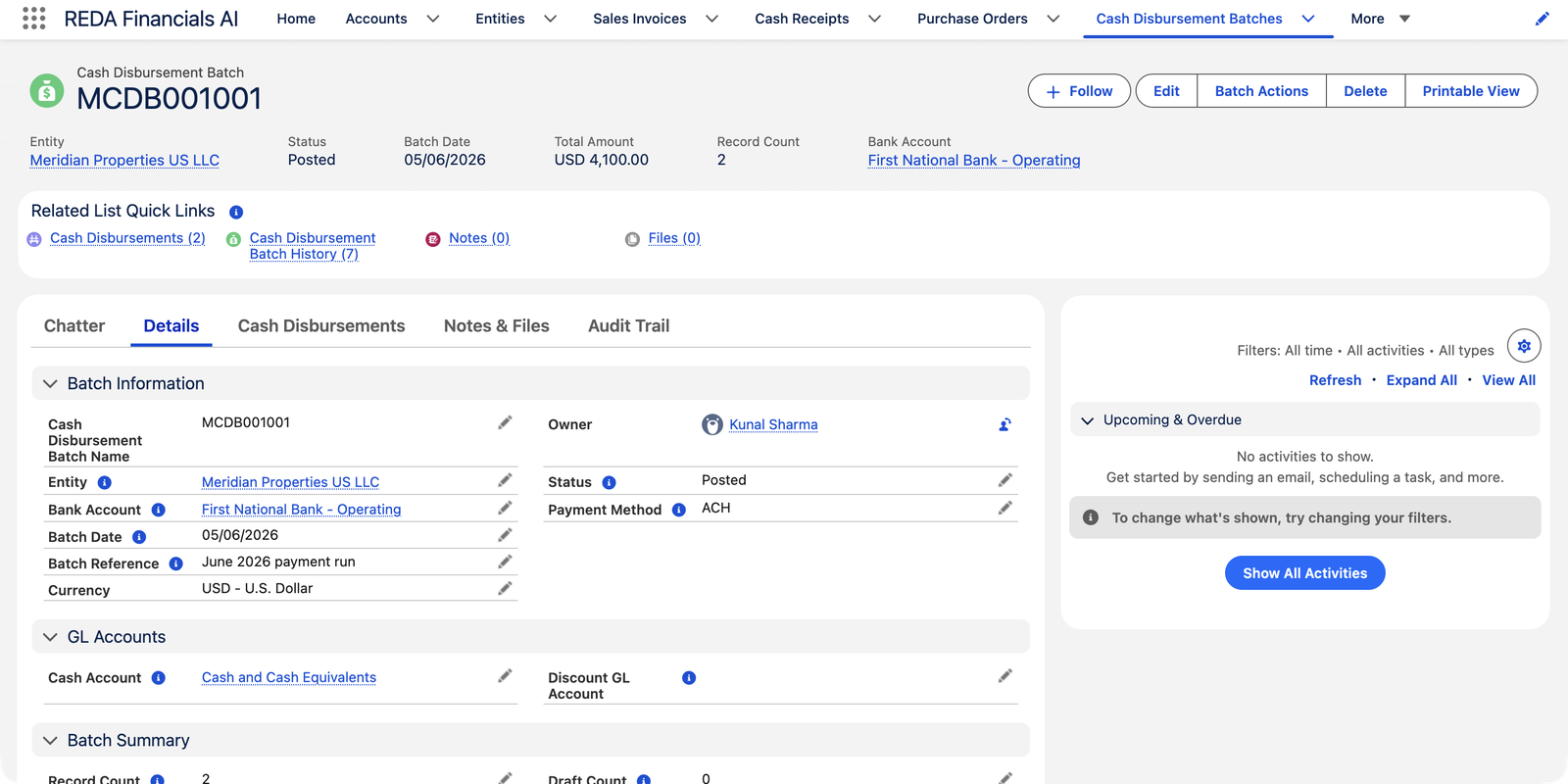
- The batch record carries the run's identity — reference ("June 2026 payment run"), date, bank, method, total and count.
- Each payment inside is linked to the batch and behaves normally — you can open it, print its remittance PDF, see its applications.
- The paid invoices show settled balances, exactly as if paid one by one.
Reading the batch record
| Field | Where it comes from | What it tells you |
|---|---|---|
| Entity | Your step 1 filter | Whose books this run paid from — one entity per batch |
| Batch Date | Step 3 | The payment date stamped on every payment in the run |
| Batch Reference | Step 3 | The run's human name — "June 2026 payment run" beats a bare number in eighteen months |
| Bank Account / Cash Account | Step 3 | The one account all the run's money left, and its ledger twin |
| Payment Method | Step 3 | One method per batch — Check makes the run consume check numbers |
| Total Amount | Calculated | The run's full cash outflow — the figure to sanity-check against what you intended |
| Record Count / Draft Count | Calculated | How many payments the batch holds, and how many (if any) are still unposted |
| Status | Batch Actions | Draft · Posted · Void — the batch's own lifecycle (see Batch Posting & Voiding) |
Common mistakes to avoid
| Mistake | Why it hurts | Do this instead |
|---|---|---|
| Running the batch before applying vendor memos | The run pays gross while credit sits unspent — cash out the door you didn't owe | Sweep the Vendor Memos (Unapplied) list first (Applying Vendor Memos) |
| Skimming past the suggested discounts in step 2 | Accepting a discount outside its window invites a vendor call; clearing an earned one wastes money | Check each suggestion against the invoice date and the term's window before confirming |
| Including a disputed bill "to deal with later" | The batch posts it paid instantly — later means voiding a payment | Untick it in step 1; it stays honestly in aging until resolved |
| Confirming without checking the batch total | The full amount leaves one bank account on one date — overdrafts are discovered by the bank, not by you | Compare step 2's total against the account's available balance before creating the batch |
| Re-running the whole selection after partial failures | The successful payments stand — re-running everything pays those bills twice | Read the completion report and run a follow-up batch for only the failed remainder |
Where to go next
- Batch Payment Run — running the process across many vendors, and the decisions in step 2.
- Batch Posting & Voiding — batch-wide status changes and the void cascade.
- Settlement Discounts & Terms — the discounts the wizard suggests.
Frequently asked questions
Dimension matching. When Enforce Dimension Match is on, bills with different cost dimensions (say, different cost centers) are paid separately so each payment's dimensions stay clean. Turn the option off in step 2 for one-payment-per-vendor grouping.
Only posted invoices with a balance due appear. Drafts, invoices pending approval, fully-settled bills and vendor memos don't qualify. Also check your entity and date filters.
The completion report names each failure and why (for example, a check run that exhausted the bank's check stock mid-batch). Fix the cause, then run a new batch for just the remainder — the successful payments stand.
Yes — the wizard creates each payment posted, with its applications made and (for check runs) its check number assigned. That's why step 2 is the moment to review. Batches holding staged draft payments do exist (the Draft Count field tracks them), released later via Batch Actions — see Batch Posting & Voiding.
The same people who can create payments: the Accounts Payable or Accounting Admin permission sets. Accounting Controller is read-only on subledger transactions — controllers review the run; they don't fire it.
On each payment's applications, as their discount amounts — the invoice clears in full, the cash goes out net, and the discount lands in your Purchase Discounts account. The mechanics are in Settlement Discounts & Terms.
Was this article helpful?