
Creating a Purchase Invoice
This walkthrough takes you from a vendor's bill in your hand to a saved Purchase Invoice in REDA Financials — using a real example: CityClean Services' monthly janitorial bill for Meridian Properties US LLC. Along the way you'll see how much the form fills in for you, and what each field is asking. If you haven't yet read Understanding Purchase Invoices, start there for the concepts.
Access you'll need. Creating, editing, and posting Purchase Invoices requires the Accounts Payable v2 permission set (AP clerks & managers) or Accounting Admin v2 (system administrators). The Accounting Controller v2, Accounts Receivable v2, and Read Only v2 sets can view invoices but not create or post them.
Step 1 — Open the form
Go to the Purchase Invoices tab and click New. REDA Financials opens its purpose-built invoice form — a single page with everything you need: header fields, line items, a live Invoice Summary, and three buttons top-right: Cancel, Save Draft, and Post.
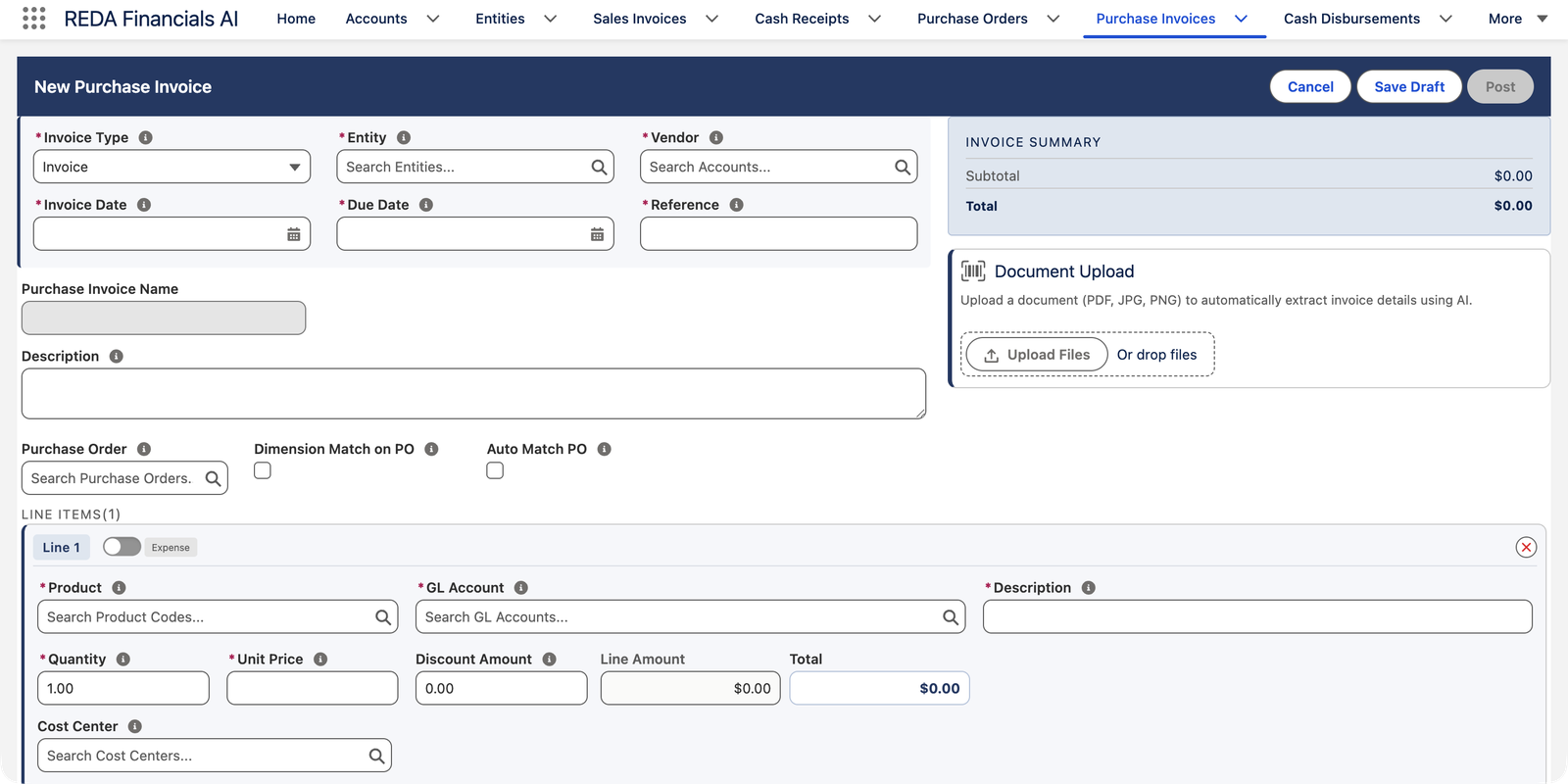
Step 2 — Fill in the header
Choose the Invoice Type
Leave it as Invoice for a regular bill you'll pay later. Choose Expense for a cost that's already paid or auto-debited (you'll also pick a payment method and bank account), or Vendor Memo for a credit note. The three types are compared in Understanding Purchase Invoices.
Select the Entity
Start typing and pick the company receiving the bill — here, Meridian Properties US LLC. The entity decides the currency, the ledger, and which accounting calendar the invoice belongs to.
Select the Vendor
Pick the supplier — CityClean Services. Only accounts set up as vendors appear here.
Enter the dates
Invoice Date is the date printed on the vendor's bill — it determines which accounting period the cost lands in. Due Date is when payment is expected; it must not be earlier than the invoice date. Enter dates in your organization's date format (the field shows an example if the format isn't recognized).
Enter the Reference
Type the vendor's own invoice number — here CC-INV-11407. This is required: it's how you'll match the record to the paper bill, and it protects you from entering the same bill twice.
Add a Description (recommended)
A short plain-language summary — "Janitorial services for July 2026 — Meridian Tower NYC". It appears on the record and in your ledger entries, so future-you will thank present-you.
Set the Budget (when it applies)
If this cost is watched against a budget, pick it in the Budget field — only posted budgets appear. When you match the bill to a Purchase Order, this fills in automatically from the order, so you rarely touch it; for a direct expense with no order, choose the budget yourself and each line matches its budget allocation by its GL account and Cost Center. Posting rolls the cost up as actual against that budget. Leave it blank for spending you don't budget. The Budget locks once the invoice is posted — see How an invoice meets the budget.
Step 3 — Add the line items
Each line answers: what did we buy, and which expense account does it belong to? Watch how much is done for you — when we picked the product, REDA Financials filled in three fields instantly:
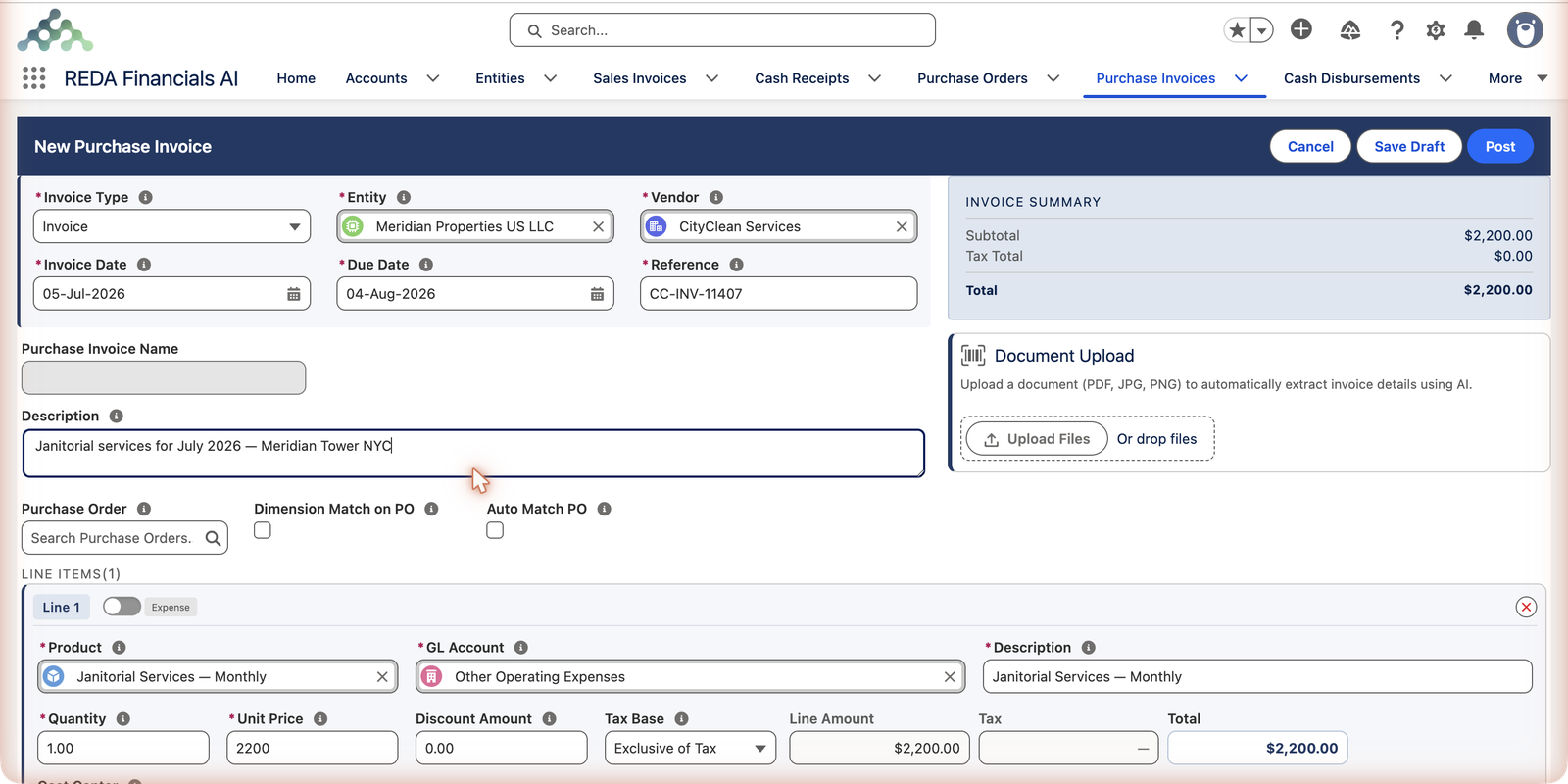
Pick the Product
Start typing in Product and choose from your catalog — here Janitorial Services — Monthly. The product brings its own defaults: the GL Account (where the cost is recorded — Other Operating Expenses), the line Description, and the Unit Price from its list price. You can override any of them.
Check quantity, price and discount
Quantity × Unit Price gives the Line Amount; both must be positive numbers. Enter any trade discount in Discount Amount — it can't exceed the line amount. The Tax Base choice controls whether the price you typed already includes tax; taxes themselves calculate automatically from your tax setup (see PI Tax & Tax Profiles).
Tag a Cost Center (optional)
If your organization tracks costs by department or function, pick a Cost Center — Meridian tags building running costs to Property Operations. This dimension flows through to your ledger for reporting.
Add more lines as needed
Click + Add Line for each additional item on the bill — a single invoice can spread costs across many accounts. Remove a line with the ✕ on its right. The toggle beside each line number turns it into a credit line (used mainly on vendor memos — the badge flips from Expense to Vendor Memo).
Step 4 — Save Draft or Post
You have two ways to finish:
- Save Draft — stores the invoice without touching your books. Use this when the bill still needs review or approval. You can edit everything later.
- Post — saves and records the accounting entries in one step. Your expense and the amount owed appear in your financials immediately.
We clicked Save Draft. REDA Financials assigned the invoice number MPI001023 from the entity's document sequence, matched the accounting period 2026-07 from the invoice date, and landed us on the new record:
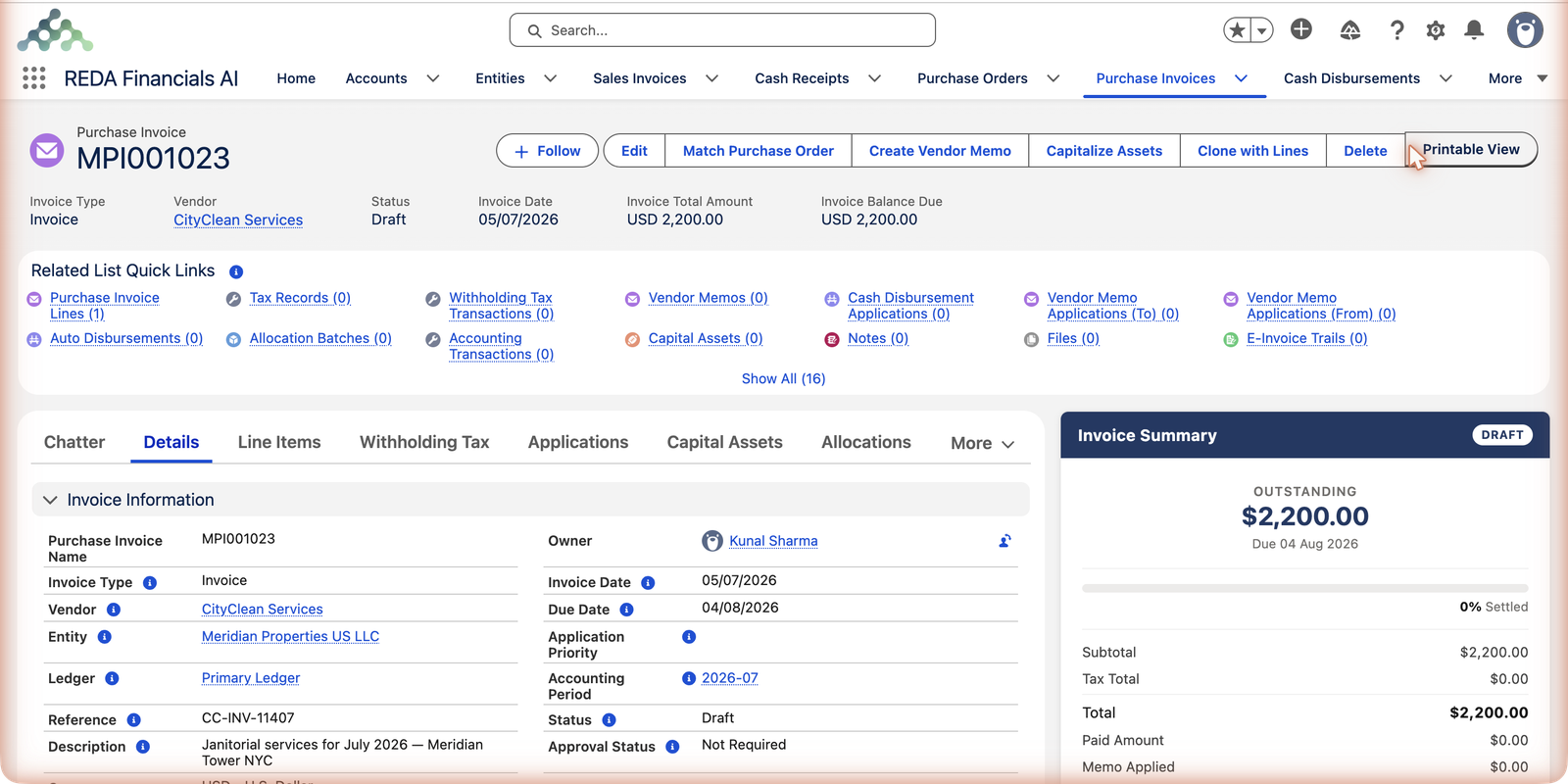
What happens after posting
The moment you post, REDA Financials creates the balanced ledger entries (debit your expense accounts, credit Accounts Payable), locks the document, and the invoice starts tracking its own payment — balance due, aging bucket, overdue flag. The full picture is in Posting & Voiding a PI, and paying the invoice is covered in Creating a Cash Disbursement.
Where to go next
- PI Tax & Tax Profiles — how tax appears on your lines.
- Posting & Voiding a PI — the lifecycle in depth.
- Creating PI from a PO — start from the purchase order instead.
- Cloning a Purchase Invoice — repeat last month's bill in two clicks.
- Creating an Invoice from OCR — let AI type it for you.
Frequently asked questions
Invoice numbers are assigned automatically from your entity's document sequence when you save — that's how numbering stays gap-free and consistent. Record the vendor's own bill number in the Reference field instead.
Post activates once every required field is valid: type, entity, vendor, both dates (in your org's date format), reference, and at least one complete line. If it's still disabled after that, check the date fields for a red format message.
Yes — the product only provides a default. Click the ✕ on the GL Account and pick another. It must be an active account that your entity is allowed to use.
Yes — every line needs a product from your catalog. Products carry the default expense account and pricing, which keeps coding consistent. If you regularly buy something that has no product yet, ask your administrator to add one (see Creating Products).
Open the draft and click Delete. Drafts can be deleted freely because nothing has been recorded in your books yet. Once posted, an invoice can only be voided, not deleted.
Was this article helpful?