
Reading an E-Invoice Trail
When REDA Financials files an invoice with a tax authority, it keeps a record of the entire exchange on a single object called the E-Invoice Trail — one per invoice. It holds what was sent, what came back, the official identifiers the authority issued, and every attempt made along the way. When something goes wrong, the Trail is where the answer is; when an auditor asks for proof that an invoice was filed, the Trail is the evidence.
This article explains how to read one, what each of the eight statuses is telling you, and what to do about the two that need a person: Rejected and Error.
Where Trails live, and who can see them
There are two ways to open a Trail, and you will use both.
- From the invoice. Open the Sales Invoice and scroll to the E-Invoice Trails related list at the bottom of the record. This is the right route when you are asking “what happened to this invoice?”
- From the tab. Go to App Launcher → REDA Financials → E-Invoice Trails for the full list. This is the right route when you are asking “what is stuck?” — sort or filter by Status to see everything sitting at Rejected or Error at once.
What is on the record
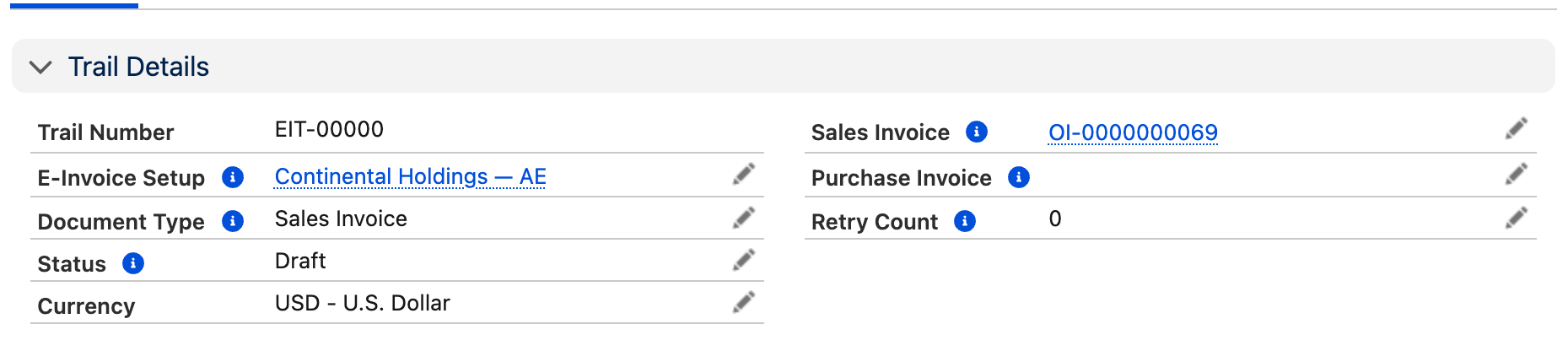
The Trail layout is grouped into four blocks. You do not need to understand every field to use it — but you do need to know which three fields answer “what went wrong”.
| Section | Field | What it tells you |
|---|---|---|
| Trail Details | Trail Number | The record's own reference. Quote it when you raise a query with whoever supports your country connection. |
| E-Invoice Setup | Which entity configuration handled this filing. Useful when you run several entities and need to know which one was in play. | |
| Document Type | What kind of document was filed. In this release only sales-side documents are filed, so a trail reads Sales Invoice or Credit Memo — the field’s other values are not produced by the current engine. | |
| Status | Where the document has got to. The single most important field on the record — see the eight statuses. | |
| Sales Invoice | The invoice this Trail belongs to. | |
| Retry Count | How many attempts have failed. A count of 0 alongside a status of Error means it failed on the very first try; a climbing count means something is failing repeatedly and will not fix itself. | |
| Provider Document ID | The reference the country connection assigns to the document at submission. It is how REDA later asks “what happened to this one?”, which makes it load-bearing for the status poll — see stuck at Submitted. New in this release. | |
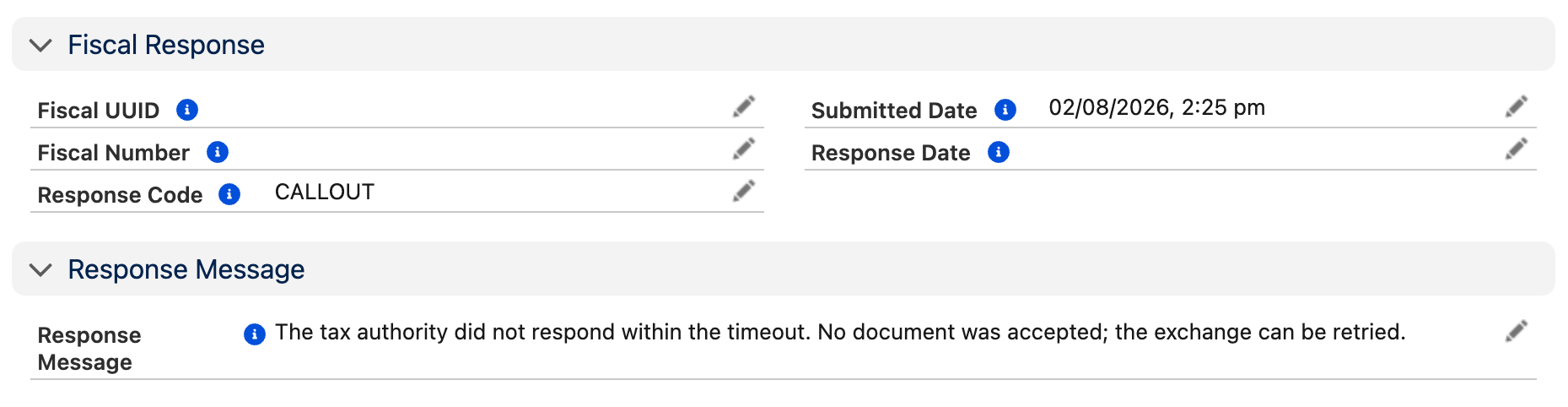
| Fiscal Response | Fiscal UUID | The unique identifier the authority issues when it accepts the document. This is the number that makes the invoice legally valid, and it is the one an auditor asks for. |
| Fiscal Number | The authority's own sequential document number, where the country issues one in addition to the identifier. | |
| Response Code | The authority's status code, or one of REDA's own codes when the document never got that far. Short, and paired with the message below. | |
| Submitted Date | When the document was transmitted. | |
| Response Date | When a definitive answer came back. The gap between the two is how long the authority took. | |
| Response Message | The reason, in words. On a rejection this is the authority's list of what is wrong with the invoice; on an error it is what prevented the exchange. Read this first. | |
| Payloads | XML Payload / Response Payload | The raw documents sent and received. You will rarely need them, but they are retained so that a technical query can be answered without re-filing anything. |
The eight statuses
Status is the whole story in one field. Five of the eight are the system working normally and need nobody; three want attention.
| Status | What has happened | What you do |
|---|---|---|
| Draft | A Trail was created when the invoice posted, but the entity is configured for manual filing so nothing has been sent yet. | Release it when you are satisfied with the invoice. Nothing happens until you do. |
| Ready to Send | Released — either automatically on posting, or by a person. It is about to be checked and queued. | Nothing. This status normally lasts seconds. |
| Queued | Checks passed; the document is in line to be transmitted. Documents are sent one at a time so that a single bad one cannot affect its neighbours. | Nothing. Wait. |
| Submitted | The authority has the document and has acknowledged it, but has not ruled on it yet. | Nothing — provided the status poll is scheduled. See stuck at Submitted. |
| Accepted | Approved. The Fiscal UUID is populated and the invoice is legally valid. | Nothing. This is the finish line. |
| Rejected | The authority received the document, examined it, and refused it. The reason is in Response Message. | Act. See Rejected. |
| Error | The exchange itself failed — the document was never validly delivered, or REDA could not process it. | Act. See Error. |
| Cancelled | The document was withdrawn at the authority. | Nothing. |
Sending a Trail yourself — Send / Resend
Most invoices are filed without anyone touching them. Two situations need a person: an entity set to file manually, and a document that failed. Both are handled by the same control on the Trail record — Send / Resend.
| Trail status | Button reads | What happens |
|---|---|---|
| Draft | Send | The document is checked and filed. This is the normal path when the entity has Auto Submit On Post unticked. |
| Error | Retry | The document is re-checked and filed again. Use after fixing whatever the Trail’s message reported. |
| Queued, Submitted, Accepted, Rejected, Cancelled | — refused | The action explains which status blocked it and does nothing. |

- Open the Trail — from the invoice’s E-Invoice Trails related list, or the E-Invoice Trails tab.
- Check the invoice is genuinely correct. Once it is filed and accepted, the only way to change it is a credit memo.
- Click Send / Resend in the action bar at the top right of the record.
- Read the confirmation and click Send (or Retry).
- Check what you should see: the Trail moves to Queued, then Submitted within a minute or so. Refresh to watch it move. If it lands on Error instead, the checks found a configuration problem — see Error.
Rejected — the authority said no
A rejection is a verdict about the content of the invoice. The authority has compared it against its own records and rules, and something did not hold up. Common causes are a customer tax identifier that is not registered, or does not match the name on the authority's register; a total or tax figure the authority calculates differently; or a document number that clashes with one already filed.
What to do, in order:
- Open the Trail and read Response Message in full. Authorities typically list every problem they found, not just the first — fixing one and refiling wastes a round trip.
- Decide whether the fault is in the invoice or in the master data behind it. A wrong customer tax identifier is master data, and the same rejection will hit every invoice for that customer until it is corrected on the customer record.
- Correct the underlying data.
- Because the original invoice is posted, correct the accounting the normal way: issue a credit memo against it, then raise a corrected invoice. The corrected invoice posts and files as a new document with its own Trail.
Error — the exchange broke down
Error means no verdict exists, because the document never completed its journey. The Response Code narrows down where it stopped, and Response Message gives the detail.
| What Response Code shows | What it means | What fixes it |
|---|---|---|
| VALIDATION | REDA's own pre-send checks found a configuration problem and deliberately did not call the authority. The message names each one. | Read the message — the specific problems are listed below. |
| CALLOUT | The attempt to reach the authority failed — it was unreachable, timed out, or refused the connection. | Usually transient. Retry. If it persists, the authority's service or your connection to it is down; check with whoever installed your country connection. |
| Anything else | A code returned by the authority or by the country connection itself. | Read the message, then quote the Trail Number and that code to whoever supports the connection. |
When the code is VALIDATION, the message spells out exactly which check failed. Each of these is a configuration problem an administrator fixes on the E-Invoice Setup record — none of them is anything to do with the invoice:
| The message says | What to do |
|---|---|
| No E-Invoice Setup is linked to this Trail | The configuration record the Trail pointed at is gone. Open the entity's E-Invoice Setup, confirm it exists, and re-post the invoice so a fresh Trail is created. |
| The E-Invoice Setup for this entity is not active | Tick Active on the entity's E-Invoice Setup, then release the Trail again. |
| Document type is not enabled on the E-Invoice Setup | Add that document type to Document Types on the Setup, then release the Trail again. |
| The connection to the authority could not be resolved | The country connection is missing or was removed. Confirm the extension package that connects your country's authority is still installed and configured, and check the Setup record with whoever installed it. |
| The Trail references no source document | The invoice behind the Trail no longer exists. Nothing to file; the Trail can be left as a record of the attempt. |
To retry after fixing the cause, click Send / Resend on the Trail — exactly as when filing a Draft. The checks run again and, if they now pass, the document is queued and sent. Retry Count increases each time an attempt fails, so it is a quick way to spot a Trail that is being retried into a wall rather than fixed.
A Trail sitting at Submitted and not moving
Submitted is a normal, healthy status — the authority has the document and is thinking. Many authorities answer in minutes; some take hours, and most are slower at month-end when everyone files at once. So a Trail at Submitted is only a problem when it stays there.
| What you see | Almost certainly | What to do |
|---|---|---|
| Everything is stuck at Submitted, none of it ever reaches Accepted | The E-Invoice Status Poll has never been scheduled. Nothing collects the verdicts, so nothing moves. This is the single most common go-live omission. | Schedule it — see the E-Invoice Status Poll card. The backlog clears on the first run. |
| One Trail is stuck while others around it clear | That document has no Provider Document ID. The poll asks after documents by that reference, so a Trail without one is never asked about, indefinitely. | Check the field on the Trail. If it is blank, the submission did not complete cleanly — retry it with Send / Resend. |
| Everything is stuck and the poll is scheduled | The scheduled job is failing, or the authority is not answering. | Check the job's last run on Admin Console → Operations, and use Run Now to test it immediately rather than waiting for the next cycle. |
Using Trails as audit evidence
A Trail is designed to be handed to an auditor. For any invoice it answers what an audit actually asks — was this filed, when, what did the authority say, and what identifier did it issue — without anyone logging into a government portal or reconstructing it after the fact. Two properties make it dependable:
- One invoice, one Trail — permanently. Re-posting never creates a second Trail, so there is exactly one thread of evidence per document.
- Nothing is overwritten by users. The system writes the record and the permission sets grant read access only, so the sent document, the reply and the timestamps stay as they were.
Where to go next
- Electronic invoicing: how it works — the concept and the end-to-end flow.
- Setting up electronic invoicing for an entity — the configuration behind every Trail.
- The E-Invoice Status Poll — the scheduled job that resolves Submitted documents. Required.
- Electronic invoicing on the Sales Invoice — what the AR team sees day to day.
- E-Invoice extensions — how a specific country's authority is connected.
Frequently asked questions
You should not, and the packaged permission sets do not let you. A Trail is the evidence that a filing was attempted, including the attempts that failed — deleting it destroys exactly what an audit wants to see. Fix the cause and retry the existing Trail instead with Send / Resend.
Three possibilities, in order of likelihood: the invoice is marked Skip E-Invoicing; there is no active E-Invoice Setup for that invoice's entity; or the Setup exists but that document type is not selected in Document Types. All three are deliberate — nothing is filed by accident.
No. Trail creation checks whether one already exists for that invoice and skips if it does, so re-posting never produces a duplicate filing.
Rejection messages come from the tax authority in its own wording, so they can be terse. Note the Trail Number and the Response Code, then raise it with whoever implemented your country connection — those two values are enough for them to identify the document precisely.
That the same document has failed repeatedly. Retrying only helps when the cause was temporary, such as the authority being briefly unreachable. A count that keeps climbing means the underlying problem has not been fixed — read Response Message and address what it says before retrying again.
Yes. E-Invoice Trail is a standard reportable object, so you can build a report grouped by Status to monitor the queue, or filtered to Rejected and Error as a daily work list. The invoice itself also carries E-Invoice Status, so you can report from the Sales Invoice side without joining to the Trail.