
Recurring PI & PO Templates
The electricity bill arrives every month. The maintenance contract bills every quarter. The equipment order renews every year. For costs with a rhythm, a Recurring Template teaches REDA Financials the pattern once — vendor, lines, amounts, schedule — and the system generates each period’s document on time, forever, or until you say stop.
Access you'll need. Creating and editing Recurring Templates requires the Accounting Admin v2 or Accounting Controller v2 permission set. The Accounts Payable v2, Accounts Receivable v2, and Read Only v2 sets can review templates and everything they've generated but not change the templates. The org-wide scheduler that runs generation is administrator territory. The AP documents a template produces are ordinary payables work your AP team handles as usual.
Anatomy of a template
Here is Meridian’s template for its monthly electricity bill:
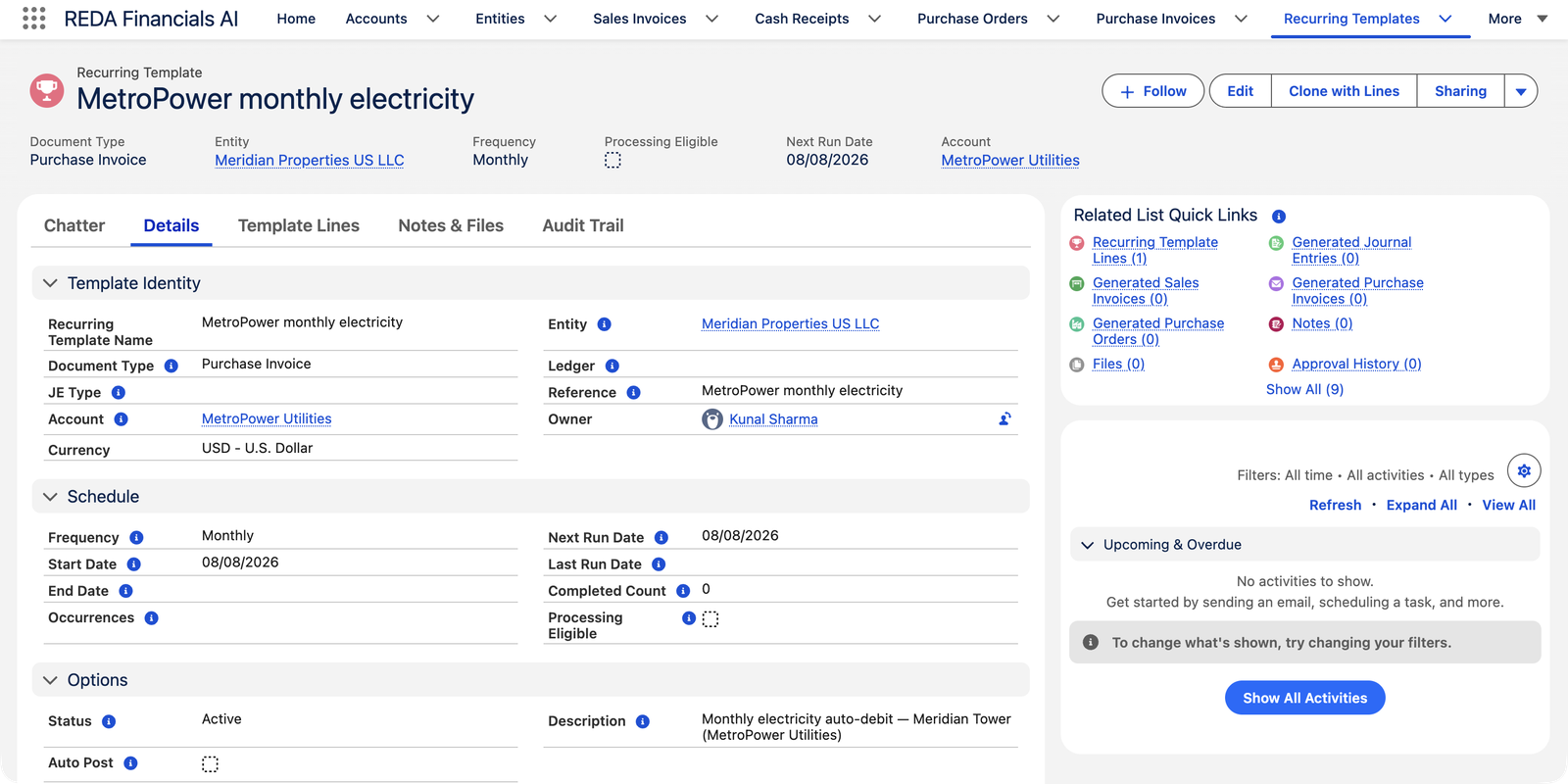
| Setting | What it controls |
|---|---|
| Document Type | What gets generated — Purchase Invoice or Purchase Order here (the same object also drives recurring sales invoices and journal entries). For invoices, the invoice type too (Invoice or Expense). |
| Entity & Account | Which of your companies, and which vendor. |
| Frequency | Daily · Weekly · Bi-Weekly · Monthly · Quarterly · Semi-Annual · Annually. |
| Start / End Date & Occurrences | When generation begins, and when it stops — by date, by count, or never. |
| Due Days | Payment terms for the generated documents: due date = generation date + this many days. |
| Auto Post | Off: documents arrive as drafts for review. On: they post themselves the moment they’re generated — full autopilot. |
| Template Lines | The document’s content: product, GL account, quantity, price, discount, tax profile per line — exactly like invoice lines, defined once. |
| Next Run Date / Last Run Date | The heartbeat: when the next document is due to generate, and when the last one actually did. |
| Completed Count | How many documents the template has generated so far — measured against Occurrences when you stop by count. |
| Status | Draft (being built; nothing generates) · Active (the scheduler runs it) · Completed (finished; kept for reference). |
Template lifecycle
Draft → Active → Completed. A template must be built as a draft first — it can only be activated once it has lines, and activation checks them (product, positive quantity and price on every line; a vendor on the template). From Active, the daily scheduler generates documents whenever the Next Run Date comes due; each run advances the date by the frequency and increments Completed Count. Hitting the end date or the occurrence limit flips the template to Completed. Pause anytime by setting it back to Draft.
What a generation run does
- Creates the document dated the generation day, in the matching accounting period, with due date per Due Days, and all lines copied from the template.
- Links it back to the template — the Generated Purchase Invoices (or Orders) list is your complete audit of what the template has produced.
- Never duplicates: one document per template per date, guaranteed, even if the scheduler runs twice.
- With Auto Post on, posts it too — and if posting would fail (a closed period, a validation), the whole generation rolls back rather than leaving a broken draft.
One cycle, watched closely
Take the template above on the morning its Next Run Date (8 August 2026) comes due. The daily generation run:
Builds the document
A new Purchase Invoice for MetroPower Utilities, dated 8 August, in the August accounting period (resolved automatically), due per the template's Due Days, with the electricity line copied exactly — product, GL account, quantity, price, tax profile.
Posts it — because Auto Post is on
The document posts immediately, with every ordinary posting check applied. And since this template generates Expense-type invoices, posting also creates and posts the payment — the auto-debit is fully recorded, unaided.
Updates the heartbeat
Last Run Date stamps today, Completed Count ticks up by one, Next Run Date advances a month, and the new invoice joins the Generated Purchase Invoices list.
Before a template will activate
Activation is where the template proves it can generate valid documents. The checks, by document type:
| Document Type | What activation requires |
|---|---|
| Purchase Invoice | At least one line; every line a product, a quantity above zero, a price above zero; a vendor on the template. |
| Purchase Order | The same discipline: vendor, product, quantity and price on every line. |
| Journal Entry / Sales Invoice | Their own rules (balanced lines; customer and priced lines) — same idea, other subledgers. |
A template that fails these stays in Draft — better to block at activation than to generate broken documents at 2 a.m.
Creating a template
Two routes: the New button on the Recurring Templates tab (pick Document Type = Purchase Invoice or Purchase Order and build lines like any document), or — faster — open an existing invoice or order that already looks right and use Clone with Lines onto a template. Set the schedule, activate, done. The generation engine itself is scheduled org-wide by your administrator (see Recurring Transaction Scheduler).
When the amount varies month to month
Keep the template but leave Auto Post off: each month’s draft arrives pre-built, you correct the actual amount from the bill, and post. Still faster than typing the document — and for truly stable amounts (rent, subscriptions, retainers) turn Auto Post on and forget it. For bills that arrive as documents (PDF/scan), compare OCR intake — many teams use OCR for variable bills and templates for fixed ones.
Common mistakes to avoid
| Mistake | Why it hurts | Do this instead |
|---|---|---|
| Auto Post on a bill whose amount varies | The template posts last agreed numbers, not this month's reality — corrections pile up after the fact | Leave Auto Post off; review and adjust each draft, which is still faster than typing it |
| No End Date and no Occurrences on a fixed-term contract | The template keeps billing after the contract dies — an autopilot with no landing | Set the end when you set the start; the template flips to Completed by itself |
| Forgetting the template after a price rise | Every future document carries the old price — and with Auto Post on, posts it | Make "update the template" part of processing any vendor rate change |
| Letting generated drafts pile up unreviewed | A draft is not a cost in your books — expenses go missing from reports until someone posts them | Review the drafts list on a rhythm as regular as the templates that feed it |
| Reactivating after a pause without checking Next Run Date | The engine generates for the stale date — or skips what you expected it to catch up | Set Next Run Date deliberately on every reactivation; back-fill missed periods manually |
Who can manage templates
Creating and editing Recurring Templates is a controller-owned function: the Accounting Admin or Accounting Controller permission set. Accounts Payable, Accounts Receivable and Read Only can review templates and everything they've generated, but change nothing. (The AP invoices and orders a template produces are ordinary payables work — your AP team handles those as usual.) The org-wide scheduler that runs generation is administrator territory.
Where to go next
- Recurring Templates Overview — the feature across all document types.
- Recurring Transaction Scheduler — the engine’s schedule.
- Expense-Type Purchase Invoices — the perfect partner for auto-debits.
Frequently asked questions
Three checks: is the template Active (drafts don’t run)? Is its Next Run Date actually due? And is the org-wide recurring scheduler running (an administrator can see and run it from the Operations console)? The template’s Last Run Date and generated-documents list tell you what has actually happened.
Yes — generated documents are independent copies. Edit the template (price rise, new line) and only future generations change.
Nothing generates while it’s Draft. When you re-activate, check the Next Run Date — set it to the next date you actually want; the engine won’t back-fill missed periods (create any catch-up documents manually, or via cloning).
Whichever arrives first: the template flips to Completed when its Completed Count reaches the occurrence limit or the end date passes. Completed templates stop generating but stay on file with their full history.
Yes — each line's tax profile is copied from the template, the form previews the result, and the stored amounts are written when the generated document posts, exactly as for a hand-entered invoice. A template guarantees consistency of setup, not a shortcut past the tax engine.
No — a template belongs to one Entity, like the documents it produces. The same shared cost in three companies means three templates (or one template plus an expense allocation list that shares the posted cost automatically).
Was this article helpful?