
Post-Installation Setup
Once REDA Financials is installed and your users are licensed, you configure the application from one place: the Admin Console. This is your control centre for activating your subscription, setting financial defaults, seeding your chart of accounts and tax rules, defining territories, generating accounting periods, and scheduling the automated jobs that keep your books moving. This article walks through every tab.
Access you'll need. Using the console requires the Accounting Admin v2 permission set (or the older Accounting Admin set, if you have not yet migrated — see Migrating to the v2 permission sets) — the Financial Admin Console tab is visible to Accounting Admins (Accounting Controller v2 and Read Only v2 can reach it; Accounts Payable v2 and Accounts Receivable v2 cannot see it). See Permission Set Assignment.
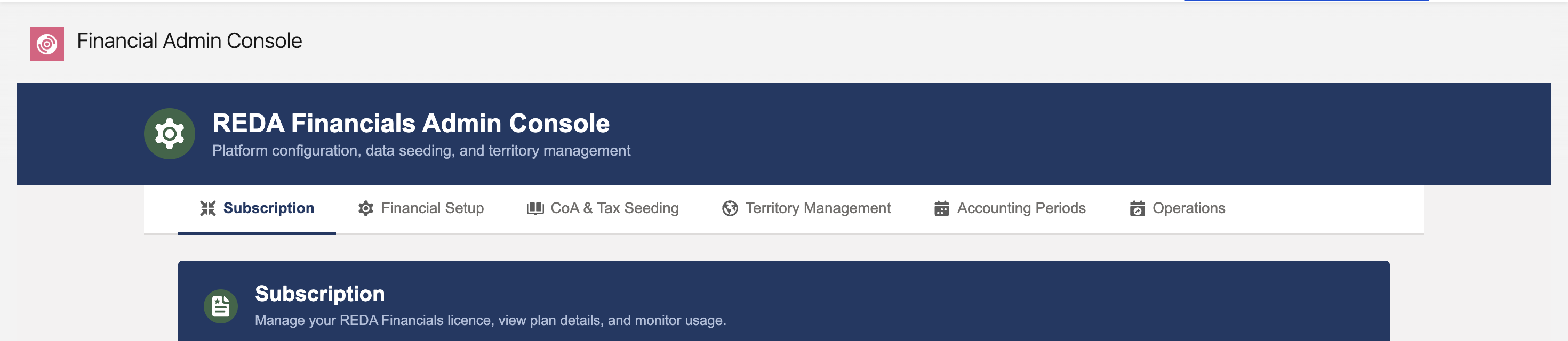
A recommended setup order
The console tabs can be used in any order, but for a brand-new organisation this sequence works best — each step builds on the one before it:
- Activate your subscription so the application is fully enabled.
- Set your currency mode in application settings — decide whether you are running in single- or multi-currency mode before any transactions exist.
- Seed your chart of accounts and tax rules for the countries you operate in. Seeding the chart of accounts automatically creates your global accounting defaults.
- Review your accounting defaults — check the global defaults the seeding created, and adjust any you want to change.
- Define your territories. Every entity belongs to a territory, so you need at least one — even if you operate in a single country.
- Create your entities (your legal companies), assign each to a territory, and generate accounting periods for each territory.
- Schedule the automated operations your organisation will rely on.
1. Subscription
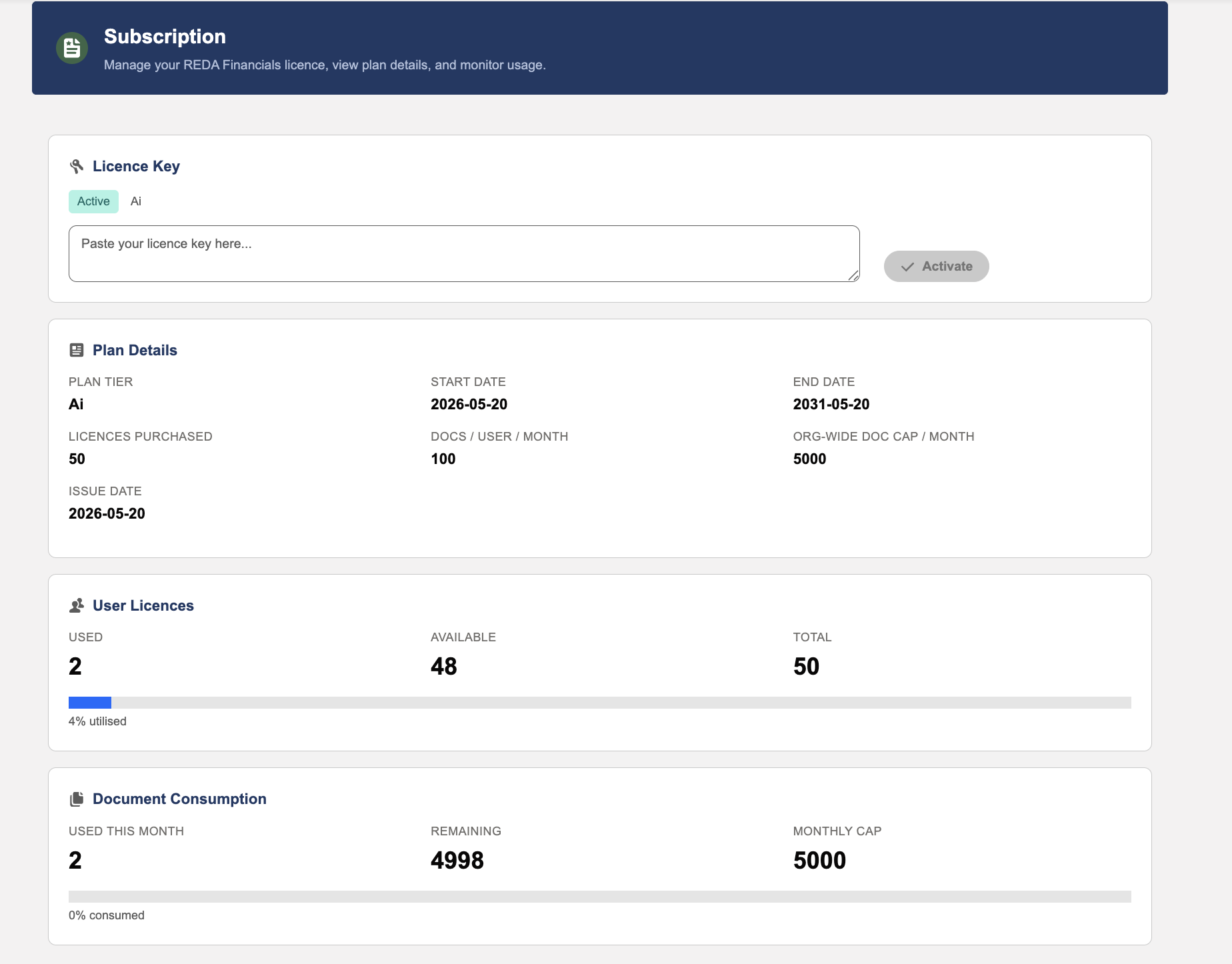
The Subscription tab is where you activate REDA Financials and keep an eye on your usage. It has four areas:
- Licence Key Activation — paste the licence key provided by REDA and click Activate. A status badge confirms the licence is active and shows your plan.
- Plan Details — your plan, its start and end dates, the number of user licences included, and (on AI plans) your document allowances.
- User Licences — how many licences are used, available, and total, with a usage bar. This is the figure to check before licensing a new user — see License Assignment.
- Document Consumption (AI plans only) — how many AI documents have been used this period and how many remain.
2. Financial Setup
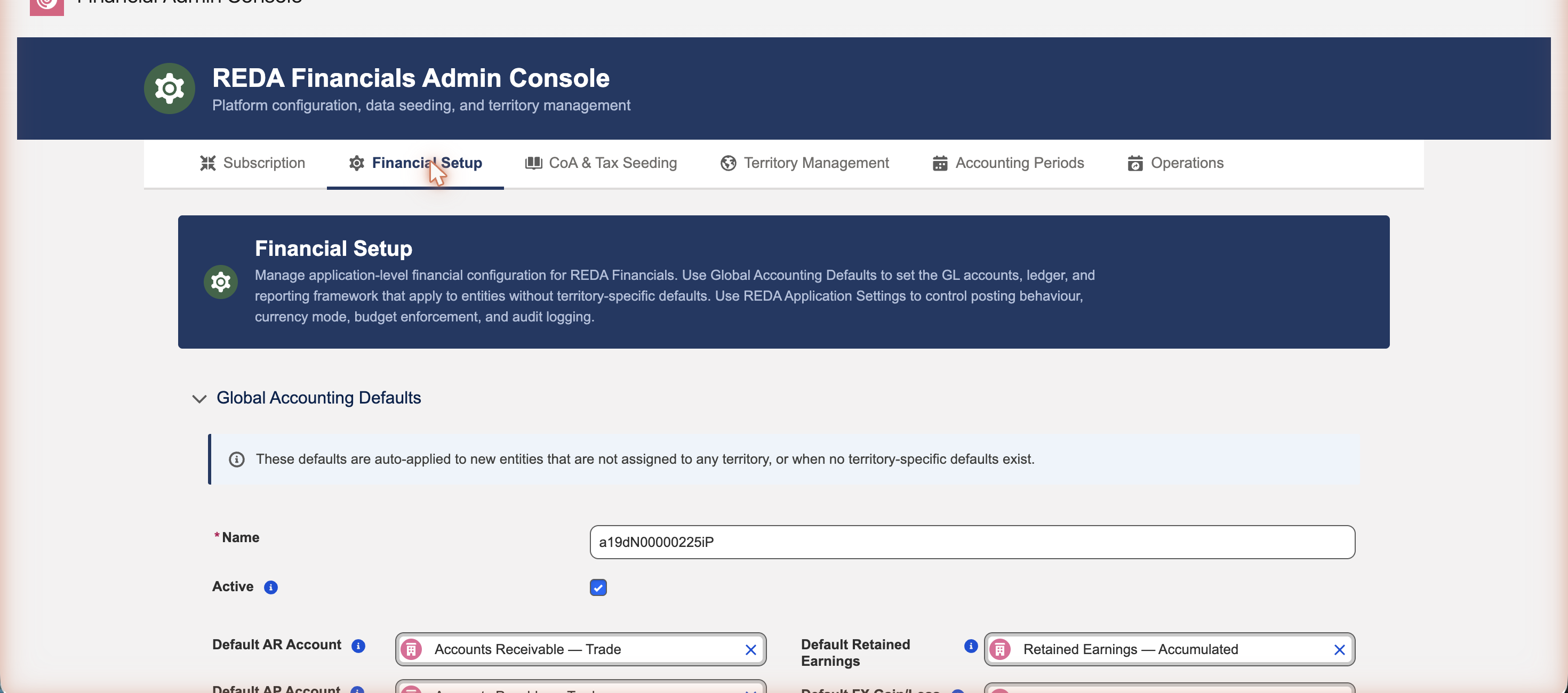
The Financial Setup tab holds two sections that control how the application behaves across your whole organisation.
Global Accounting Defaults
Every accounting transaction needs to know which GL accounts to post to — which account is your receivables control, which is your payables control, which captures rounding or foreign-exchange gains and losses, and so on. Rather than make you pick these on every document, REDA Financials reads them from a set of defaults. The Global Accounting Defaults are the organisation-wide answer: the GL accounts, ledger, and reporting framework that apply whenever a more specific default has not been set.
Defaults resolve from the most specific level to the most general. When the system needs an account, it looks first at the territory the entity belongs to; if that territory has its own defaults, those win. If it does not, the global defaults are used. This lets a US entity and an India entity each post to locally appropriate accounts while still sharing one sensible baseline.
REDA Application Settings
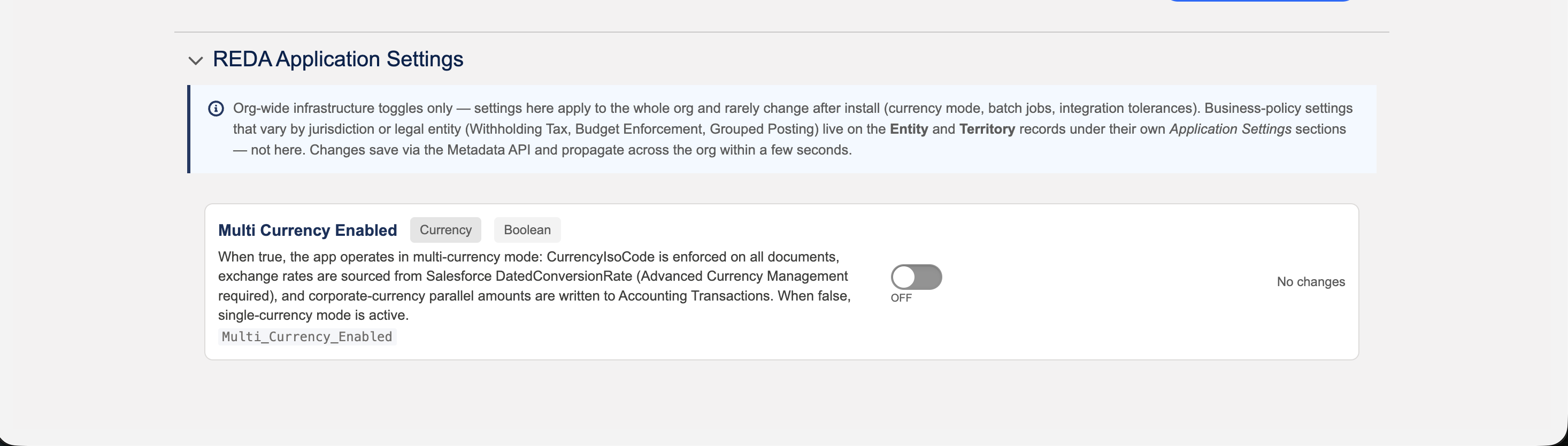
This section holds organisation-wide infrastructure settings — switches that apply to the whole org and rarely change after install, such as your currency mode. Each setting shows a short description and an inline control with its own Save button.
The most important setting for a new organisation is Multi Currency Enabled, which determines whether REDA Financials runs in single-currency or multi-currency mode.
3. CoA & Tax Seeding
The CoA & Tax Seeding tab gives you a ready-made starting point rather than building everything by hand. It is organised by continent and country. Each card seeds a bundle of configuration for you.
- The Global card seeds a starter chart of accounts: GL accounts, reporting frameworks (such as IFRS and local GAAP structures), account groups, group members, and accounting defaults.
- Each country card seeds that country’s tax content: tax jurisdictions, tax types, transaction tax rules (VAT, GST, sales tax), and withholding (WHT) rules.
The benefit is speed and correctness: instead of hand-building hundreds of accounts and tax rules — and risking gaps or mistakes — you start from a complete, standards-aligned baseline that REDA maintains. For Meridian Properties Group, seeding the Global pack plus the United States and India cards produces an IFRS-based chart of accounts, US sales-tax rules, and Indian GST and TDS withholding rules in minutes — ready to use or fine-tune.
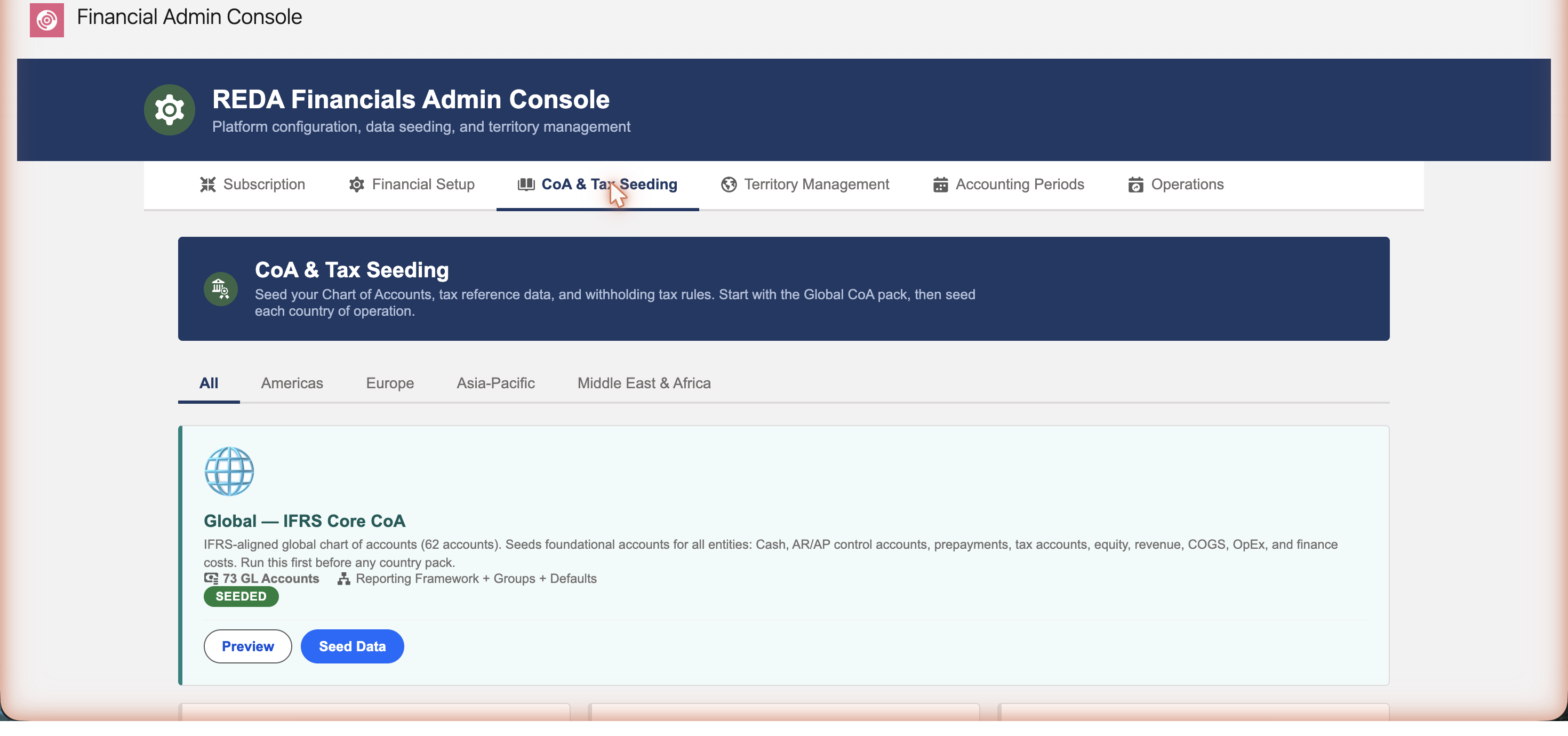
Each card gives you two actions:
Preview — see before you commit
Preview opens a read-only summary of exactly what the card will create — counts of GL accounts, jurisdictions, tax types, tax rules, and withholding rules — along with a sample of the actual rules, their codes, and rates. Nothing is created when you preview; it is purely a look-ahead so you can confirm the pack matches your expectations before committing.
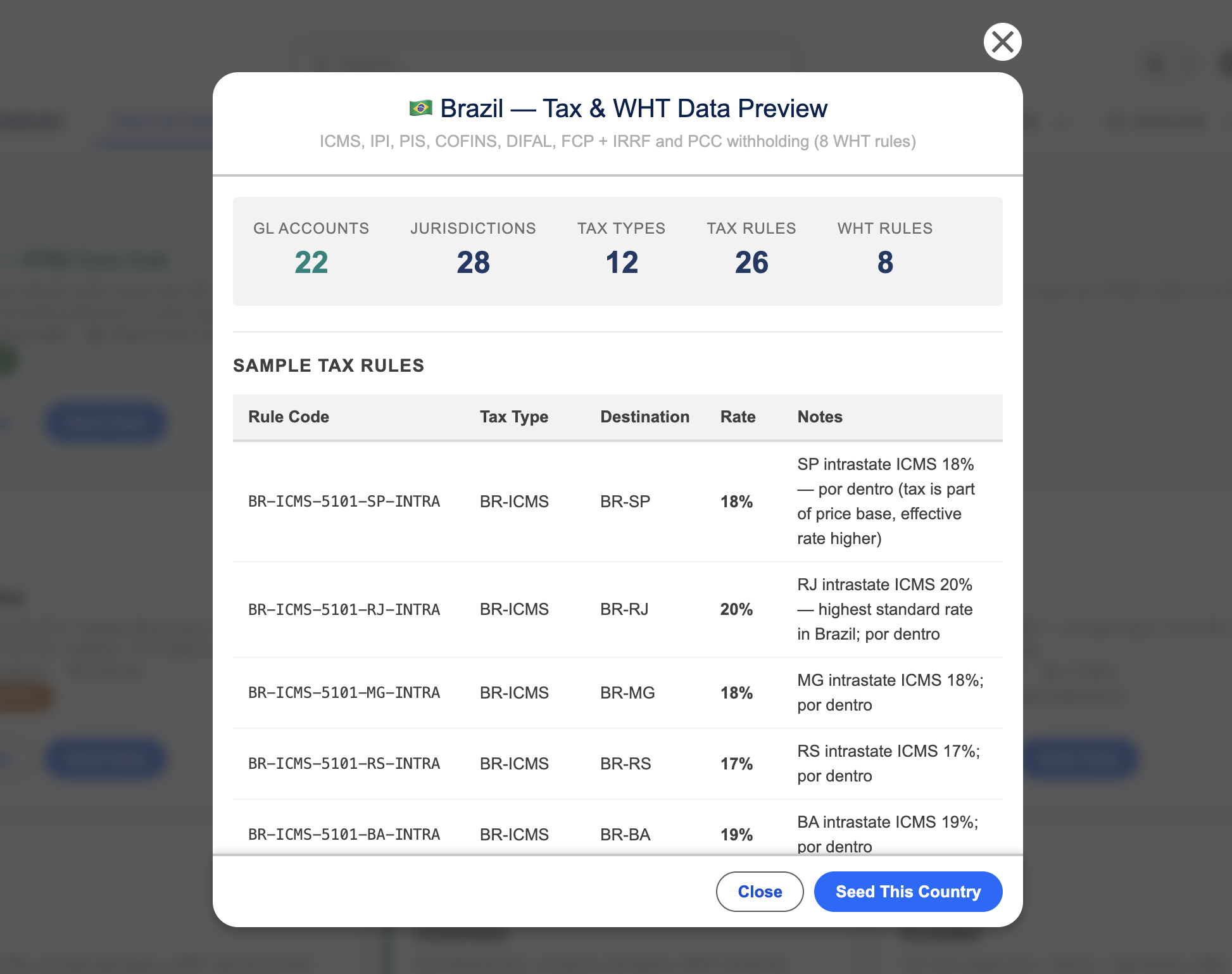
Seed Data — create the records
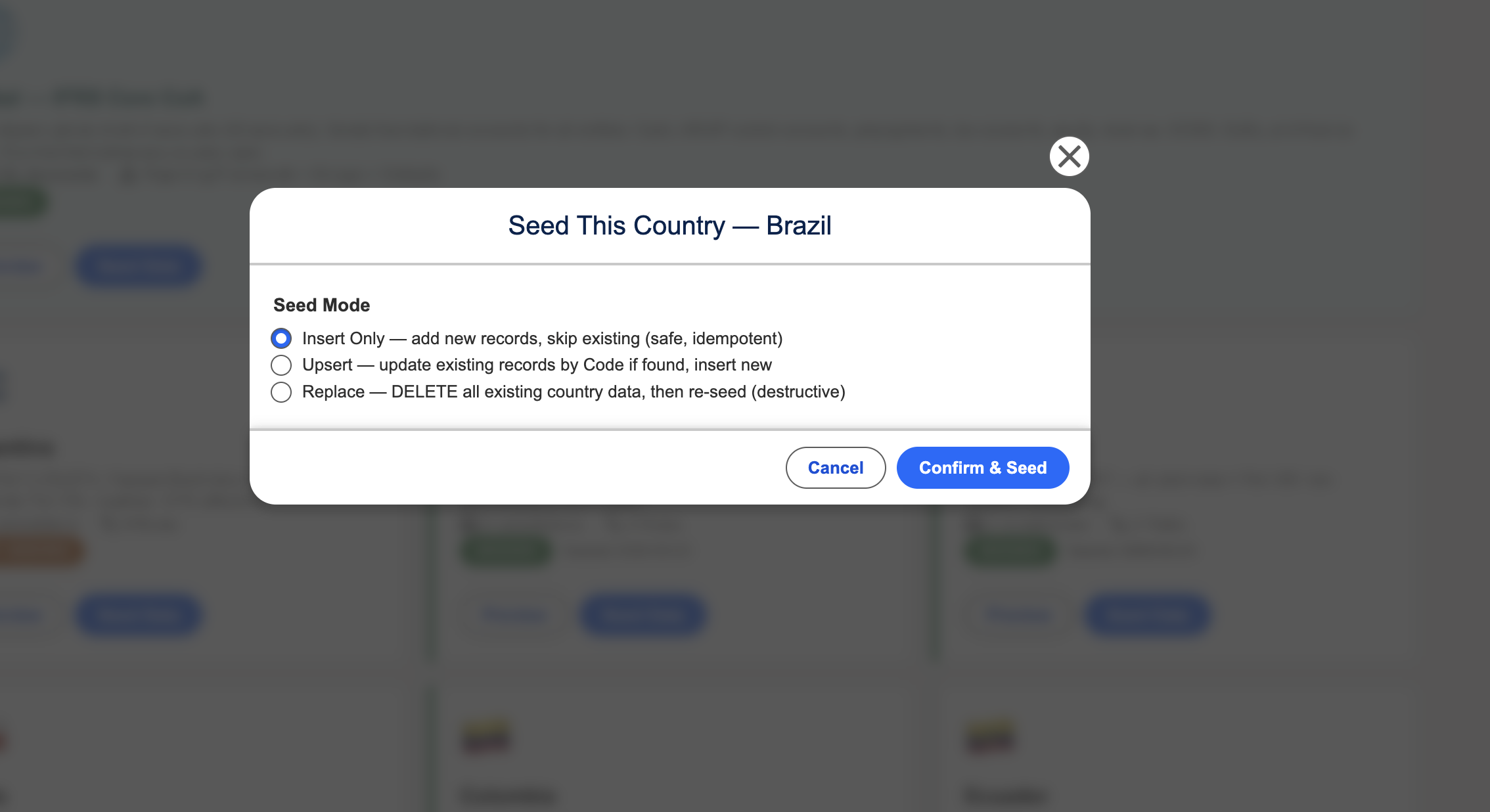
Seed Data actually creates the configuration. Before it runs, it asks how you want existing data handled — the seed mode:
- Insert Only — adds new records and skips anything that already exists. This is the safe, repeatable choice and the right one for a first-time setup.
- Upsert — adds new records and updates existing ones (matched by code). Use this to pull in REDA’s latest updates to a pack you seeded earlier.
- Replace — deletes all existing data for that country and re-seeds from scratch. This is destructive; use it only when you deliberately want a clean reset.
4. Territory Management
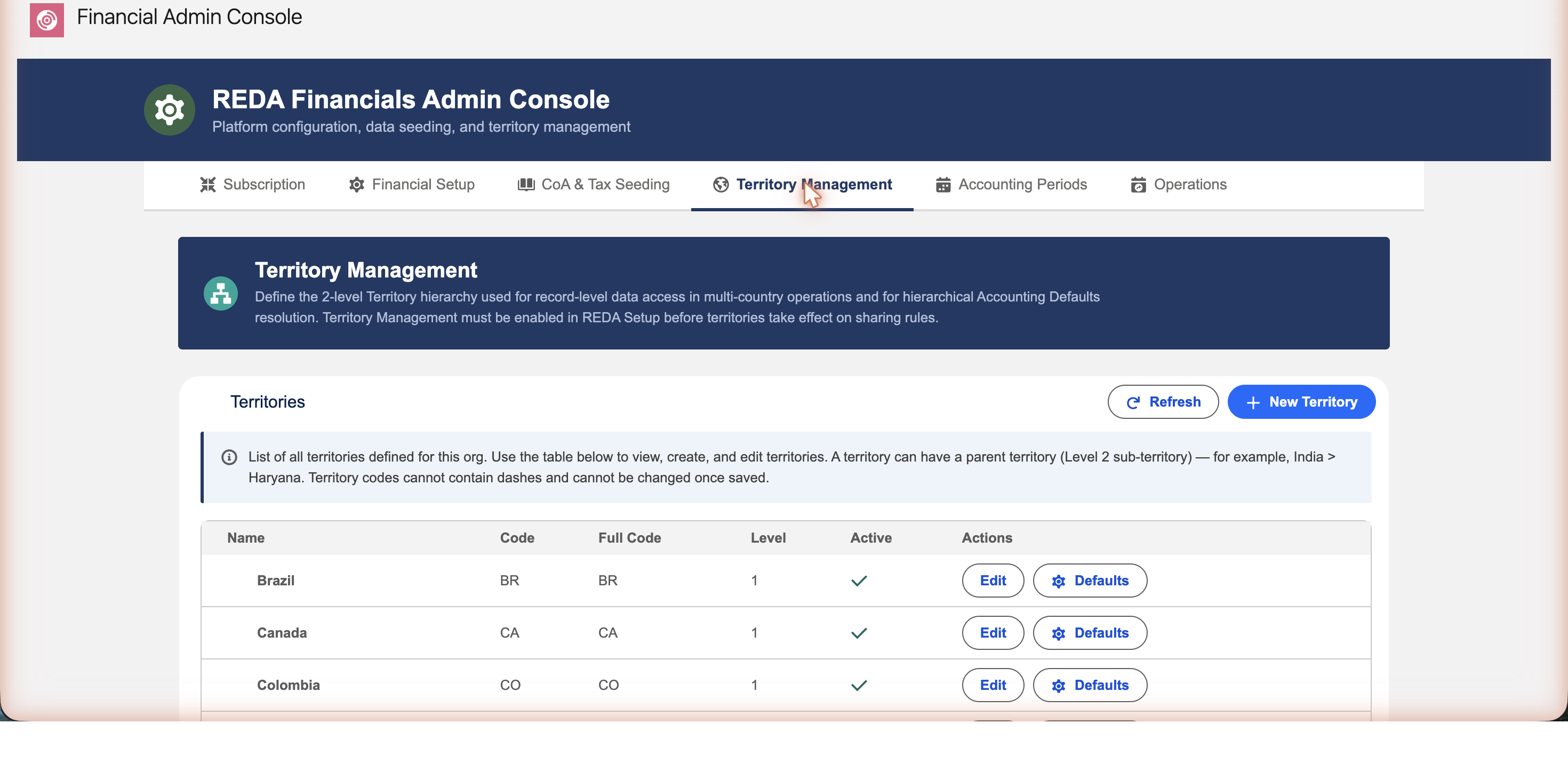
A territory represents where your business operates, and it is a required part of the structure — not just a multi-country feature. Every entity belongs to a territory, so you need at least one even if you run a single company in a single country. Territories do two important jobs:
- They anchor your entities and their defaults. Because each entity sits in a territory, accounting defaults and accounting periods can be set at the territory level and shared by every entity within it.
- They control data access across regions. When you operate in more than one territory, the hierarchy governs which users can see which records — so your India team and your US team each work within their own data.
REDA Financials supports a two-level hierarchy — a country and, optionally, sub-regions within it. The tab lists your territories in a table. Click New Territory and provide:
- A name (for example, India).
- A short territory code (for example,
INorHR). Codes cannot contain dashes and cannot be changed once saved. - An optional parent territory, which makes this a Level 2 sub-territory — for example, Haryana under India.
Each territory also has a Defaults button, where you set the accounting defaults that apply to entities in that territory — overriding the global defaults from Financial Setup.
5. Accounting Periods
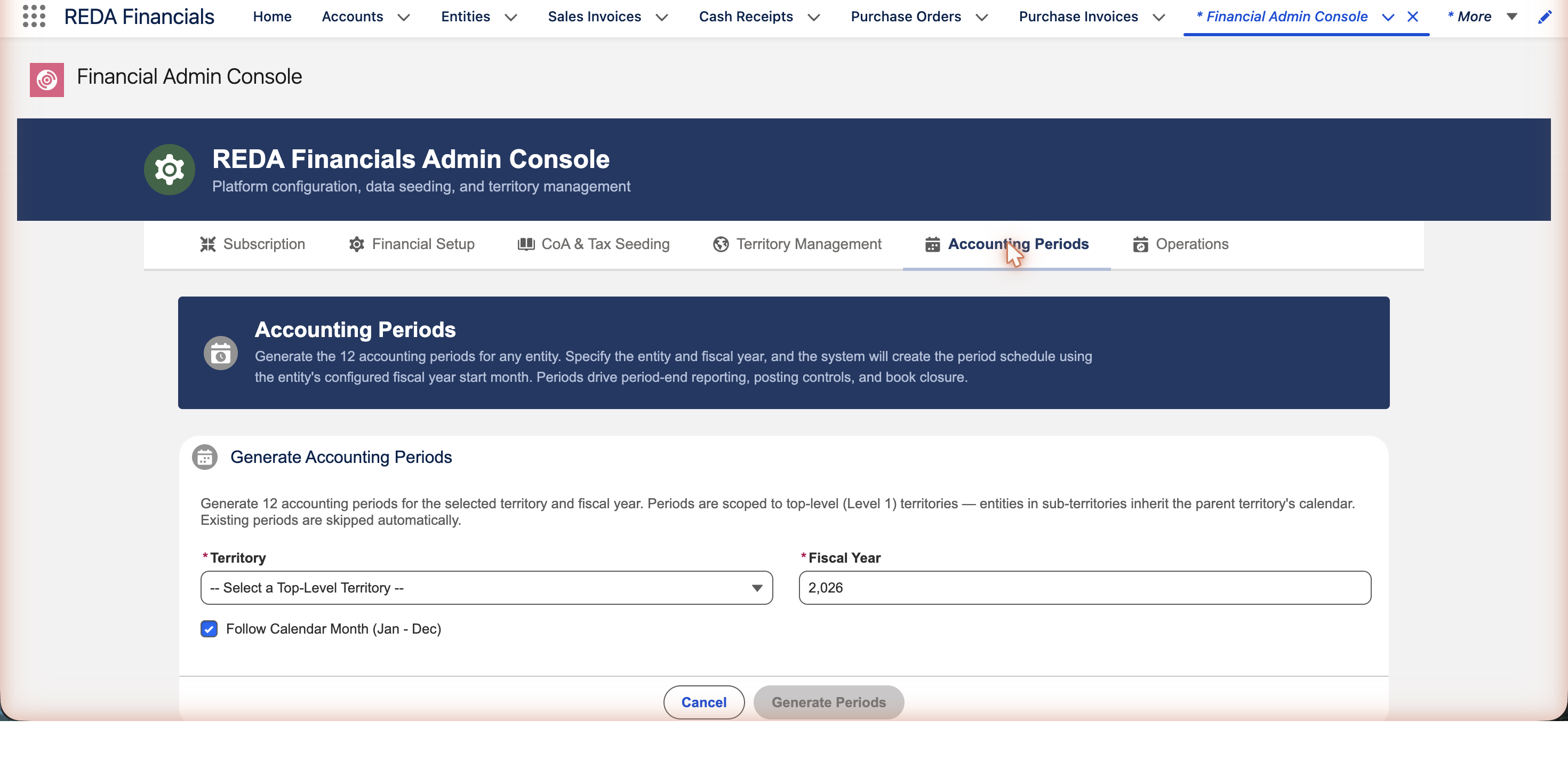
Accounting periods are the monthly buckets your transactions fall into. They are defined at the territory level — you generate a year of periods for a territory, and every entity in that territory shares them. This keeps a consistent financial calendar across all the companies that operate in the same region.
Periods do real work throughout the application. When you create a source document — an invoice, a bill, a receipt, a journal — REDA Financials automatically assigns the matching accounting period based on the document’s date, so you never have to pick it by hand. If you need to, you can override the assigned period on the document. Periods are then the backbone of period-level reporting and analysis (monthly profit-and-loss, comparatives, trends), and they drive posting controls and book closure — once a period is closed, it is protected from further changes.
To generate them:
- Select the territory.
- Enter the fiscal year.
- Leave Follow Calendar checked for a standard January–December year, or uncheck it to set a custom fiscal-year start (the first month and day of your financial year).
- Click Generate. REDA Financials creates a full year of monthly periods for that territory.
6. Operations
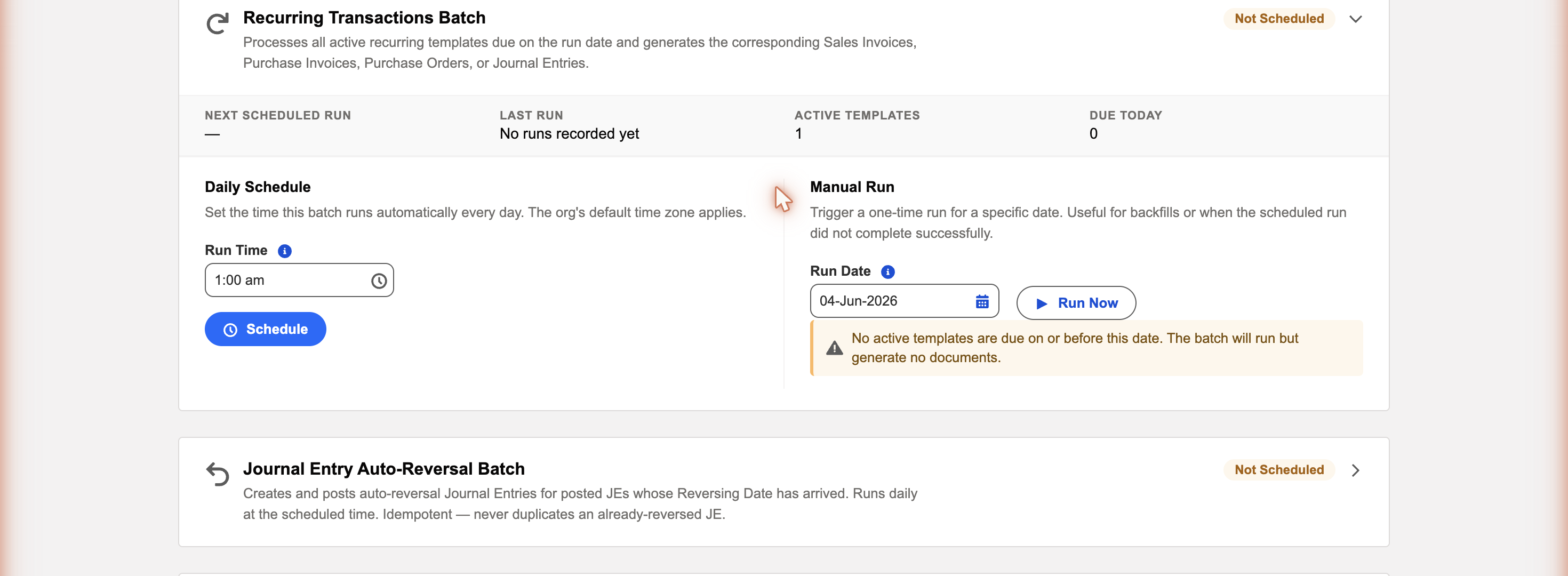
The Operations tab is mission control for REDA Financials’ automated background jobs. Each job appears as a card showing whether it is scheduled, the outcome of its last run (success, partial, or failed), and two controls: Run Now for a one-time manual run, and Schedule (or Remove Schedule) to set it running automatically.
You only need to schedule the jobs your organisation actually uses. Here is what each one does:
| Operation | What it does |
|---|---|
| Recurring Transactions | Generates the invoices, bills, purchase orders, and journal entries that are due from your active recurring templates. |
| Journal Entry Auto-Reversal | Posts the reversing entry for any journal whose reversing date has arrived. It never double-reverses an entry. |
| Credit Memo Auto-Apply | Applies credit memos flagged for auto-apply to a customer’s outstanding invoices, oldest first. |
| Cash Receipt Auto-Apply | Applies receipts flagged for auto-apply to a customer’s outstanding invoices, oldest first. |
| Cash Disbursement Auto-Apply | Applies payments with unapplied amounts to a vendor’s outstanding bills, oldest first. |
| Vendor Memo Auto-Apply | Applies vendor memos flagged for auto-apply to a vendor’s outstanding bills, oldest first. |
| Expense Auto-Allocation | Allocates expenses on posted bills that are flagged for it, creating the allocation and any intercompany journal entries. |
| Aging Snapshot | Captures point-in-time AR and AP aging snapshots for period-end reporting, for each entity with aging enabled. |
| OCR Document Processing | Reads documents arriving in the OCR Inbox using AI and creates purchase invoices from them. |
| FX Rate Sync | Syncs exchange rates into Salesforce automatically. Applies to multi-currency organisations. |
| Asset Depreciation Posting | Posts the depreciation and amortization entries that are due to the general ledger. |
Next steps
With the Admin Console configured, your organisation is ready to start transacting. From here:
Create your entities
Set up each legal company, its currency, and its default accounts — the foundation every transaction posts against.
Learn the key concepts
Get familiar with entities, ledgers, products, and periods in Key Concepts & Terminology.
Confirm access
Make sure each user has the right permission set and a licence for their role.
Where to go next
- Your Setup Roadmap — the full configuration journey, in order.
- Creating an Entity — set up your first company.
- Creating GL Accounts — build your chart of accounts.
- Admin Console Overview — your central control centre.
- Go-Live Checklist — final steps before going live.
Frequently asked questions
Users with the Accounting Admin v2 permission set (or the older Accounting Admin set, if you have not yet migrated). It is intended for the administrator who configures REDA Financials, not for everyday accounting users. See Permission Set Assignment.
It is the fastest way to start. The Global card gives you a complete, standards-based chart of accounts and reporting structure that you can adjust to fit your business. You are free to build your own instead, but seeding saves considerable setup time.
An entity is a legal company that owns transactions and a set of books. A territory describes where it operates. The two are linked: every entity belongs to a territory, so you always need at least one territory — even with a single company in a single country. Accounting periods and default accounts are set per territory and shared by the entities within it, while transactions are owned by the individual entity. See Key Concepts & Terminology.
No. Schedule only the jobs your organisation relies on. Any job can also be run on demand with Run Now, and you can change or remove a schedule at any time. FX Rate Sync, for example, is only relevant if you run in multi-currency mode.
It is strongly recommended to set your currency mode before entering transactions. Switching modes once transactional data exists is disruptive and should be planned with REDA. Contact support@reda.one if you need to revisit it.
Each card shows the outcome of its last run so you can spot problems early. A partial outcome means some records were processed and some were skipped, usually for a data reason. Review the affected records, correct the issue, and use Run Now to reprocess. If you need help interpreting a result, contact support@reda.one.
Was this article helpful?