
Creating & Managing GL Accounts
Most of your chart of accounts is already in place before you create a single account by hand. When you seed your chart on the CoA & Tax Seeding step, REDA loads a complete, IFRS-aligned set of standards-based accounts. This article is about the rest of the lifecycle: adding the accounts your business needs beyond the seed, and managing accounts safely over time.
Access you'll need. Creating, editing, and deactivating GL accounts requires the Accounting Admin v2 or Accounting Controller v2 permission set. The Accounts Payable v2, Accounts Receivable v2, and Read Only v2 sets can view accounts but not change them.
Before you create a new account
Pause and ask three questions — they keep your chart lean and meaningful:
- Does it already exist? Check the seeded chart first. Most common accounts are already there — extend, don’t duplicate.
- Is this really a new account, or a new dimension? If you’re tempted to create Rent Expense — Branch A and Rent Expense — Branch B, you want a posting dimension, not two accounts. Keep one Rent Expense account and report by branch.
- Should it be global or scoped? A global account (no Entity) is available everywhere — the right default. Scope to a territory or entity only when the account genuinely belongs to one region or company. See account scope.
Creating a GL account
Open the GL Accounts tab and click New
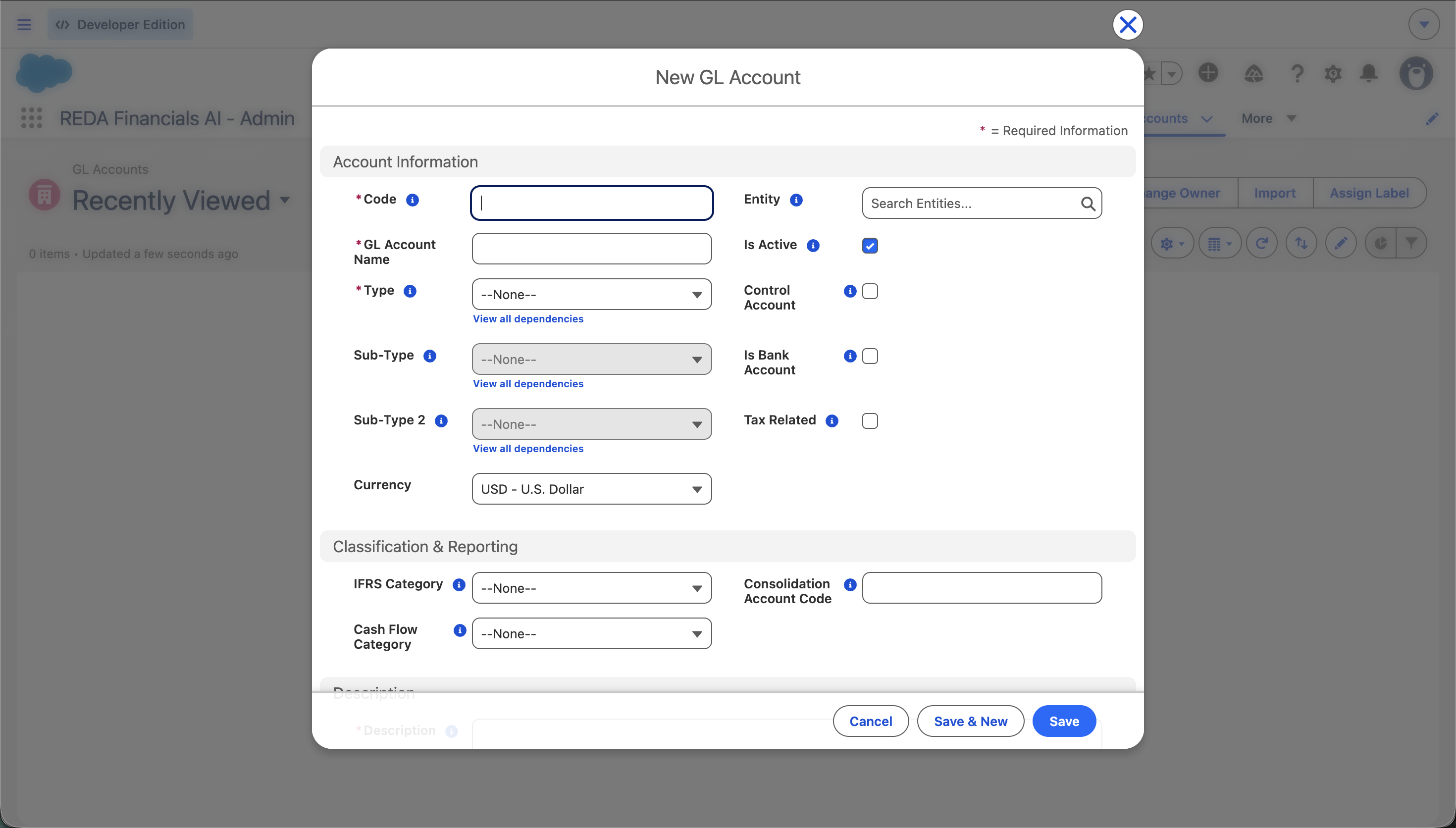
On the GL Accounts tab, select New. A blank GL Account record opens.
Name and classify the account
Give it a clear Account Name, then set its Type and Sub-Type (and Sub-Type 2 where a specific line item applies). The lists are dependent — each choice filters the next. See GL Account Types & Sub-Types for the full taxonomy.
Add a code and a description
Enter a unique Account Code (see the numbering scheme below) and a Description explaining what belongs in the account. Both are required, and both make your chart easier to maintain and audit.
Set scope and flags as needed
Leave Entity/Territory blank for a global account, or scope it. Set any behaviour flags — Control Account, Bank Account, Tax Related — that apply. Leave Active on.
Save
On save, REDA sets the Normal Balance automatically from the Type and runs the validation checks below. Your account is ready to use.
Account code numbering scheme
The Account Code is yours to design — REDA only requires it to be unique. A banded numbering scheme keeps the chart sorted and instantly readable, grouping accounts by Type. A widely used convention:
| Code band | Account type | Example |
|---|---|---|
| 1000–1999 | Assets | 1200 Trade Receivables |
| 2000–2999 | Liabilities | 2100 Trade Payables |
| 3000–3999 | Equity | 3000 Share Capital |
| 4000–4999 | Revenue | 4000 Sales of Goods |
| 5000–6999 | Expenses | 5100 Salaries and Benefits |
| 7000–9999 | Other / non-operating | 7200 Interest Income |
1200-AR-GLOBAL or
2311-VAT-AE.
The rules that protect your chart
On save, REDA enforces a handful of consistency checks. They exist to keep your chart structurally valid — if one stops you, the message tells you exactly what to fix.
| Rule | What it enforces |
|---|---|
| Bank account must be an Asset | You can only switch on Bank Account for an Asset-type account — bank accounts represent cash holdings. |
| Control vs. Tax Related | An account can’t be both a Control Account and Tax Related. The two describe different mechanisms — a control account is subledger-driven, a tax account is driven by Tax Rules — so an account is one or the other, not both. Flagging an account as a Control Account also removes it from the Account Ledger view and from financial reports, which both exclude control accounts by design — so don't set the flag on an account you still need to inspect or report on. |
| Inactive can’t be a control | An inactive account can’t be designated a Control Account. Reactivate it, or remove the control flag. |
| Normal Balance required | Normal Balance must be set (by the system). If it’s blank, make sure the Type is populated and save again. |
| Entity must match Territory | If you set both Territory and Entity, the entity’s territory must match the one on the account. |
| Entity must be active | You can’t scope an account to an inactive entity — choose an active one or leave Entity blank for a global account. |
Managing accounts over time
Editing
You can refine an account’s name, description, code, flags, and classification — with one important exception. Once an account has posted transactions, its Type locks. That’s deliberate: changing the Type would retroactively reclassify history and break the integrity of your books. If an account was set up under the wrong Type, deactivate it and create a correct one.
Deactivating instead of deleting
To retire an account, uncheck Active — don’t delete it. Deactivating stops new postings while every historical transaction stays visible in your reports and audit trail. You can reactivate at any time.
Where to go next
- Understanding GL Accounts — what each account field means.
- GL Account Types & Sub-Types — pick the right classification.
- Control Accounts (AR & AP) — create accounts that track subledgers.
- GL Account Groups & Members — add new accounts to statement lines.
- Chart of Accounts Setup Best Practices — keep the chart clean.
Frequently asked questions
Seeding gives you a complete IFRS-aligned starter chart, and many organisations run on it with only minor additions. Create new accounts when your business has a line item the seed doesn’t cover — an industry-specific revenue stream, a particular reserve, a local statutory account.
Yes — Account Code is a required field. It’s a stable, unique key that sorts your chart, drives integrations, and makes re-running the seed safe (accounts match by code rather than name), so it’s worth adopting a consistent numbering scheme from day one.
Yes. Statements group dynamically on the current classification, so re-running a report reflects the change immediately. (Type, by contrast, locks once the account has posted.)
Yes — just check Active again. All its historical transactions were preserved while it was inactive, so it simply becomes available for new postings once more.
Was this article helpful?