
Recurring Transaction Scheduler
The admin runbook for the batch that turns recurring templates into documents. Users design the templates; you make sure the engine runs.
Access you'll need. Scheduling and running this batch requires the Accounting Admin v2 permission set; the Accounting Controller v2 can reach the console too. The Accounts Payable v2 and Accounts Receivable v2 sets cannot see it — everyone else meets only the documents it generates.
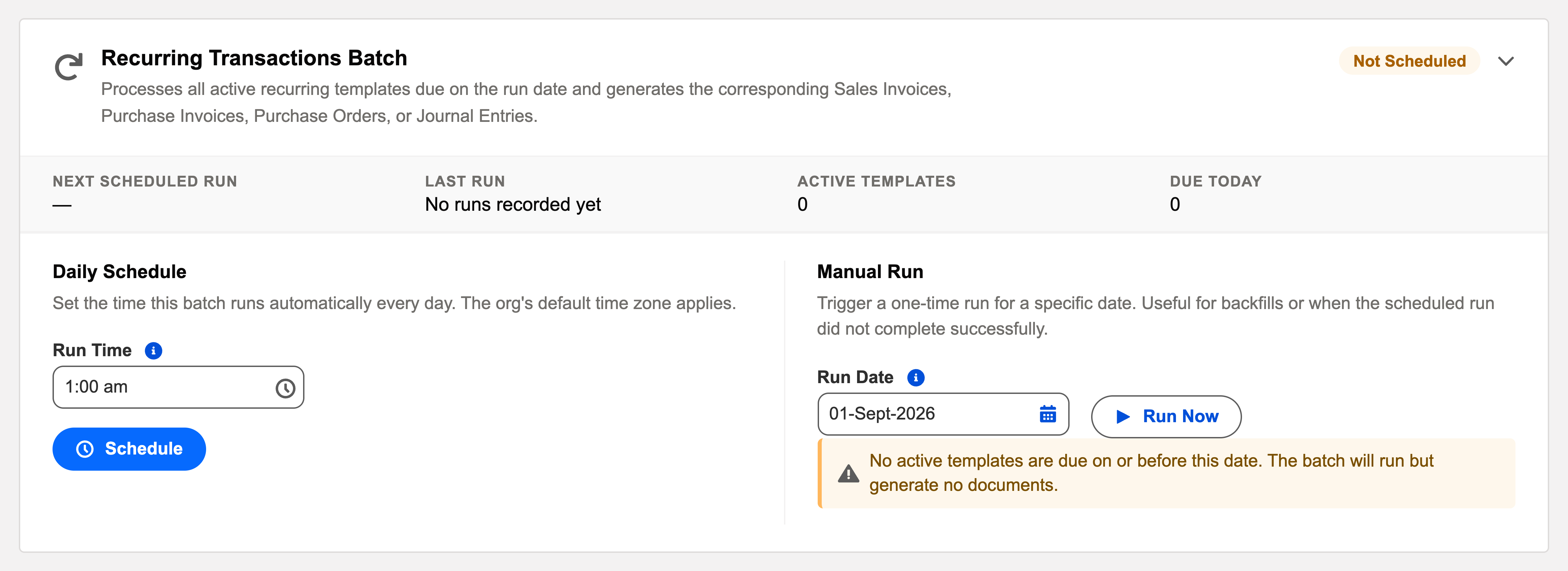
The card's controls
| Control / display | What it does or tells you |
|---|---|
| Status chip | Scheduled or Not Scheduled — whether generation happens without you. |
| Next Scheduled Run | When the next automatic pass fires. |
| Last Run | Timestamp plus outcome — Info (clean), Warning (partial), Critical (failed). |
| View Audit Log | The run's full record: processed / succeeded / failed, a reason per failure. |
| Schedule / Reschedule | Pick the daily run time. |
| Unschedule | Pause the automation until rescheduled. |
| Run Now | An immediate one-off generation pass. |
What one run does
Finds what's due
Two conditions define "due": the template is Active, and its Next Run Date is today or earlier. Draft and Completed templates are never touched.
Generates each document
Dated the run day, in the right accounting period, lines copied from the template, due date per the template's payment days — and linked back to its template. One document per template per date, so duplication is impossible even if the batch somehow ran twice.
Posts where asked
Templates with Auto Post get their documents posted in the same breath. If posting would fail, the whole generation for that template rolls back — no broken drafts — and the failure lands in the run's audit entry with its reason.
Advances the schedule
Each processed template's Next Run Date moves forward by its frequency, counters update, and templates reaching their end date or occurrence limit flip to Completed.
Scheduling it
Daily, early morning — after FX sync so foreign-currency documents get the day’s rate, before the auto-apply batches so what it generates can be matched the same night. Run Now after users activate templates they want generated immediately.
A worked morning — Meridian's first of the month
Meridian Properties Group bills its recurring customer invoices from templates. At dawn on 1 July the batch runs: it finds each Active template whose Next Run Date is 1 July or earlier, generates the corresponding Sales Invoices dated 1 July in period 2026-07, posts the ones whose templates carry Auto Post, and advances every template's Next Run Date to 1 August. One template fails — its entity's period problem is spelled out in the audit entry — and only that template's generation rolls back; the rest of the billing run is already in the books before the AR team sits down. The template owner fixes the cause, the administrator clicks Run Now, and the last invoice joins its siblings.
Common mistakes to avoid
| Mistake | Why it hurts | Do this instead |
|---|---|---|
| Expecting the batch to back-fill a gap after being unscheduled | It generates for the run date and rolls schedules forward — missed dates stay missed | Create catch-up documents by cloning, then let the schedule resume |
| Scheduling it before FX sync | Foreign-currency documents generate on yesterday's rate | FX sync first in the overnight order, this batch after |
| Fixing template data problems yourself from the log | The failure reasons are usually template problems (closed period on an auto-post template, missing product) that will recur next cycle | Forward the reason to the template owner; fix the template, not the symptom |
| Hesitating to Run Now for fear of duplicates | New templates sit ungenerated while you wait for tonight | Run Now freely — one document per template per date is enforced by design |
| Judging the run by "no news" | A Warning outcome with three rolled-back templates looks identical to success from a distance | Glance at the Last Run outcome daily; open View Audit Log on anything but Info |
Monitoring it
Green means: the card shows Scheduled, the last-run timestamp is from the expected window, and the outcome icon is informational. Anything else, click View Audit Log — the run’s record lists processed / succeeded / failed with a reason per failure. A useful habit: the failure reasons here are usually template problems (a closed period for an auto-post template, a missing product) — forward them to the template owner rather than fixing data yourself.
Troubleshooting
| Symptom | Likely cause → action |
|---|---|
| “Nothing generated” | Template not Active, or its Next Run Date isn’t due — check the template before the batch. |
| Auto-post failures in the log | Usually a closed period or failed validation — the generation rolled back cleanly; fix and Run Now. |
| Missing documents for early dates | The batch was unscheduled over those dates; it doesn’t back-fill. Users create catch-ups by cloning. |
Where to go next
- Recurring Transaction Batch — what the batch does, in depth.
- Operations Tab — the console.
- Audit Logging — reading run history.
Frequently asked questions
The next run generates for its due date and rolls the schedule forward — it doesn't back-fill each missed period. Create any catch-up documents manually (cloning makes that quick), then let the schedule resume.
No — the batch runs once daily for everyone; each template's own frequency decides whether today is its day. Time-of-day nuance rarely matters for accounting documents: dates, not timestamps, drive the books.
No. Generation is one document per template per date by design, so a second pass on the same day finds nothing left to do for already-processed templates.
The template asked for Auto Post and the posting would have failed — typically a closed period or a validation. Rather than leave a broken draft, the batch rolls the generation back cleanly and records the reason. Fix the cause and Run Now.
Scheduled runs execute under the platform's automated process context — they don't consume a user seat, and the audit entries show the automated process as the performer.
Was this article helpful?