
Reversing Journal Entries
Accruals are honest lies with an expiry date. Meridian's June books say "we used $3,200 of electricity" before the bill exists — true for June, but the moment July starts, that estimate must get out of the way of the real invoice. A reversing entry is the automatic undo: same lines, debits and credits swapped, dated the first day of the next period. REDA Financials creates it for you.
Access you'll need. Reversing journal entries (and setting a Reversing Date) requires the Accounting Admin v2 or Accounting Controller v2 permission set. The Accounts Payable v2, Accounts Receivable v2, and Read Only v2 sets can view entries and their reversals but not create them.
The automatic way: a Reversing Date
Mark the accrual as Adjusting and give it a Reversing Date
An Adjusting entry requires one — typically the first day of the following period (the field help says exactly that). Meridian's June accrual: Journal Date 30 June, Reversing Date 1 July. Post it normally.
The scheduler does the rest
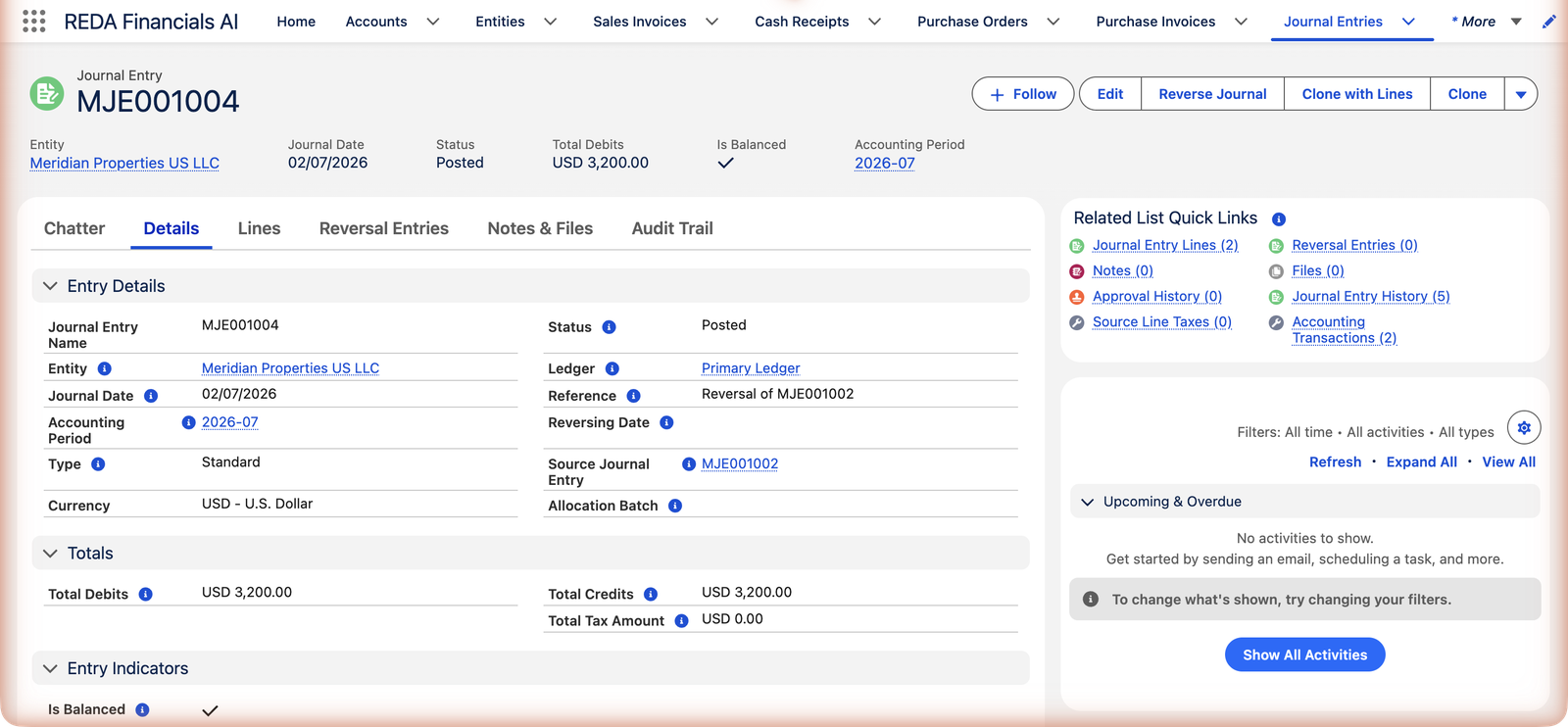
A daily background process (the Journal Entry Auto-Reversal Batch, scheduled by your administrator from the Admin Console) finds posted entries whose Reversing Date has arrived, and for each one creates and posts the mirror entry: Type = Reversing, dated on the Reversing Date, lines copied with debits and credits swapped, named and described "Reversal of …", linked back to the source.
Find it on the source entry
The Reversal Entries related list (and tab) on the original shows its reversal — the pair is permanently linked via the Source Journal Entry field. The batch is idempotent: an already-reversed entry is never reversed twice by the scheduler.
| 30 Jun — the accrual (MJE001002) | 1 Jul — the reversal (MJE001004) | |
|---|---|---|
| Utilities — Buildings | Debit $3,200 | Credit $3,200 |
| Accrued Expenses and Other Payables | Credit $3,200 | Debit $3,200 |
June carries the cost; July starts clean — so when MetroPower's real bill posts in July, the expense isn't double-counted. That's the entire trick, and it runs without anyone remembering it.
Anatomy of the reversal entry
Whether the scheduler or the Reverse Journal button creates it, the reversal is built the same way — a complete, self-documenting mirror:
| On the reversal | What you'll see |
|---|---|
| Lines | Copied from the source with Debit and Credit swapped — same accounts, same amounts, same dimensions, opposite direction |
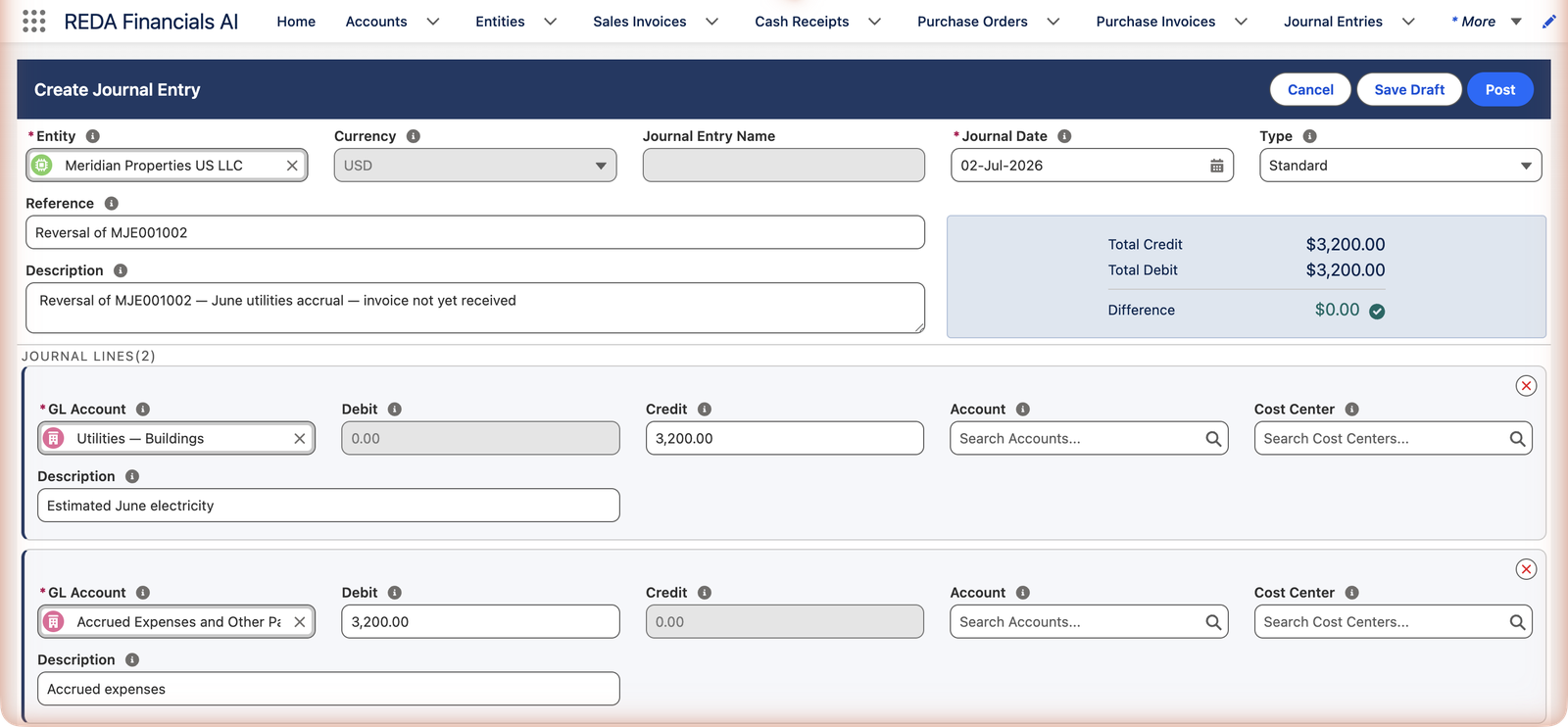
| Journal Date | The source's Reversing Date (scheduler) or today (manual reverse — adjust before posting if needed) |
| Source Journal Entry | Points back at the original — and the original's Reversal Entries list points forward |
| Description / Reference | "Reversal of <source>" plus the original description — provenance in plain sight |
| Journal Entry Name | The next number from the entity's document sequence, like any other entry |
| Currency & dimensions | Same document currency as the source; cost centers carried line for line |
The manual way: Reverse Journal
For an entry without a Reversing Date that needs undoing — say a correction that turned out wrong — the Reverse Journal button does the same swap interactively:
Worth knowing
- The reversal needs an open period — posting an adjusting entry checks it up front: "No Open Accounting Period found for Reversing Date …".
- The Reversing Date locks with the entry — changing it after posting means reopening the entry (Edit → confirm → adjust → re-post), like any other field.
- The reversal is a full citizen — posted, visible, auditable; it can itself be reopened by a Controller if something exceptional demands it.
- Failures are clean — if the batch can't post a reversal (say, the new period's books closed unexpectedly), nothing half-created is left behind and the failure is logged for the administrator to act on.
The rules around reversing
| The message | What it means / what to do |
|---|---|
| The form requires a Reversing Date on Adjusting entries | Adjusting entries are temporary by definition — say when the estimate expires. The field help suggests the answer: "Enter the first day of the next period (e.g. April 1 for a March accrual)." |
| "Reversing Date must be after the Journal Date. Typically this is the first day of the following period." | An undo can't precede — or coincide with — the thing it undoes. |
| "No Open Accounting Period found for Reversing Date …. Create or open the period first." | Checked when the source posts, so the reversal is never stranded without a home. An administrator generates the period. |
| The Reversing type can't be picked by hand | It's reserved for entries that genuinely reverse something (a Source Journal Entry is required) — so a filter on Type = Reversing shows only true undo entries. |
Common mistakes to avoid
| Mistake | Why it hurts | Do this instead |
|---|---|---|
| Manually reversing an entry that has a Reversing Date | The scheduler will also reverse it — the accrual can end up undone twice, the opposite of clean books | Entries with a Reversing Date belong to the scheduler; use Reverse Journal only on entries without one |
| Setting the Reversing Date inside the same period | Accrual and undo cancel within one month — the period shows nothing, defeating the purpose | First day of the following period, per the field help |
| Expecting the reversal the instant you post | It arrives when the daily batch next runs on/after the Reversing Date — an empty Reversal Entries list before then is normal | Wait for the scheduled run, or ask an administrator to use the batch's Run Now |
| Deleting or re-keying instead of reversing | Posted entries can't be deleted, and re-keying opposite lines by hand invites typos and orphaned pairs | Reverse Journal builds the exact mirror and links it to the source |
| Reversing a reversal to "restore" an entry | Chains of undo entries make the trail unreadable | If the original should stand again, reopen or re-create it, and void the stray reversal with a note |
Where to go next
- Understanding Journal Entries — where adjusting entries fit.
- JE Reversal Batch — the scheduler, from the admin side.
- Closing the Books — accruals' natural habitat.
Frequently asked questions
Check that the source entry is actually Posted (drafts aren't reversed), then ask your administrator whether the Auto-Reversal batch is scheduled — the Admin Console's Operations tab shows its card, schedule, and a Run Now button that processes everything due immediately.
Convention with a purpose: the accrual serves the old period to its last day; the undo belongs to the new period's first day, so each period's statements stand correct on their own.
No — that's the accrual system working. June carried the $3,200 estimate; July records the $3,350 bill and the $3,200 reversal, netting July's expense to the $150 the estimate missed. Small estimate differences settle themselves this way every month.
Before it's created: reopen the source entry and clear the Reversing Date, then re-post. After it's created: reopen or void the reversal entry itself (Controller/Admin rights), which restores the accrual's effect.
Posted. The scheduler creates the mirror entry and posts it in the same run — that's the point of automating it. (A manual Reverse Journal, by contrast, opens the form for your review; you decide when to save or post.) If the automatic post can't succeed, nothing is left behind and the failure is logged for the administrator.
Exactly what its confirmation says: "This will immediately process all posted Journal Entries with a Reversing Date on or before today and create their auto-reversal entries." It's the same daily run, started by hand — useful when a reversal is needed before tomorrow's scheduled pass.
Was this article helpful?