
Creating a Sales Invoice
When you click New on a Sales Invoice, you won't see the usual Salesforce record screen — REDA replaces it with a purpose-built invoicing form. Everything you need is on one page: the invoice header at the top, the line items in the middle, the running totals on the right, and Cancel / Save Draft / Post buttons at the top. This article walks you through it, explains why it works this way, and shows how much the form fills in for you.
Access you'll need. Creating, editing, and posting Sales Invoices requires the Accounts Receivable v2 permission set (AR clerks & managers) or Accounting Admin v2 (system administrators). The Accounting Controller v2, Accounts Payable v2, and Read Only v2 sets can view invoices but not create or post them.
The form adapts to your setup
One thing worth knowing up front: the fields you see on the form aren't fixed in code. REDA reads a configurable on-screen field list and renders exactly those fields. That means your administrator can add or remove fields on the invoice — an extra reference, a custom dimension, a project code — without any development, and the form picks them up automatically. So your screen may show a few more fields than the examples here; that's by design.
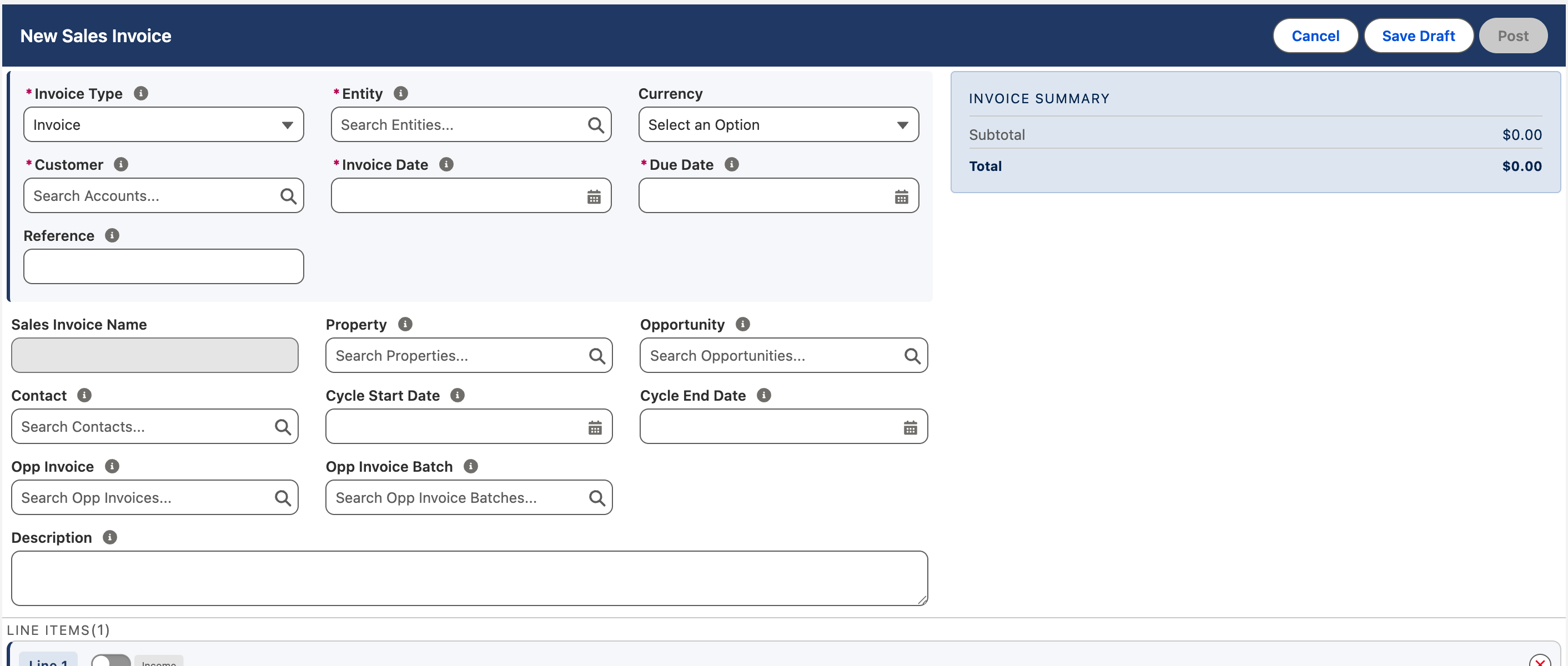
Creating an invoice, step by step
We'll bill a customer for some consulting and a laptop. Notice how little you actually type — most of it fills itself in.
What the form fills in for you
This is the reward for setting up your entities, customers and products well — you pick two or three things and the rest appears:
| You choose… | The form fills in… |
|---|---|
| Entity | Currency, default Ledger, the receivables (and other posting) GL accounts |
| Customer | Payment Term → Due Date, tax treatment |
| A Product on a line | Description, Unit Price, Revenue GL account |
| (automatic) | The tax on every line, and all the totals |
Save (Draft) vs Post
The two buttons do very different things — it's worth being clear which you want:
| Button | What happens | Use when… |
|---|---|---|
| Save Draft | Stores the invoice as a Draft. No accounting entries, no customer balance — you can reopen and edit it freely. | It's not finished, or it needs approval/review first. |
| Post | Saves and commits it to the books in one action — the accounting entries are created and the customer now owes the balance. | It's complete and ready to be official. |
Editing, unposting and voiding
Open a Draft invoice and the same form reopens, ready to change. Drafts have no accounting effect, so you can edit them as freely as you like — change lines, amounts, the date, the customer — and save again.
A Posted invoice is different. It is already part of your official books, with live accounting entries and a balance the customer owes. So rather than letting you quietly overwrite a posted figure, REDA opens it in a protected state and gives you two deliberate choices (or simply close the screen to leave it untouched):
| Choice | What it does | Use it when… |
|---|---|---|
| Reopen as Draft (unpost) |
Pulls the invoice back to an editable Draft. REDA removes the accounting entries it created at posting (and the related tax records), so the books no longer show the invoice — then hands you the same form to correct. Fix what's wrong and Post again to create fresh, correct entries. The invoice keeps its same number. | The invoice has a mistake you want to fix and re-issue — wrong amount, wrong line, wrong date. |
| Void | Cancels the invoice for good. REDA asks you for a reason and a void date, removes the accounting entries, and then locks the record. It stays in the system as a cancelled invoice you can no longer edit — a clean audit trail of something that was raised and then cancelled. | The invoice should never have been raised, or is being cancelled outright and not replaced with a corrected version. |
The key thing to understand is that both remove the invoice's entries from your books — the difference is what happens next. Reopen as Draft means “let me correct this and re-post it”; Void means “cancel this permanently.” Voiding is covered in full in Voiding a Sales Invoice.
Where to go next
- Understanding Sales Invoices — the concepts behind invoices.
- Sales Invoice Lines — add and edit invoice lines.
- Tax on Sales Invoices — how tax is calculated.
- Posting a Sales Invoice — post the invoice to the ledger.
- Sales Invoice PDF — generate the customer document.
Frequently asked questions
REDA replaces the standard New/Edit screen for invoices with its own single-page form, so you can build the header, the lines and see the totals all at once and post in one click. It's the same experience across all the documents you raise.
No — they come from the Entity and Customer you pick. You generally only enter the date, the customer, and the line items. That's the whole point of the earlier setup.
Yes — click Save Draft to keep it as a Draft. Drafts have no accounting effect and can be edited as often as you like until you post.
Open it and choose Reopen as Draft. REDA removes the accounting entries it created, returns the invoice to an editable Draft (with the same number), and lets you correct it and Post again. If instead the invoice simply shouldn't exist, choose Void to cancel it permanently.
Both remove the invoice's entries from your books. Reopen as Draft brings it back as an editable Draft so you can correct it and re-post — it's for fixing. Void cancels the invoice for good: it records a reason and date, then locks the record as a cancelled invoice you can't edit — it's for cancelling. You can't edit a posted invoice's numbers in place; you choose one of these two paths.
Not at all — the form renders whatever's in your on-screen field list, which your administrator can tailor. Extra fields (a project code, a custom reference) are expected and fully supported.
Was this article helpful?