
GL Account Groups & Members
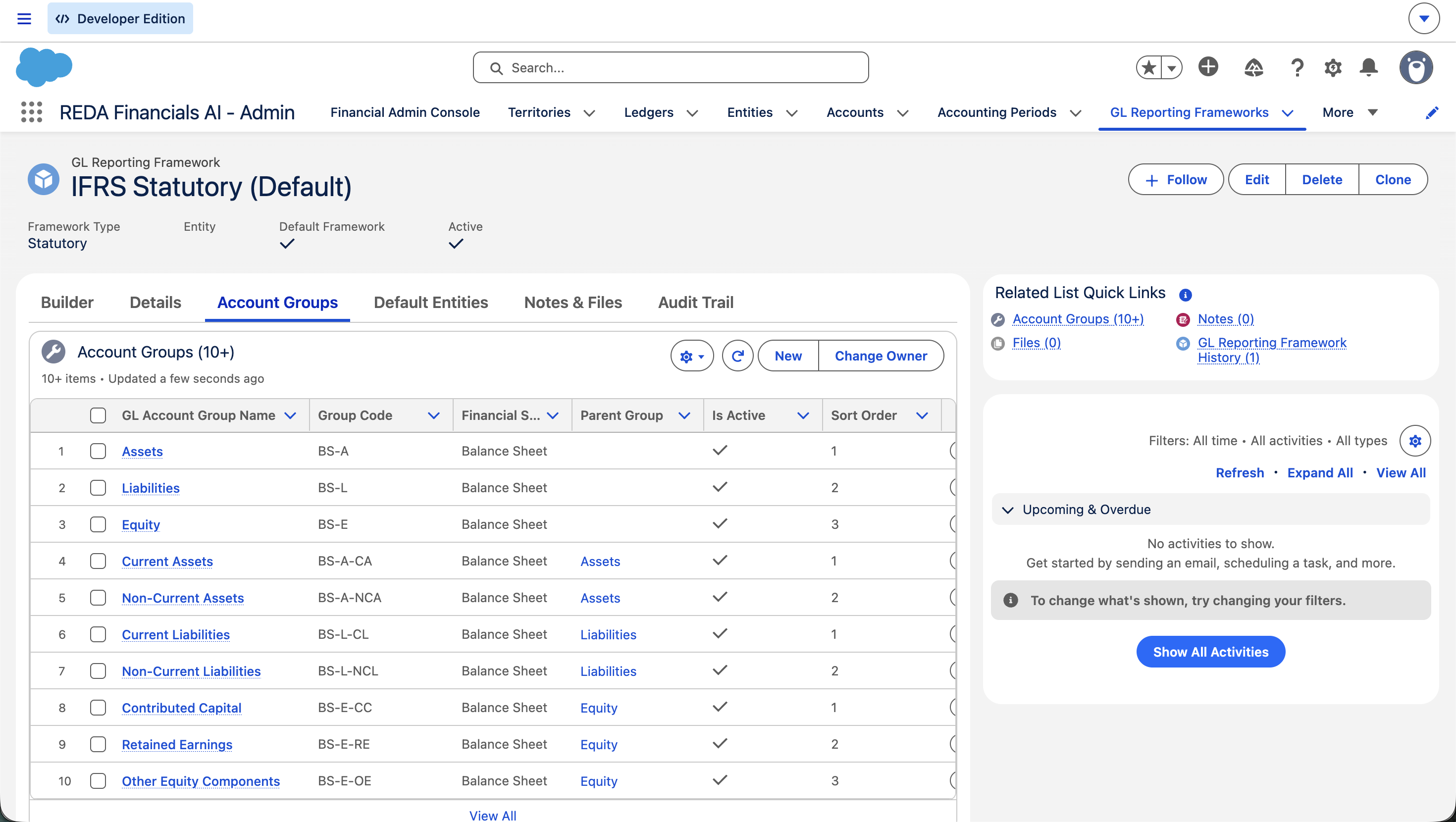
Your chart of accounts is a flat list of accounts. A financial statement is a structured view of that list — accounts gathered into lines like Trade Receivables, those lines rolled into Current Assets, and so on. GL Account Groups are how you build that structure, and Group Members are how individual accounts join it.
Groups always live inside a reporting framework — a named reporting view such as IFRS Statutory or Management Accounts. This article covers groups and members themselves; the framework they belong to, and the visual builder you use to assemble them, are covered separately.
Access you'll need. Creating and editing groups and memberships requires the Accounting Admin v2 or Accounting Controller v2 permission set. The Accounts Payable v2, Accounts Receivable v2, and Read Only v2 sets can view frameworks and the statements they drive but not change them.
What a group is
A GL Account Group is one line or section of a financial statement. Current Assets, Trade Receivables, Revenue, Finance Costs — each is a group. The key fields:
| Field | What it controls |
|---|---|
| Group Name | How the line is labelled on the statement — e.g. Trade and Other Receivables. |
| Reporting Framework required |
The framework this group belongs to. A group lives in exactly one framework — that’s what keeps each reporting view independent. It can’t be moved to another framework once accounts are assigned. |
| Financial Statement required |
Which statement the group appears on: Balance Sheet, Income Statement, or Cash Flow. A group appears on one statement only. |
| Group Code required, unique |
A short, permanent reference key — e.g. CA
for Current Assets, TRADE-REC for Trade Receivables.
Don’t change it after accounts are assigned. |
| Parent Group | The group this one rolls up into — Trade Receivables → Current Assets. Leave blank for a top-level section. See Group Hierarchy. |
| Sort Order | The order this group appears among its siblings. Lower first; use increments of 10 to leave room. |
| Active | Uncheck to hide the group from statements. An active group with member accounts can’t be deactivated until its members are removed or deactivated. |
| Description required |
What belongs in the group and where it appears — required, so every group is self-documenting for the next person. |
What a member is
A Group Member is the link that puts one GL account into one group. It’s a small junction record — you don’t move the account itself, you create a membership that says “this account belongs in this group, in this framework.” That’s what lets the same account sit in different groups across different frameworks without being duplicated.
| Field | What it controls |
|---|---|
| GL Account required |
The account being added to the group. Set when the membership is created and not changed afterward — to move an account, remove this membership and create a new one. |
| GL Account Group required |
The group the account joins. Because each group belongs to one framework, this also fixes which framework the account participates in. |
| Override Label | An optional custom name for this account within this framework. If set, it appears on the statement instead of the account’s standard name — handy when one account needs different wording in, say, the Management view versus the IFRS view. |
| Sort Order | Where the account appears within its group. Lower first; blank defaults to alphabetical. |
| Active | Uncheck to drop the account from the group’s totals without deleting the membership — the record stays for the audit trail. |
The one rule that prevents double-counting
There is a single, important constraint on membership, and it’s what guarantees your statements are arithmetically sound:
How accounts join groups
In practice you almost never create membership records by hand. The Reporting Framework Builder does it for you: you pick a group, tick the accounts you want and click Assign Selected, and REDA creates the memberships — enforcing the one-account-per-framework rule as it goes. Accounts not yet placed in any group show in the builder’s Unassigned list, so you can always see what still needs a home.
Where to go next
- Group Hierarchy Tree — nest groups into a statement structure.
- Reporting Frameworks & Taxonomy — the container for your groups.
- Reporting Framework Builder — assign members visually.
- Understanding GL Accounts — the accounts that become members.
- Balance Sheet — a statement these groups produce.
Frequently asked questions
Not within the same framework — that’s blocked to prevent double-counting. But the same account can belong to a different group in a different framework. That’s the whole point: one chart, many independent reporting views.
It simply doesn’t appear on that framework’s financial statements. No error — it just isn’t presented. Use the builder’s unassigned list to catch accounts you meant to include.
Use the Override Label on the membership. It changes how the account reads on that framework’s statements only, leaving the account’s real name — and every other framework — untouched.
Deactivate it if you just want to drop the account from the totals while keeping the record for history. Delete it (via the builder’s unassign) when you’re genuinely restructuring. Either way the account itself is untouched — you’re only changing its presentation.
Was this article helpful?