
Creating a Journal Entry
Meridian's controller needs to move $1,150 of security costs into the repairs account — recorded in the wrong place last month. That's a classic two-line journal. Here's the form, top to bottom.
Access you'll need. Creating, editing, and posting journal entries requires the Accounting Admin v2 or Accounting Controller v2 permission set. The Accounts Payable v2, Accounts Receivable v2, and Read Only v2 sets can view entries but not create or post them.
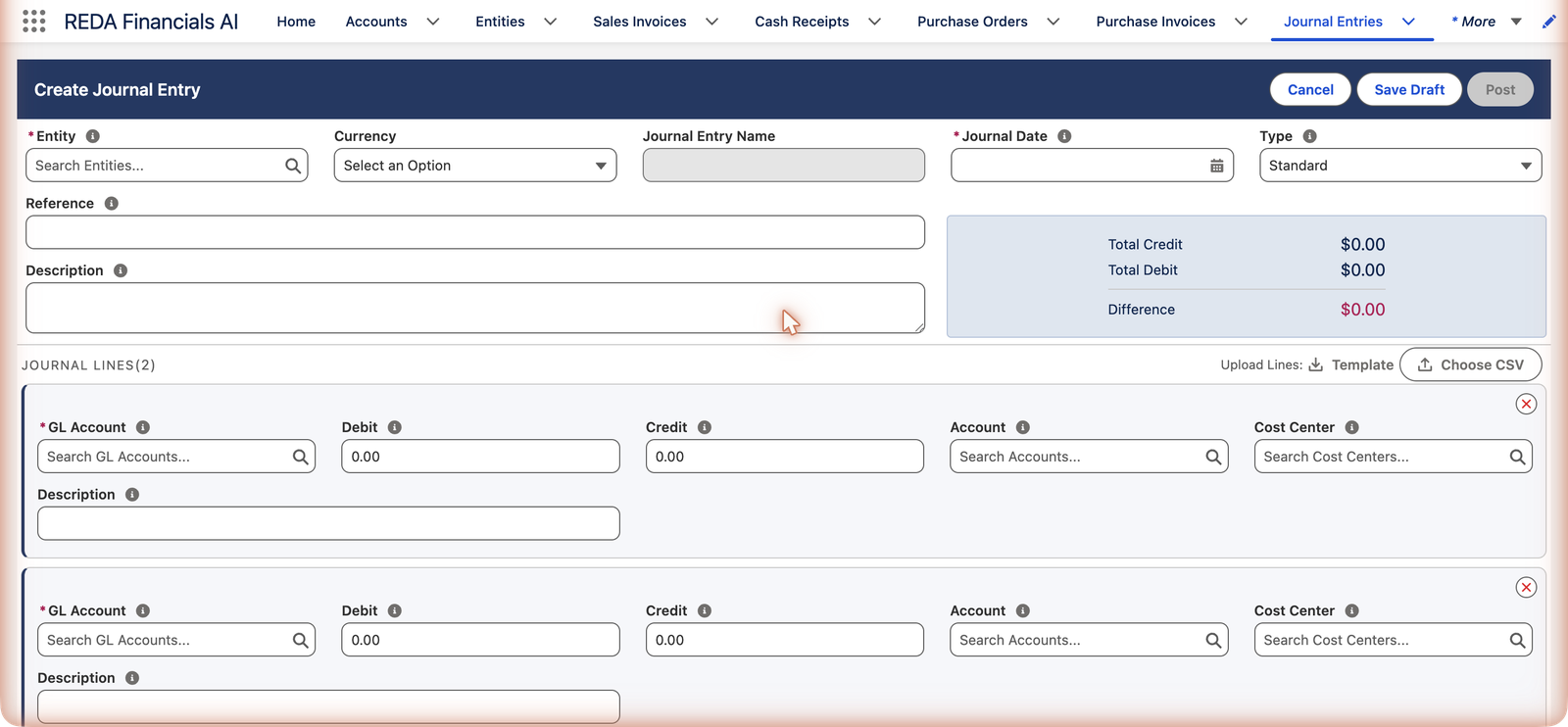
The header
Entity and date
Whose books, and when. The Journal Date drives the accounting period automatically — date it when the event belongs, not when you're typing. The Journal Entry Name stays greyed out: the number comes from the entity's document sequence when you save.
Type
Standard for corrections like this one. Pick Adjusting for period-end accruals — the form will then require a Reversing Date (see Reversing Journal Entries).
Reference and description
The description is the entry's testimony — a year from now, "Reclassify security expense to repairs — July" answers the auditor before they ask. Meridian also keys a reference (RECLASS-2026-07) for cross-referencing workpapers.
What the system fills for you
| Field | How it's derived | Can you override? |
|---|---|---|
| Journal Entry Name | Next number from the entity's Journal Entry document sequence (Meridian: MJE001001, MJE001002…); the form shows the placeholder Auto-assigned | No, when a sequence exists — "Document number is auto-assigned by the configured sequence and cannot be changed." Without a sequence you type the number, and "A document with this number already exists for this entity. Document numbers must be unique per entity." guards duplicates. |
| Accounting Period | From the Journal Date; re-derived if you change the date on a draft or blank the field | Yes, but it must contain the journal date and belong to the entity's territory. If none exists: "No accounting period found for journal date …. Please ensure an accounting period exists for this date." |
| Ledger | The entity's Default Ledger, filled when blank or when you change the Entity | Yes, to another active ledger |
| Type | Defaults to Standard | Yes — except Reversing, which is reserved for genuine reversals |
| Exchange Rate (multi-currency) | Stamped automatically when the entry posts, from the rate tables at the journal date | Setup-dependent — most users never touch it |
The lines
Line 1 — where the value goes
GL Account: Repairs & Maintenance — Buildings. Debit: 1,150.00. Each line takes exactly one side — enter a debit or a credit, always positive; the other field is ignored per line.
Line 2 — where it comes from
GL Account: the security-expense account. Credit: 1,150.00. The balance panel flips to green: Difference $0.00. Optional per line: a Cost Center (dimension), an Account (customer/vendor the line concerns), and its own description. + Add Line for entries that need more than two.
Save Draft or Post
Save Draft parks it harmlessly; Post saves and posts in one atomic step — if posting fails its checks, nothing half-saved is left behind. Posting writes one accounting transaction per line. (Full gate list in Posting & Unposting JEs.)
What Meridian's reclass looks like when it posts
The finished entry — MJE001003, reference RECLASS-2026-07 — moves the $1,150 in one balanced pair:
| Account | Debit | Credit |
|---|---|---|
| Repairs & Maintenance — Buildings | $1,150.00 | |
| Security expense account | $1,150.00 | |
| Total | $1,150.00 | $1,150.00 |
The overall expense total is unchanged — value moved between expense accounts, which is exactly what a reclass is. On success the toast reads "Journal entry posted successfully." (or "Journal entry saved as draft." for the gentler button), and the entry's Accounting Transactions list shows one ledger row per line.
If the form stops you
The messages are specific, and each names its own fix:
| The message | What it means / what to do |
|---|---|
| "Each Journal Entry Line must have exactly one of Debit or Credit populated with a positive amount." | A line has both sides, neither, or a negative. One side per line, always positive. |
| "Total debits must equal total credits before posting." | Check the Difference in the panel — the Post button's tooltip ("Debits must equal Credits before posting") is telling you the same thing. |
| "GL Account is required on every Journal Entry Line." | A line is missing its account — every debit and credit needs somewhere to land. |
| "GL Account is inactive and cannot receive new postings. Select an active GL account or contact your administrator." | The account was retired; pick a live one. |
| "This GL Account belongs to a different entity. Use a global GL Account (no entity restriction) or one assigned to the same entity as this line." | The account is scoped to another company's chart. |
| "This Cost Center belongs to a different entity. Use a global cost center (no entity restriction) or one assigned to the same entity as this document." | Same discipline, dimension edition. |
| "Account is inactive. Remove the account reference or select an active account." | The customer/vendor named on a line is deactivated. |
| "Journal Date must fall within the selected Accounting Period. Either correct the date or clear the Accounting Period field to let the system derive it automatically." | Fix the date, or clear the period and let it re-derive. |
| "No accounting period found for journal date …. Please ensure an accounting period exists for this date." | The period doesn't exist yet; an administrator generates it. |
Common mistakes to avoid
| Mistake | Why it hurts | Do this instead |
|---|---|---|
| Typing a negative amount to mean "the other side" | The line is refused; a minus sign is a credit wearing a disguise | Put the amount in the other column |
| Uploading a CSV over half-typed lines | The upload replaces every line in the grid — the warning means it | Finish in the spreadsheet, upload once; or type entirely by hand |
| Leaving Description for later | "Later" never comes, and the posted entry locks with its silence | Write the testimony before you post — what, which period, why |
| Picking the Accounting Period by hand | A mismatched period is refused; a wrong-territory one too | Set the Journal Date and let the period derive itself |
| Using a journal for something that has a document | The subledger loses aging, application and tax handling | Bills, invoices and payments go through their own screens |
Where to go next
- JE Lines (Debit & Credit) — every rule a line obeys.
- Posting & Unposting JEs — what Post actually does.
- Cloning a Journal Entry — the shortcut for a similar entry.
Frequently asked questions
Entities with a Journal Entry document sequence assign numbers automatically and lock them ("Document number is auto-assigned by the configured sequence and cannot be changed."). Gapless numbering is an audit feature, not a limitation.
Absolutely — any number of lines, as long as the whole entry balances. A payroll journal might debit five expense accounts and credit two liability accounts in one document.
The period being corrected, if it's still open — June's error fixed in June keeps June's reports right. If that period's books are closed, date it in the current open period; closed books are never rewritten (the posting gate enforces this).
An optional link to the customer or vendor the line concerns — it gives the ledger row a party for reporting. It does not create a receivable/payable document; subledger balances still come from invoices and payments.
The Post button saves and posts as one all-or-nothing step: if any posting check fails, nothing is committed — no orphaned draft, no half-saved lines. Fix the reported problem and click Post again, or use Save Draft to park your work first.
Administrators can extend the form: additional header fields and line columns (tax fields, banking links, custom dimensions) can be switched on per organization. The core — GL Account, Debit, Credit, Account, Cost Center, Description — is always there; the rest reflects your setup.
Accounting Controller and Accounting Admin — journals write straight to the ledger, so they stay with the people who own the books. AP, AR and Read Only users can view journal entries but not create or edit them.
Was this article helpful?