
E-Invoice Status Poll
The admin runbook for the job that finishes what posting an invoice starts. Where a country requires invoices to be filed electronically, the tax authority rarely answers straight away — it takes the document, says “received”, and rules on it later. This card is what goes back and asks. Without it, invoices sit at Submitted for ever — and anything posted in bulk never leaves Queued — and nobody is told why.
Access you'll need. Starting and running this job requires the Accounting Admin v2 permission set; the Accounting Controller v2 can reach the console too. Accounts Payable v2, Accounts Receivable v2 and Read Only v2 cannot see the Operations tab — they meet only the invoice statuses this job updates.
What the job actually does
Every invoice filed electronically has an E-Invoice Trail — one record per invoice, holding the whole conversation with the tax authority. The Trail moves through a fixed sequence of statuses. The poll is concerned with exactly one of them.
| Status | What it means | Does the poll touch it? |
|---|---|---|
| Draft | The Trail exists but nobody has released it. This is where invoices wait when the entity is set to submit manually rather than automatically. | No |
| Ready to Send | Released, waiting to be picked up for transmission. | No |
| Queued | In line for transmission. | Yes |
| Submitted | The authority has the document and has acknowledged receipt, but has not yet ruled on it. | Yes |
| Accepted | The authority has approved it. The invoice is now legally valid and carries its official fiscal identifier. | No — final |
| Rejected | The authority refused it. The reason is recorded on the Trail. | No — final |
| Error | The document could not be delivered, or the exchange failed. The reason is recorded on the Trail. | No |
| Cancelled | The document was withdrawn. | No — final |
So a cycle does two things. For every Trail sitting at Queued it transmits the document to the authority. For every Trail sitting at Submitted it asks the authority what has happened, and moves the Trail to Accepted, Rejected or Error according to the answer. Trails in any other status are left untouched, which is why running a cycle twice in a row is harmless — the second simply finds less to do.
Reading the card
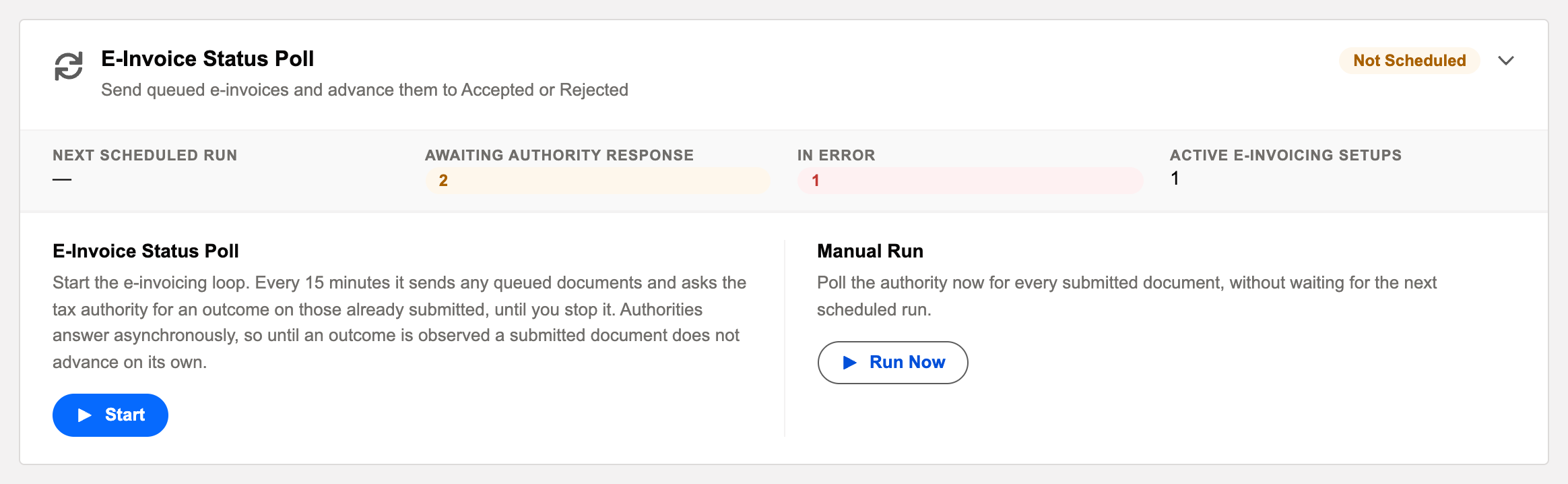
Collapsed, the card shows a single badge: Scheduled or Not Scheduled. Expand it and it shows four things.
| What it shows | How to read it |
|---|---|
| Next scheduled run | The date and time of the next automatic run, in your own time zone. A dash means nothing is scheduled. |
| Awaiting authority response | How many documents are sitting at Submitted right now. This is the backlog the next run will work through. When everything has been answered it reads “Nothing awaiting a response” — which is the healthy state, not an empty one. |
| In error | How many Trails ended in Error. This only appears when the count is above zero, so seeing it at all is the signal. These need a person; the poll will not clear them. |
| Active e-invoicing setups | How many entities are configured to file electronically. If this is zero the job has nothing to do at all. |

Starting and stopping it
- Confirm at least one entity is configured to file electronically. If “Active e-invoicing setups” reads zero, schedule nothing yet — set the entity up first, then come back.
- Open App Launcher → REDA Financials Admin → Financial Admin Console → Operations.
- Click the E-Invoice Status Poll card header to expand it.
- Click Start.
- Check what you should see: the badge changes to Scheduled, and Next scheduled run fills in with a time about fifteen minutes ahead.
There is no time to choose. Once started, the loop runs a cycle roughly every fifteen minutes and re-arms itself each time, so it keeps going until you stop it. To stop it, click Stop and confirm. Stopping loses nothing: a cycle already running finishes the document it is on, and documents already at Submitted stay exactly where they are until you start again.
Why every fifteen minutes, and not once a day
Under a clearance model an invoice is not a legally valid document until the authority has ruled on it and that verdict has been recorded against the invoice. A document filed at 09:00 and only checked the following night spends the whole working day in limbo — transmitted, but not yet valid, and nobody can tell from the invoice which it is. A short cycle keeps that window down to minutes.
- An idle cycle costs practically nothing. If no document is waiting, the cycle finds an empty queue and ends. It does not contact the authority at all, so leaving the loop running over a quiet weekend is not wasteful.
- Authorities are slower at month-end, when everyone files at once. A verdict that normally arrives in minutes can take hours on the 30th. The loop simply keeps asking; nothing is lost, it just resolves later.
Running it now
Run Now runs a single cycle immediately, without waiting for the next one. Use it when you need an answer sooner — a customer is waiting on a valid invoice, or you have just fixed something and want to see the result.
After confirming you will see a message giving the job's reference. The job runs in the background, so the counts on the card do not change instantly — collapse and expand the card, or refresh the page, after a minute to see the updated position.
Each invoice is transmitted as it is posted and sits at Submitted. Within about fifteen minutes of each one, a cycle asks the authority for its verdict. By 17:15 thirty-five have come back approved and moved to Accepted, each stamped with its official fiscal identifier — so the sales team can send a valid invoice the same afternoon, not the next morning. One is refused for a customer tax-identifier that does not match the authority's register and moves to Rejected, with the reason on its Trail; the team sees it that afternoon and reissues while the customer is still on the phone. Two are still under review and stay at Submitted.
At 17:20 the card reads Awaiting authority response: 2, and In error is not shown — a rejection is a verdict, not a failure to communicate. The two under review clear on a later cycle that evening without anyone touching them.
The same day with a once-a-day poll would have left all 38 invoices unresolved until the small hours, and the rejection undiscovered until Wednesday.
Common mistakes to avoid
| Mistake | What happens | Do this instead |
|---|---|---|
| Configuring an entity to file electronically and never scheduling the poll | Invoices transmit and acknowledge, then stop dead at Submitted. Nothing looks broken; the queue just never advances. | Schedule the card as part of setting the entity up, not afterwards. Treat them as one task. |
| Using Run Now as a refresh button | Every click costs one call per waiting document. On a large backlog this is slow and, with some authorities, billable. | Read the counts on the card. Use Run Now when you need a specific answer sooner than the next run. |
| Assuming In error will clear itself | It will not. Errors mean the exchange failed, not that a verdict is pending, so no amount of polling resolves them. | Open the Trail, read the recorded reason, fix the cause, and resubmit. |
| Scheduling it before any entity is configured | The loop runs every fifteen minutes and does nothing. Harmless, but it hides whether setup was ever finished. | Wait until Active e-invoicing setups is at least one. |
| Treating Rejected as a system problem | Time lost looking for a fault in the app. A rejection is the authority's decision about the document's content. | Read the reason on the Trail — it is usually a tax identifier, a date, or a total the authority disputes. |
Monitoring it
Two numbers tell you whether electronic invoicing is healthy, and you can read both from the card without opening anything:
- Awaiting authority response should fall to zero, or near it, after each run. A count that keeps climbing day after day means the job is not running — check the badge still says Scheduled and that Next scheduled run is in the future.
- In error should not be shown at all. When it appears, it is telling you documents need a person.
For the detail behind the numbers, open the E-Invoice Trails tab and filter by status. Each Trail records what was sent, what came back, and when — which is also what an auditor will ask for.
Troubleshooting
| Symptom | Likely cause | What to do |
|---|---|---|
| The card says Not Scheduled and you are sure you scheduled it | The scheduled job was removed — commonly during a sandbox refresh or a deployment that cleared scheduled jobs. | Schedule it again. Scheduled jobs are org data and do not survive a refresh; add this to your post-refresh checklist. |
| Awaiting authority response keeps rising | The job is not running, or it is running and the authority is not answering. | Check Next scheduled run is in the future. Then use Run Now once and watch whether the count falls. If it does not move at all, the connection to the authority is the place to look, not the schedule. |
| A document has been at Submitted for days while others clear | That specific document is genuinely still under review, or its acknowledgement never completed. | Open its Trail and check the recorded response. If nothing came back at all, resubmit it. |
| In error appears after a run | The exchange failed — a rejected connection, a timeout, or a document the authority would not accept for transmission. | Open the Trail; the reason is recorded in full. Fix the cause, then resubmit. Polling again will not clear it. |
| The card shows “No active e-invoicing setup exists yet” | No entity is configured to file electronically — either you do not need this, or setup was not finished. | If your country requires electronic filing, finish configuring the entity. Otherwise ignore the card. |
| You cannot see the Operations tab at all | Your user does not hold the required permission set. | Ask an administrator to assign Accounting Admin. Note that the permission sets were reissued — make sure you are given the current versions. |
Where to go next
- Electronic invoicing: how it works — the end-to-end picture, and what has to be in place before this card matters.
- Setting up electronic invoicing for an entity — the configuration this job depends on.
- Reading an E-Invoice Trail — the statuses in detail, and how to resolve a rejection or an error.
- The Operations tab — every scheduled job in one place.
Frequently asked questions
Yes. Automatic submission and status polling are two different things. Submission sends the document; the poll collects the verdict. An entity set to submit automatically still needs this job scheduled, or its invoices will transmit and then stop at Submitted.
About every fifteen minutes, for as long as it is running — the card’s loop re-arms itself on that cadence and the card offers nothing to change it. If you genuinely need a different rhythm, there is a supported way: schedule the class refin.EInvoiceStatusPollSchedulable yourself from Setup → Apex Classes → Schedule Apex with your own cron expression. Each fire then runs a single pass at whatever cadence your cron expresses, instead of arming the 15-minute loop, so the two approaches never double up — use the card or your own schedule, not both. It is deliberately short because under a clearance model an invoice is not legally valid until the authority’s verdict has been recorded against it, so a long gap leaves documents in limbo. A cycle with nothing to do costs nothing, so a short interval is not wasteful.
Nothing. The poll only looks at documents already acknowledged by the authority. Anything still being sent is in a different status and is skipped.
It depends on your arrangement with the authority or the service connecting you to it — some charge per call, some do not. The scheduled run asks once per waiting document, which is the minimum possible. Run Now does the same, on demand, which is why it asks for confirmation.
Scheduled jobs are org data, not part of the installed package, so a refresh clears them. Press Start again in the refreshed sandbox — and note that a sandbox usually points at the authority's test environment, so verdicts there are not real filings.
Yes. Open the E-Invoice Trails tab and open the Trail for that invoice. It records the response and the date it arrived, alongside the official fiscal identifier once the document is accepted.