
Understanding Cash Disbursements
A Cash Disbursement is a payment your company makes to a vendor — the money-out side of Accounts Payable. Every check written, wire sent, or transfer made to a supplier is a Cash Disbursement in REDA Financials. This article explains how a payment works, how it connects to the bills it settles, what happens in your books along the way, and how check numbers are managed.
Access you'll need. Any REDA Financials permission set can view Cash Disbursements; creating, editing, posting, and voiding them requires the Accounts Payable v2 permission set (AP clerks & managers) or Accounting Admin v2 (system administrators). The Accounting Controller v2, Accounts Receivable v2, and Read Only v2 sets can view but not change them.
What a Cash Disbursement records
Take a real payment: Meridian Properties US LLC paying Summit HVAC Inc $3,300 by check for maintenance work.
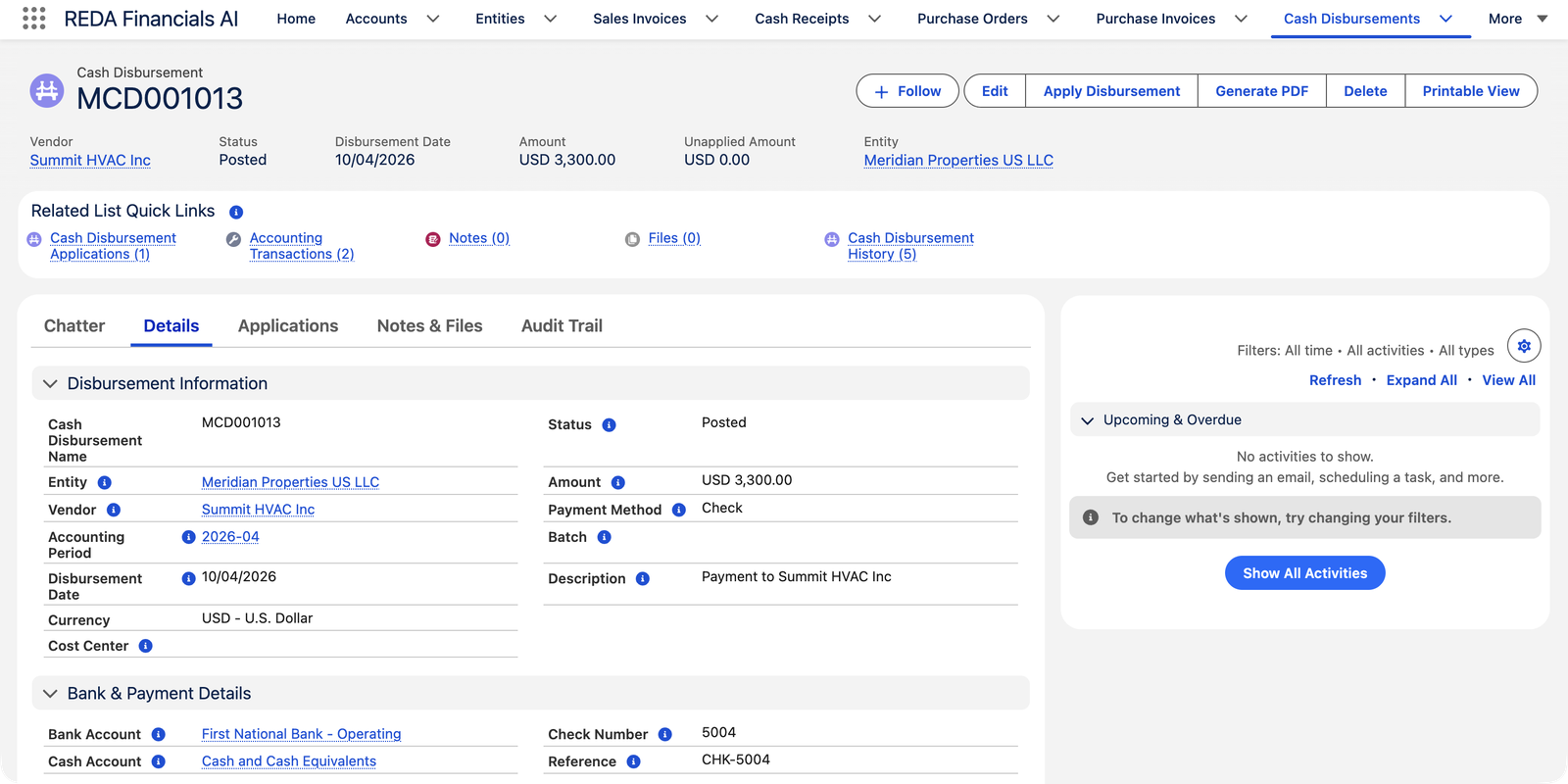
The key fields:
| Field | What it means |
|---|---|
| Vendor / Entity | Who is being paid, and which of your companies is paying. |
| Amount | The full value being settled. When an early-payment discount applies, the cash that actually leaves the bank is this figure minus Discount Amount — see Settlement Discounts. |
| Disbursement Date | The payment date — it decides the accounting period. |
| Payment Method | Check, Wire, ACH, Card or Cash. Choosing Check activates check-number handling (below). |
| Bank Account / Cash Account | Which bank account funds the payment, and the ledger account that represents it. |
| Unapplied Amount | The part of the payment not yet matched to any invoice. Zero means fully applied. |
| Reference | Your trace to the outside world — a wire confirmation, check stub, or bank transaction ID. |
What happens in your books
Payments move through two stages, and each writes its own balanced entries. When the disbursement posts (money leaves the bank):
| Account | Debit | Credit |
|---|---|---|
| Supplier Prepayments (money paid out, not yet matched) | $3,300.00 | |
| Cash and Cash Equivalents | $3,300.00 |
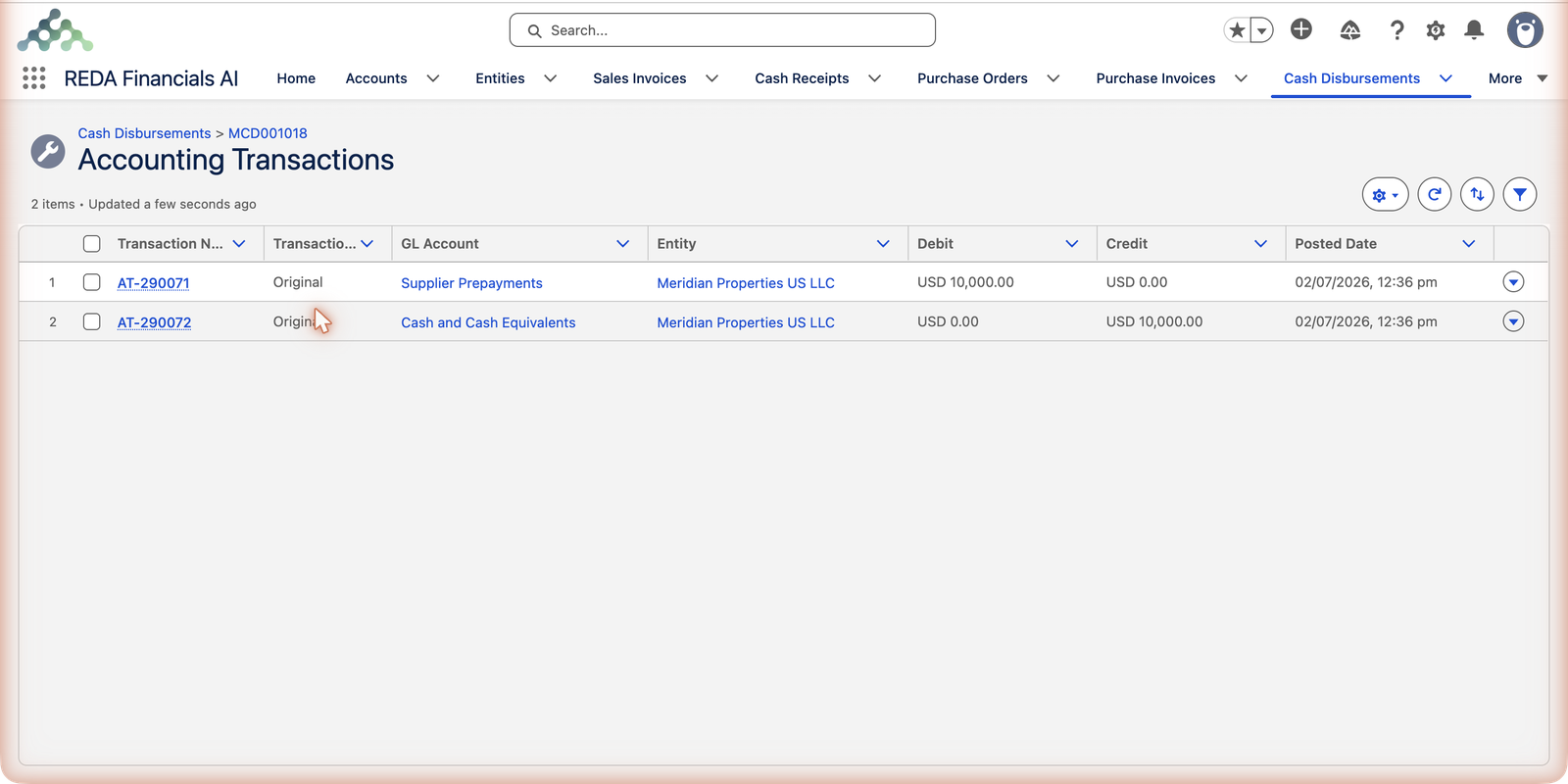
And when the payment is applied to the vendor's invoice:
| Account | Debit | Credit |
|---|---|---|
| Accounts Payable — Trade (the debt clears) | $3,300.00 | |
| Supplier Prepayments (the paid-out money is consumed) | $3,300.00 |
Why the two-step dance? Because it mirrors reality. If you pay a vendor before the bill arrives — a deposit, a retainer — the money correctly sits in Supplier Prepayments on your balance sheet (an asset: the vendor owes you goods, services, or the money back). The moment you apply the payment to an invoice, the prepayment converts into a settled bill. When payment and application happen together, as they usually do, you never notice the intermediate step — but your books are right in every scenario.
Applications: connecting payments to bills
Click Apply Disbursement on a posted payment to match it against the vendor's open invoices. Each match — an application — records how much of this payment settles which bill, on what date. One payment can settle many invoices (a monthly check covering three bills), and one invoice can be settled by many payments (a 50% deposit plus the balance).
- The invoice's Balance Due falls by the applied amount, and its aging bucket updates instantly.
- The payment's Unapplied Amount falls too — when it reaches zero, the payment is fully used.
- Early-payment discounts can be taken at application time — see Settlement Discounts & Terms.
Prefer automation? Switch on Auto Apply Disbursement and REDA Financials matches the payment to the vendor's open invoices oldest-first until the money runs out. The full how-to is in Applying Disbursements.
Check numbers and check stock
If the payment method is Check, REDA Financials manages the check number for you. Each bank account carries a check stock — the range of check numbers in your physical checkbook, configured in Check Stock & Check Printing. When a check payment posts, the next number is taken from the stock and stamped on the payment — Meridian's payment above received check 5004.
Lifecycle: Draft → Posted → Void
| Status | What it means | Notes |
|---|---|---|
| Draft | Being prepared; nothing in the books. | Fully editable; deletable while it has no check number. |
| Posted | Cash has left; ledger entries exist. | Locked. Check number assigned here (check payments). Applications can be added. |
| Void | Payment cancelled. | Entries and applications are removed; the settled invoices become outstanding again. Void reason and date are recorded permanently. See Voiding a Disbursement. |
Where payments come from
You will meet Cash Disbursements created four different ways — all identical once they exist:
- Manually — the New button or an invoice's payment action. See Creating a Cash Disbursement.
- From a payment run — the batch wizard pays many vendors at once and groups the payments under one batch. See Creating a Payment Batch.
- Automatically from Expense invoices — posting an Expense-type bill creates its own payment. See Expense-Type Purchase Invoices.
- Scheduled auto-apply — administrators can schedule automatic application of unapplied payments. See Auto-Apply Batches.
Who can work with payments
Creating, posting, applying and voiding disbursements takes the Accounts Payable or Accounting Admin permission set, while everyone else can view but change nothing (the full breakdown is in Access you'll need at the top). Segregating who enters bills from who releases payments is a common control — talk to your administrator about how your organization assigns these permission sets.
Where to go next
- Creating a Cash Disbursement — pay a bill step by step.
- Applying Disbursements — matching payments to invoices, manually and automatically.
- Settlement Discounts & Terms — earning early-payment discounts.
- Batch Payment Run — paying all your vendors in one sitting.
- Voiding a Disbursement — cancelling a payment safely.
Frequently asked questions
It's the part of the payment not yet matched to any invoice — money sitting in Supplier Prepayments on your balance sheet. Apply the payment to the vendor's invoices to bring it to zero. An intentionally unapplied payment is how you record a deposit or advance to a vendor.
Yes — add multiple applications, one per invoice, until the payment is used up. This is exactly what happens in a payment run when a vendor has several open bills: one payment, several applications.
Two possible reasons: it's posted (posted payments can only be voided, never deleted), or it carries a check number (a used check must remain on record even in Draft). Void it instead — the entries are removed and the reason is kept for the audit trail.
Their balances come back. Voiding removes the payment's ledger entries and unwinds its applications, so every invoice it had settled becomes outstanding again — and shows up in AP aging until paid another way.
The bank account's check stock has been fully used, and REDA Financials warns you when that happens. Your administrator loads the next checkbook's range on the bank account (see Check Stock & Check Printing), and check payments continue from the new range.
Was this article helpful?