
Group Hierarchy Tree
A financial statement isn’t a flat list — it’s a nested structure. Individual accounts roll into line items, line items roll into sub-totals, and sub-totals roll into the headline figures. In REDA you build that structure by giving each account group a parent group, forming a tree.
This article explains how the tree works — nesting, ordering, roll-ups, and the rules that keep it sound.
Access you'll need. Building and re-parenting groups requires the Accounting Admin v2 or Accounting Controller v2 permission set. The Accounts Payable v2, Accounts Receivable v2, and Read Only v2 sets can view frameworks and the statements they drive but not change them.
How the tree is built
Each group points to one Parent Group; groups with no parent are the top-level sections of the statement. Stacking those parent links produces the familiar shape of a balance sheet:
└─ Current Assets
└─ Trade and Other Receivables → accounts: 1200, 1210…
└─ Cash and Cash Equivalents → accounts: 1000, 1010…
└─ Non-Current Assets
└─ Property, Plant and Equipment → accounts…
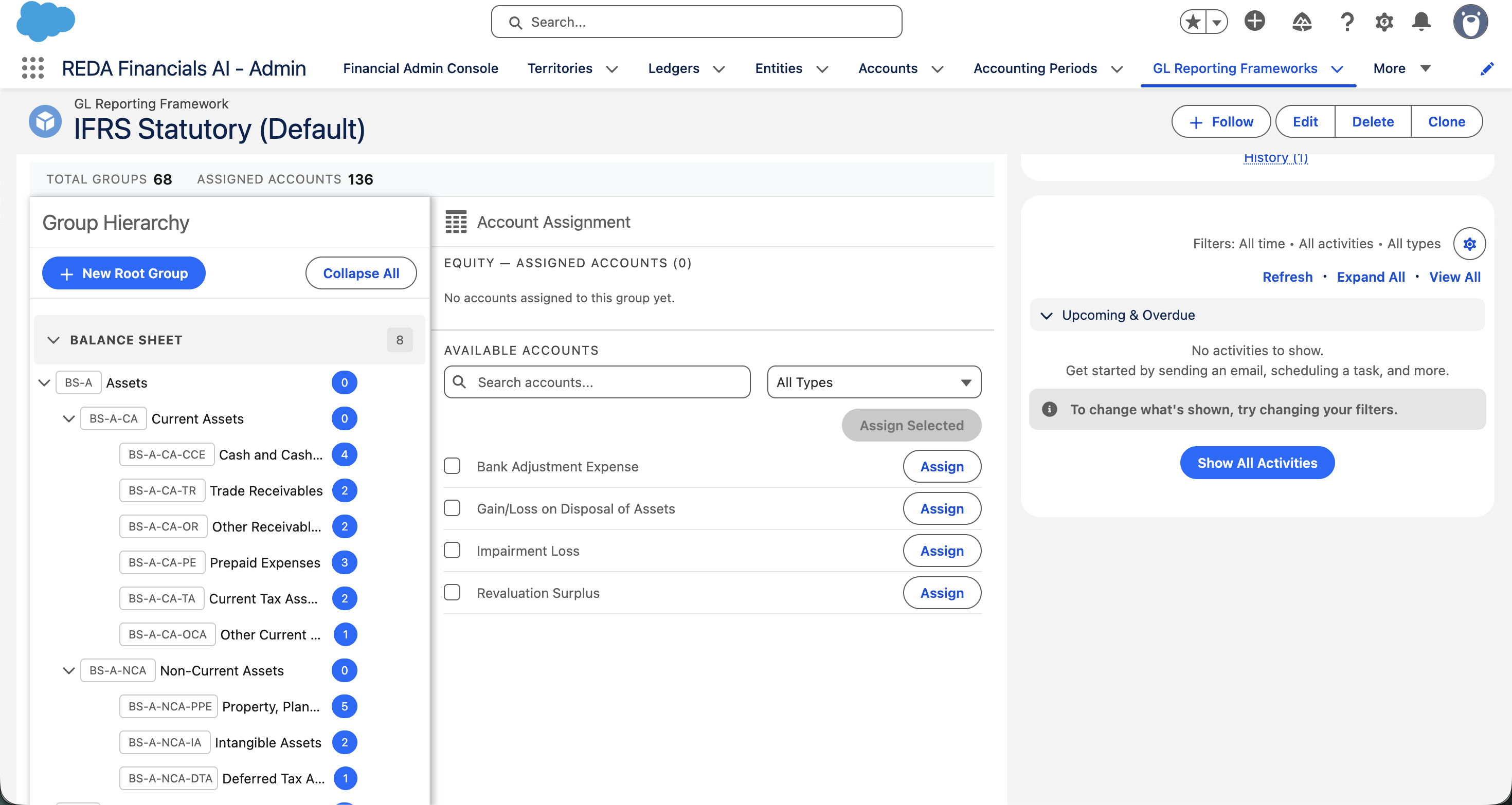
BS-A-CA-TR = Balance Sheet › Assets › Current Assets › Trade Receivables).The leaf groups hold the accounts (through their members); the branch groups above them exist to sub-total. When a statement is generated, REDA reads this tree and sums upward — accounts into their group, groups into their parent, all the way to the top.
A worked slice of Meridian’s tree
Here is how the asset side of the balance sheet above is actually assembled — each row is one group record, and the whole shape comes from just two fields, Parent Group and Sort Order:
| Group Code | Description | Parent Group | Sort Order | Role in the tree |
|---|---|---|---|---|
| BS-A | Assets | (none) | 10 | Top-level section — the headline total |
| BS-A-CA | Current Assets | BS-A | 10 | Branch — sub-totals its children |
| BS-A-CA-CCE | Cash and Cash Equivalents | BS-A-CA | 10 | Leaf — holds the cash accounts |
| BS-A-CA-TR | Trade Receivables | BS-A-CA | 20 | Leaf — holds the receivable accounts |
| BS-A-NCA | Non-Current Assets | BS-A | 20 | Branch — sits below Current Assets because 20 > 10 |
Notice two things. The codes mirror the nesting
(BS-A-CA-TR reads as Balance Sheet › Assets ›
Current Assets › Trade Receivables) — REDA doesn’t
require that, but it makes the tree self-documenting. And only the
leaf groups carry accounts; every branch above them is
pure arithmetic. When July’s balance sheet is generated, the balances
of the cash accounts sum into Cash and Cash Equivalents, which
sums with Trade Receivables into Current Assets, which
sums with Non-Current Assets into Assets.
Ordering with Sort Order
Within each level, Sort Order decides the sequence — lower numbers appear first. This is how you make Current Assets sit above Non-Current Assets, and Cash above Receivables, regardless of name.
How deep should the tree go?
REDA supports multiple levels, but a readable statement rarely needs many. The recommended maximum is about three levels — section → sub-section → line — which covers IFRS and most local-GAAP presentations comfortably.
The rules that keep the tree sound
REDA enforces the structural rules automatically, so the hierarchy can never become inconsistent. Here is each rule with the exact message you will see if you run into it:
| What you tried | Message you’ll see | What to do |
|---|---|---|
| Setting a parent that sits below this group (a loop) | “The selected parent group creates a circular reference in the hierarchy. A group cannot be its own ancestor.” | Pick a parent that sits above this group — or no parent at all if it should be a top-level section. REDA walks the whole ancestor chain to catch loops, so roll-ups always terminate at the top. |
| Setting a parent from a different framework | “The parent group must belong to the same Reporting Framework as this group. Cross-framework parent assignments are not permitted.” | Choose a parent within the same framework. Each framework’s tree is self-contained — an IFRS group can never roll into a Management-view parent. |
| Deactivating a group that still has active accounts assigned | “This group cannot be deactivated while it has active GL Accounts assigned to it. Remove or reassign active accounts first.” | Unassign the accounts (or move them to another group) in the builder, then deactivate. A live statement line never silently loses its accounts. |
| Deleting a group that still has member accounts | A standard delete error — the assignment records prevent deletion. | Remove the account assignments first, then delete. In the builder, deleting asks you to confirm: “Are you sure you want to delete this group? This action cannot be undone.” |
| Assigning an account that already belongs to another group in this framework | “This GL Account is already assigned to another group within the same Reporting Framework. An account can only appear once per framework.” | Unassign it from its current group first. One account, one statement line per framework — otherwise its balance would be counted twice. |
Editing the tree
You shape the tree visually in the Reporting Framework Builder: its left panel shows the hierarchy as a collapsible tree, where you can create, rename, re-parent, and reorder groups (move up / move down), and watch the structure take shape. You don’t edit parent links and sort orders record by record — the builder does it for you.
Common mistakes to avoid
| Mistake | Why it hurts | Do this instead |
|---|---|---|
| Attaching accounts to branch groups and their leaves | The statement line structure becomes ambiguous — readers can’t tell whether a branch figure is a sub-total or its own line. | Keep accounts on leaf groups only; let branches do the adding-up. |
| Numbering sort orders 1, 2, 3… | Inserting a new line later means renumbering everything at that level. | Number in tens (10, 20, 30…) so a newcomer can take 15. |
| Building a five-level-deep tree to encode departments or projects | The statement becomes unreadable, and the structure duplicates what dimensions already do. | Keep roughly three levels; analyse detail with posting dimensions. |
| Leaving new accounts unassigned after adding them to the chart | Their balances won’t appear under any group in framework-structured statements. | After creating accounts, open the builder — its Unassigned Accounts counter shows exactly how many are still floating. |
Where to go next
- Reporting Framework Builder — the visual tool where you actually shape this tree.
- GL Account Groups — the group records themselves and how accounts become members.
- Reporting Frameworks — the containers that let you keep several presentation trees side by side.
- Chart of Accounts Best Practices — designing the accounts the tree will roll up.
Frequently asked questions
Typically the leaf (bottom) groups — the actual statement lines — hold the accounts, and the groups above them exist to sub-total. You can attach accounts to any group, but a clean structure keeps accounts on the leaves and lets the parents do the adding-up.
No — a group belongs to one financial statement (Balance Sheet, Income Statement, or Cash Flow), and its parent should be on the same statement. Mixing statements in one roll-up wouldn’t produce a meaningful total.
Two likely reasons: the parent you chose is in a different framework (not allowed — parents must share the framework), or the link would create a loop (the parent is already somewhere below this group). Pick a parent in the same framework that sits above this group.
Adjust Sort Order — easiest done with the move-up / move-down controls in the builder’s tree. Lower numbers appear higher on the statement.
Yes — that’s the point of having multiple frameworks. Within any one framework an account can appear in only one group, but each framework has its own tree, so the same account can sit under “Trade Receivables” in your statutory view and under “Working Capital” in a management view.
The group still has account assignments. Remove or reassign its accounts in the builder first, then delete. If the group has child groups, deal with those too — a parent shouldn’t vanish from under its children.
Was this article helpful?