
Subscription Tab
The Subscription tab answers three administrator questions: is our licence active, what did we buy, and how much have we used? It’s the console’s default tab — and the very first stop after installing REDA Financials.
Access you'll need. Activating licences and assigning seats requires the Accounting Admin v2 permission set; the Accounting Controller v2 can reach the console too. The Accounts Payable v2 and Accounts Receivable v2 sets cannot see it — this is administrator-only.
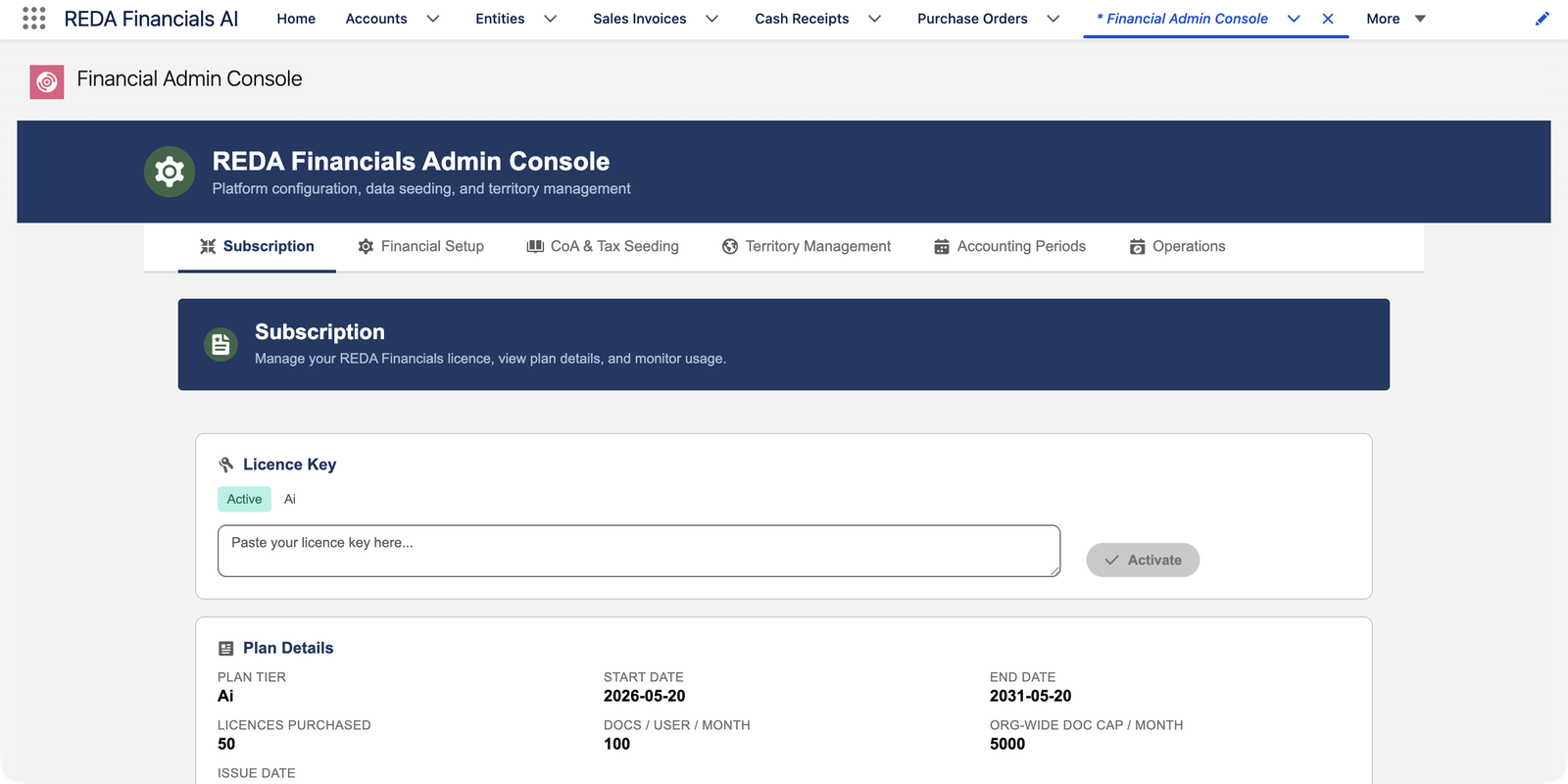
The cards
| Card | What it shows / does |
|---|---|
| Licence Key | Your activation point: paste the key REDA provides and click Activate. The badge tells the truth at a glance — Active, Expired, or Not Active — alongside the plan tier. |
| Plan Details | The contract, readably: tier, start and end dates, licences purchased, AI documents per user per month, and the org-wide monthly document cap. |
| User Licences | Used / available / total, with a progress bar — how many of your purchased seats are assigned. (Assignment itself happens on user records: see User-Level Licensing.) |
| Document Consumption | On AI plans: this month’s AI document usage against the cap — the fuel gauge for OCR and AI features. Details: AI Usage Periods & Credits. |
Activating a licence
Paste and activate
You need the Customize Application permission to do this — System Administrators already have it; if licence activation is delegated to someone who is not an administrator, grant it to them or have an administrator activate the key. Drop the key from REDA into the box, click Activate, and give it a few seconds — the badge flips to Active and Plan Details fills in. Keys are issued per org, so a key activates only in the org it was made for (sandbox and production get their own).
Assign user licences
Tick REDA Financials AI on each user who works in the system — posting and AI features require it, and the seat counter here tracks the cap. See User-Level Licensing.
What expiry actually does
An expired or missing licence doesn’t hide your data — it stops new bookkeeping: posting is blocked with a clear message, and AI features pause. Reading, reporting and exporting continue. Renew, re-activate, and work resumes exactly where it stopped.
When the tab talks back — the messages
Licensing problems announce themselves in plain language, either here at activation or to your users at posting time. The ones worth recognising:
| Message (verbatim) | When it appears | The fix |
|---|---|---|
| "Invalid licence key. Please contact REDA support." | At activation — the pasted string isn’t recognised, usually a partial copy-paste | Re-paste the whole key; if it persists, contact REDA support with your org ID |
| "Your REDA Financials licence has expired. Contact your administrator." | To any user who tries to post after the end date | Activate the renewal key on this tab — posting resumes immediately |
| "Cannot enable REDA Financials for this user. All {0} licences are in use." | To the administrator ticking REDA Financials AI on one user too many | Free a seat (untick a departed user) or grow the plan — see User-Level Licensing |
Two quieter cases: a key issued for a different org refuses with a message saying so (request the right org’s key), and a key whose start date hasn’t arrived yet is valid but not in force — the badge tells you, and the Plan Details card shows the date you’re waiting for.
Common mistakes to avoid
| Mistake | Why it hurts | Do this instead |
|---|---|---|
| Activating the key and stopping there | Nobody can post yet — the org is licensed but no user is | Step two is the point: tick REDA Financials AI on every working user |
| Pasting a sandbox key into production | Keys are org-locked; it refuses, and the real org stays unlicensed while you debug the wrong thing | Label keys by org when they arrive; request one per org from REDA |
| Reading Not Active as a broken install | A fresh org on the evaluation tier legitimately shows it — panic reinstalls fix nothing | Evaluate freely on the free tier; the badge flips to Active when your purchased key goes in |
| Never revisiting this tab after go-live | The end date, the seat bar and the document gauge all creep up quietly — until they don’t | Make the tab a monthly glance: badge green, seats sane, consumption on pace, end date far away |
| Letting the seat bar ride at 100% | The next hire’s licence assignment fails on day one with the all-licences-in-use message | Keep headroom: untick leavers promptly, and plan seat purchases ahead of hiring |
Where to go next
- User-Level Licensing — assigning the seats.
- AI Usage Periods & Credits — the document meter.
- Plan Tiers — what each tier includes.
Frequently asked questions
Check the two classics: the key belongs to this org (org-locked keys refuse elsewhere — sandbox keys for sandboxes), and it was pasted whole, with no trimmed characters. If it still refuses, contact REDA support with your org ID.
No — automation runs under the platform’s automated process identity, outside your seat count. Fifty licences means fifty humans.
AI document processing (OCR intake) pauses until the month rolls over or the plan grows — everything manual continues untouched. The Document Consumption card is your early warning; talk to REDA about the cap if you’re brushing it monthly.
Your plan is org-wide — the evaluation tier works this way — so every user is licensed and there’s no seat count to track. Purchased seat-based plans show the used / available / total bar instead.
The org’s subscription has passed its end date — this tab’s badge will read Expired. Activate the renewal key here and the user can post again immediately; nothing they were working on is lost.
Administrators — the console belongs with the Accounting Admin permission set. Day-to-day accounting roles never manage licensing; they only meet its effects.
Was this article helpful?