
CoA & Tax Seeding Tab
An empty accounting system is a blank page nobody wants to write on: hundreds of GL accounts to define, tax rules per country, withholding regimes… The CoA & Tax Seeding tab replaces weeks of that with clicks — its banner is the instruction manual: "Seed your Chart of Accounts, tax reference data, and withholding tax rules. Start with the Global CoA pack, then seed each country of operation."
Access you'll need. Seeding requires the Accounting Admin v2 permission set; the Accounting Controller v2 can reach the console too. The Accounts Payable v2 and Accounts Receivable v2 sets cannot see it — this is administrator-only.
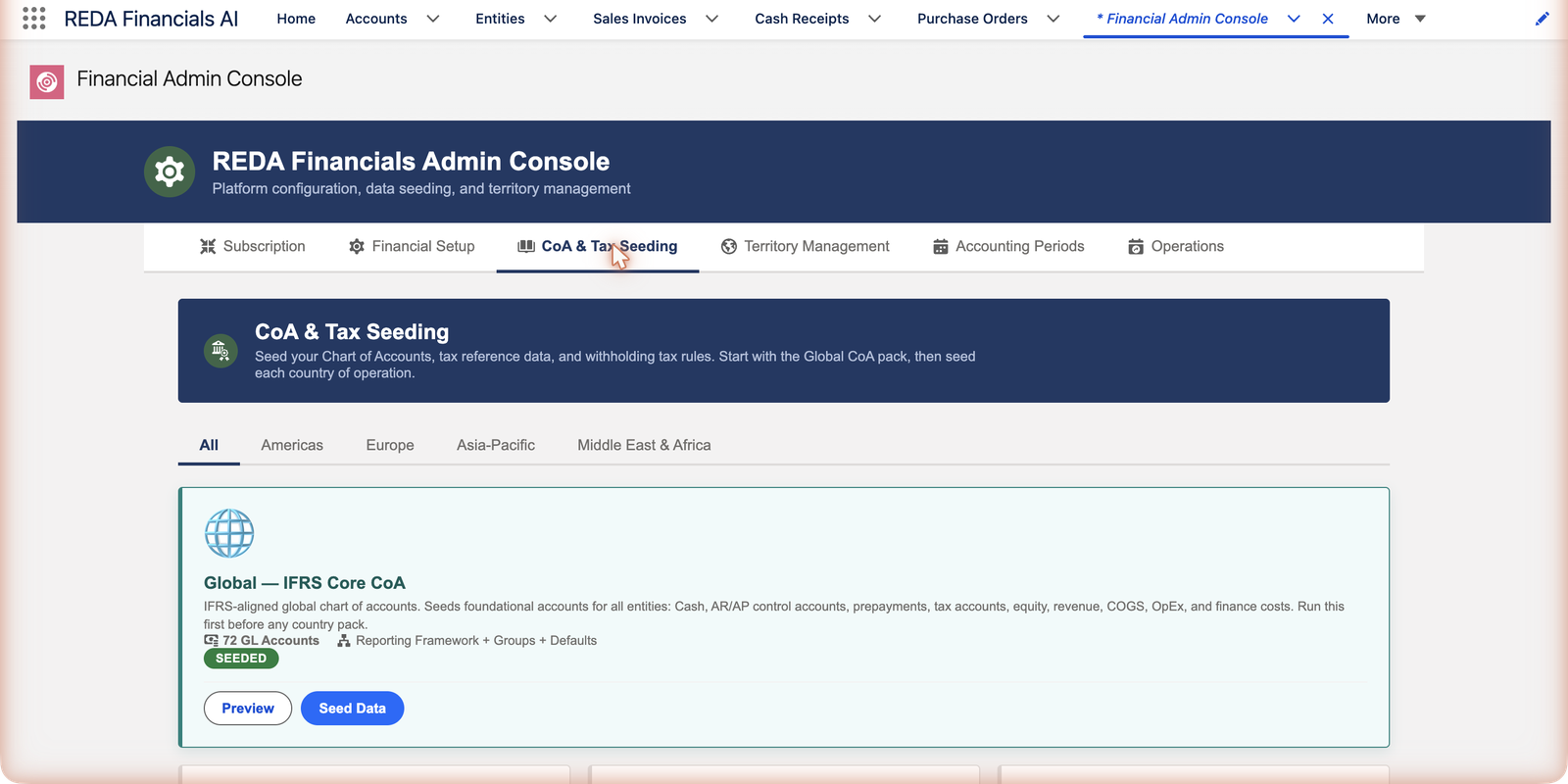
Reading a pack card
The tab is a library of packs, filtered by region — All, Americas, Europe, Asia-Pacific, Middle East & Africa — with one card per pack. Every card gives you the same five things:
| Card element | What it tells you / does |
|---|---|
| Name and description | What the pack is and what it seeds — e.g. "Global — IFRS Core CoA: IFRS-aligned global chart of accounts… Run this first before any country pack." The description is the pack's own instruction manual. |
| Contents line | A count of what's inside — the Global card reads "72 GL Accounts · Reporting Framework + Groups + Defaults" — so you know the size of the change before touching anything. |
| SEEDED badge | A green badge meaning this org has already run the pack. No badge: not yet seeded here. |
| Preview | Lists exactly what a run would create — read it before every first seed. |
| Seed Data | Commits the pack. Safe to re-run: it updates its own records rather than duplicating them. |
What a seeding run actually creates
| Created by | Category | What it gives you |
|---|---|---|
| Global pack | GL accounts | The IFRS-aligned foundation: cash, AR/AP control accounts, prepayments, tax accounts, equity, revenue, COGS, operating and finance costs. |
| Reporting framework & groups | The classification tree your financial statements are built on. | |
| Global Accounting Defaults | The org-wide defaults record on the Financial Setup tab, pre-wired to the seeded accounts. | |
| Country packs | Tax jurisdictions | The country, down to states where relevant. |
| Tax types & rules | VAT, GST or sales-tax regimes with their rates and rules. | |
| Tax classifications | Party and product classifications the tax engine matches on. | |
| Withholding & local accounts | Withholding regimes and any country-specific GL accounts. |
Step 1 — The Global pack, always first
The Global — IFRS Core pack lays the foundation every entity shares: an IFRS-aligned chart of accounts (cash, AR/AP control accounts, prepayments, tax accounts, equity, revenue, COGS, operating and finance costs), the reporting framework with its account groups, and the Global Accounting Defaults pre-wired to those accounts. One click, and an empty org can post its first invoice correctly.
Step 2 — Each country of operation
Country packs (browse by region) layer local reality on top: the country’s tax jurisdictions down to states where relevant, tax types and rules (VAT, GST, sales taxes), party and product tax classifications, withholding regimes, and country-specific accounts. Seed the countries where your entities are registered — Meridian’s org runs Global + US, and will add UK, India and Brazil as those entities come online.
Seeding mechanics worth knowing
- Preview before commit — every card’s Preview lists exactly what would be created.
- Safe to re-run — seeding recognizes what it created before (the SEEDED badge); re-running updates rather than duplicates. That’s also how tax-rate updates ship: re-seed the country, history preserved, new rates effective-dated.
- Additive, not destructive — your own accounts and rules alongside seeded ones are untouched.
- Seeded ≠ locked — everything a pack creates is normal data you can extend (Meridian added its rental-income accounts beside the seeded chart; see Creating & Managing GL Accounts).
Seed Mode — and the one setting that can delete
When you click Seed This Country, the confirmation dialog offers a Seed Mode choice. It defaults to the safe one, and most admins never change it:
| Mode | What it does | Use it when |
|---|---|---|
| Insert Only (default) | Adds new records and skips anything already there — safe and idempotent. | Always, unless you have a specific reason not to. This is what makes re-running harmless. |
| Upsert | Updates existing records matched by Code, and inserts the rest. | You want a refreshed pack to overwrite the seeded values you have since edited. |
| Replace | Deletes all existing data for that country, then re-seeds from scratch. The dialog labels it destructive, and it means it. | Only to undo a botched seed in a sandbox or a pre-go-live org — never on books that carry posted documents. |
One thing that stops a seed before it starts
- The currency is not enabled. Seeding a country’s tax data needs its currency active in the org: “Cannot seed [country] tax data: the currency [ISO] is not enabled in this org. Add [ISO] under Manage Currencies in Setup, then run the seed again.” Enable the currency first, then re-run.
A worked example — Meridian's seeding session
Meridian Properties Group's administrator seeds a fresh org in one sitting:
Preview the Global pack
She clicks Preview on the Global — IFRS Core CoA card and reads the list: the foundational accounts, the reporting framework with its groups, and the defaults. The contents line already promised the shape — 72 GL Accounts · Reporting Framework + Groups + Defaults.
Seed Global
Seed Data runs, and the card gains its green SEEDED badge. The org can now post correctly — and the Global Accounting Defaults record exists, pre-wired.
Seed the first operating country
She filters to Americas, previews and seeds the United States pack — jurisdictions, sales-tax rules, classifications. Meridian's US entity will be created next, copying its wiring from what now exists.
Return as the business grows
The UK, India and Brazil packs wait in the library. Each gets seeded just before its entity comes online — same routine: filter by region, Preview, Seed Data, badge turns green.
Common mistakes to avoid
| Mistake | Why it hurts | Do this instead |
|---|---|---|
| Creating entities before seeding | Entity creation copies default accounts from the seeded configuration — an entity born earlier starts with empty wiring you'd fill by hand | Seed Global (and the entity's country) first, then create the entity |
| Seeding a country pack before the Global pack | The local layer has no foundation to attach to | Global first — the card itself tells you |
| Skipping Preview on a first seed | You commit hundreds of records without knowing what's coming | Preview costs one click and lists every record a run would create |
| Rebuilding the chart by hand instead of extending the seeded one | Weeks of work, and the reporting framework no longer matches the accounts | Extend: add your own accounts beside the seeded chart — everything a pack creates is normal, editable data |
| Avoiding re-seeding for fear of duplicates | Your org misses shipped tax-rate updates | Re-seed confidently — seeding recognizes its own records and updates rather than duplicates, with new rates effective-dated |
Where to go next
- Tax Seeding Wizard — the tax-side deep dive.
- Seeded Countries Reference — what each pack contains.
- Chart of Accounts Setup Best Practices — extending the seeded chart well.
Frequently asked questions
Seed Global, then build that country’s tax setup manually — the tax engine is fully configuration-driven, so no pack is required, just convenient. And tell REDA: packs grow by demand.
No — re-seeding updates the records it created (matched by its own keys) and leaves everything else alone. Custom accounts, custom rules, renames of your own records: safe.
Seed first — entity creation copies its default accounts from the seeded configuration. An entity created before seeding starts with empty wiring you’d fill by hand.
Look at the card: a green SEEDED badge means it has. No badge, not yet. The badge is per org, so a sandbox and production each keep their own truth.
Yes — that's exactly what Preview is for: it lists what a run would create, before anything is committed. The Seeded Countries Reference also documents each pack's contents.
No — seed only the countries where your entities are registered. Extra packs add tax configuration nobody uses. Packs can always be seeded later, the day a new country entity comes online.
Was this article helpful?