
Receiving PO Lines (Assets)
Receiving is the middle leg of the three-way match: confirming that what you ordered actually arrived. It takes a minute per delivery, and it's what later lets invoices be checked against reality. And when the ordered items are equipment or property, receiving does something more — it creates your asset records automatically. This article walks both.
Access you'll need. Recording receipts requires the Accounts Payable v2 permission set (AP clerks & managers) or Accounting Admin v2 (system administrators). The Accounting Controller v2, Accounts Receivable v2, and Read Only v2 sets can view an order but not receive against it.
Recording a receipt
Open the posted order and click Receive Goods
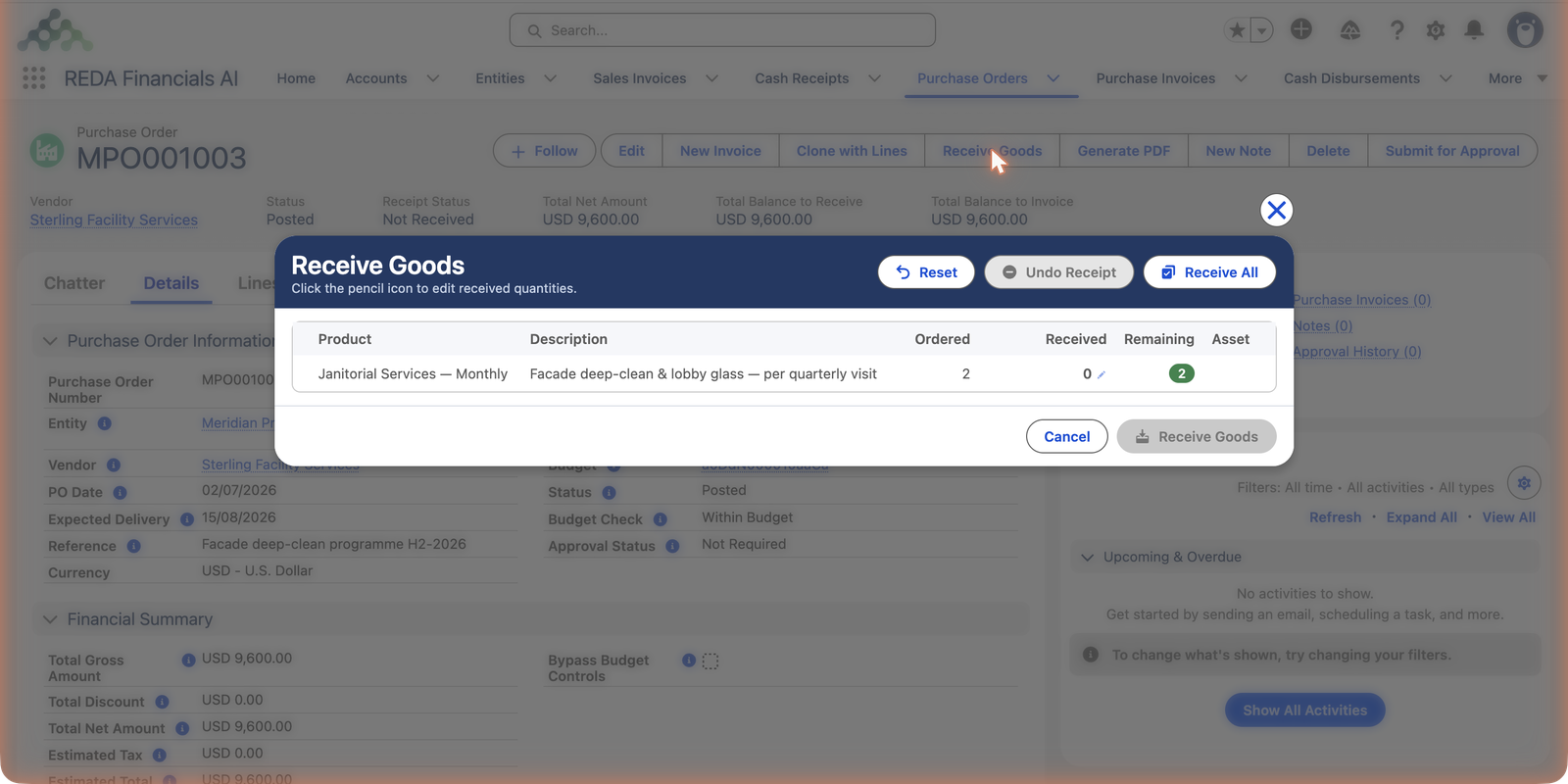
The Receive Goods window lists every line with three numbers: Ordered, Received so far, and Remaining.
Enter what actually arrived
Click the pencil on each delivered line and type the quantity. Sterling completed the first of Meridian's two facade-cleaning visits, so: received 1 of 2. If everything came at once, Receive All fills every line.
Confirm with Receive Goods
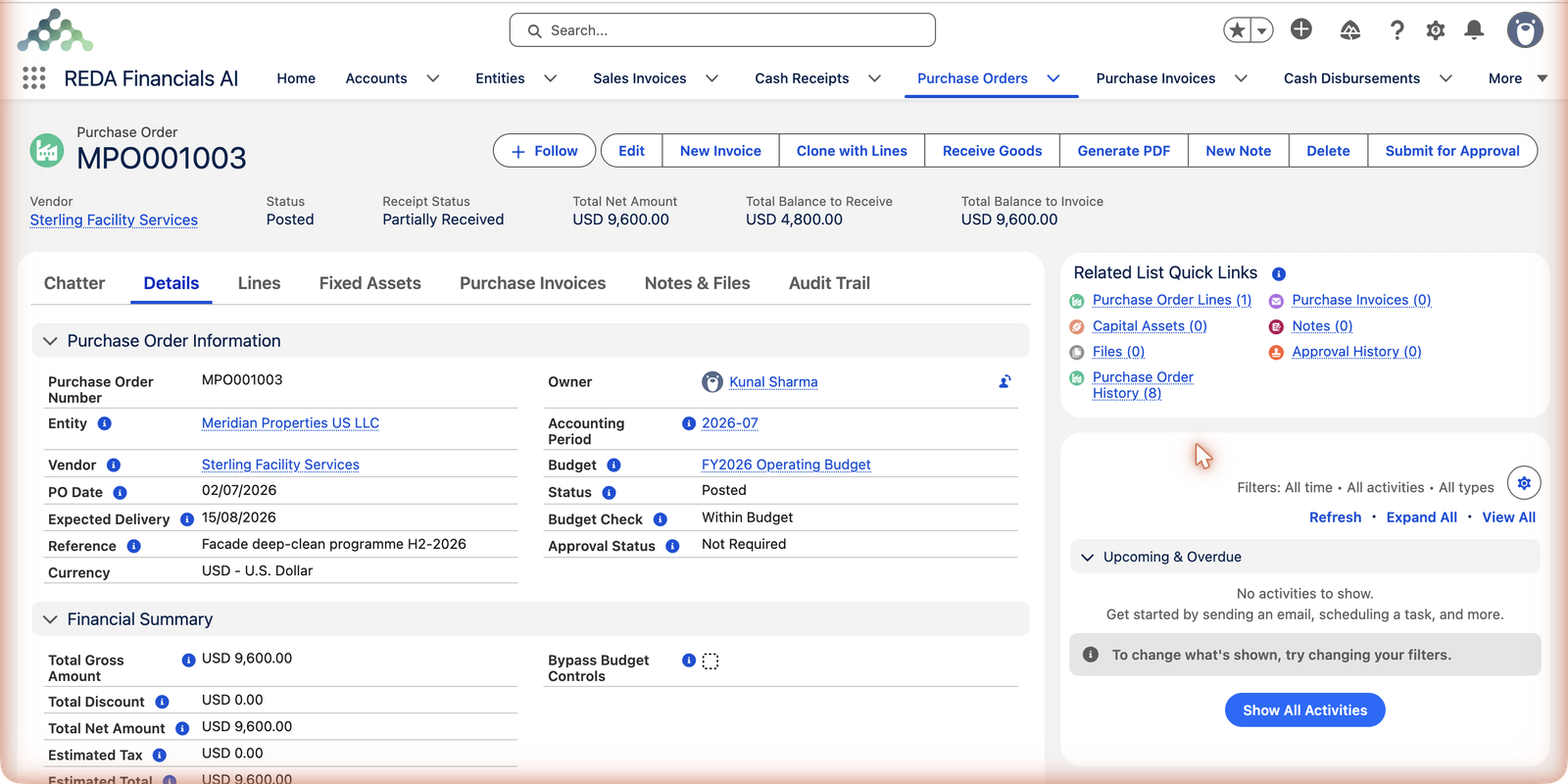
The order updates instantly:
| Receipt Status | Meaning |
|---|---|
| Not Received | Nothing recorded yet. |
| Partially Received | Some lines (or part of a line) arrived. |
| Fully Received | Everything ordered is in. |
The window's controls, in one table
| Control | What it does |
|---|---|
| Pencil icon (per line) | Edit the received quantity for that line — the precise tool for partial deliveries. |
| Receive All | Fills every line's remaining quantity in one click — for the everything-arrived case. |
| Reset | Clears the quantities you've typed in this session, back to the recorded state. |
| Undo Receipt | Reverses receiving already on record — the fix for a receipt recorded in error. |
| Receive Goods / Cancel | Confirm what you've entered, or leave without recording anything. |
What receiving changes — and what it doesn't
Receiving keeps score; it doesn't post accounting. Concretely, confirming a receipt:
- Updates the line's Received quantity and the order's Total Received and Balance to Receive rollups, and moves the Receipt Status along its path.
- Unlocks billing — each received unit becomes invoiceable; matching allows at most received minus already invoiced per line.
- Creates assets on lines flagged Create Asset (next section).
- Writes nothing to the ledger — the cost reaches your books when the matched vendor bill posts, not when the boxes land. That's also why receiving never touches the Balance to Invoice: in the screenshot above it stayed at $9,600 while Balance to Receive fell to $4,800.
When receiving creates assets
Order lines flagged Create Asset (with an Asset Type) turn receiving into asset registration: each unit received becomes a Capital Asset record in Under Construction status, linked back to the order line. When Meridian received the four reception-equipment units on its lobby-renovation PO, four asset records appeared under the order's Capital Assets related list — no separate data entry.
- Under Construction means: registered, but not yet depreciating. The cost is finalized when the vendor's bill posts, and the asset is then capitalized and activated — see Asset Capitalization.
- The asset inherits its type's defaults (useful life, depreciation method) and its cost from the order line. See Creating Assets from POs for the full lifecycle.
Fixing a receiving mistake
Recorded too much, or against the wrong line? Open Receive Goods again and use Undo Receipt (or correct the quantity with the pencil). If an invoice was already matched against the wrong receipt, unwind that first — matching always checks against current received quantities.
Common mistakes to avoid
| Mistake | Why it hurts | Do this instead |
|---|---|---|
| Saving receipts up for month-end | Every bill that arrives in between blocks on the quantity ceiling — AP chases phantom problems all month | Record each delivery when it happens; it's a minute per delivery |
| Clicking Receive All out of habit | A partial delivery gets recorded as complete — the missing units look received, and the vendor can bill for goods that never came | Use the pencil and enter what actually arrived; Receive All is for genuinely complete deliveries |
| Receiving against the wrong line | The wrong line's billable quantity opens up while the right one stays blocked | Read the line descriptions in the window — then confirm |
| Receiving equipment on a line never flagged Create Asset | No Capital Asset records are created; the units exist physically but not in your register | Check the Asset column in the window before confirming — flags are set on the PO lines |
| "Fixing" a receiving error by fiddling the next receipt | Two wrong receipts instead of one — and an audit trail that explains neither | Use Undo Receipt on the wrong entry, then record the truth |
Where to go next
- Creating PI from a PO — bill the received visit.
- Creating Assets from POs — the asset path in full.
- Understanding Purchase Orders — where receiving fits.
Frequently asked questions
Yes — receiving records that the vendor delivered, whether that's boxes on a dock or a completed maintenance visit. Meridian's example above is a service: one facade-cleaning visit done, one to go.
No — the Receive Goods window stops you with "Received quantity (…) cannot exceed ordered quantity (…)" naming the offending line. If the vendor genuinely delivered more than was ordered, resolve it outside the receipt first: return the excess, or amend the order so the ordered quantity matches reality, then record the receipt.
Whoever can verify the delivery — site or facilities staff for physical goods, the requester for services. Separating who receives from who pays is a classic control; your permission sets support it.
No. Receiving updates the order's quantities, unlocks billing, and creates asset records on flagged lines — but the cost reaches your ledger only when the matched vendor bill posts. One consequence: a delivery you forgot to receive costs you nothing in the books, but it silently blocks the bill.
On the order itself — Meridian's four reception-equipment units appear under the lobby-renovation PO's Capital Assets related list, each in Under Construction status and linked back to its order line.
Unwind the invoice side first — matching always checks against current received quantities, so a receipt that an invoice depends on can't simply vanish. Reopen or correct the invoice, then Undo Receipt, then redo both correctly.
Was this article helpful?