
PO Budget Analysis
Before a Purchase Order commits your company’s money, one question deserves a firm answer: does the budget have room for this? The Budget Analysis window answers it with numbers before you post, and the posting-time budget check enforces it. This article explains the analysis screen, the arithmetic behind it, and what happens when the answer is no.
Access you'll need. Raising and posting Purchase Orders requires the Accounts Payable v2 permission set (AP clerks & managers) or Accounting Admin v2 (system administrators). The Accounting Controller v2, Accounts Receivable v2, and Read Only v2 sets can view but not create or post; Bypass Budget Controls is best left to administrators.
The Budget Analysis window
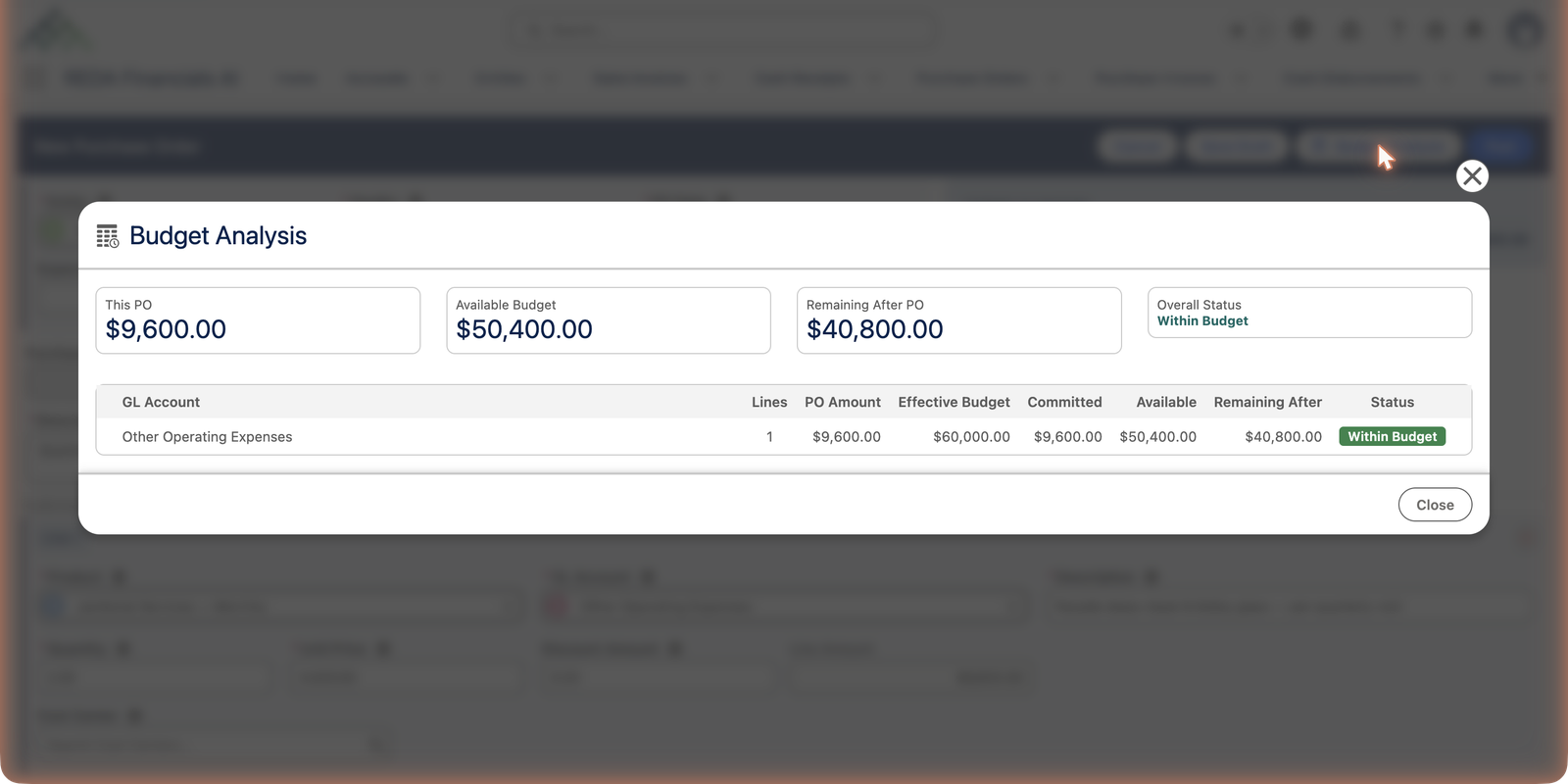
On the Purchase Order form, click Budget Analysis (its tooltip: analyse budget availability for this Purchase Order). Here it is for a $9,600 Meridian facilities order, checked against the FY2026 Operating Budget:
The arithmetic, spelled out
Each row matches an order line to your posted budget’s allocation for it. The match is dimensional: a budget line is keyed by its GL account plus any dimensions your administrator tracks — most commonly a Cost Center — and a transaction line consumes the budget line whose GL account and dimension values match it exactly (a blank matches a blank). So the same GL account budgeted separately for two cost centers stays two distinct allocations.
| Column | Meaning | In the example |
|---|---|---|
| Effective Budget | The allocation for this GL account, including any approved amendments. | $60,000 for operating expenses |
| Committed | Money already promised on other posted, unfulfilled orders. | $9,600 — a separate, earlier facilities order |
| Available | Effective Budget − Committed − actual spending to date. | $50,400 |
| PO Amount / Remaining After | What this order takes, and what would be left if you post it. | $9,600 → $40,800 left |
A commitment's life, from order to bills
Follow Meridian's $9,600 facilities order through the budget, event by event — the total footprint never exceeds $9,600, it just changes character:
| Event | Committed | Actual | What happened |
|---|---|---|---|
| Order posts (July 2026) | $9,600.00 | $0.00 | The full order value is promised — available budget drops by $9,600 |
| First visit billed — matched invoice for $4,800 posts | $4,800.00 | $4,800.00 | Half the commitment liquidates into real spending; available doesn't move |
| Second visit billed — the closing $4,800 posts | $0.00 | $9,600.00 | The order's budget story closes: everything promised became everything spent |
This is what the matched invoice's inherited budget line is for — the bill knows exactly which commitment it liquidates, so nothing double-counts and nothing escapes.
The enforcement at posting
The analysis window is advice; the posting check is law. When you post, each line is validated against its matching budget line:
- Within budget → the order posts and the Budget Check field on the record reads Within Budget.
- Over budget → posting is blocked with a message naming the account and the shortfall.
- No matching budget → the order posts unchecked and Budget Check reads No Budget — visibility without enforcement, for spending outside the budgeted accounts.
The order finds its budget automatically — matching your entity, the order date against the budget’s period, and each line’s GL account against the budget’s lines.
When the answer is no
Three honest ways forward, in the order worth trying:
| Option | When |
|---|---|
| Trim the order | The purchase can shrink or wait — reduce quantities or split delivery across quarters. |
| Amend the budget | The spending is right and the budget is wrong — a supplement or transfer via Budget Entries, with its own approval. |
| Bypass Budget Controls | Genuine emergencies. The checkbox on the order lets it post over budget — visibly, permanently recorded, and best left to administrators. |
Common mistakes to avoid
| Mistake | Why it hurts | Do this instead |
|---|---|---|
| Treating the analysis window as the final word | Commitments move in real time — a colleague's order can consume the room between your check and your post | Treat it as a forecast; the posting check is the enforcement, on the freshest numbers |
| Reaching for Bypass Budget Controls as routine | Every bypass skips the control your budget owners rely on — habitual use makes the budget decorative | Trim the order or amend the budget; keep the bypass for genuine emergencies |
| Ignoring a No Budget result | The order posts unchecked — spending flows through an account nobody budgeted, invisible to enforcement | Ask whether the GL account is right; if the spend is legitimate, get the account added to the budget |
| Miscoding a line's GL account to "find room" | The commitment consumes someone else's allocation, and the eventual cost lands in the wrong account | Code the line honestly and resolve the shortfall through the three options above |
| Dating a year-end order into the wrong year | The order silently checks against (or misses) the wrong budget | Date it when the commitment is really made, and confirm which budget the analysis matched |
Where to go next
- Understanding Budgets — where the allocations come from.
- Budget Enforcement on POs — the control from the budget’s side.
- Creating a Purchase Order — the analysis in its natural habitat.
Frequently asked questions
It activates once the order has enough to analyse — an entity and at least one line with a GL account and amount. If it stays grey after that, there may simply be no posted budget matching the entity and dates.
Someone else’s order got there first — commitments move in real time, and the check at posting uses the freshest numbers. Re-open Budget Analysis to see the updated picture.
A Purchase Invoice carries its own Budget, so it takes part in the same control. A bill matched to an order inherits that order’s budget line and converts commitment to actual — no second gate, because the order was the decision point. A direct-expense bill with no order behind it carries its own budget and books its actual straight to the matching line.
No — drafts commit nothing, which is exactly why the analysis window exists: it lets you see the impact while the order is still free to change. The commitment happens at posting, and voiding an unfulfilled order gives it back.
Practically: as few people as possible. Raising orders needs the Accounts Payable or Accounting Admin permission set; most organizations keep the bypass an administrator's deliberate act, with the reason documented on the order. It is visible and permanent either way.
Was this article helpful?