
Generating Periods
Before anyone can post a transaction, the accounting periods for that date have to exist. REDA gives you two ways to create them:
- The bulk generator in the Financial Admin Console — creates all twelve periods for a territory and fiscal year in one click. This is what you’ll use almost every time.
- Creating a single period by hand on the Accounting Periods tab — for one-off corrections or a non-standard period.
Access you'll need. Generating or creating periods requires the Accounting Admin v2 or Accounting Controller v2 permission set. The Accounts Payable v2, Accounts Receivable v2, and Read Only v2 sets can view the calendar but not generate or change it.
Method 1 — the bulk generator (recommended)
The generator lives in the Financial Admin Console. To get there:
Open the REDA Financials app
Click the App Launcher — the grid of nine dots at the top-left of the screen — type “REDA”, and choose the REDA Financials AI – Admin app (or REDA Financials AI).
Open the Financial Admin Console
Click the Financial Admin Console tab along the top. If you don’t see it, click the More ▾ dropdown at the end of the tab row and pick it from the list.
Go to the Accounting Periods section
Inside the console, click the Accounting Periods button in the row of sections (Subscription, Financial Setup, CoA & Tax Seeding, Territory Management, Accounting Periods, Operations).
Fill in the Generate Accounting Periods card
Choose the Territory, enter the Fiscal Year, decide whether to follow the calendar (see below), then click Generate Periods.
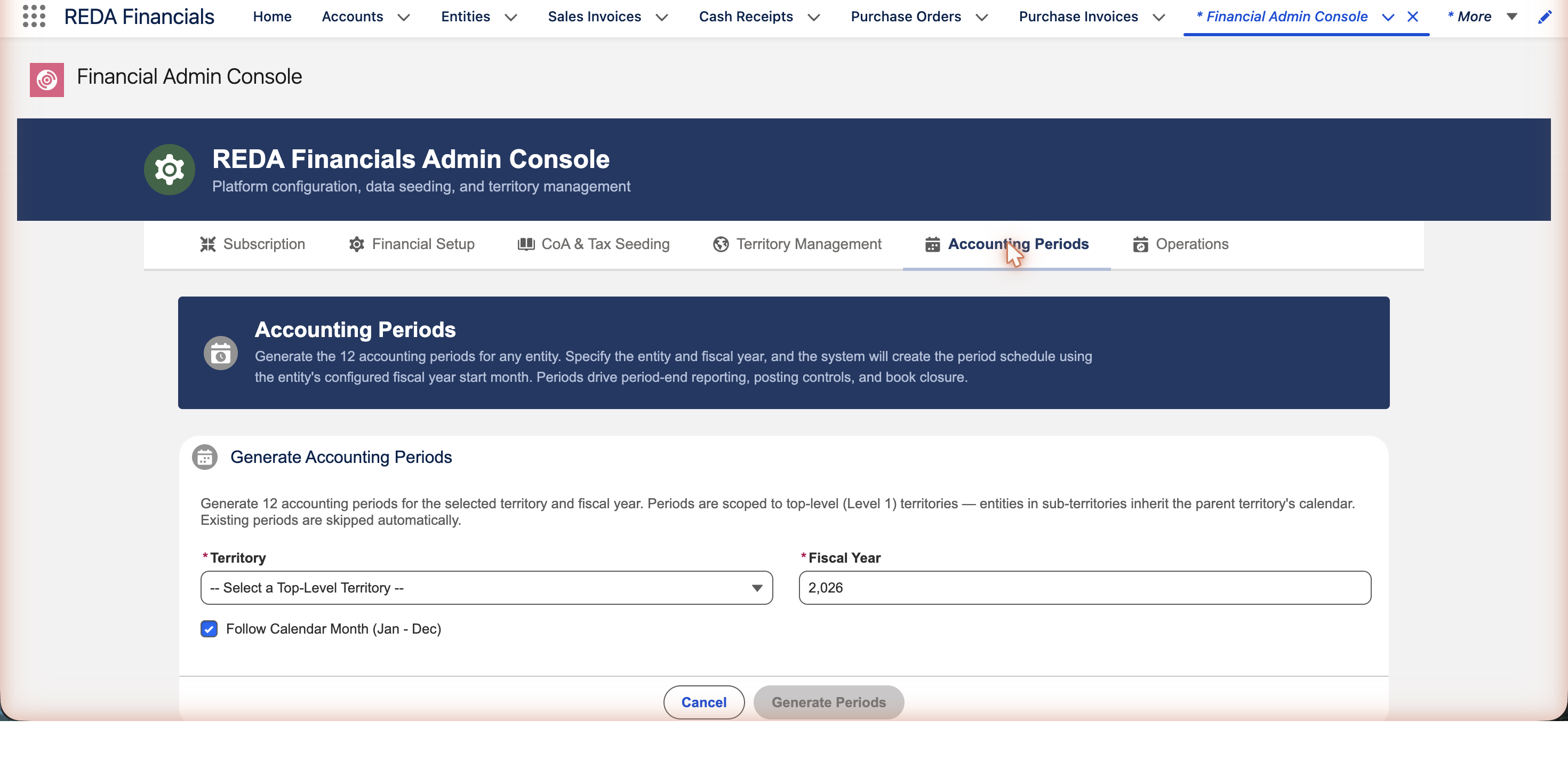
Calendar year or custom fiscal year
The one choice that matters is the Follow Calendar Month checkbox:
| Setting | What you get |
|---|---|
| Follow Calendar Month (Jan–Dec) — ticked | The twelve periods are the calendar months: Period 1 = 1–31 January, and so on through December. Use this if your fiscal year is the calendar year. |
| Unticked — custom fiscal year | Two more fields appear: First Month of Fiscal Year (e.g. April) and First Day of Month (1–28). REDA lays out the twelve periods from there — so an April start gives Period 1 = April and Periods 10–12 in January–March of the next calendar year. |
Method 2 — creating a single period by hand
For a one-off — a correction, or a single non-standard period — you can create a period directly:
Open the Accounting Periods tab
From the App Launcher (the nine-dot grid, top-left) type “Accounting Periods” and click it; or find the Accounting Periods tab along the top of the REDA Financials app (look under More ▾ if it isn’t shown).
Click New
On the list view, click the New button at the top-right.
Fill in the four fields
Set the Start Date, End Date,
Period Number (1–12), and
Territory (a top-level territory). You don’t
type a name — it’s filled in for you as YYYY-MM.
Save
Click Save. REDA checks the period against the calendar’s rules (below) before accepting it.
What REDA checks when you generate
Whichever method you use, the same guardrails keep the calendar sound:
| Check | What it enforces |
|---|---|
| Top-level, active territory | Periods can only be generated for a top-level territory, and it must be active. Sub-territories inherit their parent’s calendar — you don’t generate for them. |
| Valid fiscal-year inputs | The fiscal year is required; for a custom year, the first month must be 1–12 and the first day 1–28. |
| No date in two periods | Two periods in the same territory can’t cover overlapping dates, and a period number can’t repeat within a year — so every date maps to exactly one period. |
| No duplicates | The generator skips any period that already exists for that territory, year, and number — making it safe to re-run. |
| Valid range | A period’s start must come before its end. |
Where to go next
- Accounting Periods — what a period is and why it matters.
- Closing the Books — lock a period once posting is done.
- Ledger Management — the ledgers periods apply to.
- How Posting Works — post transactions into your new periods.
Frequently asked questions
No — once per top-level territory. Every entity in that territory, including those in sub-territories, shares the generated calendar. So if you have five entities under one country, you generate that country’s periods once.
No. The generator skips any period that already exists for that territory and year, and only creates the missing ones. Re-run it as often as you like.
If no entity has closed or posted into those periods yet, delete the incorrect periods and generate again with the right settings. If postings or closures already exist, the dates are locked and you should contact support before making changes — reshaping a year with live history needs care.
Because the fiscal calendar is defined once per top-level territory and inherited downward — that keeps reporting consistent across the whole region. Generate for the top-level territory and every sub-territory entity uses it automatically.
Was this article helpful?