
Operations Scheduler Overview
A healthy accounting system does most of its routine work while nobody is watching: recurring bills generate themselves, accruals reverse themselves, payments match themselves, depreciation posts itself. In REDA Financials all of that automation lives in one place — the Operations tab of the Admin Console — where each batch job gets a card: what it does, when it runs, how its last run went, and a button to run it right now.
Access you'll need. Scheduling, running, and unscheduling batch jobs requires the Accounting Admin v2 permission set. The Accounting Controller v2 and Read Only v2 sets can open the console to view outcomes; the Accounts Payable v2 and Accounts Receivable v2 sets cannot see it, though they see the results the jobs produce.
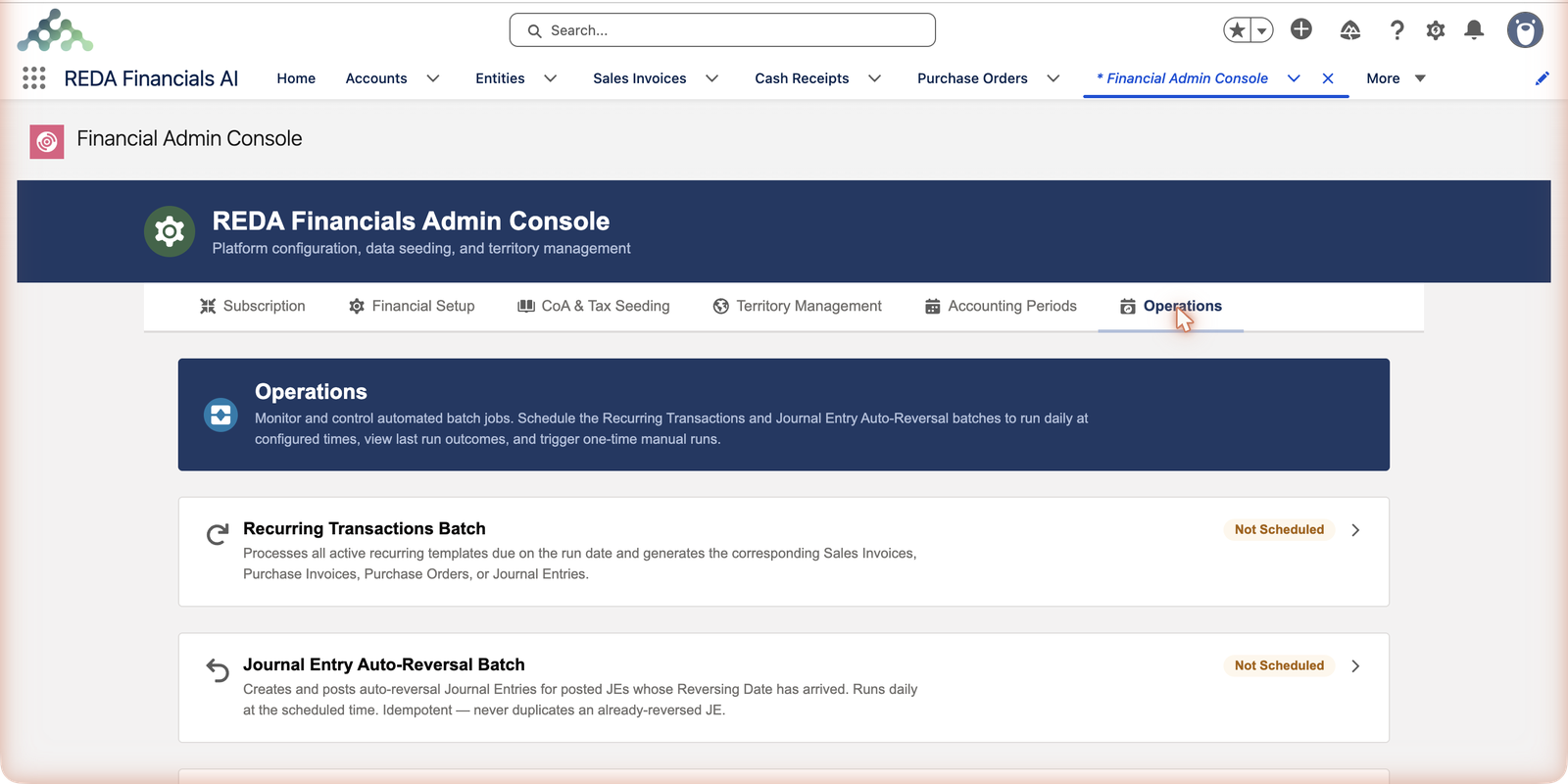
The batch jobs at a glance
| Card | What it automates | Deep dive |
|---|---|---|
| Recurring Transactions | Generates every due document from active recurring templates — invoices, orders, journal entries. | Recurring Transaction Batch |
| Journal Entry Auto-Reversal | Posts the reversal for every posted entry whose Reversing Date has arrived — never twice. | JE Reversal Batch |
| Auto-Apply (CR / CM / CD / VM) | Matches flagged receipts, credits, payments and memos to open invoices, oldest first. | Auto-Apply Batches |
| Expense Auto-Allocation | Distributes flagged shared costs across entities using their allocation lists. | Expense Allocation Batch |
| Aging Snapshot | Refreshes point-in-time AR/AP aging for every aging-enabled entity. | Aging Snapshot Batch |
| OCR Document Processing | Turns incoming documents into draft purchase invoices via AI extraction — every 15 minutes while active. | OCR Processing Batch |
| FX Rate Sync | Pulls daily exchange rates from Open Exchange Rates into your currency tables (multi-currency orgs). | FX Sync Batch |
| Asset Depreciation Posting | Posts due depreciation and amortization entries to the general ledger. | Depreciation Batch |
| E-Invoice Status Poll | Asks the tax authority for its verdict on every invoice still awaiting one, and moves each to Accepted or Rejected. Only relevant if an entity files electronically — but where it is, nothing else advances a submitted invoice. | E-Invoice Status Poll |
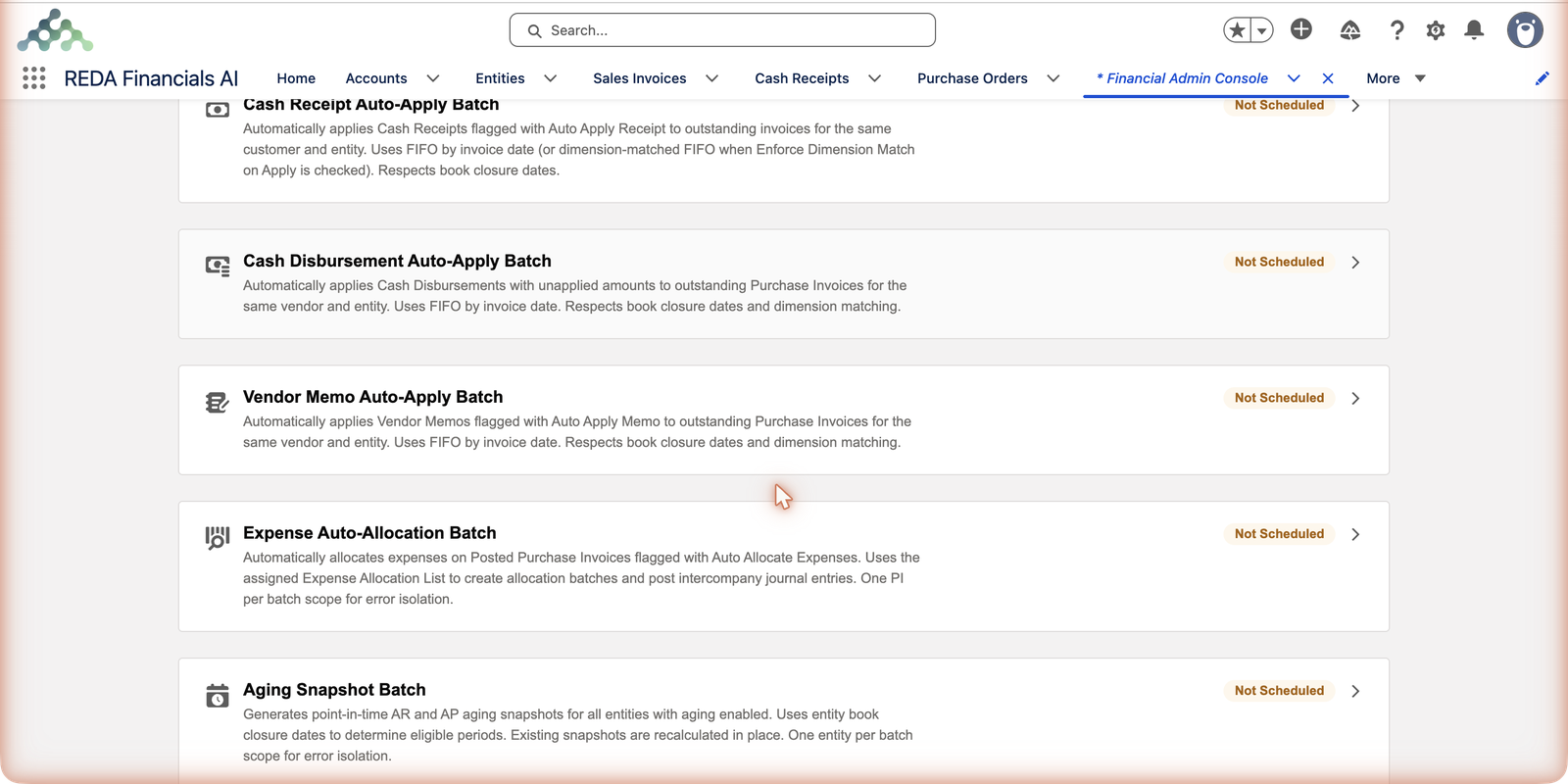
The controls on every card
- Schedule / Reschedule — pick a daily run time (overnight is the norm; stagger heavy jobs).
- Unschedule — pause the automation; nothing runs until rescheduled.
- Run Now — an immediate one-off pass, perfect after fixing data or before a close.
- Status & last run — scheduled-or-not, next run time, when it last ran and how it went, with a View Audit Log link to the run’s full record (processed / succeeded / failed, with reasons).
(The OCR card is the one exception to the daily-time pattern: it’s a queue processor you Start and Stop, cycling every 15 minutes while active.)
Anatomy of a card, element by element
Every card wears the same layout, so once you can read one you can read the whole console:
| Element | What it tells you / does |
|---|---|
| Status chip | Scheduled or Not Scheduled — whether the automation will run without you. A console of Scheduled chips is the goal; a Not Scheduled chip on a job you rely on is the first thing a morning glance should catch. |
| Description | One plain-language sentence stating exactly what the batch automates — quoted throughout this article and its deep-dives. |
| Next Scheduled Run | When the daily schedule fires next. |
| Last Run + outcome | When the batch last ran and how it went, graded by severity: Info (clean), Warning (partial — some records skipped or failed, each with a reason), Critical (the run itself failed). |
| View Audit Log | Opens the run’s full record — the processed/succeeded/failed detail behind the outcome icon. |
| Schedule / Reschedule | Opens the daily time picker: choose when the batch fires each day. Reschedule changes an existing time. |
| Unschedule | Pauses the automation entirely — nothing runs until someone reschedules. |
| Run Now | An immediate one-off pass, without disturbing the daily schedule. |
Every run leaves a record
Each batch writes its outcome to the Audit Log — job name, timestamp, severity, and a processed/succeeded/failed summary with per-record reasons. That’s your monitoring: a morning glance at the cards (all green, timestamps fresh) or a saved Audit Log list view filtered to batch runs.
The entry itself is worth knowing how to read, because every scheduled job writes the same shape:
| On the Audit Log entry | What it holds for a batch run |
|---|---|
| Record number | Auto-numbered AUD-… — audit entries are system-written records, never named or edited by hand. |
| Action | Batch Run — the value your saved "morning check" list view filters on. |
| Severity | Info / Warning / Critical — the same grade the card’s outcome icon shows. |
| Performed By / date-time | The automated context the run executed under, and exactly when. |
| Additional Info | The run’s summary — "Processed X | Success Y | Failed Z" — with per-record failure reasons where anything failed. |
A sensible starting schedule
| Overnight slot | Job | Why this order |
|---|---|---|
| Early night | FX Rate Sync | Fresh rates before anything posts. |
| Then | Recurring Transactions · JE Reversal | Generate the day’s documents next. |
| Then | Auto-Apply jobs · Expense Allocation | Match and distribute what now exists. |
| Then | Depreciation · Aging Snapshot | Posting and reporting last, on settled data. |
Common mistakes to avoid
| Mistake | Why it hurts | Do this instead |
|---|---|---|
| Scheduling nothing "until we need it" | The need announces itself as missing documents and unreversed accruals, weeks later | Schedule the jobs that match features you use, on day one — an idle batch run is harmless |
| Nobody owns the morning glance | Warning outcomes and stale timestamps accumulate unseen; small failures compound | Name one administrator; the check is thirty seconds — chips Scheduled, timestamps overnight, outcomes green |
| Unscheduling a batch during maintenance and forgetting it | Not Scheduled writes no logs — the silence looks like health | Treat Unschedule as a loan: note who paused what, and when it resumes |
| Piling every job onto the same minute | Heavy jobs compete for the same processing window | Stagger the overnight slots in dependency order — the schedule table above is a working default |
| Reading only the outcome icon, never the log | Warning tells you that records failed; only the audit entry says which and why | Click View Audit Log on anything non-green; the per-record reasons are the fix list |
Where to go next
- The eight deep-dives linked in the table above.
- Operations Tab — the Admin Console context.
- Audit Logging — reading run history.
Frequently asked questions
Administrators — the Operations tab lives in the Admin Console. Day-to-day users see the results: generated documents, applied payments, posted depreciation.
No — scheduled automation runs under the platform’s automated process context and doesn’t consume one of your purchased seats.
Warning means partial success — most records processed, some skipped or failed, each with a reason in the audit entry. Open the linked log, fix the causes (a closed period, a misconfigured record), and Run Now to catch up. Critical means the run itself failed — same diagnosis path, higher urgency.
Same idea, different rhythm. Unschedule cancels a daily-time job’s schedule; Stop pauses the OCR queue processor’s 15-minute cycle. In both cases nothing runs again until a person reschedules or restarts — and in both cases the pause itself is easy to forget, so note it somewhere visible.
Yes — on a scheduled card the button reads Reschedule: pick the new daily time and save. The Next Scheduled Run display confirms the change immediately.
No — these jobs work off what is due, so the next run (scheduled or Run Now) picks up what’s waiting. The one nuance is the Recurring Transactions batch, which rolls schedules forward rather than back-filling each missed period — see its deep-dive for the catch-up pattern.
Was this article helpful?