
Capturing and Converting Acquisition Leads
This is the front of the buy-side pipeline: taking a property you might buy from first contact to a live deal. You'll capture it as a buy-side Inquiry (REDA's lead record), qualify it through a short status funnel, underwrite it — the ceiling-offer analysis happens on the inquiry, before there's a deal — and then convert it with one click into the acquisition deal. Along the way you'll see exactly which records REDA creates and which numbers carry over. This is the workflow; for the field-by-field underwriting reference, see Acquisition Analysis Fields. No prior REDA experience is assumed.
Access you'll need. Creating, qualifying, and converting acquisition inquiries requires the REDA - Property Acquisition User permission set. Because converting creates an Account and a Contact, you'll also need access to those, which your administrator grants separately from the REDA permission sets.
The acquisition inquiry
A buy-side lead in REDA is an Inquiry set to the Acquisition type — described on screen as "A potential opportunity for property acquisition." It's where a target property lives before you've committed to a deal.
Because there's usually no Property record yet, the inquiry captures the target's address as text — the property name or street address and zip — alongside the property facts (beds, baths, areas, parking, year built, parcel number) and your due-diligence notes. You're describing the asset in words until REDA later creates the real Property record for you.
REDA fills a few fields automatically the moment you save: the inquiry's Name (built from the contact's first and last name plus a "[ Acq ]" suffix), the Region Code, and the Company default. If a matching Property already exists and you pick it, REDA also fills the Region, Neighbourhood, and Property Type for you.
Capturing the lead
From the Inquiries tab, click New — REDA opens a guided New Inquiry dialog rather than the standard form. Record the source contact (the person or company bringing you the deal) and describe the target: enter its address as text, set the property facts you know, and choose the Acq Type — Lot for land or Property for a built asset. Acq Type matters later because it controls which underwriting rules you can apply.
Qualifying the lead
An acquisition inquiry moves through a status funnel that you drive by hand — nothing advances the status automatically. You set each status as you work the lead:
| Status | Meaning | Set by |
|---|---|---|
New (default) | Just captured | You (or intake) |
Contacted | You've reached the seller or source | You |
Underwriting | Running the numbers — after-repair value, estimates, ceiling offer | You |
Qualified | Worth pursuing — ready to convert | You |
Unqualified | Not pursuing | You |
Converted | Converted into a deal | REDA, on Convert |
The Underwriting status is specific to buying (and selling) — it's the phase where you work the analysis. You cannot set Converted yourself; REDA sets it for you when you convert. Try to set it by hand and you'll see:
Underwriting before you convert
The key idea of the acquisition front-end is that you underwrite on the inquiry, before any deal exists. Move the status to Underwriting and work the numbers.
The heart of the analysis is the Maximum Allowed Offer (MAO) — your ceiling offer — which REDA computes as the Estimated After Rent Market Value (ARV) minus your Estimated Con/Reno Cost, Estimated Holding Cost, and Estimated Profit. You always type ARV in by hand. For the other three, picking a Profit & Holding Rule — a saved set of defaults for a market — fills them in, but only where they are blank. Anything you've already typed is kept. (This "blank-only" behavior is worth remembering; it's how the same rule can seed a fresh lead yet leave your hand-entered figures untouched.)
The rule lookup only shows rules whose region matches the inquiry's region and whose For value matches your Acq Type (Lot vs Property). For the full underwriting field reference, see Acquisition Analysis Fields; for where the defaults come from, see Profit Holding Rules.
Converting the inquiry
Once the lead is Qualified, click Convert Inquiry (the button appears only while the inquiry hasn't been converted yet). REDA opens a dialog with two optional pickers:
"Choose Existing Contact OR leave blank to create a new contact."
Pick an existing Account or Contact if the seller is already in your system; leave a picker blank to have REDA create a new one. Then click Convert Inquiry to finish. Conversion is all-or-nothing — in one action REDA creates:
| REDA creates | Detail |
|---|---|
| Account | A new one, or the one you picked |
| Contact | A new one, or the one you picked |
| Acquisition deal | The deal, opening at Qualification |
| Contact Role | A primary role — for acquisitions, the default is Seller |
If any part fails, nothing is created — the whole conversion rolls back, so you never end up with a half-made deal. After conversion the inquiry locks: the Convert button disappears and the status reads Converted. If you somehow reopen the Convert dialog on an already-converted inquiry, REDA responds:
What carries over on conversion
The whole underwriting and property block copies onto the new deal — Acq Type, Asking Price, ARV, the three estimates, Estimated Rent, Exit Strategy, the existing-lien flag, Profit & Holding Rule, the address and property facts, and the sign-off date. Two things behave differently from what the field help might suggest:
The full walkthrough
Underwriting, enter ARV, and pick the Profit & Holding Rule — the three blank estimates fill and the MAO appears.Qualified.Qualification with a Seller contact role. Continue in Running an Acquisition Deal — Binder to Contract.Worked example: sourcing Meridian Court
Meridian Properties sources Meridian Court, currently owned by Continental Holdings. An analyst captures an acquisition inquiry: the source contact is recorded, the address "Meridian Court" is entered as text (no Property record yet), and Acq Type is set to Property.
The analyst moves the status to Underwriting, enters ARV 400,000, and picks the rule "Harbour District - Property", which seeds Con/Reno 40,000, Holding 15,000, and Profit 45,000 — giving a MAO of 300,000. With Underwrite Complete set to Yes, an Underwrite Date recorded, and the status moved to Qualified, the analyst clicks Convert Inquiry: REDA creates a new Account for Continental Holdings (the selling side), a new Contact, and the deal "Meridian Court [ Acquisition ]" at Qualification with a Seller contact role. The MAO recomputes to 300,000 on the deal.
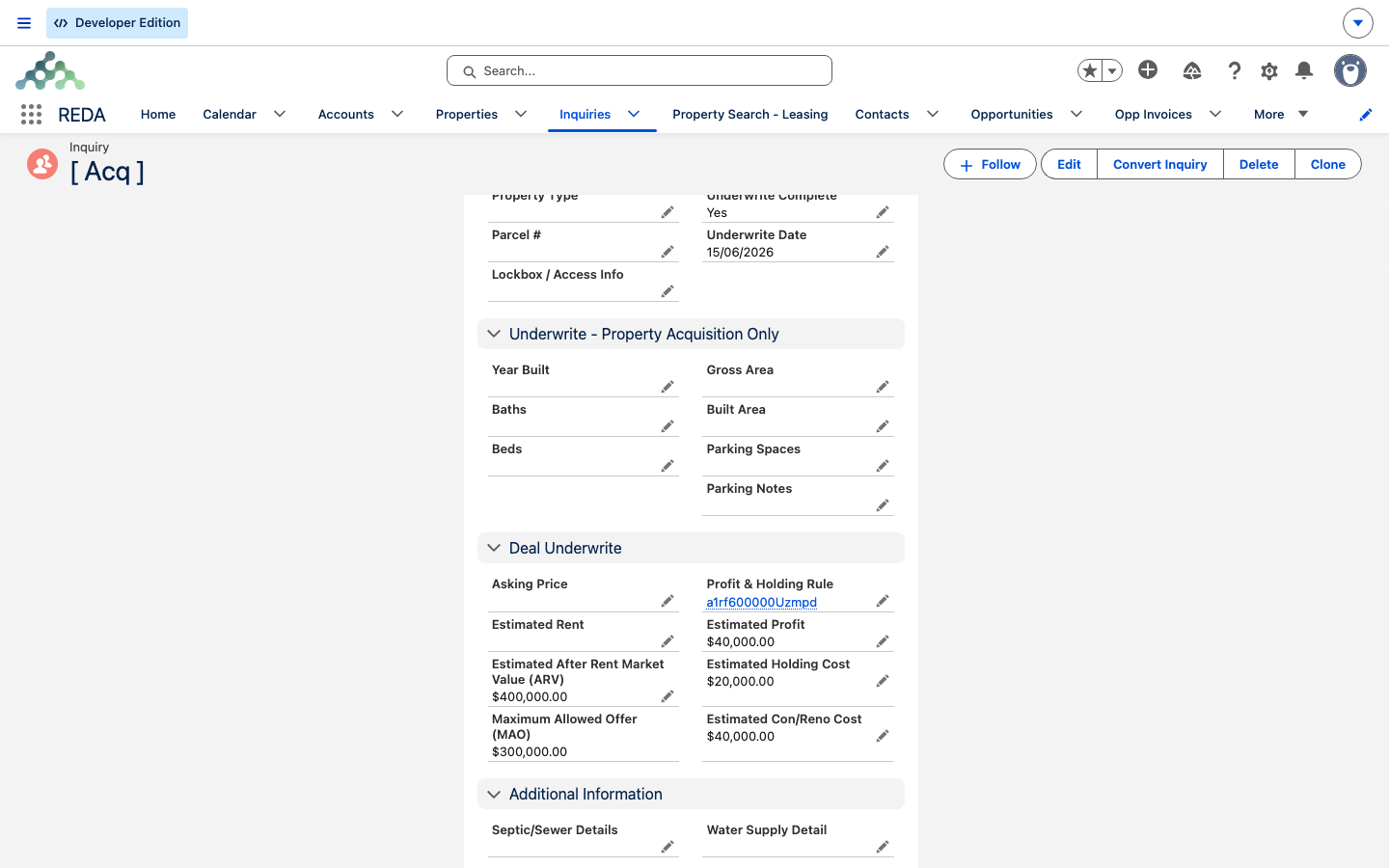
Underwriting. The Deal Underwrite section is filled: Estimated After Rent Market Value (ARV) $400,000.00, a Profit & Holding Rule linked, and the estimates it seeded — Estimated Con/Reno Cost $40,000.00, Estimated Holding Cost $20,000.00, Estimated Profit $40,000.00 — giving a computed Maximum Allowed Offer (MAO) $300,000.00. Underwrite Complete is Yes.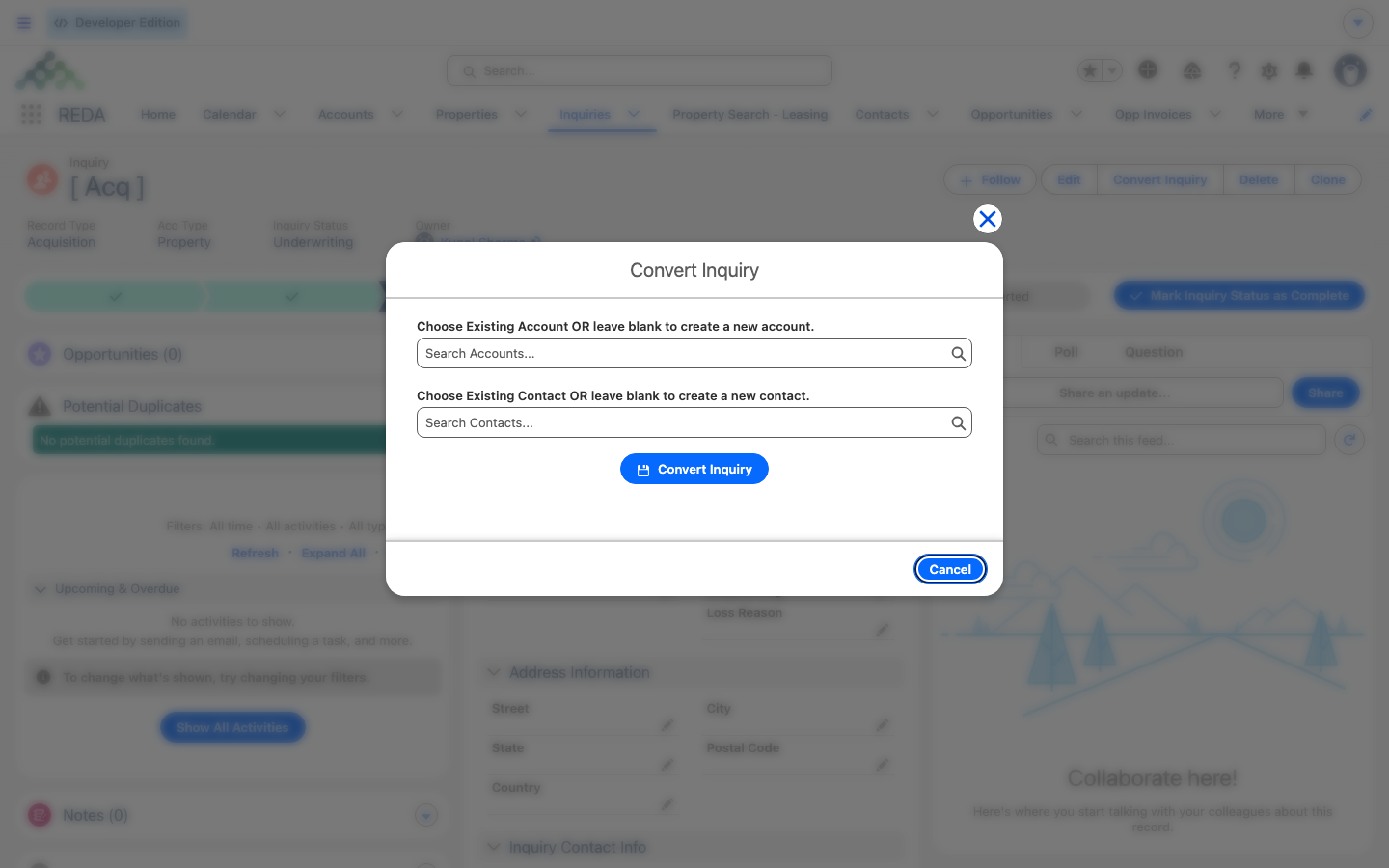
Where to go next
- Running an Acquisition Deal — Binder to Contract — advancing the new deal and recording the binder.
- Acquisition Analysis Fields — every underwriting field, and how the MAO is built.
- Profit Holding Rules — where the estimate defaults come from.
- How Acquisitions Work in REDA — the whole pipeline map.
Frequently asked questions
You must use the Convert Inquiry button — REDA sets the status for you. Setting it by hand is blocked: "Please convert inquiry prior updating status to "Converted"."
Seeding is blank-only — the rule fills an estimate only where it's empty and never overwrites a value you typed. Clear the field and re-select the rule to take its default.
An Account, a Contact, the acquisition deal, and a primary Seller contact role — all in one all-or-nothing action. If anything fails, nothing is created.
Use the Merge Duplicates card, or simply pick the existing Account or Contact in the Convert dialog. REDA doesn't deduplicate automatically.
The MAO recomputes on the deal rather than being copied, so it matches when the inputs match. Underwrite Complete stays on the inquiry — only the Underwrite Date carries over.
The inquiry is already converted and locked. REDA shows: "Bad Request. Either the inquiry is already converted OR you do not have sufficient privileges to convert an inquiry. Please contact your system administrator."
Was this article helpful?