
The Resident Portal
The resident portal gives your tenants one login where they can see their lease, their balance and payment history, raise a service request, book an amenity, pick up a package, log a visitor and read community news. For your team it means fewer phone calls and counter visits: the routine questions a tenant used to ask staff — what do I owe, where's my statement, when is the technician coming — are answered by the portal itself. This article explains what residents see and where each tile's data comes from in REDA, how a tenant's login is wired to their lease (the piece that decides what they can and can't see), and what an administrator sets up. One thing to be clear about from the start: only a resident portal exists — there is no owner portal and no vendor portal. If someone asks whether owners can log in to see their statements, the answer is no, and this article says so plainly so you don't have to guess.
Access you'll need. A resident signs in as a portal user your administrator has set up with the resident-portal permission and a portal license. Whether residents self-register or are created by staff is a choice each organization makes.
How a resident's login finds their data
This is the single most important thing to understand for support, because it explains almost every "why can't my tenant see X" question. What a resident sees is not set on the portal — it's determined by a chain that runs from their login back to their leases:
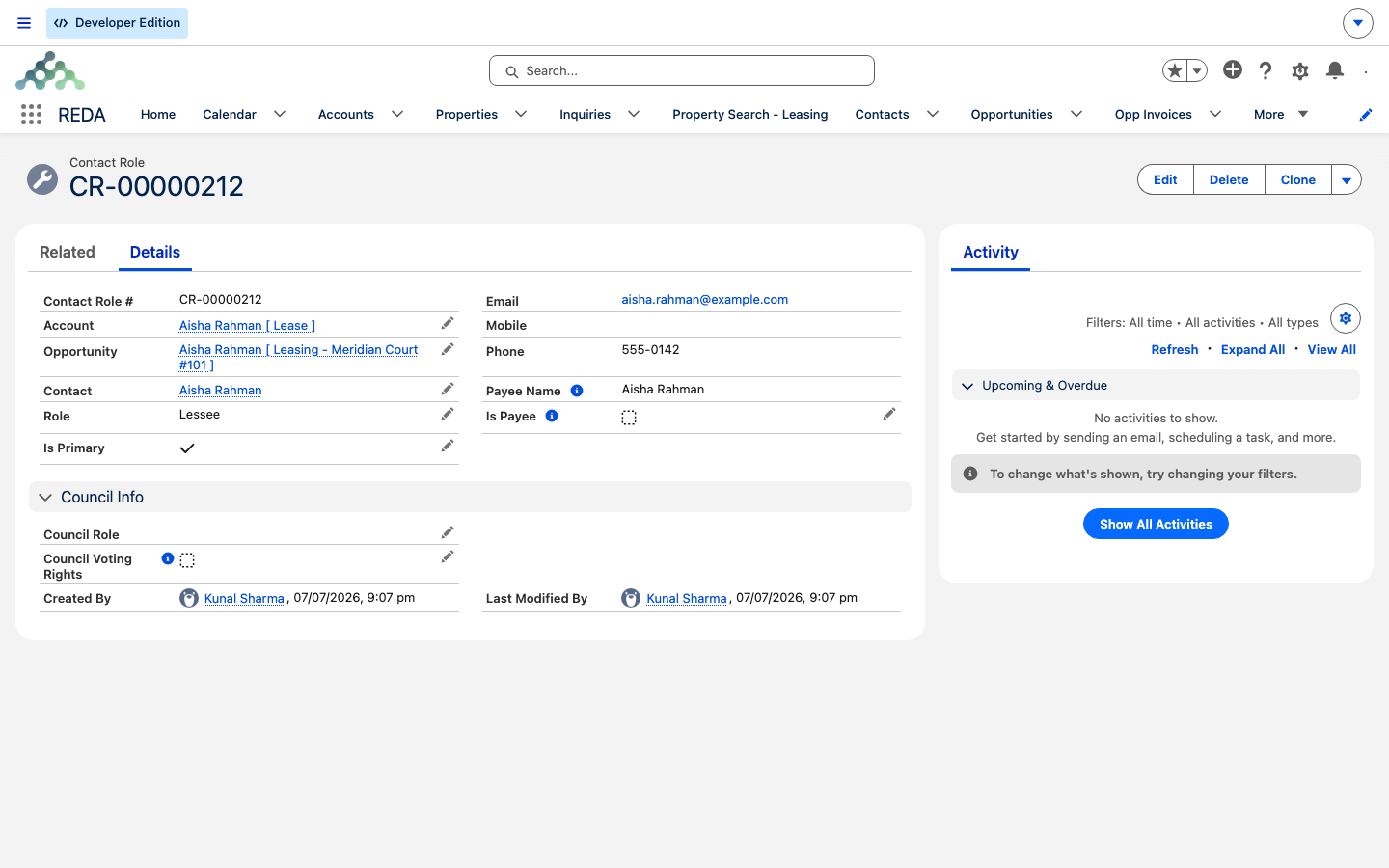
A Contact Role is the link that records how a person relates to a lease — as a Lessee, a Guarantor or a Payee. The portal shows a resident only the leases they hold a role on. Read the chain backwards and the reason for each "why can't they see it?" becomes obvious: the portal starts from the signed-in user, finds the contact that user is built on, follows that contact to its account, gathers the contact's roles, and lands on the leases those roles point at. Everything the resident sees — balances, service requests, bookings — is scoped to exactly those leases and no others.
So when a tenant logs in and sees nothing, or sees the wrong unit, the fix is almost always on the staff side, and it's almost always one of two things: the user's login is attached to the wrong contact, or the right contact is missing a role on the lease. Check the contact behind their login first, then check that contact's roles on the lease (see Contact Roles). It's rarely a portal problem — it's a contact-role problem the portal is faithfully reflecting.
What residents see, tile by tile
Each portal tile draws its data from REDA or the accounting side. Nothing in the portal is entered twice — it's a resident-facing window onto records staff already work.
| Tile | The resident can | Where the data comes from |
|---|---|---|
| Welcome dashboard | See a summary of everything below | An aggregate of the tiles |
| Leases | View current and past leases; open the ledger statement | Leases reached through their contact roles |
| Payments | See amount due, credit and history; start a payment | Posted invoices, unapplied cash and receipts (see below) |
| Service requests | Raise a request, track it and comment | Service requests and their comment thread |
| Amenity bookings | Book amenity slots | Bookings and their slot rules |
| Maintenance slots | Pick a maintenance window | Slot rules |
| Packages | See pickup codes | Package tickets |
| Visitors | Manage visitor entries | Visitor logs |
| News | Read community news | Portal news records |
| Notifications | Read an in-portal inbox, with email alongside | Portal notification records |
| Profile | Update their profile and upload files | Their contact and user data |
Money in the portal
The Payments tile is a read-only reflection of what the accounting side knows — the tenant never edits their own balance:
The service-request loop
Service requests are the portal's two-way street, and worth understanding as a loop:
For how staff handle the request itself, see Service Requests — this article covers the resident's side and the seam between them.
What administrators configure
The portal works out of the box for the resident experience, but a few things are yours to set up:
| Item | Where |
|---|---|
| Assign the portal permission and license to each resident user | User setup |
| The payment checkout page address (it receives property, lease, account and amount) | The portal page's configuration |
| The ledger-statement site address, so the PDF can be served | App settings (see App Settings) |
| The entity's unapplied-cash account, which the credit figure depends on | The financial entity (see Activating a Client Account as a Financial Entity) |
| News and notification content | Portal content records |
| Whether residents self-register or are created by staff | Your organization's choice |
Worked example: a day in Aisha's portal
Tenant Aisha Rahman, on the lease for Meridian Court #101, logs in:
Where to go next
- Recording Tenant Payments — how staff record a payment the portal then reflects.
- Payments & Balance Sync-Back — how the balance the tenant sees got there.
- Online Lease Applications — the tenant's journey before they move in.
- Activating a Client Account as a Financial Entity — the unapplied-cash account behind the credit figure.
- Suite Implementation Sequence — where the portal fits in a full install.
Frequently asked questions
Their login's contact holds no Lessee, Guarantor or Payee role on the lease. The portal shows only the leases the identity chain reaches — add the missing contact role and the lease appears.
The Make Payment button hands off to the checkout page your organization configures. Card processing is implementation-specific — it isn't built into the portal.
The portal shows only posted accounting invoices that still have an open balance. Drafts, and invoices that haven't reached accounting yet, don't appear.
No. Only a resident portal exists — there is no owner portal and no vendor portal in this release.
Was this article helpful?