
The Unmatched Email Queue (Triage)
REDA Email Services works hard to attach every inbound email to the right place — a Contact's timeline, an Inquiry, a Service Request. Most emails match on the first try. But sometimes REDA can't be sure where an email belongs, and rather than guess or drop it, it sets the email aside on the Unmatched Email tab. That queue is a holding area, not a dead end: a person reviews each item and either attaches it to the correct record or marks it as one to leave alone. This article explains what lands there, why, and how to clear it.
What the Unmatched Email tab is
The Unmatched Email tab lists staged emails that REDA couldn't attach to a record on its own. Each row is an Unmatched Email record, named with an automatic number (for example, Unmatched Email # followed by a sequence). Open one and you'll see the email exactly as it arrived: the From Address and From Name, the To Addresses, the Subject, the full Text Body and HTML Body, the Received Date, and any files that came with it.
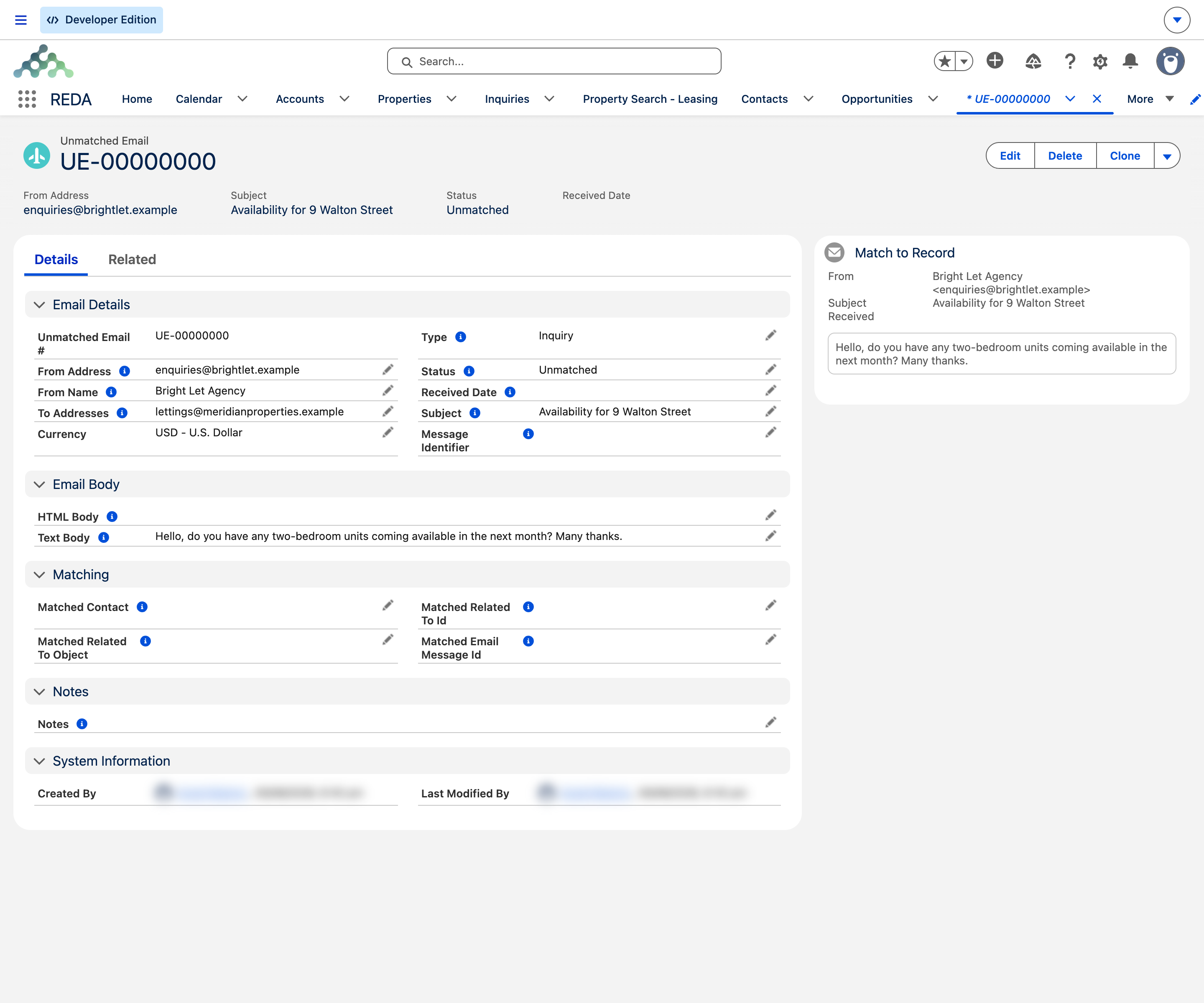
The tab is switched on by the REDA - Email Integration permission set. If you have that permission set, the tab appears in your app automatically; if you can't see it, ask your administrator to assign it (covered in Email Services: Setup).
Why an email lands here
An email reaches the queue for one of two broad reasons, and the record's Type tells you which:
| Type | What happened |
|---|---|
| Email Sync | An email arrived through auto-sync, but REDA found no confident match — no known Contact, and no record the message clearly threads onto. It's staged for you to place manually. |
| Email to Inquiry | An email was sent to an intake address configured to create an Inquiry, but the Inquiry couldn't be created and the email needs a human to resolve it. |
| Email to Service Request | An email was sent to an intake address configured to create a Service Request, but the Service Request couldn't be created and the email needs a human to resolve it. |
In short: an Email Sync item is "we received this but don't know whose record it belongs to," while an Email to Inquiry or Email to Service Request item is "this was meant to create a record and couldn't." Both wait for you here.
The Status values
Every Unmatched Email record carries a Status, and it's the field you work with during triage. There are three values:
| Status | Meaning |
|---|---|
| New | Waiting for triage. This is what you act on. Filter your list view to New to see your queue. |
| Matched | Someone attached the email to the correct record. REDA created the email activity on that record and moved the item out of the working queue. |
| Ignored | Reviewed and deliberately set aside — spam, a duplicate, or something that doesn't need a record. The email is kept for audit but no longer needs attention. |
What the record carries after a match
Triage writes its result onto the Unmatched Email itself, so the record is also the audit trail. These five fields are blank while the email is New and filled in the moment it is matched:
| Field | What it holds |
|---|---|
| Matched Contact | The contact the email was matched to — the same person the resulting activity is filed under. |
| Matched Related To Object | The type of record it was related to, as an object name. |
| Matched Related To Id | The id of that record — the Inquiry, Service Request or other record the email now hangs off. |
| Matched Email Message Id | The id of the Email Message REDA created when it matched. This is the copy your users will actually read on the record. |
| Message Identifier | The email’s own Message-ID, carried from the header. REDA uses it to thread replies and to avoid filing the same message twice. |
How to triage an unmatched email
Triage happens on the Unmatched Email record page, using the built-in match tool. That tool lets you point the email at the right record; when you confirm, REDA files the email as an activity on that record and flips the Status to Matched.
How to mark one Ignored
Some emails genuinely don't belong on any record — bulk mail that slipped through, a clear duplicate, or a message that isn't customer business. For those, set the record aside rather than matching it.
Where to go next
- REDA Email Services Overview — the three capabilities and where triage fits.
- Email Auto-Sync — how emails get matched automatically, so you understand what falls through.
- Email Services: Troubleshooting — what to do when everything lands in the queue, or nothing arrives at all.
- Email Services: Setup — enabling the tab and assigning triage access.
Frequently asked questions
REDA couldn't confidently attach it to a record. Either the sender and content didn't match any Contact or record (auto-sync, shown as Type Email Sync), or an intake email meant to create an Inquiry or Service Request couldn't complete (Type Email to Inquiry / Email to Service Request). Rather than drop it, REDA stages the full email here for a person to place.
New means it's waiting for triage. Matched means someone attached it to the right record. Ignored means it was reviewed and deliberately set aside. New is the only value you act on.
No. Ignoring sets the record's Status to Ignored and removes it from your working view, but the Unmatched Email record and its full contents remain for audit.
Anyone assigned the REDA - Email Integration permission set can see the tab and triage items. Teams usually give it to the admins and agents who handle inbound email. Ask your administrator if you need access.
Was this article helpful?