
Understanding Properties
The Property is the record everything else in REDA hangs off. A lease is a lease of a property; a sale sells one; a work order fixes one; an invoice bills against one. Get comfortable with the property record and the rest of REDA falls into place. This article explains what a property represents, how a community relates to its buildings and units, which fields REDA fills in and maintains for you, and where a property shows up across the whole application. No prior REDA experience is assumed — every term is defined as we reach it.
Access you'll need. The REDA - Property Leasing User or REDA - Master Data - Read Only set can view properties. Creating and editing requires one of the property-operations sets — REDA - Property Sales User, REDA - Property Acquisition User, REDA - Property Management User, or REDA - Property Lending User. Deleting a property is reserved for REDA - Master Data - Admin.
What a Property is in REDA
A Property is REDA's master record for a single piece of real estate — a whole community, one building inside it, or a single leasable unit. It carries the asset's identity (its name and code), its location, its physical facts (beds, baths, area), and its commercial setup (rent, ownership, availability). Because every deal and every transaction points back to a property, it is the backbone of the system: keep the property record right and everything downstream reads correctly.
A few things are worth knowing up front. A property is named by its Property Name — free text you choose. There are no separate "kinds" of property record to pick between when you create one; instead, what kind of asset it is comes entirely from its Property Type (covered below). And who can see a property beyond its owner is controlled by its region — your administrator sets that up.
One record, six business lines
The same property can be leased, sold, acquired, managed, financed, and booked — six business lines meeting on one record. In REDA, each deal (a lease, a sale, an acquisition, a management engagement, a loan) is an Opportunity — the single "deal" record. The property keeps a live link to its current deal in each line so you can jump straight to it:
| Business line | What the property tracks |
|---|---|
| Leasing | The current Active Lease and any Future Lease already lined up, each with its stage shown in plain text. |
| Sales | The Sale Opportunity and its stage. |
| Acquisition | The Acquisition Opportunity and its stage. |
| Property management | The PM Opportunity and its stage. |
| Lending | Loan totals — total loan amount, net loan balance, running escrow — summarised across the property's loans. |
| Bookings | An Available For Booking switch and booking rates, for short-stay or amenity bookings. |
REDA keeps all five deal links and their stage labels in step with the underlying deals automatically — you never edit them by hand. When you see the active-lease or sale stage change on a property, that is REDA reflecting what happened on the deal.
Buildings, communities and units
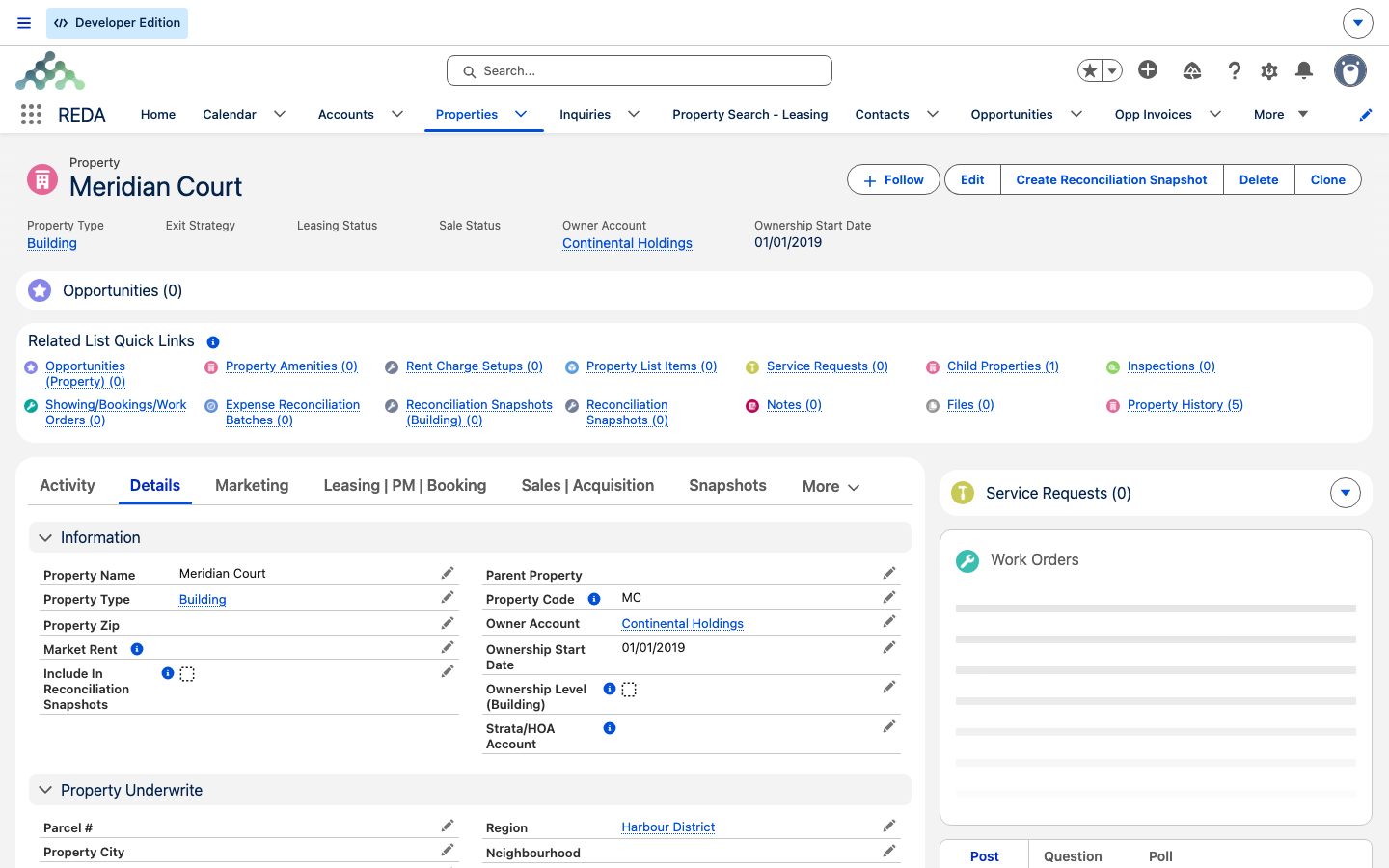
REDA links a unit to its building or community with Parent Property. Open that container to see its units under Child Properties. A property whose type has Is Building/Community selected must remain at the top of its own tree; it cannot be nested under another container.
What makes a property a "container" rather than a leasable unit is a flag on its Property Type called Is Building/Community. Turn that on and three things follow:
The Property Code is a short, unique code you assign — for the Meridian Court building it's simply MC. It stays unique across all properties, so even units that don't strictly require one can't share a code.
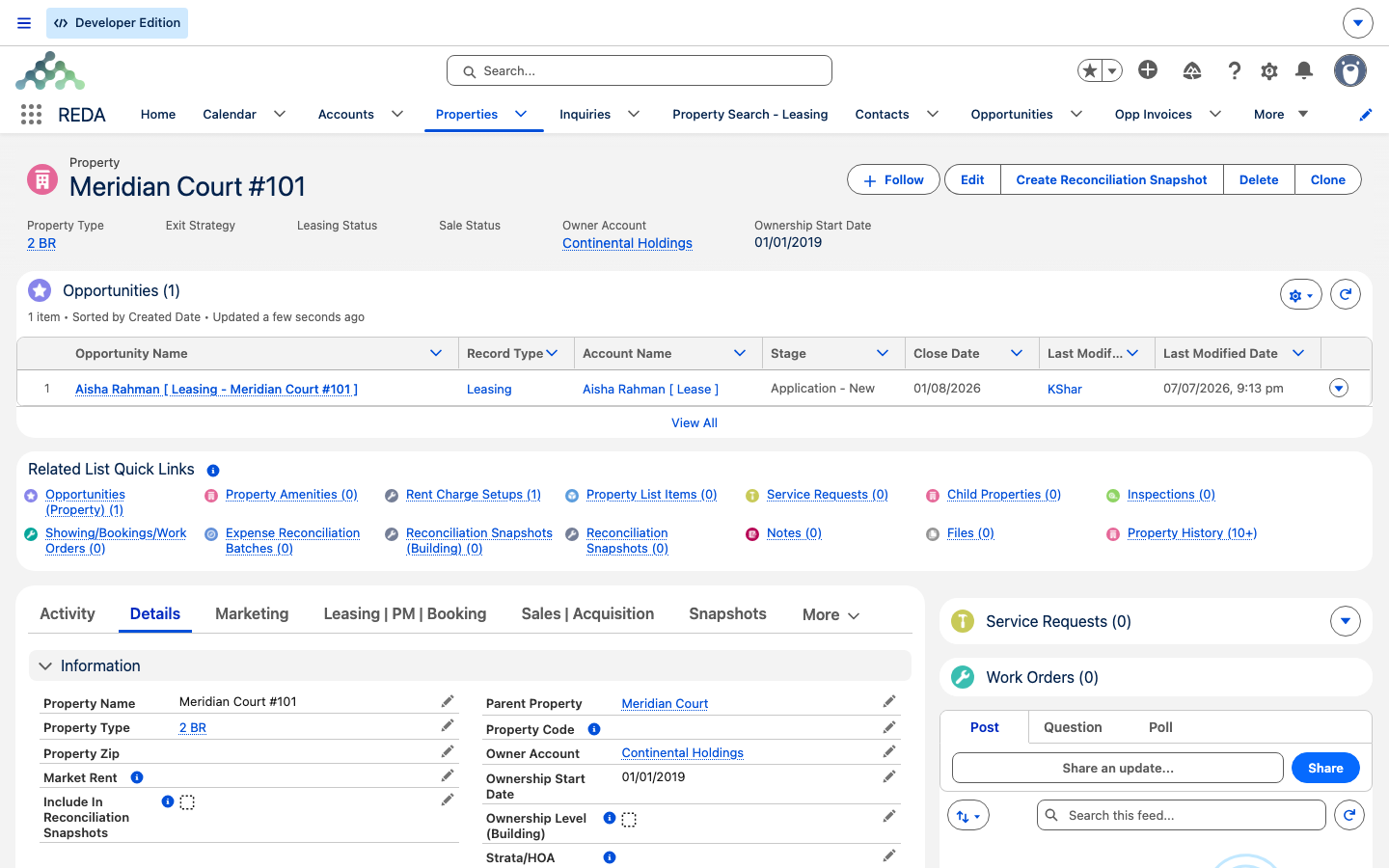
The parent also acts as a fallback. When a unit doesn't specify something of its own — an owner, a region, a leasing rule, an expense split — REDA often looks up to its building for the answer. That is why setting up the building well pays off across all its units.
Two more container-related fields live on the unit. Expense Allocation % lets you record what share of a building's costs a unit carries; the units in a building conventionally add up to 100%, though REDA does not force that. And Ownership Level (Building) lets you manage ownership at the building rather than the unit — but only when a parent is set: "Ownership can be managed at the building level only if parent property is provided."
What kind of property is it?
Because a property has no separate record "kinds" to choose between, its classification comes from a handful of fields you set:
| Field | What it says about the property |
|---|---|
| Property Type | The kind of asset — Unit, Building, Community, Parking, Storage, and so on. Required on every property. |
| Region | The geographic area the property belongs to. The region sets the property's currency and helps decide who can see it. |
| Neighbourhood | A finer location within the region. The neighbourhood list is filtered to the region, so set the Region first. |
| Exit Strategy | Your plan for the asset: Retail, Hold, Strategic Asset, Lazy Asset, or Wholesale. There is no default. |
A tour of the property record page
The property record is organised into tabs, each grouping a slice of the record. You will meet them constantly, so here is the map:
| Tab | What lives there |
|---|---|
| Activity | Tasks, events and logged calls against the property. |
| Details | The core fields — identity, location, physical facts, leasing and status settings. |
| Marketing | Website content for the property and a summary of what's published. |
| Leasing | PM | Booking | The rent charge setup table (the property's rent cards), plus its Service Requests and Work Orders. |
| Sales | Acquisition | The property's ownership trails — the history of who owned it and when. |
| Snapshots | Reconciliation snapshots used in expense reconciliation. |
| Tickets | The tracked checklists REDA raises against the property. |
| Debt Summary | The property's lending position. |
| Notes & Files | Attached documents and notes. |
| Audit Trail | A record of changes over time. |
The record's header also links out to its Opportunities, Bookings, and Visitor Logs.
Fields REDA maintains for you
A good number of fields on a property are written by REDA, not by you. Editing them is futile — the next save overwrites your change — so it helps to recognise them:
| Field | Why it's system-maintained |
|---|---|
| Region Code / Parent Property Code | Copied automatically from the Region and the parent property on every save. To change them, change the Region or Parent Property lookup. |
| The five deal links + their stage texts | Kept in sync with the underlying leasing, sale, acquisition and PM deals. |
| Available For Sale | Recomputed on every save: on only while the property's Sale Status is Inventory - Available. A manual tick is overwritten. |
| Best Leasing Term / Amenity Additional Rent / SYS Amenities | Computed from the property's rent cards and amenities. |
| List Tags | Driven by the Property Lists a property belongs to. To change them, add the property to or remove it from a list rather than editing here. |
Worked example: the Meridian Court tree
Meridian Properties keeps its portfolio structured. At the top sits the building Meridian Court — its Property Type is a container type (one with Is Building/Community ticked), and it carries the Property Code MC. Because it is a container, it has no parent, and it needed that code before it would save.
Inside it is the leasable unit Meridian Court #101 — a unit-level Property Type (2 BR), its Parent Property set to Meridian Court, in the Harbour District region. The unit is where the leasing, ownership and availability detail lives.
For a larger portfolio, keep each building or community container at the top of its own tree, with its units below. A container requires a code and refuses a parent; its units carry the day-to-day detail. Do not create a Community → Building → Unit chain when both the community and building use container types.
Reference: the field families at a glance
Rather than field-by-field, it helps to think in families — and to know which article covers each:
| Family | Examples | Covered in |
|---|---|---|
| Identity & classification | Property Name, Property Code, Property Type, Region, Neighbourhood, Exit Strategy | Creating & Editing Properties, Property Types, Regions |
| Status & availability | Leasing Status, Available For Leasing, Sale Status, Hold Till Date | Property Statuses Explained |
| Leasing setup | Leasing Rule, Rent Charge Period, rent cards, Best Leasing Term | Making a Property Available for Leasing, Rent Cards |
| Ownership | Owner Account, Ownership Start Date, ownership trails | Owners & the Ownership Trail |
Where to go next
- Creating & Editing Properties — add a community, a building and its units in the right order.
- Property Types — the catalogue of asset kinds and the Is Building/Community flag.
- Property Statuses Explained — why a property's status and availability change by themselves.
- Making a Property Available for Leasing — the chain that gets a unit into leasing search.
Frequently asked questions
Because its Property Type is a building or community — a container that sits at the top of its own tree. REDA shows: "Parent property cannot be provided for building or communities." Only units and other non-container types can have a parent.
Buildings and communities must carry a code: "Property Code is required for Buildings/Communities." Units don't require one — but any Property Code you do use has to stay unique.
It isn't a field you set by hand. REDA recomputes it on every save from the property's Sale Status: on only while the status is Inventory - Available, off for anything else. Change the Sale Status to change the flag.
That's a known wording quirk in the field help — "Turnkey" isn't an available choice. Pick from Retail, Hold, Strategic Asset, Lazy Asset, or Wholesale.
Only REDA - Master Data - Admin. The property-operations sets can create and edit properties but not delete them.
Was this article helpful?