
Visitor & Guest Access
Every guest who arrives at the building gets logged in REDA as a visitor log — one record per visit, carrying a status trail from the moment they're requested to the moment they check out. This article shows you how to log a walk-in guest at the front desk, how residents grant standing permissions for expected visitors, and how to run check-in and check-out correctly. It also explains the one piece of cleverness that trips people up: REDA matches an arriving guest against a resident's pre-approval by phone number, and can wave them straight in as already checked in.
Access you'll need. Working with visitor logs requires the REDA - Property Leasing User permission set (full access, including delete). The resident-facing "Permit Visitor Access" experience runs on your community site, if your administrator has set one up.
What a visitor log is
A visitor log is a single record for one visit — or for one standing permission a resident grants ahead of time. Each log gets an automatic number (VL-000000) and moves through a set of statuses:
Requested · Permitted · Cancelled · Checked In · Checked Out · Revoked
A log records the guest (name, phone, email), the Property being visited (always required), the host resident (Contact), and the lease the visit belongs to (Opportunity). Standing permissions also carry a Permitted Till date-time and, once a visit is matched to a permission, a Parent Permission link back to it.
Two flows: request vs permit
Two different people create visitor logs, from two different places:
- Request — the front desk logs a guest who is at the door right now, using the Request Visitor Access action.
- Permit — a resident pre-approves an expected guest ahead of time, through the Permit Visitor Access experience on your community site.
The two connect: a resident's permit is a standing permission that the front-desk request flow can later match and honor automatically. That matching is the heart of this article.
Logging a guest with Request Visitor Access
How pre-approval matching works
When you enter the guest's phone, REDA looks for a standing permission and decides one of three things:
| What REDA finds | What it creates | Status |
|---|---|---|
| A Permitted log for the same property, lease, and guest phone, with a Permitted Till still in the future | A pre-approved visit linked to that permission (Parent Permission), with Check In set to now; a pre-approved-guest message is shown | Checked In |
| No valid permission, but the guest has past Checked In visits | A new log with the guest's details pre-filled | Requested |
| No permission and no history | A new log with a blank guest form | Requested |
The phone number is the matching key, and the match only honors permissions whose Permitted Till hasn't passed. That's why a pre-approved regular — a cleaner, a nanny — can be checked in the instant the desk enters their phone.
Residents granting standing permissions
Residents create those standing permissions themselves, through the Permit Visitor Access flow on your community site. REDA resolves the logged-in resident's contact, their lessee roles and active leases, offers a property picker, and creates a visitor log with Status Permitted, a Permitted Till date-time, and the guest's details. That's the pre-approval the front-desk request flow later matches on. A resident with more than one lease creates one permission per property, using the flow's property picker.
Check-in, check-out, and revoke
Once a guest is permitted, moving them through the rest of the visit is manual. Checked In, Checked Out, and Revoked are all status changes you make by hand, and two of them are guarded so you can't skip the timestamp:
"Check-Out Datetime must be provided before updating the status to 'Checked Out'."
So to check a guest in, set the Check In Datetime and then the status; to check them out, set the Check Out Datetime and then the status. There's no automation on check-out — the front desk records the time and moves the status. Revoked is a manual move too, for withdrawing a permission you'd previously granted, and Cancelled withdraws a request that's no longer needed.
Two statuses look similar but sit at different ends of the visit: Cancelled retires a request — a walk-in the desk logged but who never came through — while Revoked retires a permission — a standing pre-approval a resident no longer wants honored. Once a permission is revoked, an arriving guest whose phone matched it is no longer waved in as pre-approved, because matching only honors logs that are still Permitted with an unexpired Permitted Till.
When a guest arrives with no pre-approval
Most visits won't match a standing permission — a first-time delivery, a contractor, a friend the resident forgot to permit. That's the normal path, not an error. The desk logs the guest, and REDA saves the visit as Requested with the guest's details captured. From there the visit follows the approval loop:
If the visit is abandoned before approval — the guest gives up and leaves — move it to Cancelled rather than leaving a stale Requested log on the list.
Worked example: a cleaner with a weekly permission
At Meridian Court #101, the resident pre-permits her cleaner (guest phone +1-555-0100) each week through the community site: REDA creates visitor log VL-000101, Status Permitted, Permitted Till the end of the month. When the cleaner arrives Tuesday at 09:00, the front desk runs Request Visitor Access, picks the property, and enters the phone. REDA finds the standing permission and creates VL-000102 with Status Checked In (Check In 09:00), linked to VL-000101 as its Parent Permission. At 12:30 the desk sets the Check Out Datetime and moves the status to Checked Out.
A different guest with no history is logged as Requested instead; when the resident approves them, the front-desk user who logged the visit receives the in-app notification and can then check the guest in.
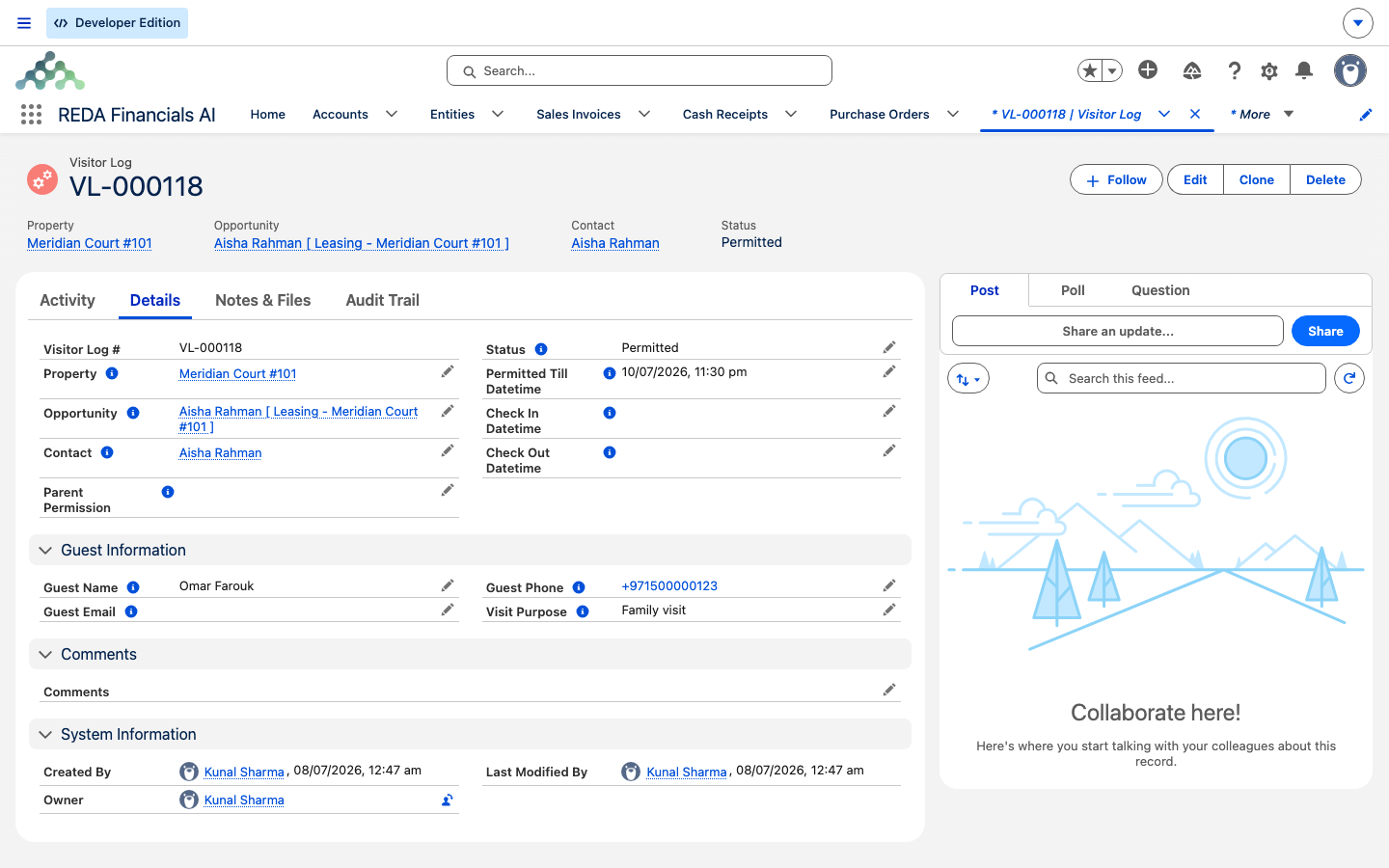
Reference: fields and statuses
Key fields on a visitor log:
| Field | What it holds | Notes |
|---|---|---|
| Guest Name | The visitor's name | Pre-filled for repeat guests |
| Guest Phone | The visitor's phone | The matching key for pre-approvals |
| Guest Email | The visitor's email | Optional |
| Property | Where the visit happens | Required on every log |
| Contact | The host resident | Picked from the lease's lessee contacts |
| Opportunity | The lease the visit belongs to | Set by the flow from the active lease |
| Status | Requested / Permitted / Cancelled / Checked In / Checked Out / Revoked | See below |
| Permitted Till Datetime | When a standing permission expires | Matching honors only unexpired permits |
| Check In / Check Out Datetime | Actual arrival and departure | Each required before its status |
| Visit Purpose | Why the guest is visiting | Free text |
| Comments | Notes | Free text |
| Parent Permission | Link to the standing permit that pre-approved the visit | Only on matched visits |
What sets each status:
| Status | Set by |
|---|---|
| Requested | The front-desk request flow when no valid pre-approval matches |
| Permitted | A resident approving a request, or the resident permit flow (a standing permission) |
| Checked In | The front desk manually (with a datetime), or automatically on a pre-approval match |
| Checked Out | The front desk manually (with a datetime) |
| Cancelled | Manually — a request withdrawn |
| Revoked | Manually — a permission withdrawn |
Where to go next
- Package & Parcel Desk — the other front-desk registry.
- Contact Roles — the lessee contacts that drive the host picker.
- The Resident Portal — where resident self-service, including Permit Visitor Access, lives.
- The Lease Record — the accounting-active lease the flow checks for, and where visitor logs appear on the lease.
Frequently asked questions
The arrival time is missing. REDA shows: "Check-In Datetime must be provided before updating the status to 'Checked In'." Set the Check In Datetime first, then the status.
The departure time is missing. REDA shows: "Check-Out Datetime must be provided before updating the status to 'Checked Out'." Set the Check Out Datetime first, then the status.
The property must have exactly one accounting-active lease. If it has none, or more than one, the flow stops so the visit isn't logged against an ambiguous lease.
A standing Permitted log for the same property, lease, and guest phone, with an unexpired Permitted Till, matched. REDA creates the visit pre-approved — Checked In — and links it to that permission.
The user who created the visitor log receives an in-app notification in REDA (the bell), not an email.
Permissions are matched per property, lease, and guest phone, so a resident with multiple leases creates one permission per property through the permit flow's property picker.
Withdrawing a permission you'd previously granted. Like check-in and check-out, it's a manual status move — no automation fires.
Was this article helpful?