
Email Auto-Sync
The emails you trade with a prospect or a resident are part of the story of that relationship — but they usually live in your inbox, invisible to everyone else on your team. Email Auto-Sync closes that gap. It watches the mailboxes your team uses to talk to customers, and every time a message goes out or comes in, it files a copy straight onto the matching REDA record — the contact, the inquiry, or the service request the conversation belongs to. Open the record and the whole thread is there, on the activity timeline, formatting and attachments intact, for anyone with access to see. This article explains what Auto-Sync does day to day, how it decides which record an email belongs on, what you'll see on the record, and how to start using it.
Access you'll need. Reading emails on a record needs only your normal access to that record. Setting Auto-Sync up — connecting the mailboxes and turning the service on — is administrator work, covered in Email Services Setup.
What Auto-Sync does
Auto-Sync's job is simple to describe: keep a faithful copy of your customer email conversations on the REDA records those conversations are about, without anyone having to file anything by hand. It's the difference between a colleague picking up an inquiry and seeing the full back-and-forth at a glance, versus having to ask around for the history.
Here's the shape of it. Your team keeps emailing customers exactly as before. Behind the scenes, your administrator has arranged for a copy of each message on your customer-facing mailboxes to be sent to REDA. REDA reads that copy, works out which record it belongs to, and files it there as a logged email plus a matching activity entry. The original email in your inbox is untouched; REDA simply keeps its own copy attached to the right record.
A few things are worth knowing up front:
- Both directions are captured. Messages your team sends to a customer and messages the customer sends back are both filed, so the record shows the complete conversation, not just one side.
- Replies stay together. When a customer replies to an earlier message, Auto-Sync recognizes it as part of the same thread and files it onto the same record, so the exchange reads in order rather than scattering across the org.
- Only real customer mail is filed. Auto-Sync deliberately skips messages between your own colleagues, automatic replies (out-of-office notices and the like), and bulk mail — so records stay clean and only carry correspondence that matters.
- Nothing is lost. If REDA can't confidently match an email to a record, it doesn't discard it. The message is held in a review queue for an administrator to file by hand (see When a match can't be made).
How REDA matches an email to a record
The heart of Auto-Sync is matching — deciding which REDA record a given email belongs on. REDA works through a series of checks in order, and files the email against the first confident match it finds. Understanding this order helps you predict where a message will land and why.
Because matching leans first on the thread and then on the sender's email address, the single most important thing you can do to keep sync accurate is to make sure your customers' correct email addresses are recorded on their contacts. A prospect who writes in from an address REDA has never seen can't be matched automatically — that message will wait in the review queue until someone connects it.
What you see on the record
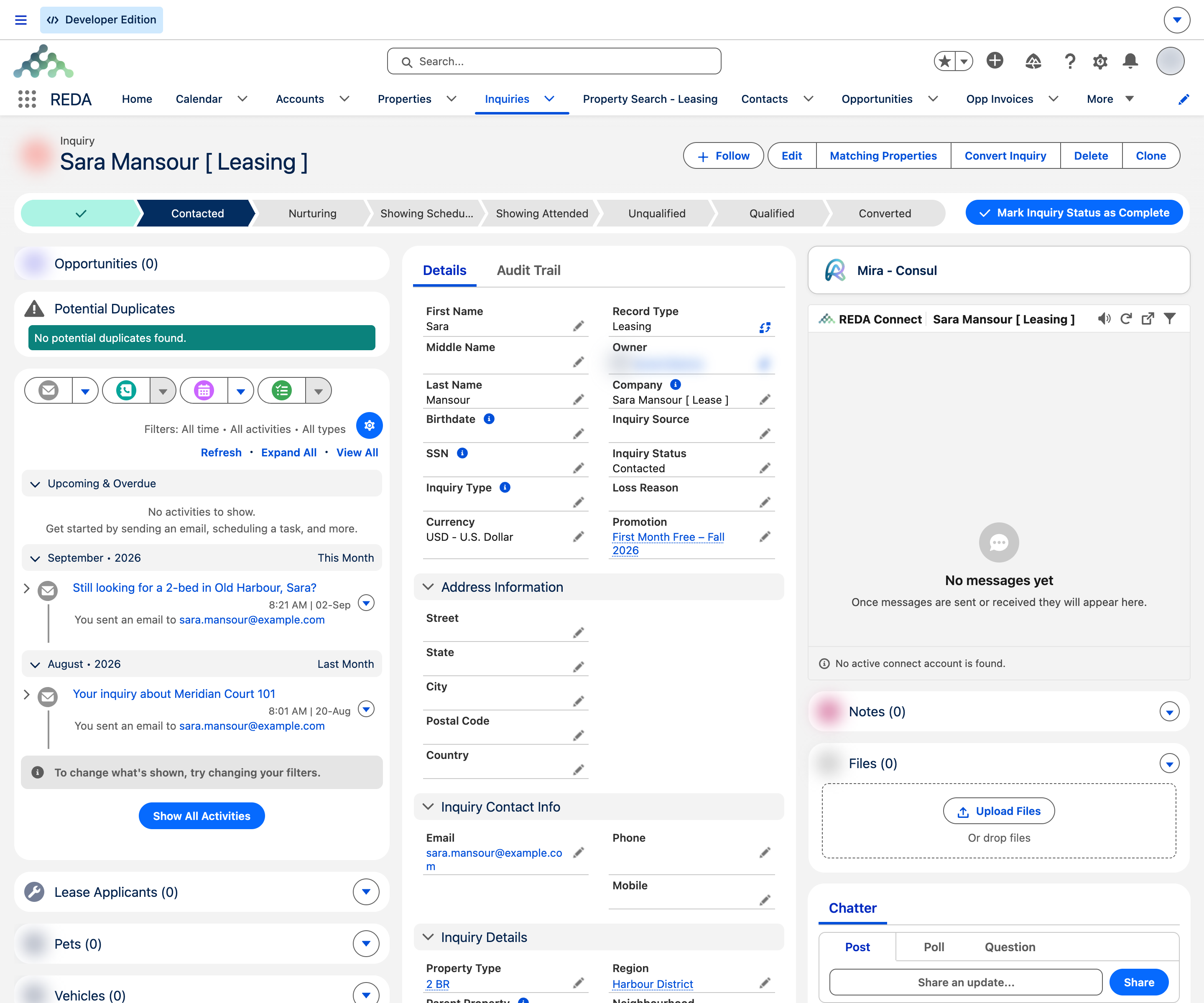
When Auto-Sync files an email, it appears in two familiar places on the record, so you can read it the same way you'd read any other logged email:
| Where | What you'll find |
|---|---|
| Activity timeline | Each synced email shows up as an activity, in date order alongside the record's calls, tasks, and notes — so the email sits in the full history of the relationship. |
| Emails related list | The message itself, with its subject, sender and recipients, and the body preserved as it was sent — including formatting, so a formatted email reads on the record exactly as it did in the inbox. |
| Files related list | Any attachments the email carried are saved to the record's files, where you can open or download them. |
Each entry is marked as incoming or outgoing, so at a glance you can tell whether a message came from the customer or went to them. Because the full conversation is filed on the record, anyone with access to it — a teammate covering for you, a manager reviewing the account — sees the same history you do, without needing access to your personal mailbox.
The role of Inquiry Source
Inquiries in REDA carry an Inquiry Source — a field that records how a prospect first reached you: through your website, a phone call, a partner referral, and so on. Among its values is Email, which marks an inquiry that originated from an emailed message rather than a web form or a call.
For your day-to-day work, Inquiry Source is mostly a reporting signal: it lets your team see, at a glance and in reports, how much of your pipeline is arriving by email versus your other channels. When an inquiry is created from an inbound email — the subject of the companion article Email-to-Inquiry — its source is set to Email so that attribution is captured from the start.
Who a customer email is logged under
Every synced email is filed under a person on the record — the same way a logged call names who you spoke with. When the sender matches a known contact, that contact is the natural answer. But some inbound mail arrives from an address REDA can't tie to a specific person: a prospect writing in for the first time, a shared mailbox, a generic sender.
So the correspondence still has a sensible home, REDA uses a designated inbox contact for these cases. This is set up per Region — your administrator names a default inbox contact for the region — and an individual inquiry can override it with its own. When an email can't be tied to a specific person, REDA logs the activity under that inbox contact rather than leaving it unattributed. You don't need to manage this yourself; it's an administrator setting that quietly ensures every synced message is attributed to someone, and it's covered in Email Services Setup.
When a match can't be made
Auto-Sync is built so that no customer email is ever silently thrown away. If REDA works through its matching checks and still can't confidently place a message on a record — most often because the sender's address isn't recorded on any contact — the email is held in the Unmatched Email queue instead.
The queue preserves the full message: subject, sender, body with its formatting, and any attachments. From there, an administrator or triage agent reviews it and connects it to the right contact and record by hand, at which point the email is filed just as an auto-matched one would have been. This safety net means a message from an unfamiliar address is delayed, not lost. The queue and the tool for clearing it are covered in The Unmatched Email Queue.
How to start using Auto-Sync
For most people, "using" Auto-Sync means nothing more than carrying on as normal — but here's how to get value from it and confirm it's working:
Worked example: a prospect's conversation
A prospect, Aisha Rahman, emails Meridian Properties' leasing team to ask about a two-bedroom unit. Because Aisha's email address is already on her contact in REDA — she'd inquired before — Auto-Sync matches her message and files it on her contact and her open inquiry, marked as an incoming email on the activity timeline.
A leasing agent replies from their own mailbox with availability and a floor plan attached. That outgoing reply is filed on the same records, marked outgoing, and the floor plan appears in the record's Files. When Aisha writes back, Auto-Sync recognizes the reply as part of the thread and adds it to the same place. Days later, a different agent covering the desk opens Aisha's inquiry and reads the entire exchange — both sides, in order, attachment included — without ever touching anyone's personal inbox.
Had Aisha instead written from a brand-new address REDA didn't recognize, her first message would have waited in the Unmatched Email queue until an administrator connected it to her — after which it would appear on her records exactly as above.
Where to go next
- REDA Email Services Overview — how Auto-Sync fits alongside Email-to-Inquiry and Email-to-Service-Request.
- Email-to-Inquiry — turn an emailed enquiry into a new inquiry automatically.
- Email-to-Service-Request — the same idea for service requests.
- The Unmatched Email Queue — where mail that couldn't be matched waits, and how to clear it.
- Emailing from REDA — sending customer email from inside a record.
- Email Services Troubleshooting — what to check when correspondence isn't appearing.
Frequently asked questions
No. Once your administrator has set up the mail-flow copy on your mailboxes, the copy happens automatically in the background. You email your customer normally, and REDA files the conversation for you.
If REDA couldn't confidently match the email to a contact or record, it isn't thrown away — it lands in the Unmatched Email queue for an administrator to review and file by hand. Nothing is silently dropped.
No. Auto-Sync recognizes your own company's email domains and skips internal messages, along with automatic replies and bulk mail, so only real customer correspondence is filed.
Not automatically — matching relies on the address being recorded on a contact. A message from an unrecognized address waits in the Unmatched Email queue until an administrator connects it. Keeping contact emails current is the best way to avoid this.
Email Auto-Sync is part of REDA's OEM edition. If you don't see emails appearing on your records and aren't sure which edition you run, ask your administrator.
Was this article helpful?