
Work Orders
A Work Order is how REDA turns a tenant's maintenance request into a scheduled, tracked job — and, when the repair is chargeable, into a tenant invoice. This article walks the whole path: create a Work Order from a Service Request, pick a time slot from the maintenance calendar, watch REDA keep the calendar appointment in step as the job moves along, reschedule when a vendor slips, and complete the job so a tenant invoice is raised if you asked for one. No prior REDA experience is assumed — every field and status is defined as we reach it.
Access you'll need. Working with Work Orders requires the REDA - Work Order User or REDA - Property Leasing User permission set (both give full access). Creating a Work Order from a request additionally needs edit access to Service Requests, which comes with REDA - Service Request Admin. Ask your administrator to assign the set that matches your role.
What a Work Order is
REDA's maintenance pipeline runs in four linked stages, and the Work Order is the third:
Service Request (the tenant's report) → Work Order (the job you schedule and run) → calendar appointment (the booked time slot) → tenant invoice (raised only when the repair is chargeable).
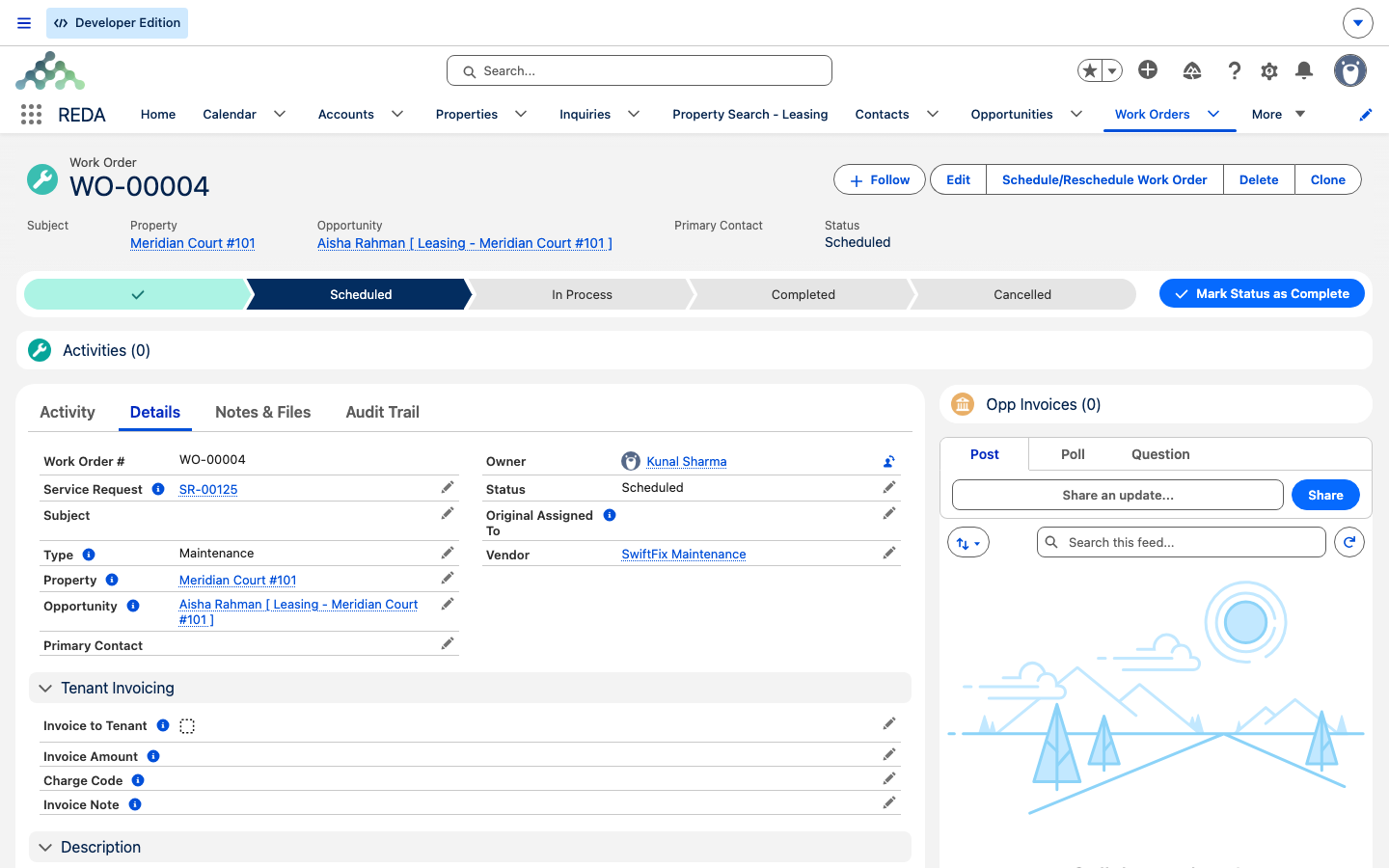
A Service Request is the intake record — the tenant's "my faucet is leaking." The Work Order is the execution record: it names the vendor, the property, the lease, and the job, and it carries the appointment on the maintenance calendar. Each Work Order is numbered automatically — WO-00001, WO-00002, and so on — and shows its progress as a Path across the top of the record, driven by its Status.
Creating a Work Order from a Service Request
Almost every Work Order starts from a Service Request, so REDA can carry the tenant, property, and lease across for you. Open the request and click Create Work Order. REDA confirms with "Work Order has been created successfully." and opens the Work Order screen.
Fill in what the job is:
Picking a time slot
The Work Order screen loads the property's Maintenance Slot Rule — the schedule of when maintenance can be booked at that property — and shows a grid of available time slots. REDA works out which slots are open by taking the rule's working hours, job duration, and buffer, then subtracting anything already booked, any blackout dates, and any times in the past. Where a whole building is managed together, all its units share one busy calendar, so a slot taken on one unit shows as busy on the others.
Pick a slot and REDA does the rest. If no slots appear, the property has no Maintenance Slot Rule, the rule's days or hours exclude the window you want, everything is already booked, or a blackout covers it — see The Maintenance Calendar for how the slots are built.
What scheduling creates
The moment you pick a slot, REDA books the appointment for you:
- It creates a calendar appointment for that time, linked to both the Service Request and the Work Order. Its subject reads
<Work Order #> [<Property Name>]— for example WO-00001 [Meridian Court #101] — so it's easy to spot on the calendar. - It sets the Work Order's Status to Scheduled. You don't set Scheduled by hand; picking the slot does it.
Rescheduling
When a vendor can't make the booked time, use the Schedule/Reschedule Work Order action on the Work Order to pick a new slot. REDA confirms with "Work Order is rescheduled successfully." It marks the old appointment as Rescheduled — it stays on the calendar for the record, it just no longer counts as the live booking — and creates a new appointment as Scheduled. The old appointment doesn't vanish; it's kept so you can see the history.
Status lifecycle and calendar sync
A Work Order moves through five statuses: New, Scheduled, In Process, Completed, and Cancelled. As you advance the Status, REDA updates the linked calendar appointment to match, so the calendar always reflects reality:
| When the Work Order becomes… | Its calendar appointments… |
|---|---|
| In Process | Appointments that were Scheduled become In Process |
| Cancelled | Appointments that were In Process or Scheduled become Cancelled |
| Completed | Appointments that were In Process or Scheduled become Completed |
So set the Work Order to In Process when the vendor starts, and the appointment follows; set it to Completed when the job is done, and the appointment is closed out too. You never touch the appointment directly.
Billing the tenant on completion
Some repairs are chargeable to the tenant — tenant-caused damage, for instance — and others are absorbed by the owner. REDA handles the chargeable case with one switch on the Work Order: Invoice to Tenant.
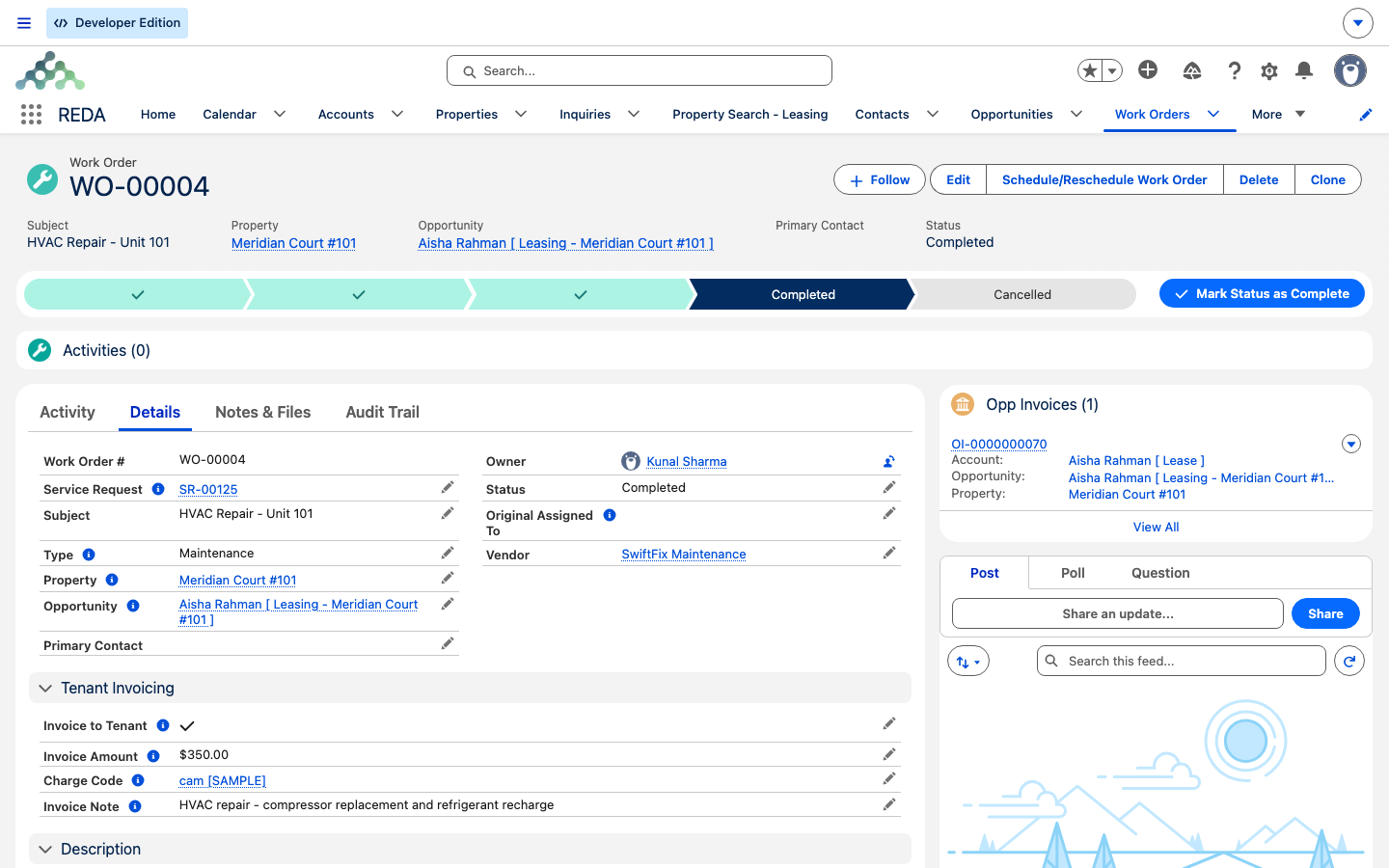
When you tick Invoice to Tenant, three fields become required, each enforced by its own check:
| Field | What it holds | If you leave it blank, REDA says… |
|---|---|---|
| Charge Code | The billing category the charge posts under (it also sets the due-date grace period) | "You must provide charge code if the work order is invoiced to the tenant." |
| Invoice Amount | The amount to bill, excluding tax | "You must provide invoice amount if the work order is invoiced to the tenant." |
| Invoice Note | A line that appears on the tenant's ledger | "You must provide invoice note if the work order is invoiced to the tenant." |
These three checks guarantee the billing details are complete whenever the switch is on, so completing the job can never silently skip an invoice because a field was missing.
Then, on the transition into Completed — and only if Invoice to Tenant is ticked and the lease, property, and the three billing fields are all present — REDA raises a tenant invoice on the lease's Accounting tab:
| On the invoice | Comes from |
|---|---|
| Amount | The Work Order's Invoice Amount (excluding tax) |
| Billing Comment | The Work Order's Invoice Note (this is what the tenant sees on the ledger) |
| Billing Date | The day you completed the job (today) |
| Due Date | Today plus the Charge Code's payment grace days (today, if the code has none) |
| Receivable account | The Charge Code's default |
| Work Order link | A back-reference to this Work Order |
The invoice is raised once, on the move into Completed. Setting a Work Order to Completed a second time does nothing — so you can't accidentally double-bill. If the repair isn't chargeable, simply leave Invoice to Tenant unticked and completing the job raises no invoice. For the full billing walkthrough and troubleshooting, see Billing a Tenant for a Work Order.
Worked example: the leaking faucet
A tenant in Meridian Court #101 reports a leaking kitchen faucet, and dispatcher Tom Reyes at Meridian Properties logs a Service Request. The leak turns out to be tenant-caused, so it's chargeable. Here's the Work Order end to end:
| You do | REDA does |
|---|---|
| On the request, click Create Work Order; set Subject "Replace kitchen faucet cartridge", Type Plumbing, Vendor SwiftFix Maintenance | Creates the Work Order, carrying the lease and property across ("Work Order has been created successfully.") |
| Pick tomorrow, 10:00–11:00, from the slot grid | Books the appointment WO-00001 [Meridian Court #101]; sets Status to Scheduled |
| Tick Invoice to Tenant; set Charge Code "Maintenance Charge" (15 grace days), Invoice Amount 150.00, Invoice Note "Faucet cartridge replacement - tenant damage" | Accepts the save now that all three billing fields are filled |
| Vendor arrives — set Status In Process | Moves the appointment to In Process |
| Job done — set Status Completed | Closes the appointment; raises a 150.00 tenant invoice on the lease's Accounting tab, due 15 days after completion |
Had SwiftFix slipped a day, Tom would have used Schedule/Reschedule Work Order to pick a new slot: the old appointment would read Rescheduled and a fresh one would appear as Scheduled.
Reference: the Work Order fields
| Field | What it holds | Notes |
|---|---|---|
| Subject / Description | What the job is | Subject is the short title; Description is the detail for the vendor |
| Type | Maintenance / Make-Ready / Turnover / Renovation / Common Area Cleaning / Pest Control / HVAC Service / Electrical / Plumbing / Security System Maintenance | Categorization only — no routing |
| Status | New / Scheduled / In Process / Completed / Cancelled | Scheduled is set for you by the slot picker |
| Service Request | The intake record this job came from | The Work Order's parent context |
| Property / Opportunity | Where the job is, and which lease to bill | The lease (Opportunity) is required for tenant invoicing |
| Primary Contact | The tenant contact | Carried from the request |
| Vendor | The account doing the work | |
| Invoice to Tenant | The billing switch | Turns completion into a tenant invoice |
| Charge Code / Invoice Amount / Invoice Note | The billing trio | All three required when Invoice to Tenant is on; amount excludes tax; the note appears on the tenant ledger |
Where to go next
- Service Requests — the intake record every Work Order starts from.
- Billing a Tenant for a Work Order — the completion-to-invoice step in full, with troubleshooting.
- The Maintenance Calendar — where slots come from: rules, hours, buffers, and shared building calendars.
- Invoices Explained — what happens to the tenant invoice once it's raised.
- Understanding Tickets — why Work Orders are separate from tickets.
Frequently asked questions
One of the three required billing fields is blank. REDA shows whichever is missing: "You must provide charge code if the work order is invoiced to the tenant.", "You must provide invoice amount if the work order is invoiced to the tenant.", or "You must provide invoice note if the work order is invoiced to the tenant." Fill in the Charge Code, Invoice Amount, and Invoice Note, then save.
The invoice is raised only on the move into Completed, only when Invoice to Tenant is ticked, and only when the lease, property, and all three billing fields are present. Check the switch and the lease link, then complete the job.
No. The invoice fires on the transition into Completed only. Re-saving a Work Order that is already Completed creates nothing.
It's still there — REDA marks the old appointment Rescheduled and creates a new one as Scheduled. The history is kept so you can see the change.
The property has no Maintenance Slot Rule, the rule's days or hours exclude the window you want, every slot is busy, or a blackout covers it. See The Maintenance Calendar for how slots are built.
No. Work Orders attach to Service Requests only — they are the maintenance pipeline, not the ticket engine. Raise a Service Request for the job.
Was this article helpful?