
Opportunities: the Deal Hub
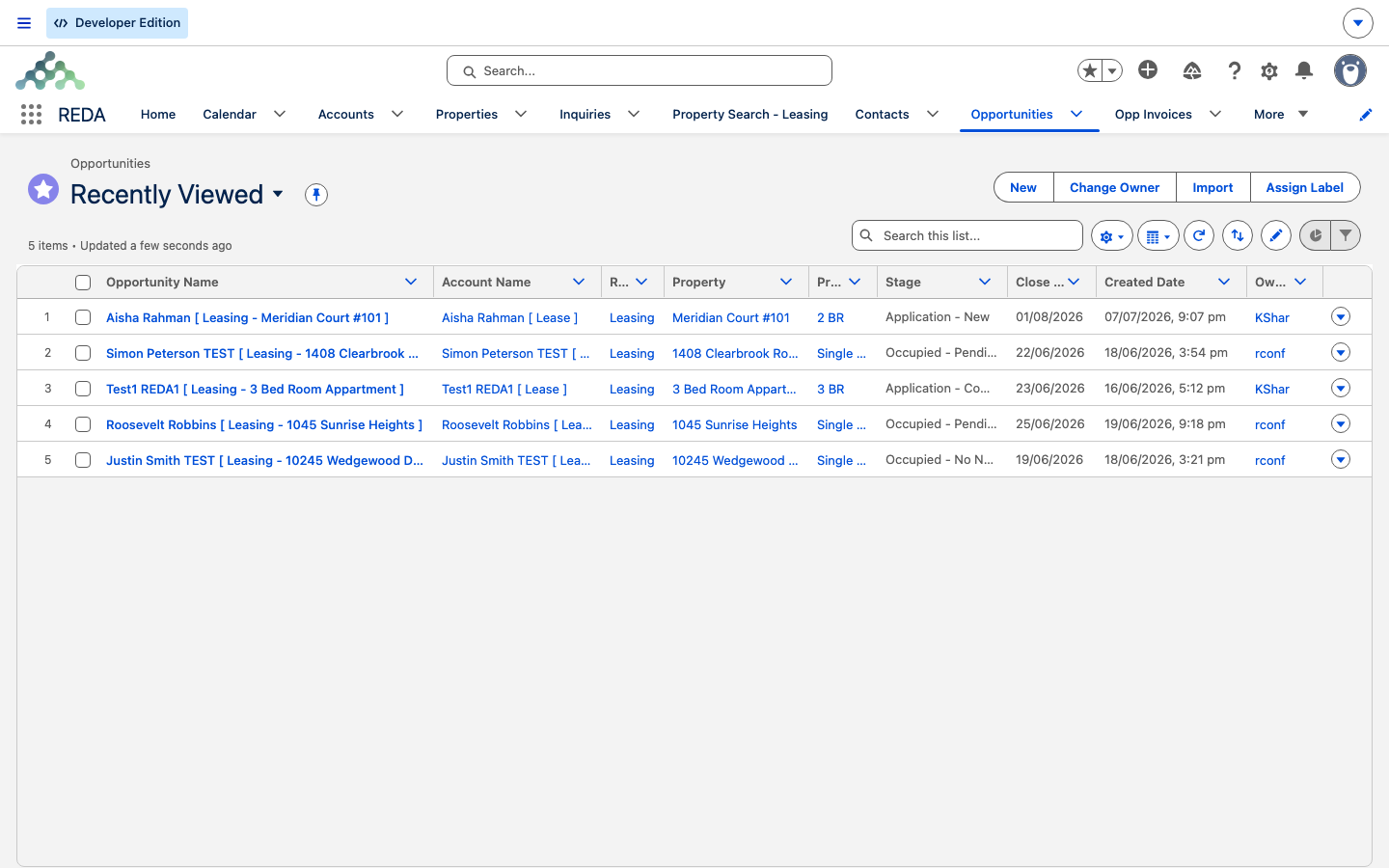
You opened an "Opportunity" in REDA and found a lease — not a sales pipeline card. That's not a mistake. In REDA, one Opportunity object is the deal record for every line of business: the lease itself, the acquisition worksheet, the loan, the sale settlement, and the property-management agreement. Which one you're looking at depends on the record's type. This article explains that single idea, shows you how to read the Stage field correctly for each line, introduces the discipline of letting tickets drive the stage, and tells you which numbers on the record are informational and which are operational. No prior REDA experience is assumed.
Access you'll need. To view deals, one of the read sets — REDA - Master Data - Read Only or REDA - Invoice Management Admin / Read Only. To create and edit, a line-of-business set — REDA - Property Sales User, REDA - Property Acquisition User, REDA - Property Management User, or REDA - Property Lending User. Only REDA - Master Data - Admin and REDA - Property Leasing User can delete a deal.
One object, five businesses
The single most important thing to grasp is this: the Opportunity is the deal. For a lease, the Opportunity carries the lease dates, term, tenant account, late-fee and month-to-month settings, and it anchors billing — it isn't a card that tracks a lease elsewhere, it is the lease. The same record shape serves an acquisition (as a buying worksheet), a loan (as the loan record), a sale (as a settlement statement), and a managed property (as the management agreement). It carries familiar headline fields — Amount, Close Date, Forecast Category, Next Step — but on a REDA deal those are informational; the operational money lives elsewhere (see below). Unlike inquiries, deals are visible across your organization.
The five deal types
The record type is the line of business. Five are active; a sixth ships switched off.
| Type | What the record represents | Its lifecycle |
|---|---|---|
| Leasing | The lease itself — application through occupancy to expiry | From Application to Move-In |
| Acquisition | Buying a property — underwriting, contract, close | The Acquisition Lifecycle |
| Property Sale | Selling a property — binder, contract, funded, closed | The Sale Lifecycle |
| Lending | The loan — origination, funded, payoff | Loan Deals |
| Property Management | Onboarding a managed property | Management Agreements |
| Booking | Inactive — there is no booking pipeline; reservations live on the Booking record | Bookings |
How Stage works
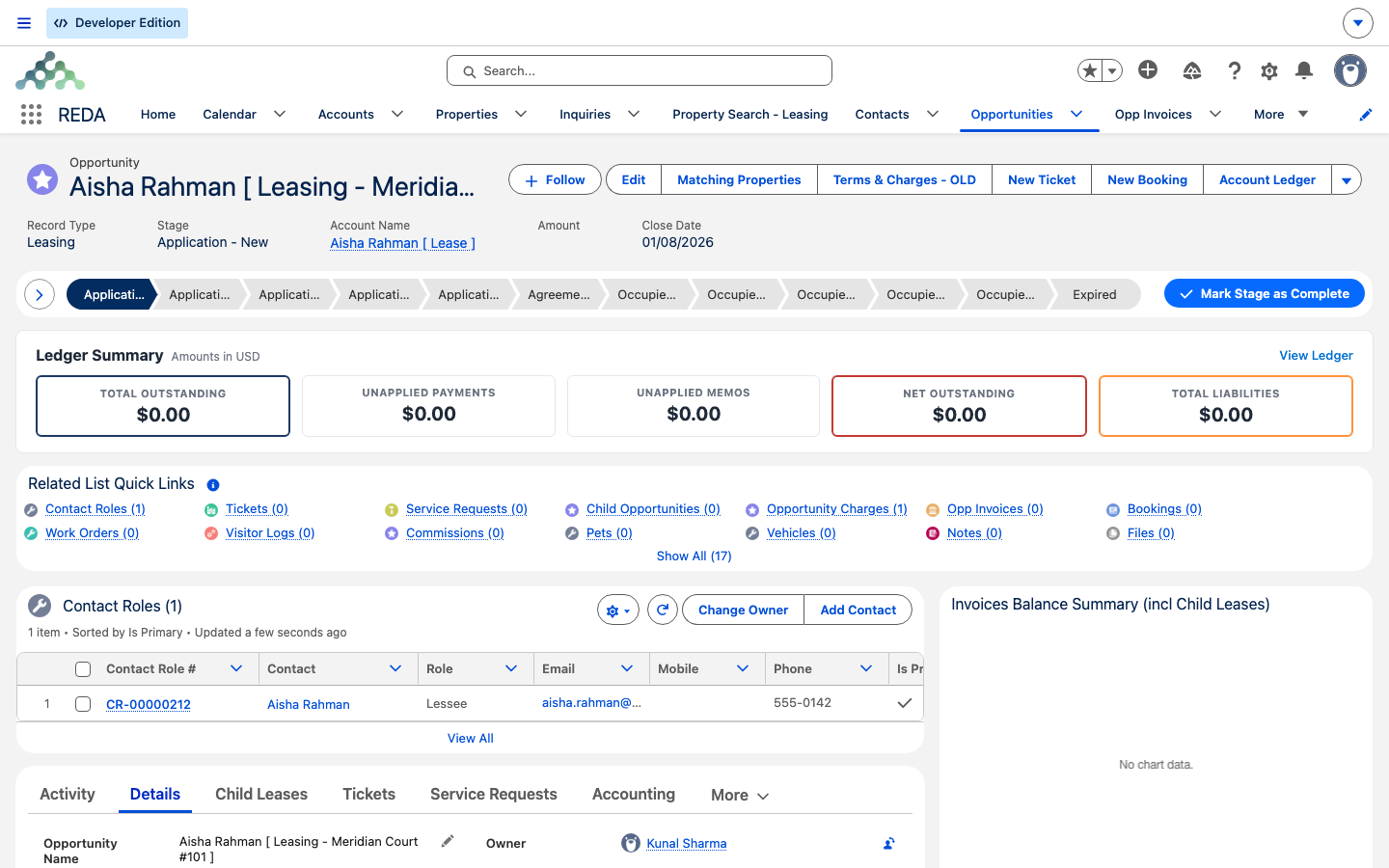
Every deal advances through a Stage, shown as a Path across the top of the record. Behind the scenes there is a single shared list of 32 stage values, but no deal shows you all of them — each type has its own subset, which is why a lease and a loan show completely different Paths. Read the Stage in the context of its type:
| Type | Stage ladder (opening stage first) |
|---|---|
| Acquisition | Qualification → Inspection → Offering → Under Contract → Clear to Close → Closed Won / Closed Lost |
| Leasing | Application - New → Application - Completed → Application - Approved → Agreement - In Process → Occupied - Pending Move In → Occupied - No Notice → Occupied - Notice (Move Out / Termination / Eviction) → Expired (plus Application - Denied / Cancelled) |
| Lending | Prospecting → Pending → Funded → Closed Won → Payoff Pending → Closed Lost |
| Property Management | Prospecting → Contract Out → Under Contract → Closed Won / Closed Lost |
| Property Sale | Property Selection → Binder → Contract Out → Under Contract → Funded → Clear to Close → Closed Won / Closed Lost |
Leasing is the one to watch: its ladder is a lease lifecycle, not a sales funnel. Occupied - No Notice isn't a step toward a win — it's the healthy steady state of a tenant living in the unit with no notice to leave on file. Lending reads oddly too: Payoff Pending comes after Closed Won — a loan is "won" once it's funded and closed, then it sits in Payoff Pending while the borrower works down the principal, so a healthy live loan can rest past Closed Won for years.
Stages the system sets — don't fight the automation
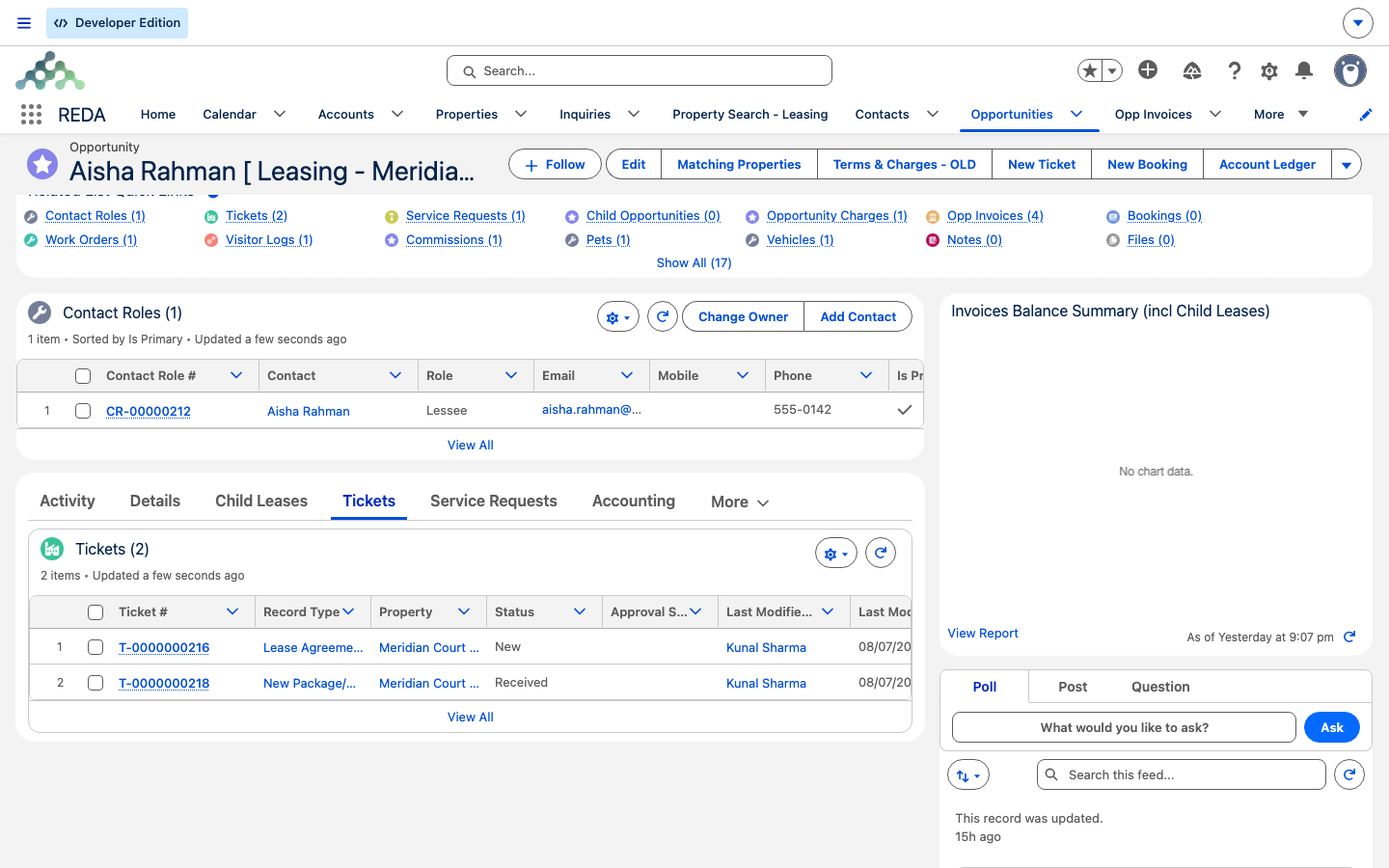
Many stage transitions aren't set by hand — they're written when you close a ticket (REDA's tracked checklist for a step in a record's life). Complete the ticket and the stage follows. Here's who sets what:
| Stage the system sets | Set when | Line |
|---|---|---|
| Agreement - In Process | Lease Agreement ticket goes in process / contract sent | Leasing |
| Occupied - Pending Move In | Lease Agreement ticket closed / contract signed | Leasing |
| Occupied - No Notice | Move In ticket closed | Leasing |
| Occupied - Notice (Move Out) | Move Out ticket goes in process | Leasing |
| Occupied - Notice (Termination) | Termination ticket closed | Leasing |
| Occupied - Notice (Eviction) | Eviction ticket in process / closed | Leasing |
| Expired | Move Out ticket closed | Leasing |
| Under Contract | Purchase-agreement ticket signed / closed | Acquisition |
| Contract Out / Under Contract | Sales-agreement ticket sent / signed | Property Sale |
| (reverts to the prior stage) | Any of these tickets is cancelled | Leasing / Acquisition / Sale |
The early stages — Application - New to Completed, the Denied and Cancelled decisions, and the opening stages of the other lines (Prospecting, Qualification, Property Selection, Binder, Inspection, Offering, and the whole Lending ladder) — are yours to set by hand. But once a deal reaches a ticket-owned stage, editing the Stage directly fights the automation: the ticket may overwrite it, a guard may block it, or downstream steps may misfire.
Some stages you can set by hand still won't budge until the record carries the figure that stage implies. On a Property Sale, for instance, you can't advance the stage without a sale price on the record — "You must provide the value of Sale / Purchase Price prior updating the stage." — and the same deal blocks the move without its under-contract date: "You must provide the value of Under Contract Date prior updating the stage." These aren't ticket-driven; they're guards that make sure the deal's numbers keep pace with its stage.
System flags derived from Stage
A handful of read-only indicators are recalculated from the Stage every time the deal is saved — think of them as traffic lights, not switches. Closed, Won, Active, and Accounting Active (billing) all follow the stage: a lease is "won" once it's occupied, and billing runs only while the lease sits in an Occupied stage. You read these; you don't edit them.
Anatomy of a deal record
A leasing deal's record page carries these tabs: Activity · Details · Child Leases · Tickets · Service Requests · Accounting (with Active and Inactive sub-tabs) · Charge Setup · Bookings · Visitor Logs · Commissions · Notes & Files · Audit Trail, with the Path on Stage across the header. Other deal types show the blocks that fit their business on their own record page.
On money, one distinction saves confusion. The Amount field is a headline figure — informational only. The operational numbers are the chargebook and invoice rollups: the Total Charge Amount, the outstanding invoice and batch balances, and the collections headline, Net Invoice(s) Balance (a negative value means the tenant has overpaid). When you want to know what a tenant actually owes, read the invoice balances, not Amount. For how billing itself works, see How Billing Works.
The record's name is built for you and can't be typed directly — for a lease it combines the primary contact and the property; for a sale, the property name; for a loan, the account.
Parent & child deals
Some deals nest. A co-living lease or a parking add-on hangs as a child lease under a parent lease; a loan can carry child loans. The rule is one level deep — a child cannot itself be a parent: "Parent Lease must not be associated to a Parent Opportunity". Two consistency guards keep the family sensible: a child must share the parent's account — "Invalid Account. Account must be the same as on Parent Opportunity." — but must cover a different property — "Property cannot be same as on Parent Opportunity." — since a parking child, say, covers a different unit than the apartment. When sync is switched on, a parent lease pushes its stage, approval, and renewal to its children; see Child Leases.
Approval & locking
A leasing deal carries an Approval Status that runs Draft (the default) → Submitted → Approved (or Rejected). Two rules gate it. You can't jump the Stage to Application - Approved without submitting first — "Submit the leasing application for approval prior to updating stage to "Application - Approved"." — and you can't approve a lease with no charges — "Leasing Opportunity can not be approved if Opportunity Charges are not provided. If Leasing Opportunity has child leases, then Opportunity Charges on the child leases must be provided as well." Once approved, the lease locks its key fields; editing the property, dates, or term afterward brings up "The leasing record is approved and locked for editing."
Worked example: reading one lease
Follow Aisha Rahman's lease through its stages. It's born at Application - New from conversion. The agent adds the charges and sets Application - Completed, then submits and approves it — Application - Approved — at which point REDA creates the Lease Agreement ticket. The ticket goes out, moving the lease to Agreement - In Process; the contract is signed and the lease reaches Occupied - Pending Move In, where billing switches on and a Move In ticket appears. On move-in day, closing that ticket advances the lease to Occupied - No Notice — a healthy tenancy. Throughout, rent runs at 1,200.00 per month, tracked in the invoice balances rather than in Amount. Nobody dragged the Path through the occupancy stages; the tickets wrote them.
Reference: stage defaults per type
| Type | Opening (default) stage | Number of stages |
|---|---|---|
| Acquisition | Qualification | 7 |
| Leasing | Application - New | 12 |
| Lending | Prospecting | 6 |
| Property Management | Prospecting | 5 |
| Property Sale | Property Selection | 8 |
Where to go next
- Converting an Inquiry — how a deal is born from a qualified inquiry.
- From Application to Move-In — the leasing lifecycle in full.
- Understanding Tickets — the engine that moves the stages.
- How Billing Works — why Amount isn't the bill.
- Child Leases — how co-living and multi-unit deals nest.
Frequently asked questions
You have to submit the lease for approval first: "Submit the leasing application for approval prior to updating stage to "Application - Approved"." Submit it, then set the stage.
An approved lease locks its key fields to prevent quiet changes: "The leasing record is approved and locked for editing." Editing the property, dates, or term requires unwinding the approval — see the leasing lifecycle articles.
Ticket closures own the occupancy and contract stages. Complete or cancel the relevant ticket instead of editing the Stage directly, and the stage will follow.
The lease (and any child leases) must have charges first: "Leasing Opportunity can not be approved if Opportunity Charges are not provided. If Leasing Opportunity has child leases, then Opportunity Charges on the child leases must be provided as well." Add the charges and approve again.
Amount is an informational headline. The real figures come from the configured charges and the invoices — read the invoice balances on the Accounting tab, and see How Billing Works.
A child lease covers a different unit — for example a parking space — so REDA blocks reusing the parent's property: "Property cannot be same as on Parent Opportunity."
Booking is inactive in the current release — there's no booking pipeline. Reservations live on the Booking record; see Bookings.
Was this article helpful?