
Configuring Duplicate & Merge Rules
The merge screen's field grid isn't hard-coded. A configuration table decides, object by object, which fields you compare and keep when merging two records — and it's yours to edit. This article is for the administrator who has watched an end user merge duplicate inquiries and now wants to control which fields appear in that grid, or to extend merging beyond Inquiries. After it, you'll understand the two halves of de-duplication (detection versus execution), be able to edit the field list, extend the merge tool to another object with configuration alone, and know exactly what always transfers to the surviving record no matter how the grid is configured.
Access you'll need. Merging requires the REDA - Duplicate Management User add-on permission set, plus edit and delete rights on the records being merged. Changing the configuration is a Salesforce administrator task.
How REDA de-duplication works
De-duplication has two halves, and neither works alone:
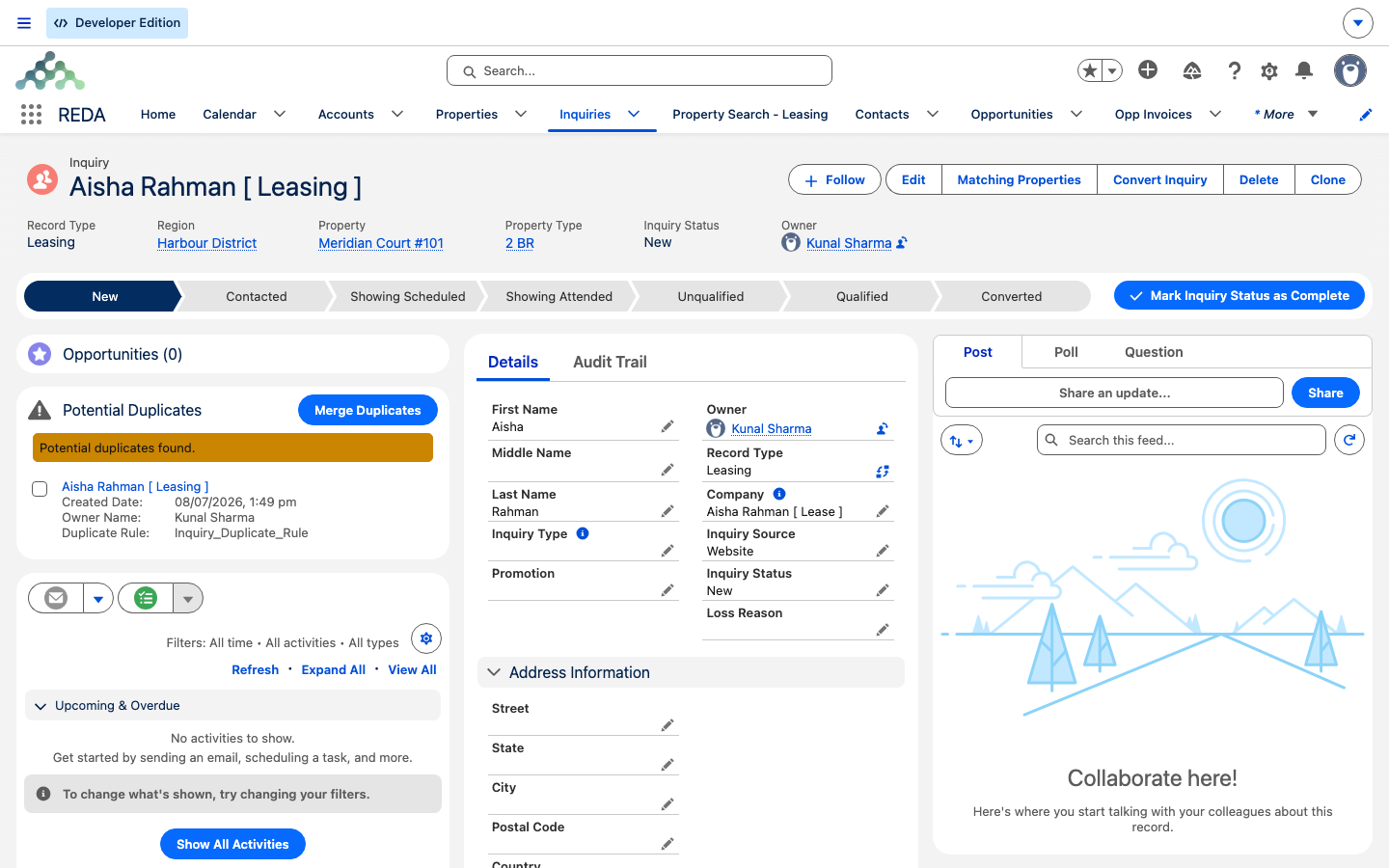
- Detection — finding the candidates. This runs on your org's standard Salesforce duplicate rules. The Potential Duplicates card shows the other members of a record's duplicate set, listing each candidate's name, owner, created date, and the rule that matched it. If no duplicate rules are active for the object, REDA gets no candidates and the card stays empty.
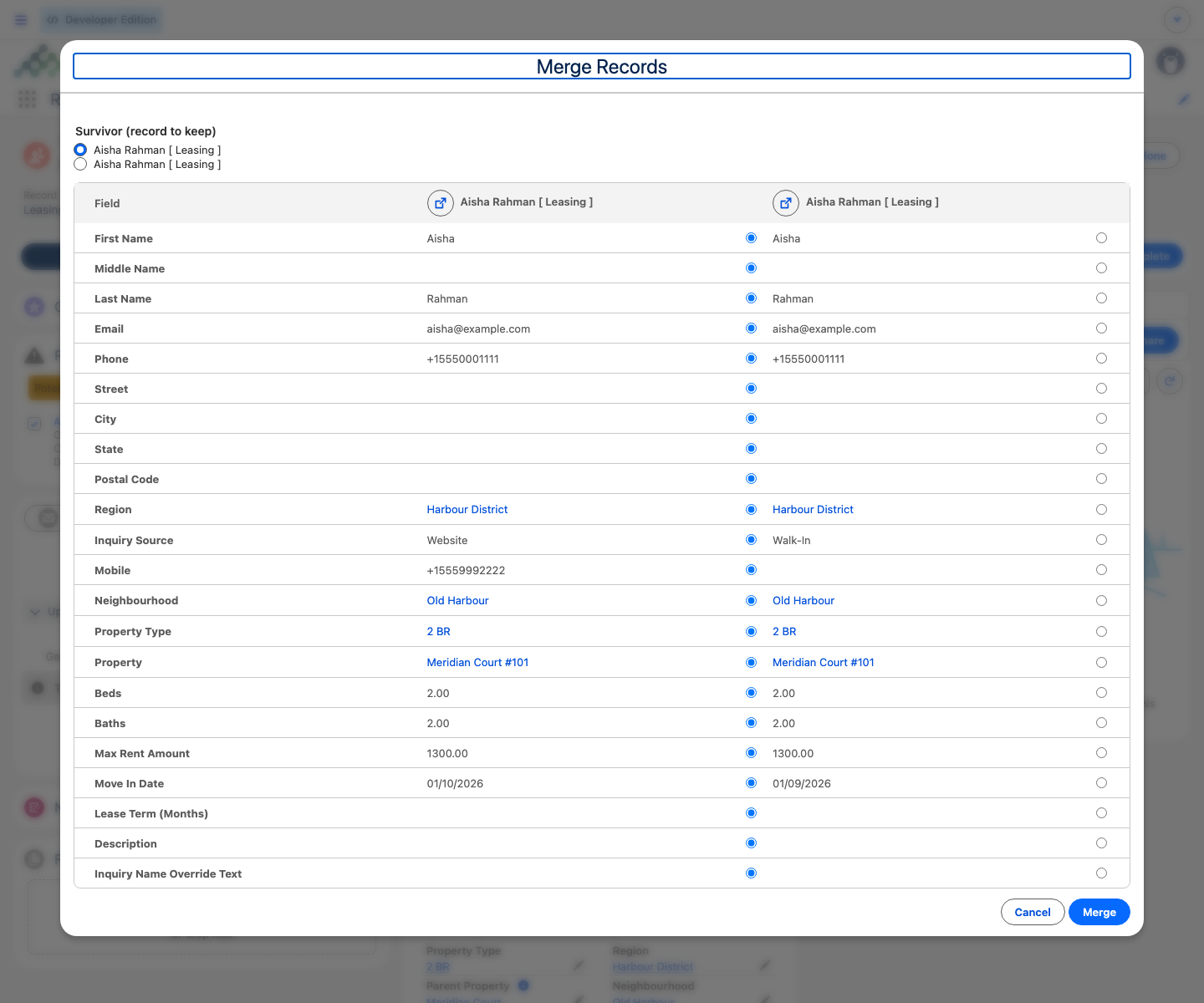
- Execution — the merge itself. This is REDA's own tool. It builds a compare grid — the matrix — of the configured fields across the selected records, defaults the survivor to the first record, and lets the user pick the survivor and the winning value for each field.
Detection sits entirely on the standard Salesforce side, so the usual duplicate-rule controls apply — including the inquiry's Bypass Duplicate Rules checkbox, which duplicate rules can read to let a record through without matching (it ships unchecked and lives off the page layout). If a record you expected to be flagged never appears as a candidate, that switch — or an inactive rule — is the first thing to check.
What ships configured
REDA ships merge configuration for Inquiry only, with 22 fields — all pre-selected by default. Out of the box, then, the merge tool works for Inquiries; other objects show no configured fields until an administrator adds rows. Here are the 22, grouped for readability:
| Group | Fields in the merge matrix |
|---|---|
| Person | First Name, Middle Name, Last Name, Name Override, Email, Phone, Mobile |
| Address | Street, City, State, Postal Code |
| Requirements | Beds, Baths, Lease Term, Max Rent, Move In, Property Type |
| Context | Description, Source, Property, Neighbourhood, Region |
Anatomy of a merge configuration record
Each configuration record adds one field to the grid for one object. A record names the object, the field to expose, whether it's default-selected (pre-ticked in the grid), and a sort order for where it appears. Two things are worth knowing:
- Only configured fields can be chosen during a merge — the merge writes only the fields you've listed onto the survivor.
- A row that names a field which doesn't exist is skipped safely. A typo won't break the screen; the field just won't appear — which also means it's easy to miss, so double-check spelling.
What always happens in a merge
Some things transfer to the survivor regardless of the field configuration:
| Item | What happens |
|---|---|
| Tasks, events, and emails | Always moved to the surviving record |
| Files and notes | Linked to the surviving record |
| The merged-away records | Optionally deleted — the user chooses |
| The whole operation | All-or-nothing: any failure rolls everything back, and it runs with the user's own permissions |
You'll see these messages during a merge:
"No records selected for merging." — you opened the merge screen without ticking anything.
"Select at least one other record to merge." — you ticked only the record you started from; a merge needs at least two.
"Merge completed." — the survivor is saved and the duplicates handled.
"Something went wrong. Please try again or contact your administrator." — the merge hit an error and rolled back completely.
Extending merge to another object
The tool is extensible with configuration alone — no code — but remember both halves have to be in place.
Coming later: child-record reparenting
In this release, a merge moves activities, emails, and files or notes to the survivor — but it does not re-point other custom child records (a losing inquiry's converted deal, for instance) to the surviving record. Configurable transfer of those child records is planned for a future release. Until then, treat only activities, emails, and files/notes as moving automatically.
Worked example: two inquiries for one person
At Meridian Properties, a website form and an agent both create an inquiry for the same person — Aisha Rahman, aisha@example.com. The org's duplicate rule flags them. The agent opens the newer inquiry, sees "Potential duplicates found." on the Potential Duplicates card, and clicks Merge Duplicates. The matrix shows the 22 fields across both records. The agent keeps the older record as the survivor, picks the newer record's Mobile and Move In values, ticks delete-for the merged-away record, and confirms — "Merge completed."
The administrator's twist: marketing wants the web-attribution fields visible during merges too. The administrator adds configuration rows for those fields, with a sort order after the shipped 22, and they appear at the bottom of the matrix the next time the merge screen opens.
Where to go next
- Merging Duplicate Inquiries — the end-user merge walkthrough.
- Capturing Inquiries — where duplicates come from.
- Customizing Inquiry Conversion — the sibling advanced-admin configuration article.
- Accounts in REDA — a related record you may extend merging to later.
- The REDA Admin Console — the administrator's control tower.
Frequently asked questions
Detection runs on your org's standard duplicate rules. If none are active for Inquiry, REDA gets no candidates. Ask your Salesforce administrator to activate or adjust the duplicate rules.
Only configured fields show. Add a configuration row for it — object, field, and sort order — and it appears in the matrix.
They always move or link to the surviving record, even though they aren't part of the field grid.
The shipped configuration covers Inquiries only, but the tool is extensible via configuration rows. Confirm the surface placement for other objects with your implementation team before rolling it out.
No — merges are all-or-nothing. On any error, everything rolls back and you'll see "Something went wrong. Please try again or contact your administrator."
Not in this release — only activities, emails, and files or notes transfer. Configurable transfer of other child records is planned for a future release.
Was this article helpful?