
Running Inspections
An inspection is how you record the condition of a unit, item by item. This article walks the whole job: create an inspection (or recognize one REDA created for you), build its checklist by applying a template, work through the items on the inspector's screen — adding statuses, comments, and photos — assign it to a vendor if someone else performs it, and mark it complete. It also carries this section's single most important warning: re-applying a template wipes the checklist you've already filled in. No prior REDA experience is assumed.
Access you'll need. Performing inspections requires the REDA - Inspection User or REDA - Inspection Manager permission set — both give full access to inspections and their items.
Anatomy of an inspection
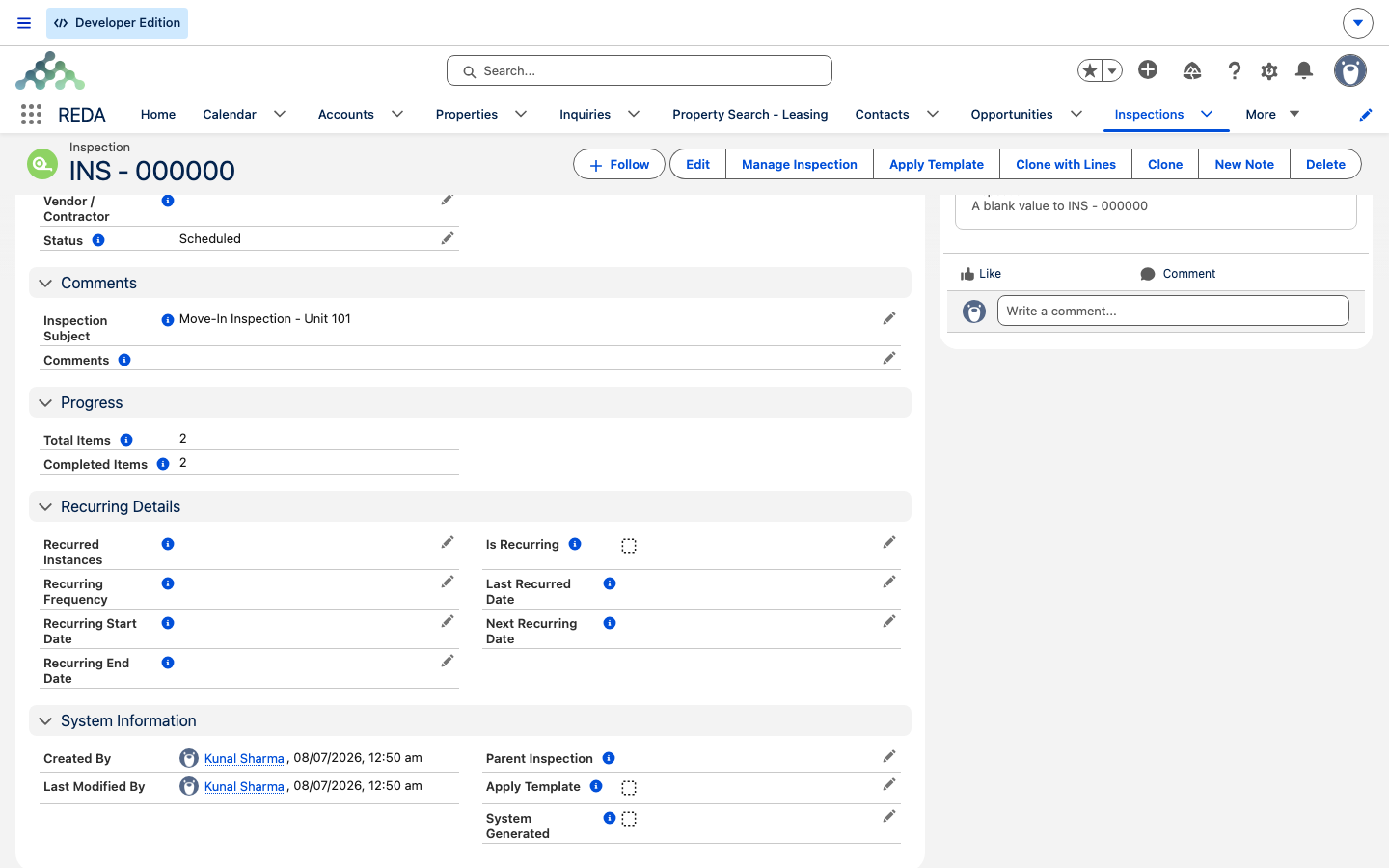
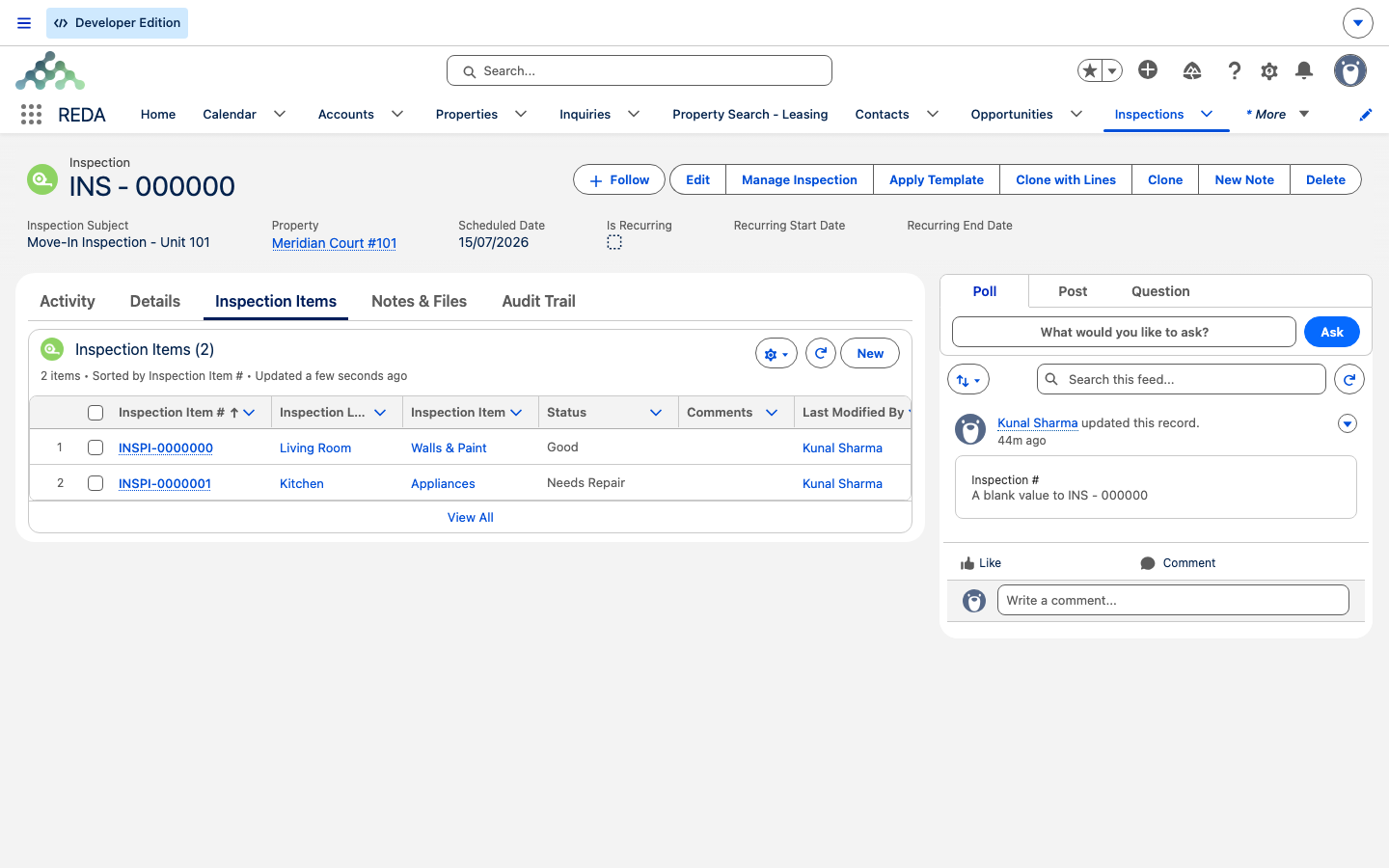
An inspection has two parts: a header and a checklist. The header carries the Inspection Subject, the Scheduled Date and Completed Date, the Status, who it's Assigned To, and links to the Property, the lease, and — for inspections REDA created from a ticket — the ticket that spawned it. The checklist is the list of items to check, each shown as "Location : Item."
An inspection's Status runs Scheduled → In Progress → Completed (or Cancelled). These four values are a working convention, not a locked sequence — REDA doesn't force you through them in order, so you can move an inspection to In Progress as you begin working it and to Completed when you're done. Two counters ride along the top: Total Items (how many checklist items there are) and Completed Items (how many have an answer). An item counts as completed the moment you choose any status for it — nothing more.
Creating an inspection
Most inspections you'll work were created for you. When a lease reaches move-in or move-out, REDA can create the inspection automatically from the ticket, with its checklist already built — those arrive ready to work, and you should not apply a template to them (that's covered in Move-In / Move-Out & Recurring Inspections).
To create one by hand, open the Inspections tab, click New, and fill in the Inspection Subject, the Scheduled Date, and the Property (and the lease, if it relates to one). Pick the Inspection Template you want, and you're ready to build the checklist.
Building the checklist: Apply Template
With a template chosen, tick Apply Template and save. REDA builds one checklist item per template line — in the template's sort order, each named "Location : Item" — and then quietly unchecks the Apply Template box again. That empty box is normal: it's the signal that the template ran.
Applying a template to a brand-new, empty inspection is the normal, harmless path. Re-applying one is a different story:
So the safe rule is simple: apply a template once, at the start, on an empty inspection. If an auto-created inspection already has its checklist, leave Apply Template alone.
Doing the inspection: the Manage Inspection screen
Click Manage Inspection to open the inspector's working screen. Items appear in order — sorted by sort order, then location, then name — each showing its "Location : Item" name and the guidance notes set on its master. For each item you:
Good, Fair, Needs Repair, and so on). Choosing one marks the item done.Save your work and REDA confirms with "Inspection saved successfully." The Completed Items counter climbs as you answer items — use it as your checklist before you finish: "3 of 5 completed" means two items still have no status.
Assigning to a vendor
Sometimes an outside contractor performs the inspection. Set Assigned To to Vendor and name the Vendor / Contractor account. The two go together — leave the vendor blank and REDA stops you:
The inspection still belongs to your team's records; the vendor field simply records who did the work.
Completing, cancelling, and the counters
When every item has an answer, set the header Status to Completed and stamp the Completed Date. Before you do, glance at the counters: if Completed Items reads lower than Total Items, an item is still unanswered — find it and give it a status. Setting an inspection to Cancelled closes it out without completing it; cancelling an inspection affects only that record — it doesn't touch the ticket or lease it came from.
Cloning an inspection
To reuse an inspection's setup, the Clone with Lines action copies the inspection along with all its checklist items — handy when you inspect a run of similar units. The copy is a new inspection you work from the top.
Worked example: a move-out at Meridian Court #101
An inspector at Meridian Properties works the auto-created "Move Out Inspection Meridian Court #101". Its four items are already in order:
| Step | What happens |
|---|---|
| Open Manage Inspection | Four items appear: Entrance : Keys Returned, Kitchen : Walls & Paint, Bedroom : Walls & Paint, Bedroom : Smoke Detector |
| Mark Keys Returned = Yes; Kitchen Walls = Needs Repair with comment "hole behind door" and a photo | Counter reads 2 of 4 |
| Finish the remaining items, set Status = Completed, Completed Date today | The inspection is closed out complete |
Had a colleague re-ticked Apply Template partway through, the four half-filled items would have been wiped and rebuilt blank — the reason that box carries a confirmation.
Reference: fields and actions
Inspection header fields:
| Field | Values | Notes |
|---|---|---|
| Inspection Subject | Text | Auto-filled on ticket-created inspections ("Move In/Out Inspection <Property>") |
| Status | Scheduled / In Progress / Cancelled / Completed | A working convention, not a locked sequence |
| Scheduled Date / Completed Date | Dates | You set Completed Date at the end |
| Assigned To | Internal (default) / Vendor | Vendor requires the Vendor / Contractor account |
| Vendor / Contractor | Account | Who performs a vendor-assigned inspection |
| Property / lease / Ticket | Links | Ticket = the move-in/out ticket, when auto-created |
| Inspection Template + Apply Template | Lookup + checkbox | Ticking the box (re)builds the checklist — destructive on re-apply |
| Total Items / Completed Items | Counters | Completed = items with any status chosen |
| Comments | Long text | Overall findings |
The three record actions:
| Action | What it does | Watch out |
|---|---|---|
| Apply Template | Replaces all existing checklist items with the template's items | Irreversible on re-apply; the box unchecks itself after it runs |
| Clone with Lines | Copies the inspection with all its items | Produces a new inspection to work from the top |
| Manage Inspection | Opens the inspector's working screen | Saves with "Inspection saved successfully." |
Where to go next
- Building Your Inspection Catalog — create the items, locations, and templates first.
- Move-In / Move-Out & Recurring Inspections — where auto-created inspections come from.
- Understanding Tickets — the move-in and move-out tickets that spawn inspections.
Frequently asked questions
No. Applying a template deletes every existing checklist item and rebuilds from the template; it is irreversible. Only apply a template to a fresh, empty inspection.
It resets automatically once the checklist is built — that empty box is the signal it ran.
A vendor-assigned inspection needs a vendor named: "If inspection is assigned to Vendor, then Vendor must be provided." Choose the Vendor / Contractor account.
An item counts as completed once it has a status. One item still has no status chosen — find it and answer it.
From the item master's Status Options list, maintained in the catalog. If a button is missing or misspelled, fix the master.
REDA created it from the Move Out ticket, because the property has a move-out template and schedule configured. See Move-In / Move-Out & Recurring Inspections.
Was this article helpful?