
Go-Live Checklist
You've finished the Implementation Roadmap and you're about to let users in. This is the last gate before you do — and it exists mostly to deliver one fact that catches almost every new REDA org: REDA installs with no background jobs scheduled. If you skip the scheduling step, rent is never invoiced, late fees never assessed, inspections never recur — and nothing warns you. Work this checklist and you'll leave go-live with every applicable job scheduled, batch sizes confirmed, extension flags set, web forms connected if you use them, and sample data cleaned out. Everything here ticks off and saves as you go.
Access you'll need. The console requires the REDA - Master Data - Admin permission set — the only set that grants it. Anyone else sees "You do not have permission to perform this action in the REDA Admin Console."
Why this checklist exists
REDA's recurring operations — invoicing rent, charging late fees, applying inflation, generating recurring inspections — all run as background jobs. Here's the thing new admins don't expect: none of them are scheduled when REDA is installed. The cadence for every one of them is whatever you set in the Admin Console. Set nothing, and nothing runs. That's why this step leads the checklist, and why "we went live and no rent is generating" is the most common launch problem — the recurring-charges job was simply never scheduled.
To be precise about what is automatic: a fresh REDA org runs at most two schedules on its own — a payment-schedule posting run and a calendar-slot exception top-up (both covered in Step 3). Neither of those bills a tenant, assesses a fee, or applies inflation. Every job that touches money or recurs on a lease is on you to schedule. Treat the whole Step 1 table as go-live-critical, not optional plumbing that "probably came switched on."
Step 1 — Schedule the background jobs
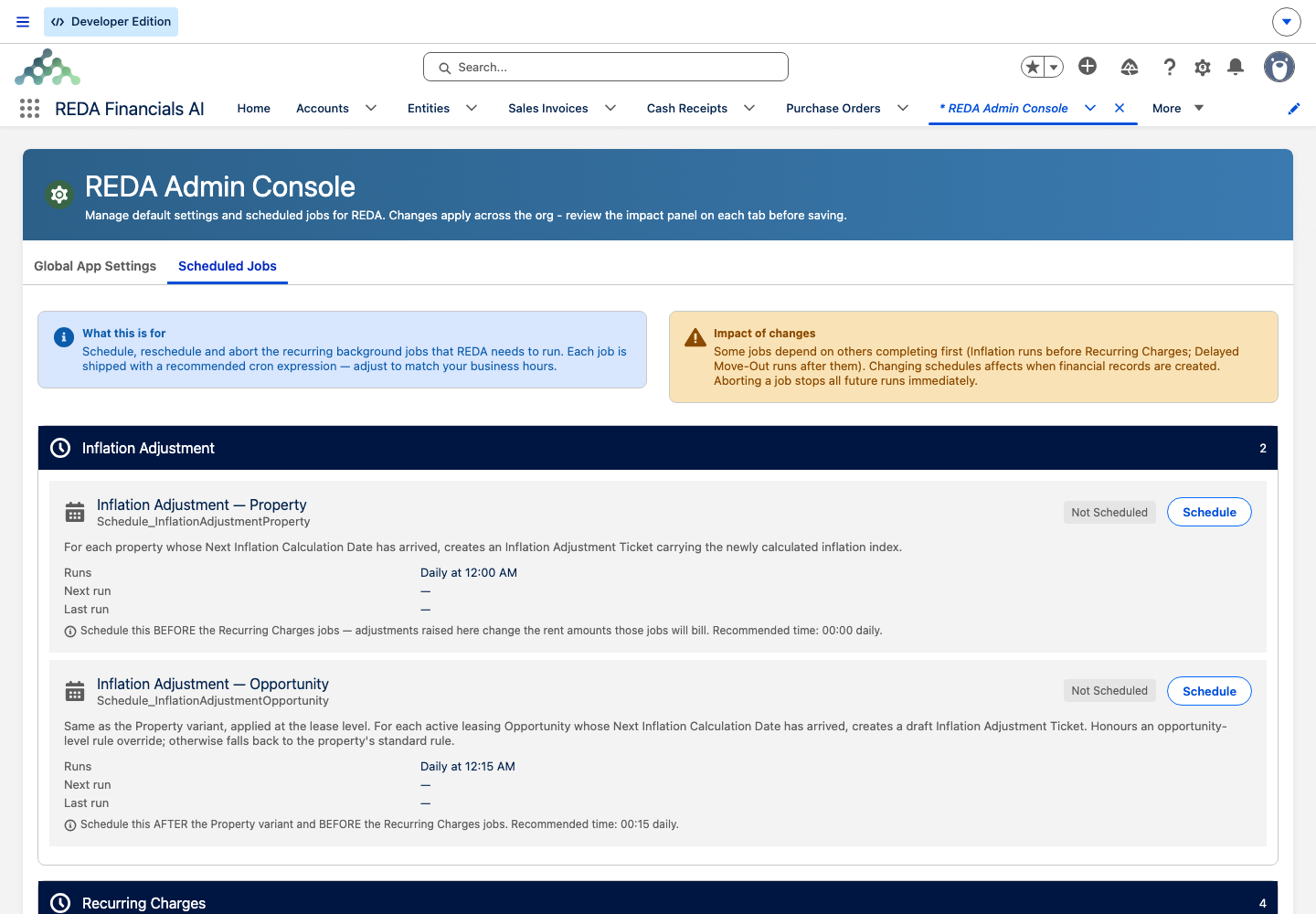
On the Scheduled Jobs tab, schedule each job your org needs. The console gives you plain-English schedule presets — a list of daily times and monthly options — so you just pick a time; there's nothing to type. Schedule as a user whose timezone matches your operating timezone, because a job runs in the scheduling user's timezone. Below are the thirteen jobs, their suggested default times, and what silently fails if you leave one unscheduled.
| Job | Suggested schedule | What it does |
|---|---|---|
| Inflation adjustment — properties | Daily, 12:00 AM | Re-rates rent setups per your inflation rules; without it, property inflation never applies |
| Inflation adjustment — leases | Daily, 12:15 AM | Re-rates active-lease charges for inflation; without it, lease inflation never applies |
| Recurring charges — monthly cycle | Daily, 1:00 AM | The rent-invoicing run for monthly-cycle charges; without it, no rent invoices generate |
| Recurring charges — daily cycle | Daily, 1:15 AM | Invoices daily-cycle charges |
| Recurring charges — weekly cycle | Daily, 1:30 AM | Invoices weekly-cycle charges |
| Delayed move-out billing | Daily, 3:00 AM | Bills an extra period when a scheduled move-out passes without an actual move-out |
| Straight-line schedule calculation | Daily, 4:30 AM | Processes pending straight-line schedule calculations |
| Recurring inspections | Daily, 5:00 AM | Re-creates recurring inspections; if a recurring inspection never generates, this job is why |
| Reconciliation snapshots | Monthly, 1st at 6:00 AM | Takes monthly property snapshots for occupancy and audit analytics |
| Month-to-month fees — per day | Daily, 10:00 AM | Assesses per-day holdover fees on month-to-month tenancies |
| Month-to-month fees — monthly | Monthly, 1st at 10:00 AM | Assesses monthly holdover fees |
| Late fees — per day | Daily, 10:00 PM | Assesses per-day late fees on overdue invoices |
| Late fees — monthly | Monthly, 1st at 10:00 PM | Assesses monthly late fees |
You only need the jobs your org actually uses — if you have no month-to-month leases, you don't strictly need the month-to-month jobs — but scheduling all of them is safe and saves surprises later. Each job runs as a single scheduled instance; if you reschedule one, REDA replaces the existing schedule rather than stacking a duplicate. To stop a job, use its Abort control; REDA confirms with "Abort this scheduled job? Future runs will stop immediately. In-flight executions complete normally."
Step 2 — Check batch sizes
The billing jobs process records in batches, and the default batch size is 50. That's a sensible starting point for most orgs — leave it unless you have a specific reason to change it and guidance to do so. The batch-size settings sit alongside the jobs in the Admin Console.
Step 3 — Confirm what's already running
Two schedules — and only two — can already be running without anyone scheduling them: a daily posting run that marks due payment schedules as posted (typically around 2:00 AM), and a daily top-up that maintains recurring calendar-slot exceptions (typically just after midnight). Everything in the Step 1 table sits outside that pair — none of the billing, fee, inflation, inspection, or snapshot jobs runs until you schedule it. So Step 3 isn't "check that setup is done"; it's the opposite — a reminder that these two are the entire automatic baseline, and confirming they exist tells you nothing about the thirteen you still owe.
Confirm the pair is active in your org rather than assuming it — the two are org-local schedules, not guaranteed present in every install. If you rely on sale payment schedules or recurring blackout slots, verify with your implementation partner that both are scheduled.
Step 4 — Extension flags & platform settings
On the Global App Settings tab, review the settings that shape how REDA behaves for your org:
- Accounting extension. If you use REDA Financials, your implementation partner enables the accounting extension so REDA's invoices flow into accounting. Confirm it's on if that's your setup.
- Multi-currency. Off by default; on only if your org operates in multiple currencies.
- Operational defaults. Review the record-type default, the status an inquiry converts to, the ownership-trail toggle, and the search result cap. The full reference lives in Global App Settings — review here, adjust there.
Step 5 — Connect your web forms
If you capture leads from a website, connect them through REDA's inbound Data Service: turn on the master switch, list the records the service may create, and set the per-record access key. Treat those keys as secrets — never share or print them. The full setup is in The Data Service. Skip this step entirely if you don't capture web leads.
Step 6 — Clean sample data
If your org was seeded with sample records — they're prefixed SAMPLE -, like "SAMPLE - Apartment #001" — remove them before real users arrive, so nobody mistakes demo data for live records. If your org wasn't seeded, there's nothing to clean.
Step 7 — Access & final checks
Confirm every person has the right permission set (see Permission Sets & Personas) and that the organization-side grants — Accounts, Contacts, reports, and the guided-action buttons — are in place (see What Access Do I Need?). Then run a smoke test:
- Create a test lease and advance it to the approval gate; confirm the Lease Agreement ticket appears on its own.
- Confirm the first flagged charge produced an invoice — billing is opt-in twice: the charge must be flagged for invoicing and the lease must be accounting-active.
- After the first scheduled night, confirm the recurring run produced the next-period invoice.
- Check REDA Async Logs for errors after the first runs.
- If you use REDA Financials, confirm the invoice synced across to a Sales Invoice.
What happens if you skip a job
The reason scheduling leads this checklist: an unscheduled job doesn't error — it simply doesn't run, and the symptom shows up weeks later. Keep this table handy when a "why isn't X happening?" question lands.
| If you never schedule… | The symptom, weeks later |
|---|---|
| Recurring charges | No rent or recurring invoices ever generate; tenants owe nothing in the system |
| Late fees | Overdue invoices never accrue fees |
| Month-to-month fees | Holdover tenants are never charged |
| Inflation | Escalation clauses never apply; rents stay flat despite the rules |
| Delayed move-out billing | Tenants who overstay a scheduled move-out get a free period |
| Straight-line calculation | Pending schedules queue forever and never materialize |
| Recurring inspections | Recurring inspections never generate |
| Reconciliation snapshots | No monthly occupancy or analytics snapshots exist |
Worked example: Meridian's go-live evening
Meridian Properties — the same company set up in the Implementation Roadmap — goes live. The administrator opens the Admin Console, schedules all thirteen jobs at the default times, leaves batch sizes at 50, confirms the two existing schedules, and runs the smoke test: creates a test lease, advances it to approval, and watches the Lease Agreement ticket appear. Next morning, the first rent invoice for Meridian Court #101 at 1,200.00 is sitting in the system — proof the recurring run fired overnight. Meridian is live.
Where to go next
- Scheduled Jobs — the deep reference behind this action list.
- Global App Settings — every setting reviewed in Step 4.
- REDA Async Logs — where job errors surface.
- The Data Service — connecting your web forms.
- Implementation Roadmap — the setup that comes before this gate.
- How Recurring Invoicing Works — what the recurring-charges job produces.
Frequently asked questions
The most likely cause: the recurring-charges job was never scheduled — nothing is scheduled at install. Schedule it on the Scheduled Jobs tab. Then check the second gate: the charge must be flagged for invoicing and the lease must be accounting-active, because billing is opt-in twice.
It depends on the job. Recurring charges match the charges due on the run date and do not automatically catch up on a missed day. Late-fee, month-to-month, and inflation runs process everything due up to today, so they self-heal after downtime. If you missed recurring-charge days, contact support for the recommended recovery path.
Some operations have manual triggers — for example Run Manually on an Inflation Rule, or the Leasing Charges - Admin Jobs action. If a similar job is already running, REDA holds you off with "A similar job is currently in process. Please wait for the existing job to be complete prior to initiating a new job. Contact your system admin for further assistance."
The Admin Console is available only to REDA - Master Data - Admin. Anyone else sees "You do not have permission to perform this action in the REDA Admin Console." Assign that set to whoever manages the jobs.
The default of 50 works for most orgs — leave it unless you have specific guidance to change it. Adjust only with a reason, and test the effect before go-live.
Was this article helpful?