
Running a Reconciliation Batch
This article walks you through setting up and calculating an expense reconciliation batch — a run that recovers a pool of shared building expense from tenants for a period. You'll create a batch with a valid scope (and see the two errors you'll hit if you get the scope wrong), enter the pool and period, run the calculation, follow it to Completed, read the variance figures, and recalculate safely. The one thing to keep in mind throughout: recalculating deletes and rebuilds everything the previous run produced, including any invoices. If you want the concepts behind the numbers first — how each line's share is computed — read Expense Reconciliation: Concepts.
Access you'll need. Creating and calculating a batch requires the REDA - Expense Reconciliation Admin permission set. The REDA - Expense Reconciliation Read Only set can view but not change. Ask your administrator for the set that matches your role.
Before you start
A reconciliation is only as good as the data underneath it. Confirm these before you calculate, or the numbers will look wrong for reasons that have nothing to do with the run:
Creating the batch
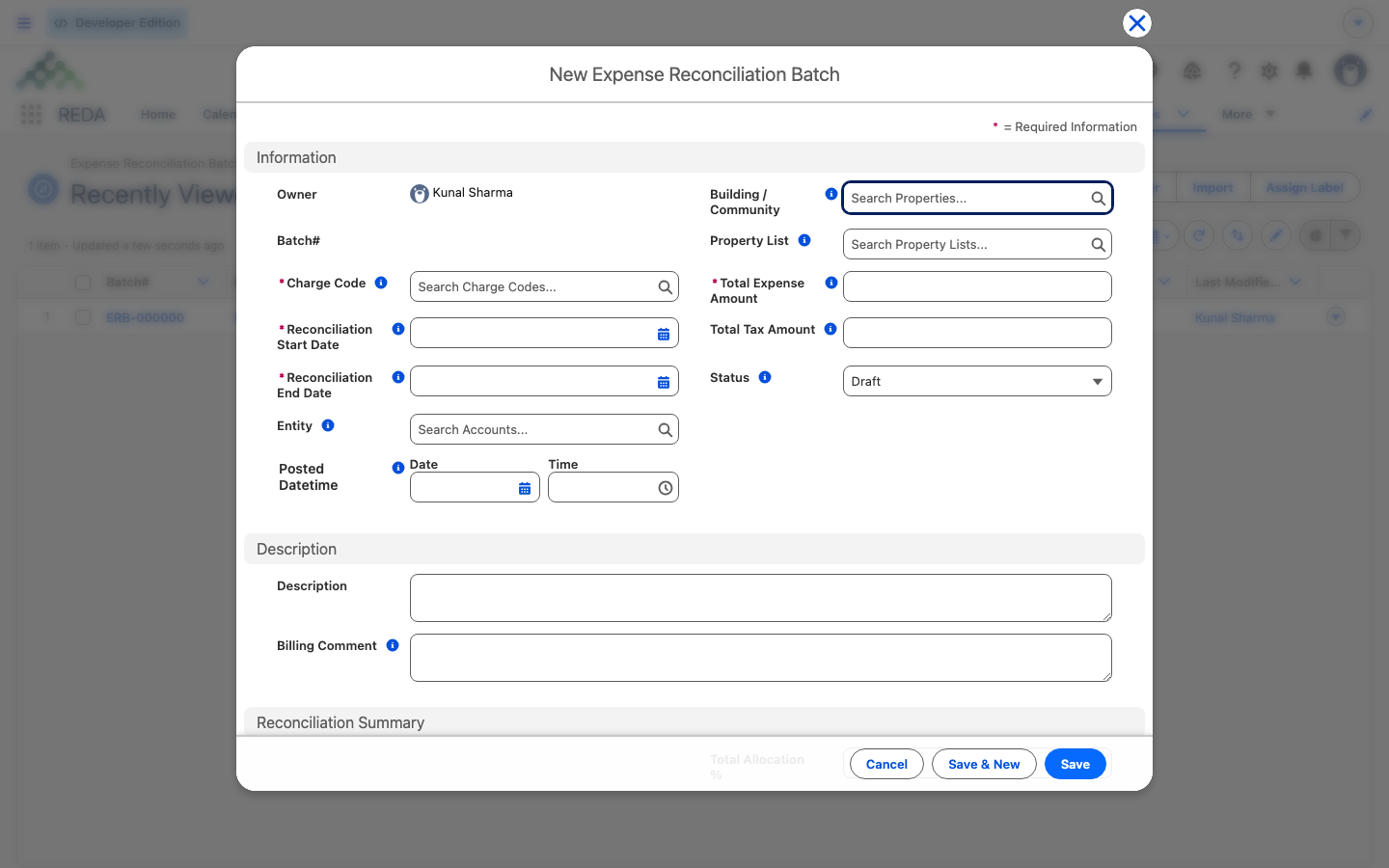
From the Expense Reconciliation Batches tab, click New and fill in the run:
The scope rule is the only thing that will block your save on the header, so it's worth seeing both errors. Fill in both a building and a list and REDA stops you with:
Leave both blank and you'll see:
Fix the scope to exactly one and the batch saves in Draft.
Calculating
With the batch saved, click Calc/ Recalc Reconciliation Lines. REDA warns you that the action is irreversible — it clears the current results and rebuilds them — and on confirmation it does three things:
Each property is calculated in isolation, so one property with bad data can't corrupt the rest — it's simply counted as a failure and logged, and the good properties still calculate. You don't need to keep refreshing; a bell notification tells you when the run finishes (see below).
When it finishes
When the run completes, REDA updates the header and sends you a bell notification — a desktop or mobile notification pointing at the batch — so you know it's done without watching the screen. The header now shows the outcome:
| Status | What it means | Your move |
|---|---|---|
Completed | Every property calculated cleanly; allocation %, run statistics, and Last Calculation Datetime are stamped | Review the variances |
Completed with Error | Some properties failed; the batch links to a log listing each failure, the rest calculated fine | Fix the flagged data and recalculate |
The header's Total Records Processed, Success Records, and Failed Records counters, plus Last Calculation Datetime, tell you what the run did and when.
Reading the results
Two variance figures on the header tell you whether the run is trustworthy — and they diagnose two different problems, so keep them straight:
| Figure | Formula in words | What a non-zero value means |
|---|---|---|
| Reconciliation Variance | Net Total Expense Amount − Net Reconciliation Amount | Money in the pool the lines didn't capture — uncovered days, missing allocations, or excluded stretches |
| Allocation Variance % | 1 − Total Allocation % | Your units' (or list items') percentages don't add up to 100% |
A clean run: Reconciliation Variance near zero and Allocation Variance % at zero — the whole pool was captured and the shares add up. If Allocation Variance % is non-zero, the fix is the percentages: correct the unit allocation (or list distribution) figures and recalculate. If Reconciliation Variance is non-zero while allocation is fine, the pool has uncovered days — look for exclusions or ownership gaps that left stretches un-lined.
Recalculating safely
Recalculation is the normal way to correct a batch — but it is destructive, so understand exactly what it does before you click it a second time:
One more thing to know: editing the pool, scope, or period after a calculation does not update the results on its own. The figures always reflect the last run — Last Calculation Datetime tells you when that was. After any edit, run Calc/ Recalc Reconciliation Lines again to bring the numbers up to date.
Troubleshooting a failed run
When a run comes back Completed with Error, work from the header outward:
| Symptom | Where to look | Likely cause |
|---|---|---|
| Completed with Error | The batch's log link and its attachment | Bad data on specific properties — each isolated by the per-property calculation |
| Reconciliation Variance not zero, Allocation Variance zero | Line coverage against the period | Uncovered days from exclusions or ownership gaps |
| Allocation Variance not zero | Unit / list percentages | Percentages don't sum to 100% |
| No lines for a unit | Exclude switches and the lease dates | The stretch was excluded, or no lease overlapped the period |
The log's attachment lists each failed row so you can find the exact properties to fix; correct the data and recalculate.
Worked example: the FY26 Q1 CAM batch
Meridian Properties reconciles first-quarter CAM for Meridian Court: building scope, charge code "CAM Recovery", 1 Jan 2026 → 31 Mar 2026, pool 12,000.00 + 600.00 tax. The building's four units each carry 25% allocation.
| You do | REDA does |
|---|---|
| New batch — fill in both a building and a list to see the guard | Blocks the save: "You can provide either a building/community or a property list, but not both." |
| Clear the list, keep Meridian Court; set period, pool, charge code; save | Batch saved in Draft |
| Click Calc/ Recalc Reconciliation Lines, confirm | Status → Processing; builds 6 lines (four units, #103 split into occupancy + vacancy); sends the bell notification |
| Open the finished batch | Status Completed; Total Allocation % 100%; Allocation Variance 0% |
To see the diagnostic in action: set unit #104's allocation to 20% (so the four units sum to 95%) and recalculate. The header now reads Allocation Variance % = 5% and a non-zero Reconciliation Variance — the 5% of the pool that no unit is carrying. Fix #104 back to 25% and recalculate; the delete-and-rebuild replaces every line and the variances return to zero. Billing the resulting shortfalls is Posting & Unposting Reconciliations.
Reference: the run lifecycle
| Stage | Status shows | What's happening | Your move |
|---|---|---|---|
| Setup | Draft | You enter scope, pool, and period | Save; fix the scope error if you hit it |
| Kick-off | Processing | Old lines and their invoices deleted; properties queued | Wait for the bell |
| Per property | Processing | Occupancy and vacancy lines built; billed amounts matched | — |
| Finish (clean) | Completed | Allocation %, statistics, and Last Calculation Datetime stamped | Review the variances |
| Finish (problems) | Completed with Error | Log linked; the attachment lists failed rows | Fix the data; recalculate |
| After posting | Posted | Batch and lines locked | Unpost before any change |
Where to go next
- Posting & Unposting Reconciliations — the next step: bill the shortfalls, and take them back if needed.
- Expense Reconciliation: Concepts — the math behind every line.
- Async Logs — triaging a Completed with Error run.
- Property Lists — setting up list scope with distribution percentages.
Frequently asked questions
The scope is wrong. REDA needs exactly one of a building or a property list: "Either a building/community or a property list must be provided." if you left both blank, or "You can provide either a building/community or a property list, but not both." if you filled both.
The batch is posted. Calculation is blocked on a posted batch — a screen tells you it's already posted. Unpost it first, then recalculate.
No — it does the opposite. Recalculating deletes the previous lines and any invoices they reference, then rebuilds from scratch. That's exactly why you must be certain before recalculating a batch whose invoices already went out.
Some properties failed during the run. The batch links to a log whose attachment lists each failed row; the rest calculated fine. Fix the flagged data and recalculate.
The unit allocation (or list distribution) percentages don't add up to 100%. Correct them and recalculate; Allocation Variance % shows the exact gap.
The results reflect the last calculation — check Last Calculation Datetime. Editing the pool, scope, or period does not recalculate on its own; run Calc/ Recalc Reconciliation Lines again.
Was this article helpful?