
The Lease Record
Here is the single most important idea in REDA leasing: the lease record and the Opportunity record are the same record. When you open a "lease" in REDA, you land on an Opportunity — REDA's one deal hub — that happens to carry lease dates, a term, a tenant, a rent amount, and a billing switch. Everything else in the lease's life — its charges, its invoices, its tickets, its inspections, its resident-portal access — hangs off that one record. This article is a guided tour of it: how to read the Stage as a lease state, where every block of information lives, and which fields REDA fills in and maintains for you so you never fight the automation by editing them by hand. No prior REDA experience is assumed.
Access you'll need. Working with leases requires the REDA - Property Leasing User permission set (or REDA - Master Data - Admin for administrators). To view leases without changing them, the REDA - Master Data - Read Only and the Invoice Management sets can open Opportunities. Deleting a lease is limited to Master Data Admin and Property Leasing User.
One record, one lease
An Opportunity is REDA's single "deal" object, and it wears a different face for each line of business through its record type. The Leasing record type is the lease: it carries the lease dates, the term, the tenant account, the rent charge, the late-fee and month-to-month policy, and the links to any parent or child leases. Because the lease and the deal are one record, there is no separate "lease object" to reconcile — REDA maintains the whole story in one place.
REDA even names the lease for you. Rather than typing a name, you set the tenant and the unit and REDA composes the record name from the primary contact and the property (for example, the tenant's name followed by the leased unit). You only override the name in the rare case you need a custom label.
The lease lifecycle at a glance
A lease advances through a fixed ladder of Stages, shown as a Path across the top of the record. Reading the Stage tells you exactly where the lease is in its life. For a lease, the stages are:
Application - New → Application - Completed → Application - Approved → Application - Denied / Application - Cancelled → Agreement - In Process → Occupied - Pending Move In → Occupied - No Notice → Occupied - Notice (Move Out) / Occupied - Notice (Termination) / Occupied - Notice (Eviction) → Expired
You drive the early application stages by hand. Most later transitions are written for you by tickets — the short, tracked checklists REDA creates at each milestone (the Lease Agreement, Move In, Renewal, Move Out, Eviction, and Termination tickets). You work the ticket, and the ticket moves the lease.
Two of these stages also flip hidden switches that the rest of REDA keys on — the most important is described in the anatomy tour below.
The anatomy tour
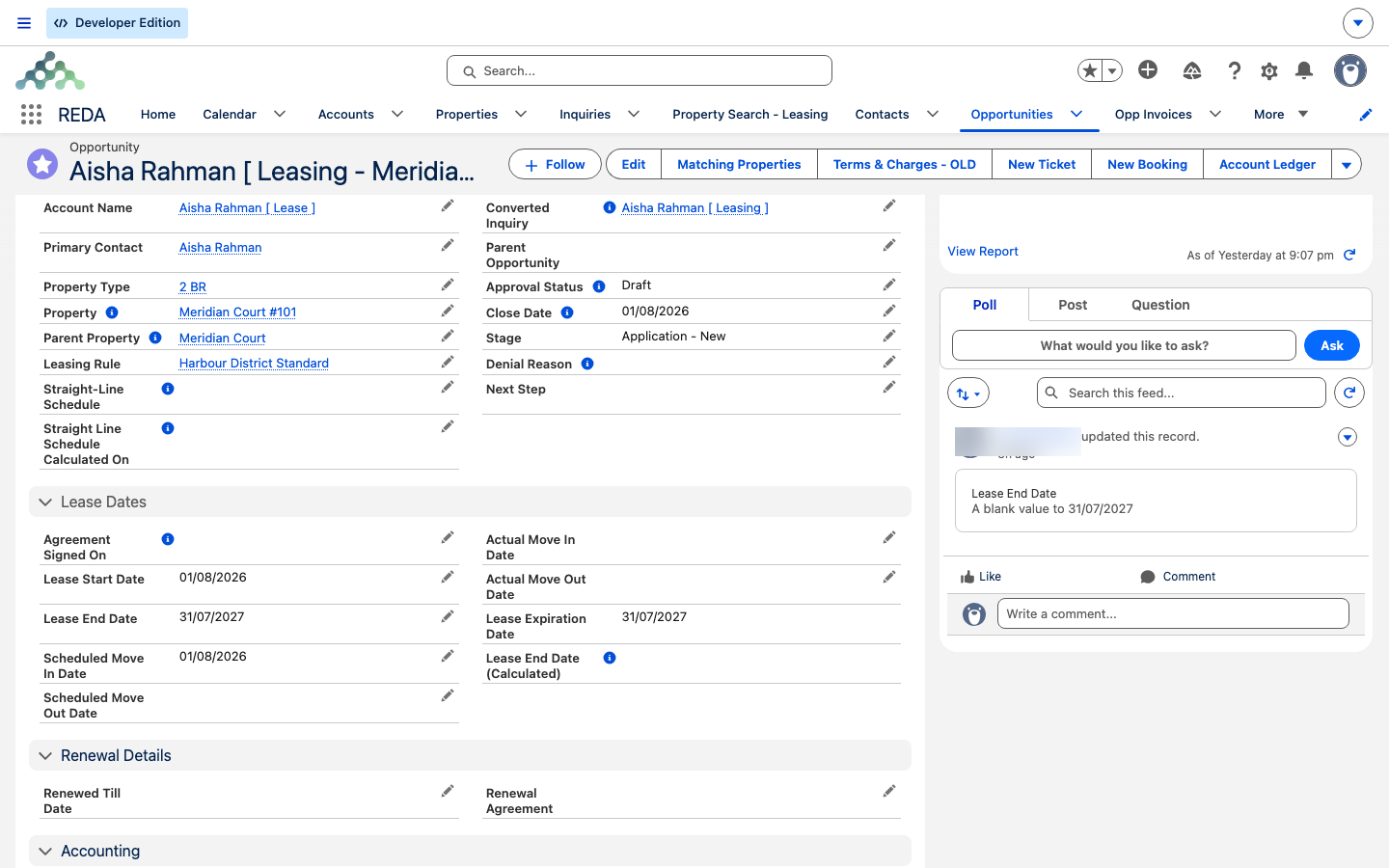
The lease record is organized into blocks of related fields. Here is what each block is for and which labels to look for. Wherever a label ends in (Sys), REDA maintains that field automatically — read it, never type into it.
Tenant & people
The Account Name is the tenant account — usually set when an inquiry is converted into the lease. It becomes required once the lease is won, so REDA will stop you saving without it. Primary Contact is the lead person on the lease; it feeds the auto-composed lease name and cascades to any child leases. Additional people (co-signers, occupants, guarantors) are recorded as Contact Roles on the lease; a new role on a lease defaults to Lessee. If a third party pays part of the rent, the Subsidizer Account and Subsidy Amount capture who and how much, and that subsidy is inherited by every charge.
Dates & term
The core dates are Lease Start Date, Lease End Date, and Lease Term (Months). From these REDA derives Lease Expiration Date — the anchor it uses to detect holdover and month-to-month billing. Expiration is the Renewed Till Date if the lease has been renewed, otherwise the Lease End Date. Actual Move In Date is stamped when the Move In ticket closes, and Actual Move Out Date when a move-out, eviction, or termination completes; Scheduled Move In Date and Scheduled Move Out Date are the planning twins set earlier in each flow. Renewed Till Date and Renewal Agreement are written by renewal tickets, and Agreement Signed On is stamped when the Lease Agreement ticket is signed and closed.
Rent
The Leasing Rule lookup connects the lease to its policy engine (see Leasing Rules: the Policy Engine); it is defaulted from the property's rule, or the region's default rule if the property has none. Current Rent Charge is REDA's pointer to the lease's active rent line — it defaults to the first recurring rent charge with an amount above zero and refreshes at each multi-year anniversary. Current Rent is that charge's net amount, and Rent Variance is the property's market rent minus the current rent (a positive number means the tenant is paying below market). Max Rent Amount records the ceiling where one applies.
Late-fee & month-to-month policy
The lease carries its own copy of the late-fee and month-to-month (holdover) policy — fields such as Late Fee Calculation, Late Fee On, Late Fee %, Late Fee Charge Days, MTM Fee Type, and MTM Fee. These values are copied from the lease's Leasing Rule. Importantly, REDA re-copies them from the rule every time an active lease is saved, so per-lease edits to these fields do not stick — the full explanation and the exact field list are in Leasing Rules: the Policy Engine.
Balances & rollups
Two kinds of numbers live here. Total Charge Amount (Not Exact) sums the configured chargebook; its name is a deliberate reminder that it ignores proration, so it is indicative, not a bill. The authoritative money lives in the balance fields: Invoices Outstanding Balance and Invoice Batches Outstanding Balance roll up into Total Outstanding Balance, and Net Invoice(s) Balance nets out prepayments and unapplied credit — a negative figure means the tenant has overpaid. Prepayments and Unapplied Credit Amount are maintained by REDA's accounting engine, so treat them as read-only.
System flags
A handful of (Sys) checkboxes summarize the lease's state so the rest of REDA can act on it. The one to know by name is Accounting Active (Sys) — the master gate of the leasing billing engine. It turns on when the lease reaches Occupied - Pending Move In and off at Expired, and while it is on, recurring rent, late fees, month-to-month fees, straight-line recognition, resident-portal provisioning, and referral payouts all key on it. Is Active (Sys), Won, and IsClosed round out the picture for reporting. You never set these — REDA recomputes them on every save.
The Ledger Summary at the top
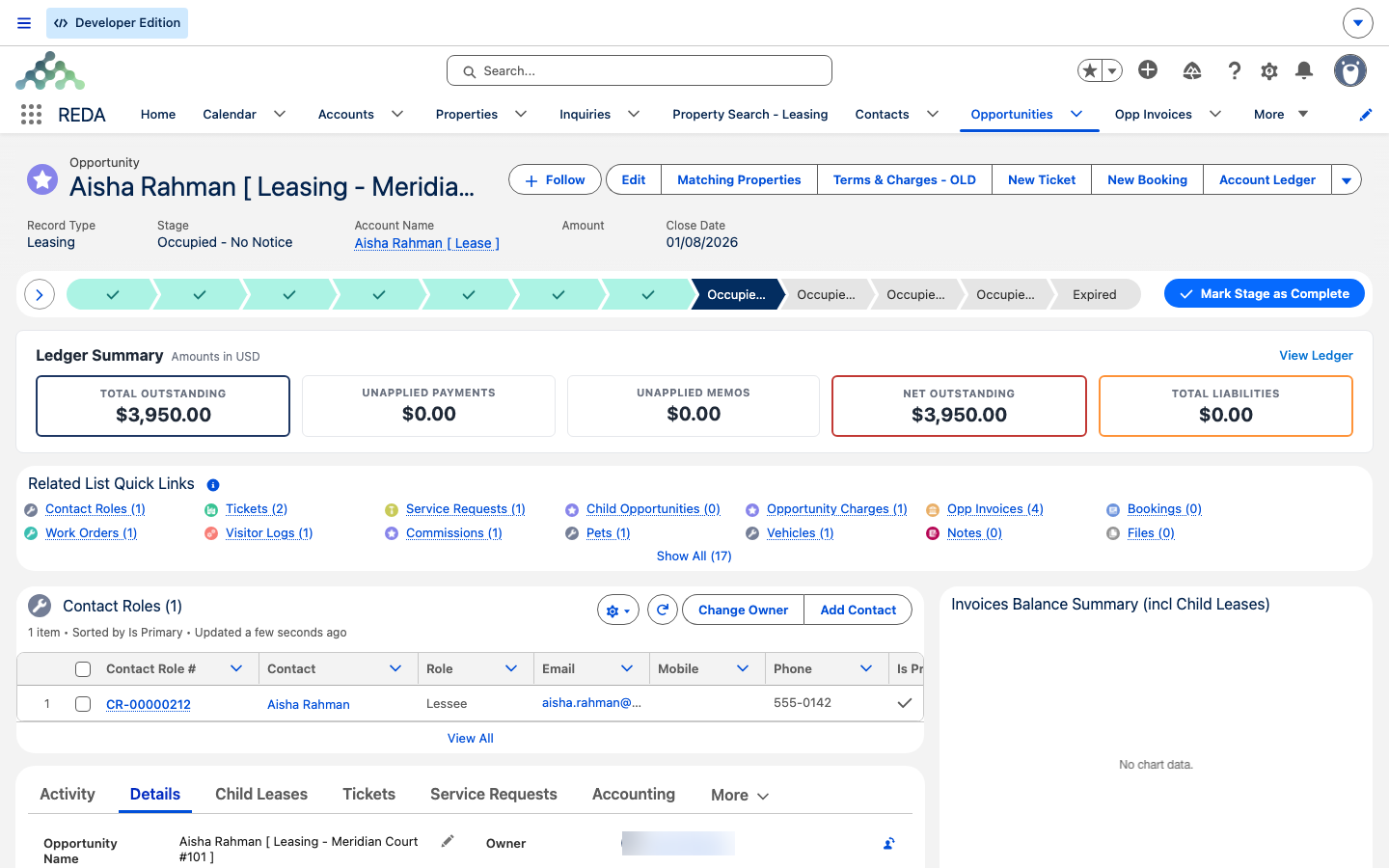
Before you scroll into the field blocks, the lease record shows a Ledger Summary band — a row of tiles that gives you the tenant's money position at a glance, without opening the accounting tab. Read these as the headline; the detail always lives on the invoices below.
| Tile | What it tells you |
|---|---|
| Total Outstanding | Everything billed on this lease that is still unpaid. |
| Unapplied Payments | Money the tenant has paid that hasn't been matched to a specific invoice yet. |
| Unapplied Memos | Credits raised for the tenant that haven't been applied against a charge yet. |
| Net Outstanding | Total Outstanding after the unapplied payments and memos are taken into account — the true "what's still owed" figure. |
| Total Liabilities | Amounts the business holds on the tenant's behalf, such as the security deposit. |
accountLedgerSummary), not by REDA One. If your org does not have REDA Financials installed, the lease record has no Ledger Summary band and the money lives on the Accounting section of the layout instead — Total Outstanding Balance, Prepayments, Unapplied Credit Amount and Net Invoice(s) Balance.
These tiles are maintained by REDA from the lease's invoices and payments — you never type into them. When a tenant calls about their balance, the Net Outstanding tile is usually the number they mean.
The record page tabs
Across the top of the lease record is a Path on the Stage; below it, a set of tabs organizes everything attached to the lease:
| Tab | What lives there |
|---|---|
| Activity | Tasks, events, and logged calls on the lease. |
| Details | The full field layout — every block from the anatomy tour above. |
| Child Leases | Co-living or multi-unit child leases beneath this one (see Child Leases). |
| Tickets | The lifecycle checklists — Lease Agreement, Move In, Renewal, Move Out, and more. |
| Service Requests | Maintenance and service requests raised against the lease. |
| Accounting | Sub-tabs Active and Inactive, each listing Opp Invoices, Opportunity Charges, and Opp Invoice Batches, with two invoice-balance charts. |
| Charge Setup | The lease's charge lines — the chargebook (see Setting Up Lease Charges). |
| Bookings | Short-stay bookings, where the unit supports them. |
| Visitor Logs | Recorded visitors to the unit. |
| Commissions | Leasing commissions calculated for the deal. |
| Notes & Files | Attachments and notes, including signed lease documents. |
| Audit Trail | The history of changes to the record. |
Along the top of the record you'll also find quick actions for common jobs: Terms & Charges (the charge editor), Submit for Approval, New Ticket, New Booking, Account Ledger (opens the tenant's full statement), Post Payment (record a payment against the lease), New Lease, Add Child Lease(s), Calculate Straight-Line Schedule, and Reset Lease. Reset Lease clears the lease's charges, tickets, and invoices and returns it to Application - New — it is available only before the tenant has moved in.
Worked example: reading Aisha's lease
Take a live lease and read it top to bottom. Aisha Rahman holds a 12-month lease on Meridian Court #101 at 1,200.00 per month, starting 1 Aug 2026, in a building owned by Continental Holdings. The lease is at Occupied - Pending Move In. Here is what each block tells you:
| Block | What it reads |
|---|---|
| Identity & status | Stage Occupied - Pending Move In; Approval Status Approved. |
| People | Account Name Aisha Rahman; Primary Contact Aisha Rahman. |
| Dates & term | Lease Start 1 Aug 2026, Lease End 31 Jul 2027, Term 12; Renewed Till Date blank; Actual Move In Date still blank (the Move In ticket is open). |
| Rent | Current Rent Charge points at the rent line; Current Rent 1,200.00. |
| Ledger Summary | The tiles at the top read the tenant's live position — Total Outstanding and Net Outstanding reflect the first invoices raised at this stage; Total Liabilities holds her security deposit. |
| Balances | Total Outstanding Balance reflects the first invoices raised at this stage; Net Invoice(s) Balance shows what Aisha still owes. |
| System flags | Accounting Active (Sys) is already true — billing is live because the lease is Occupied. |
On the Tickets tab you'd see an open Move In ticket; closing it will stamp the Actual Move In Date and advance the lease to Occupied - No Notice. That whole journey is walked step by step in From Application to Move-In.
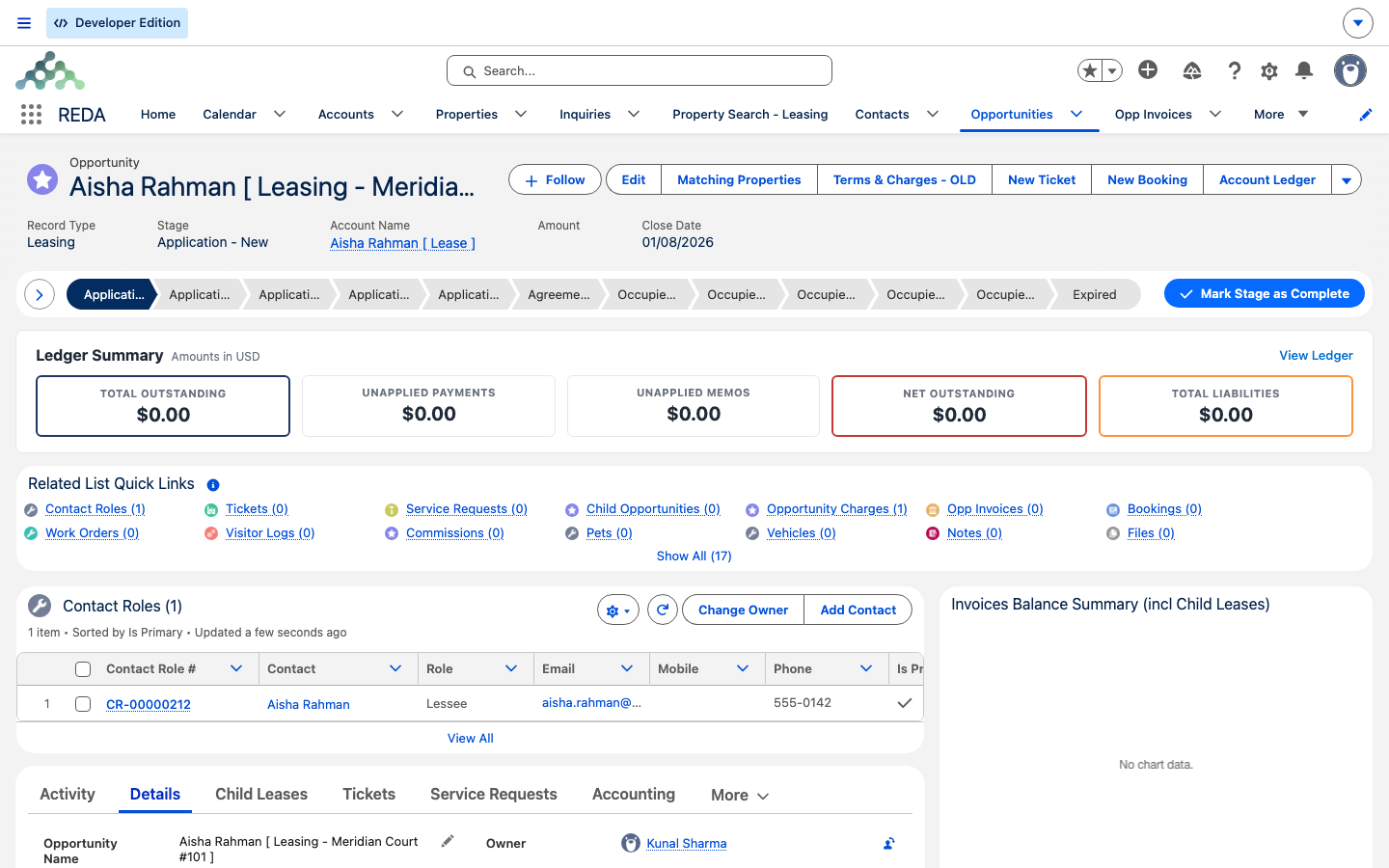
Application - New, the first stage. Record Type is Leasing, with the account, amount, and close date beneath.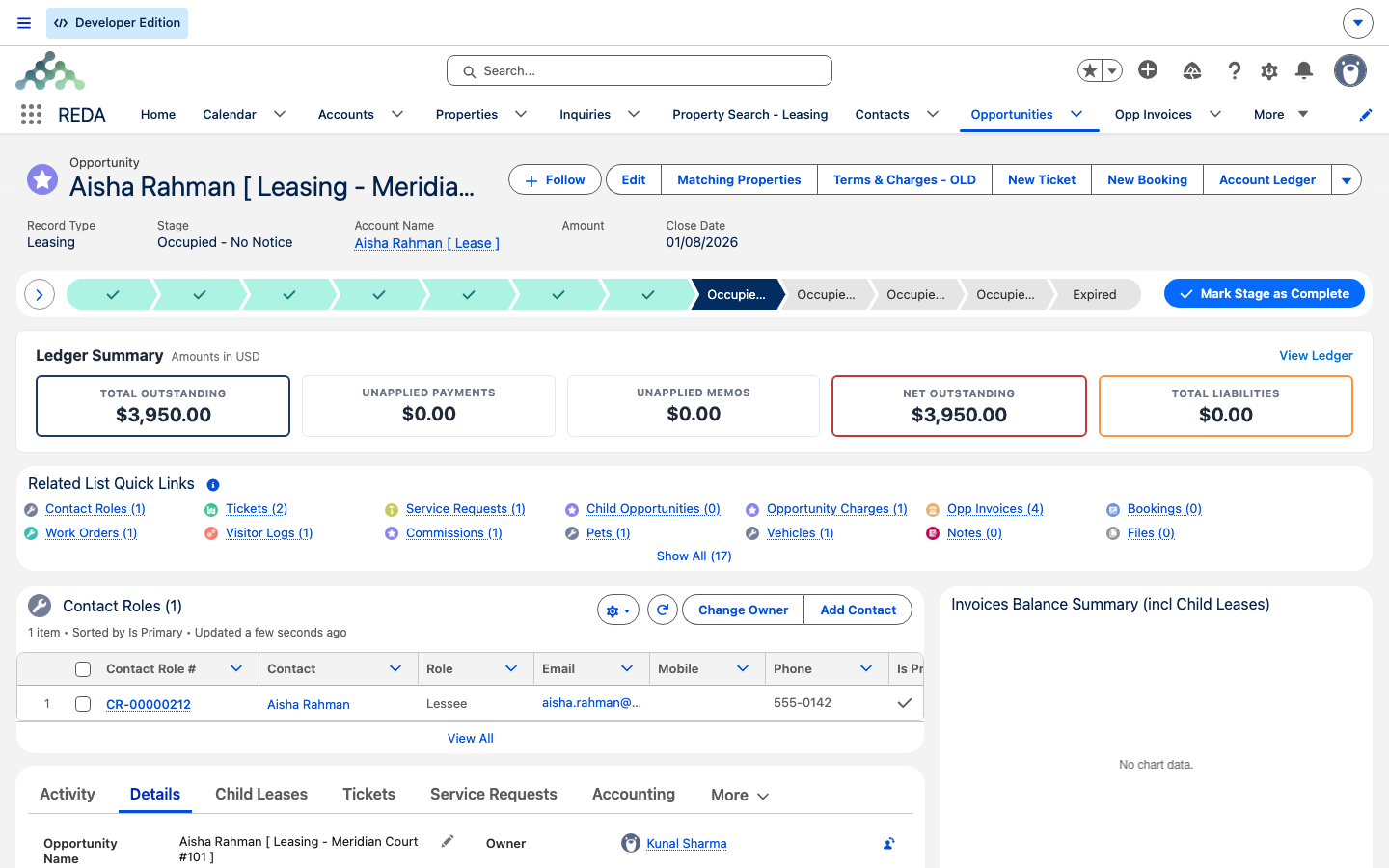
Occupied - No Notice — the highlighted chip sits well along the Path. Below it the Ledger Summary band shows Total Outstanding, Unapplied Payments, Unapplied Memos, Net Outstanding and Total Liabilities, and the Related List Quick Links expose Opp Invoices, Opportunity Charges, Pets and Vehicles.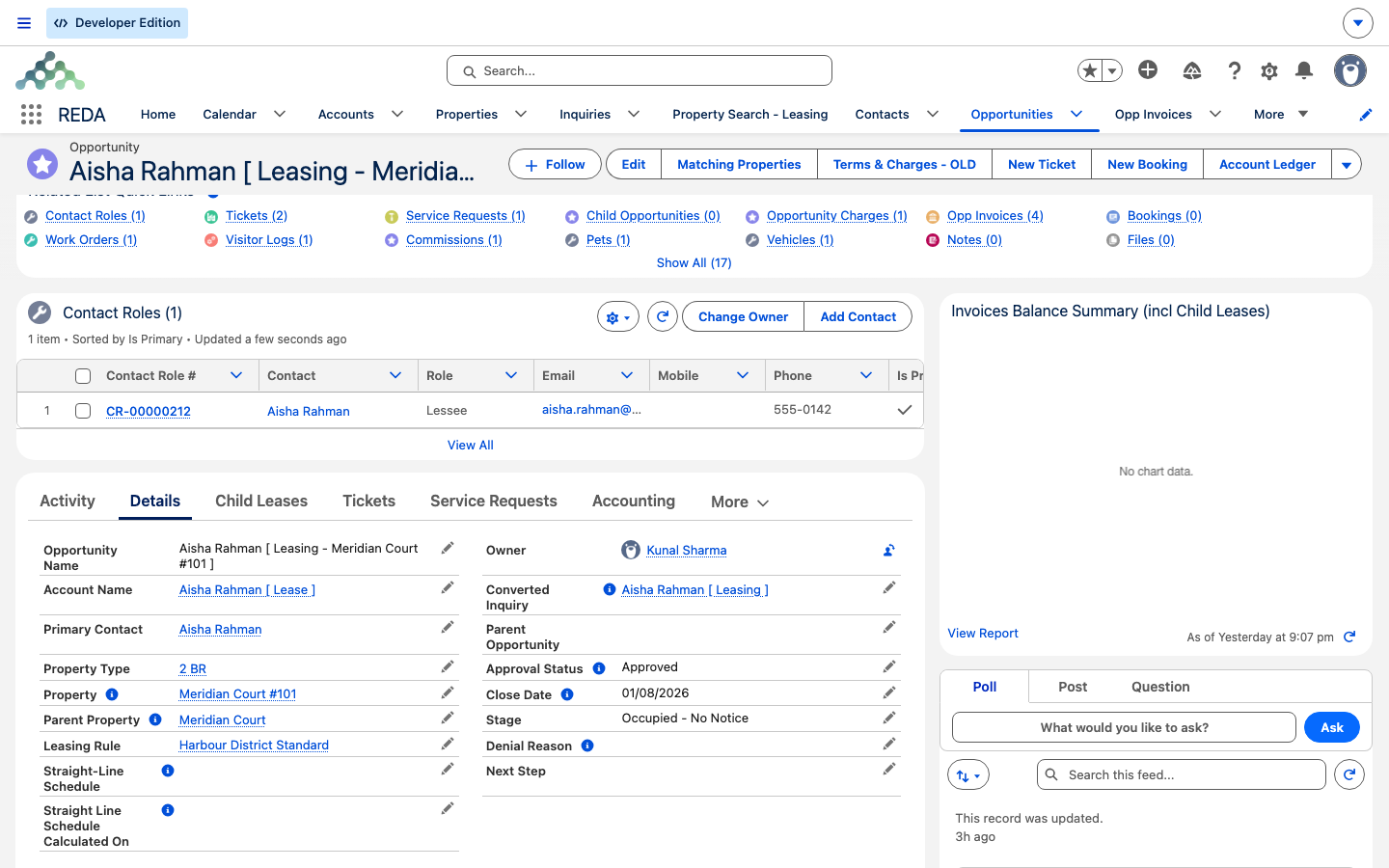
Occupied - No Notice.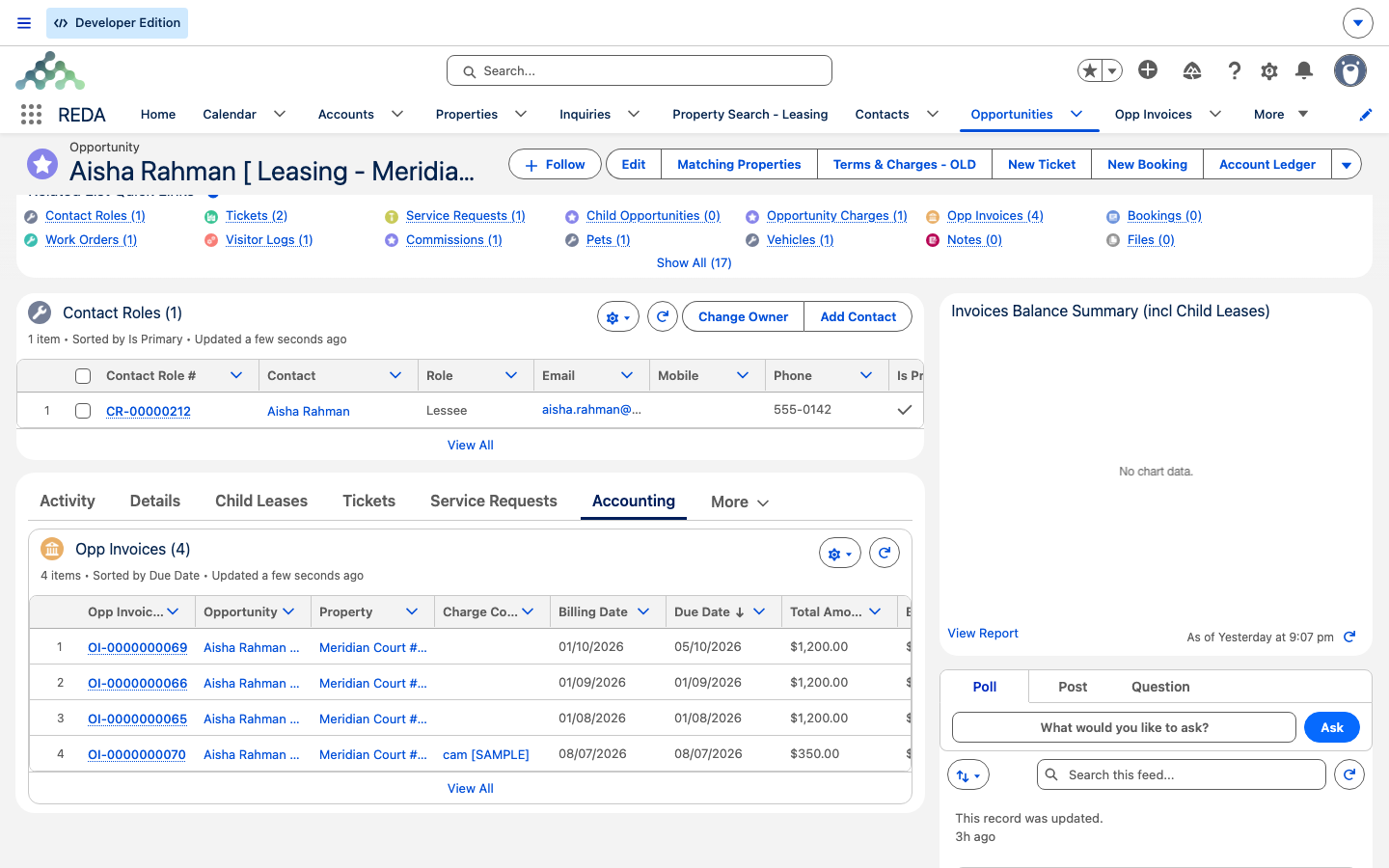
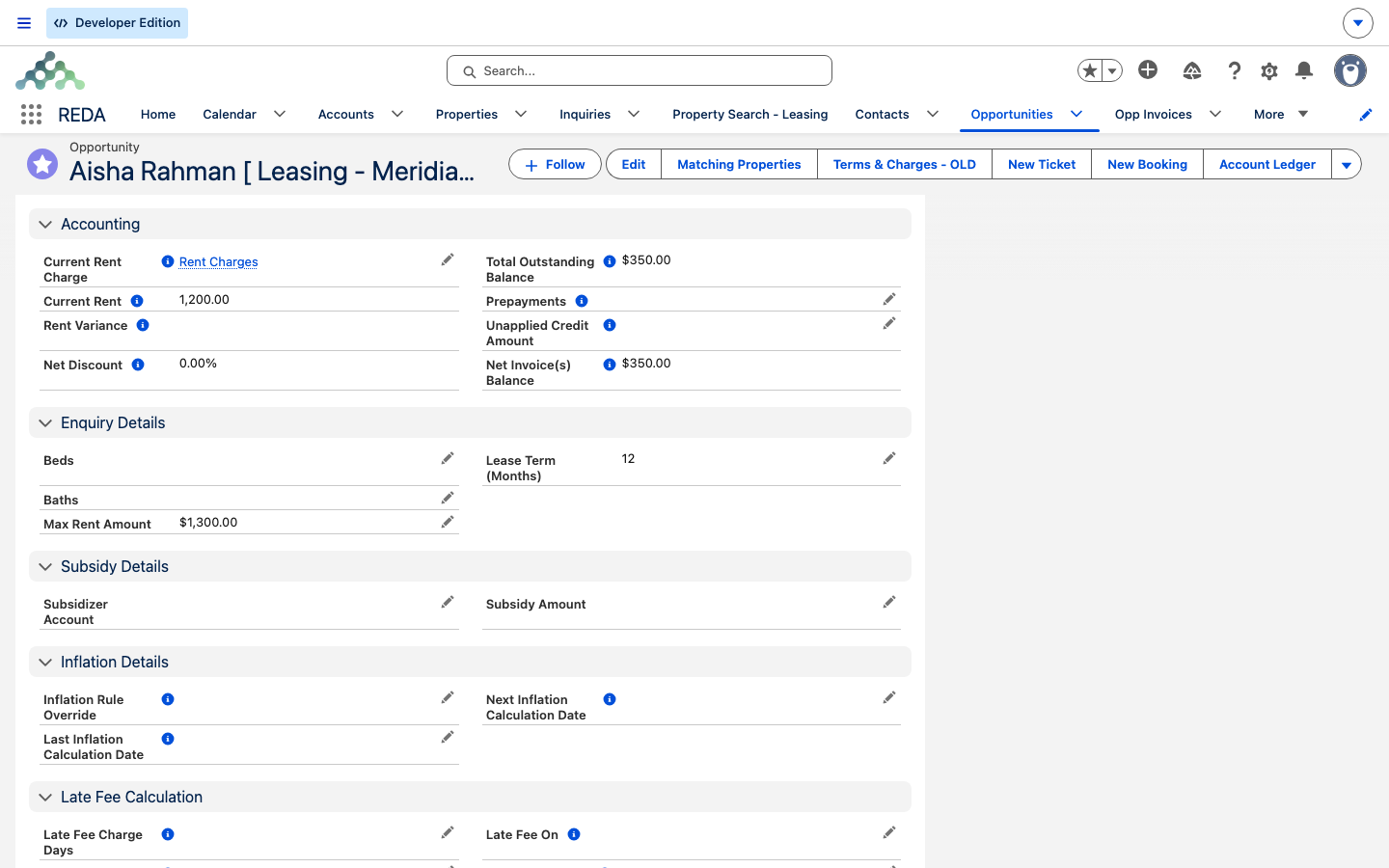
Reference: stage → what REDA does
One row per stage, showing who moves it and what REDA does as the lease lands there. The lifecycle articles cover each transition in depth.
| Stage | Set by | What REDA does at this gate |
|---|---|---|
Application - New | Default, conversion, or Reset Lease | Nothing automatic beyond defaulting the lease from its rule |
Application - Completed | You | Application-stage charge lines switch on → application-fee invoices |
Application - Approved | You, after submitting for approval | Lease Agreement ticket created (parent leases only); approval-stage charges switch on; the lease locks |
Application - Denied / Cancelled | You | Lease closes (not won); a Denial Reason can be recorded |
Agreement - In Process | Lease Agreement ticket | — |
Occupied - Pending Move In | Lease Agreement ticket (Contract Signed / Closed) | Billing gate ON; Move In ticket; remaining charges switch on → first invoices; referral credits; portal access |
Occupied - No Notice | Move In ticket (Closed) | Actual Move In Date stamped; Renewal ticket created when automation is on |
Occupied - Notice (Move Out) | Move Out ticket (In Process) | Scheduled Move Out stamped; property availability date computed |
Occupied - Notice (Termination) / (Eviction) | Termination / Eviction ticket | Scheduled Move Out stamped; a child Move Out ticket on close |
Expired | Move Out ticket (Closed) | Actual Move Out stamped; billing gate OFF; future renewal tickets cancelled; portal users deactivated |
Where to go next
- From Application to Move-In — the core workflow that drives the early stages.
- Leasing Rules: the Policy Engine — where the rent, late-fee, and MTM policy on the lease comes from.
- Setting Up Lease Charges — the chargebook behind Current Rent and the balances.
- Renewing a Lease — how Renewed Till Date and Renewal Agreement get set.
- Notice, Move-Out & Lease End — the other end of the lifecycle.
- Understanding Tickets — the process engine that writes the stages.
Frequently asked questions
The tenant account (Account Name) is required. REDA shows: "Account is required to update an opportunity." Set the Account Name, then save.
The lease has been approved, which locks it: "The leasing record is approved and locked for editing." To make changes, use a charge ticket or rewind the lease — see Setting Up Lease Charges.
The charge you selected must be a rent charge that belongs to this lease. REDA shows: "Invalid value. Please select "Rent Charge" associated with this opportunity." Pick a rent line from this lease.
Once charges exist, the property is fixed so the money and the unit stay in sync: "Property can not be changed on leasing Opportunity if Opportunity charges are defined." Reset the lease (before occupancy) if you truly need a different unit.
The Lease Start Date must be set first: "You must provide the value of Lease Start Date prior updating the stage." Fill in the start date, then let the ticket advance the stage.
That's expected. The lifecycle tickets — Lease Agreement, Move In, Renewal, Move Out — write the lease's Stage as you work them. Read the stage rather than typing it; the lifecycle articles explain which ticket status writes which stage.
Was this article helpful?