
Capturing Inquiries
An inquiry is REDA's record of a prospect — the person who wants to rent a unit, buy a property, sell to you, borrow, or hand you a property to manage. Every deal in REDA starts life as an inquiry, so getting the inquiry right is where good CRM begins. This article shows you how to create one by hand — picking the right type, filling the fields the form asks for, attaching a property so REDA can fill in the rest, and choosing a source — and it explains, at a summary level, how your website captures inquiries automatically so nobody has to type them. No prior REDA experience is assumed; every field and choice is defined as we reach it.
Access you'll need. Creating inquiries requires one of the line-of-business permission sets — REDA - Property Leasing User, REDA - Property Sales User, REDA - Property Acquisition User, REDA - Property Management User, or REDA - Property Lending User.
The three ways inquiries arrive
Inquiries reach REDA three ways. You can type one in from a phone call or a walk-in — the manual path this article walks step by step. Your website can submit them automatically, so a prospect who fills in a contact form on your listing site becomes an inquiry without anyone touching the keyboard. And a few are born from other records — closing a tenant referral, for example, creates a leasing inquiry for the person who was referred. We cover the manual path in full and summarize the automatic ones, with links to the deeper admin guides.
Creating an inquiry manually
Work through these steps. REDA fills in more than you might expect once you attach a property, so the form is shorter than it looks.
What REDA fills in for you
Two things happen when you save, so you don't have to enter them:
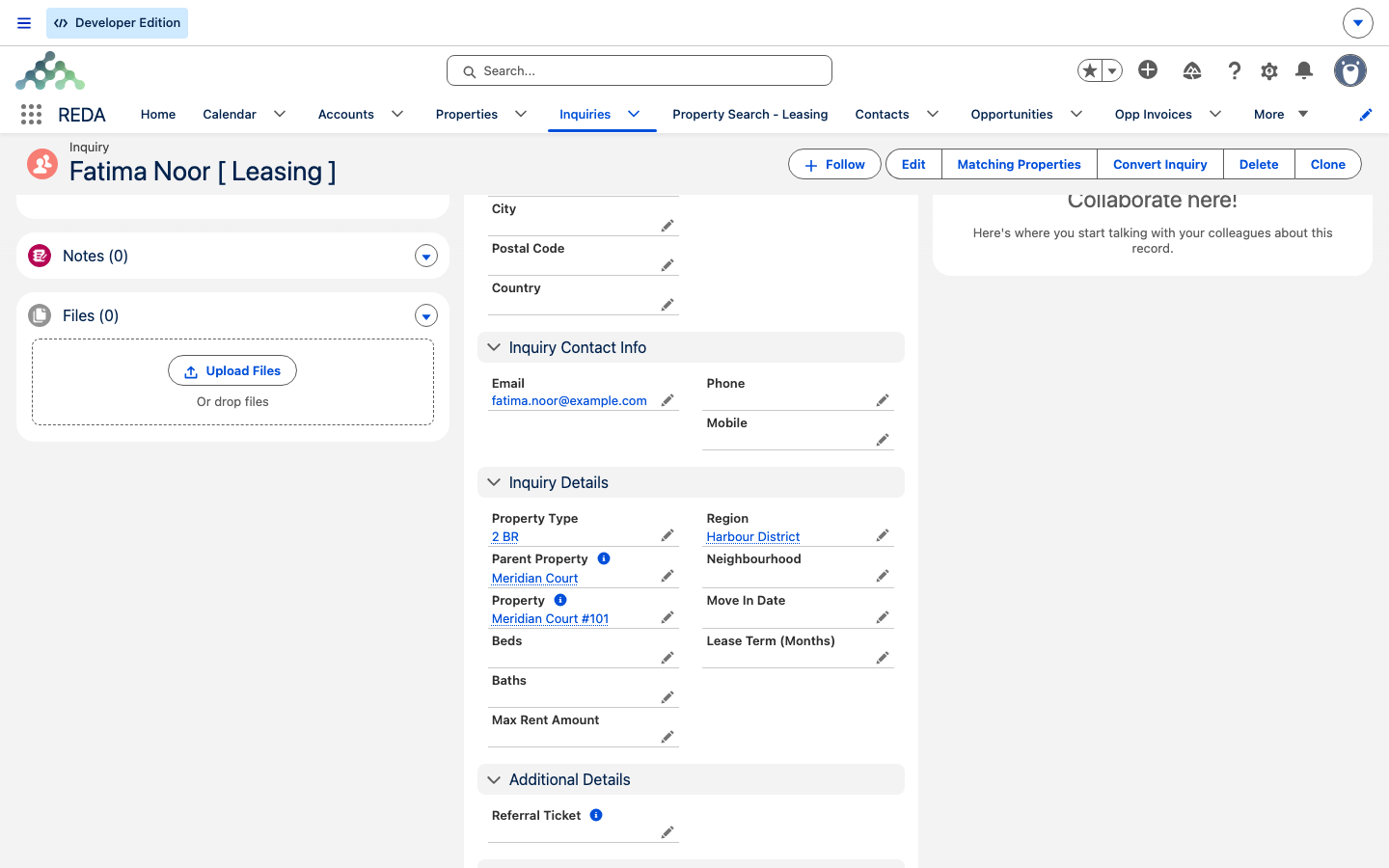
- The property drives the location fields. Choosing a Property fills the inquiry's Region, Neighbourhood, Property Type, and Parent Property from the property itself — no need to re-type them.
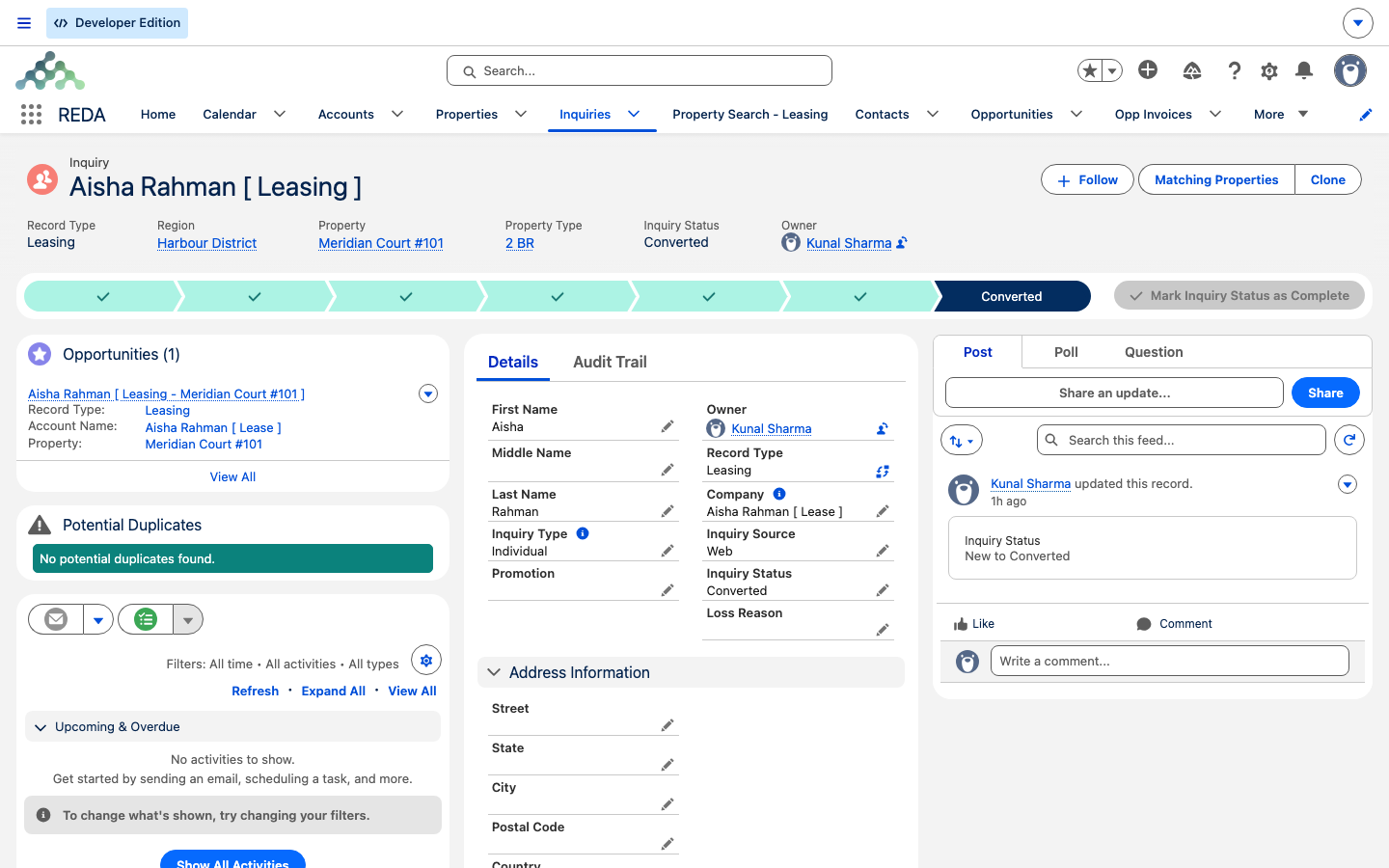
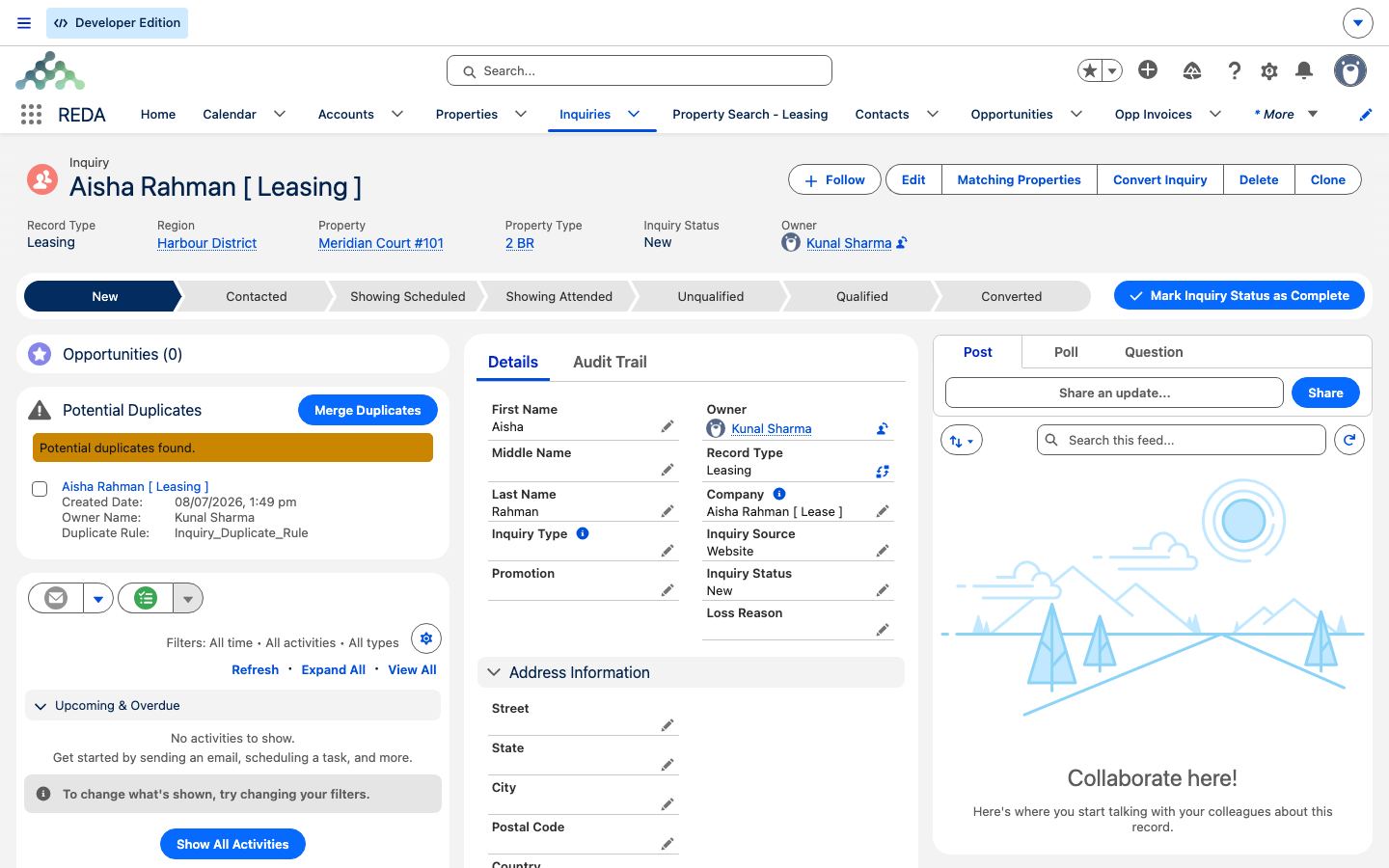
- The Company field auto-formats. Leave Company blank on a non-company inquiry and REDA builds it from the name and type (for a leasing individual it reads like Aisha Rahman [ Lease ]). That's why the field may look different after you save — it's expected. Only real companies should carry a typed company name.
- The display name is built for you. The record's name renders as the person's name with a type tag, such as Aisha Rahman [ Leasing ].
Choosing the source
The Inquiry Source tells you and your reports where a prospect came from, and it carries over to the deal when the inquiry is converted. REDA ships five values:
| Source | Use it when… |
|---|---|
| Web | The prospect submitted your website form. Normally set for you by the website — you rarely pick this by hand. |
| Phone Inquiry | Someone called or walked in and you're typing it up. |
| Partner Referral | A partner or referral source sent them your way. |
| Purchased List | The contact came from a list you acquired. |
| Other | Anything that doesn't fit the four above. |
Web capture in brief
REDA ships an inbound form service so your website can create inquiries directly — this is how most leasing and sales prospects arrive without anyone typing them. Your site posts the form fields to REDA, and REDA maps them onto a new inquiry: name, email, phone, company, the source (which defaults to Web), the full set of marketing-attribution fields, and the four ad-platform click IDs. A returning visitor's submission can even update the inquiry they already have, when the form passes the record back.
A web-born inquiry looks just like a manual one, except its Inquiry Source reads Web and its attribution fields are populated. Below are the parameters the form service accepts — they're the public contract your website posts against. The endpoint, the API key, and how to rotate it are your administrator's job; see The Inbound Data Service for the full setup, and Marketing Attribution for what the UTM fields do next.
| Web parameter | Lands on inquiry field | Default |
|---|---|---|
| FirstName | First Name | — |
| LastName | Last Name | — |
| — | ||
| Phone | Phone | — |
| Company | Company | --NA-- when absent |
| LeadSource | Inquiry Source | Web |
| recordId | Record identity — lets a submission update an existing inquiry | — |
| utm_campaign | UTM Campaign | — |
| utm_source | UTM Source | — |
| utm_medium | UTM Medium | — |
| utm_content | UTM Content | — |
| utm_term | UTM Term | — |
| utm_id | UTM Id | — |
| form_id | Web Form Id | — |
| landing_page | Web Landing Page | — |
| session_id | Web Session Id | — |
| referral_url | Web Referral URL | — |
| gclid | Web gclid | — |
| fbclid | Web fbclid | — |
| msclkid | Web msclkid | — |
| ttclid | Web ttclid | — |
If your site runs the packaged listing pages, the "contact us" and "schedule a tour" forms create a Leasing or Property Sale inquiry (source Web), fill the attribution fields, capture a requested tour date and preference, and schedule a showing event automatically — see Website & Tour Requests.
Duplicates at entry
When you save a new inquiry — whether you typed it or the website posted it — your org's duplicate rules check it against existing records. If REDA finds a likely match, a Potential Duplicates card appears on the record page with a Merge Duplicates button. Whether a match warns you or blocks the save depends on how your administrator configured those rules. Merging two copies into one is its own task — see Merging Duplicate Inquiries.
Other automatic births
A small number of inquiries are created by other REDA records. When you close a Tenant Referral ticket, REDA creates a Leasing inquiry for the referred person and links it back to the referral, so the referrer's bonus can be tracked later. You don't type these — closing the referral does it for you. See Tenant Referrals.
Worked example: Aisha calls in
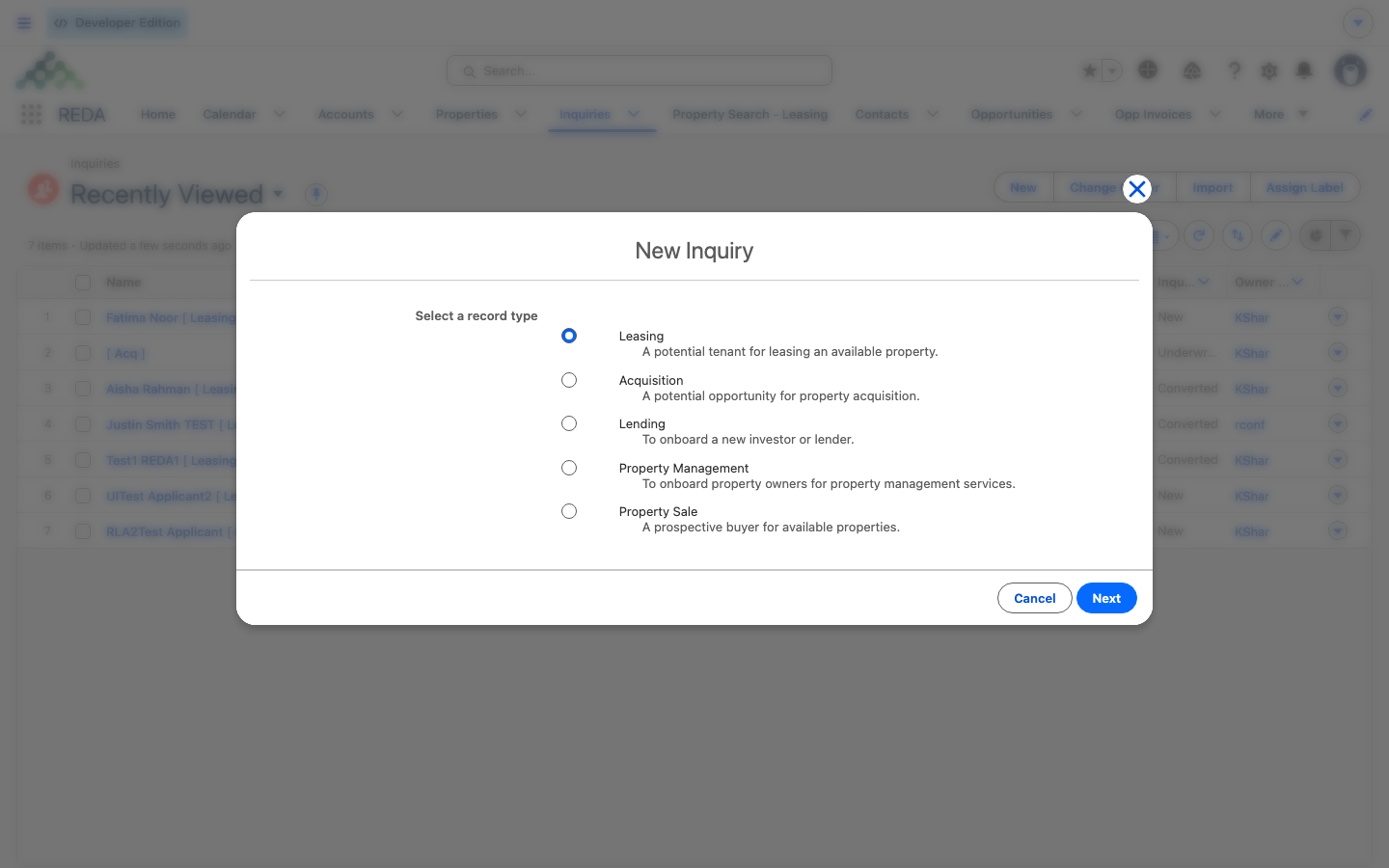
Aisha Rahman phones your leasing team about a two-bedroom unit. The agent opens the Inquiries tab, clicks New, and picks Leasing. They enter Aisha's first name, last name, and email, and add her phone. They leave Inquiry Type and Company blank — she's an individual. They attach the property Meridian Court #101, and Region, Neighbourhood, and Property Type fill in from the unit. They set Move In Date to 1 Aug 2026, Lease Term to 12, Max Rent Amount to 1,200.00, and pick Phone Inquiry as the source. On save, the record is named Aisha Rahman [ Leasing ], its Company reads Aisha Rahman [ Lease ], and its status is New.
Reference: what auto-fills when
| You do | REDA fills |
|---|---|
| Pick a Property | Region, Neighbourhood, Property Type, Parent Property |
| Save with Company blank (non-company) | Company, formatted from the name and type |
| Save | Display name, e.g. Aisha Rahman [ Leasing ] |
| Pick a Profit & Holding Rule (Acquisition) | Blank renovation, holding, and profit estimates, seeded from the rule |
Where to go next
- Qualifying & Working Inquiries — the status ladder and what to do once the inquiry is captured.
- Understanding Inquiries — the concept behind the object, its types, and its statuses.
- Converting an Inquiry — turn a qualified inquiry into a working deal.
- Merging Duplicate Inquiries — combine two copies of the same prospect.
- The Inbound Data Service — the admin setup behind web capture.
Frequently asked questions
REDA formats Company automatically from the name and inquiry type when you leave it blank — that's expected for individuals, households, and joint applicants. Only type a company name when the prospect really is a company.
You set Inquiry Type to Company but left the Company field blank or unusable. REDA shows: "Please provide valid Company Name". Type a real company name, or change the type back to Individual.
The lookup only offers properties available for that inquiry's purpose in a matching region — a leasing inquiry sees units available to lease, a sale inquiry sees properties available to buy. Check the property's availability; see Making a Property Available.
REDA's inbound form service accepts your website's form posts and creates the inquiry for you, with the source set to Web. Setting it up is an administrator task — see The Inbound Data Service.
Keep one inquiry on the primary property of interest and use the property-matching tools to show alternatives — see Qualifying & Working Inquiries. Creating a second inquiry for the same person just makes a duplicate.
Every inquiry starts at New by design. You advance it along the Path as you work it — see Qualifying & Working Inquiries.
Was this article helpful?