
Building Your Inspection Catalog
Before anyone can run an inspection, someone builds the reusable checklists it draws from. This article shows you how to assemble REDA's inspection catalog: the items that say what to check, the locations that say where, and the templates that combine them into a ready-made checklist. Along the way you'll learn the semicolon trick that turns a field into the inspector's answer buttons, the one setting that catches everyone the first time (locations start switched off), and how to clone a template so you don't rebuild from scratch. No prior REDA experience is assumed.
Access you'll need. Building and changing the catalog requires the REDA - Inspection Manager permission set (templates are also fully editable by REDA - Master Data - Admin). The REDA - Inspection User and REDA - Master Data - Read Only sets can view the catalog but not change it.
The three building blocks
The catalog has three layers, and keeping them straight makes everything else easy:
When a template is applied to an inspection, REDA builds one checklist item per template item — the line the inspector actually fills in. Throughout, keep the words distinct: a template item is a line in the reusable template; a checklist item is its copy on a real inspection.
Creating item masters
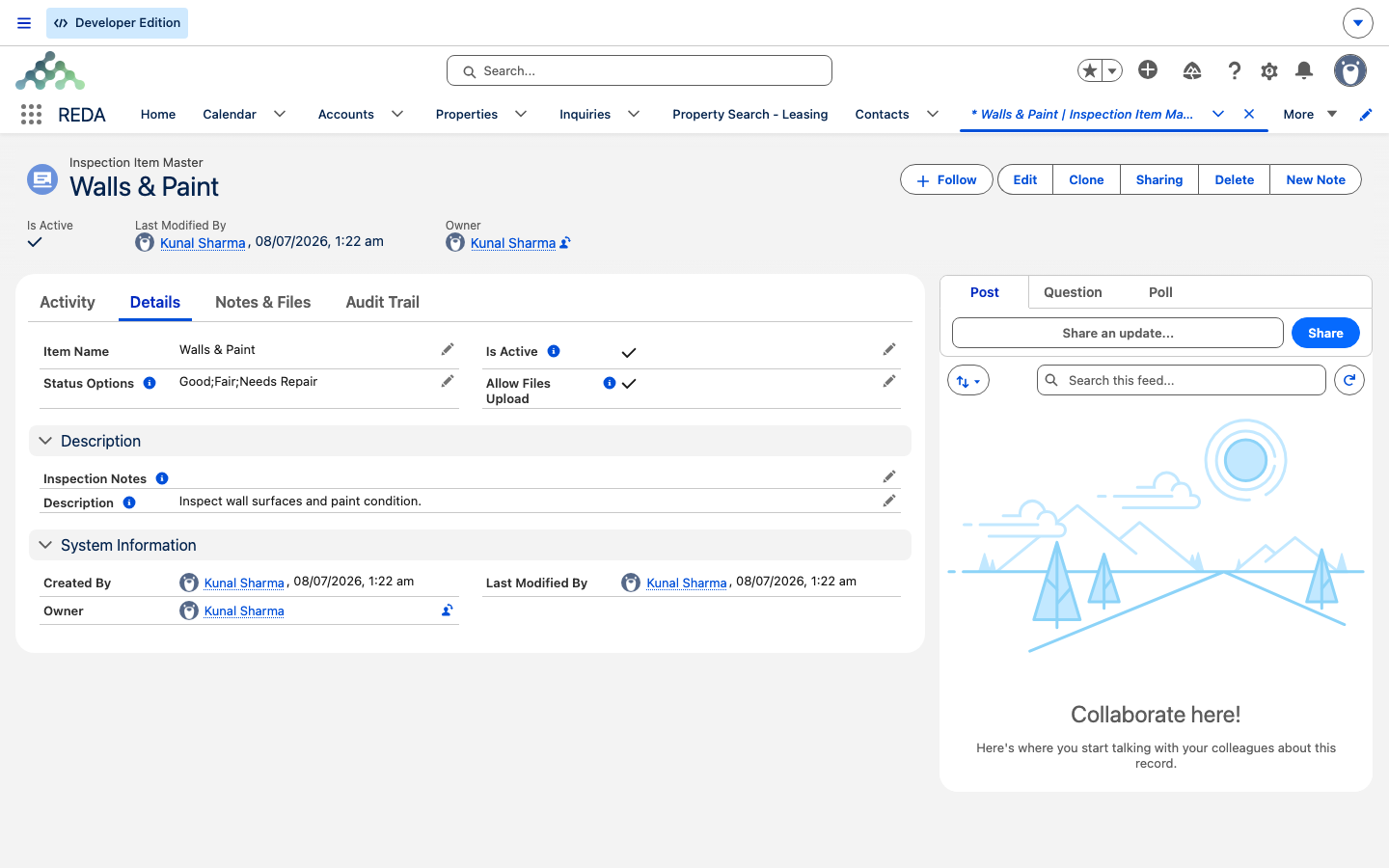
From the Inspection Item Masters tab, click New and describe one thing to check:
Item masters also carry a Description for your own notes and an Is Active switch (on by default) that controls whether the item is available for use.
Status Options: the semicolon syntax
The Status Options field is what becomes the inspector's answer buttons. You write the choices as a single line, separated by semicolons:
Good;Fair;Needs Repair
REDA turns each entry into a button, exactly as you typed it. This is the only thing constraining the answers an inspector can give — so a few rules matter:
Good;Fiar, the inspector sees a "Fiar" button. Keep options short (they render as buttons), separate them with semicolons, and proofread the list. If you later change the options on a master, future inspections show the new buttons; work already recorded keeps whatever was stored.
An item counts as "done" once any option is chosen, which is what drives the completed-items counter inspectors watch (covered in Running Inspections).
Creating locations
From the Inspection Locations tab, click New and give the place a Location Name — "Kitchen," "Bedroom," "Entrance." There's a Description for notes and an Is Active switch, and here is the one trap everyone hits:
Assembling a template
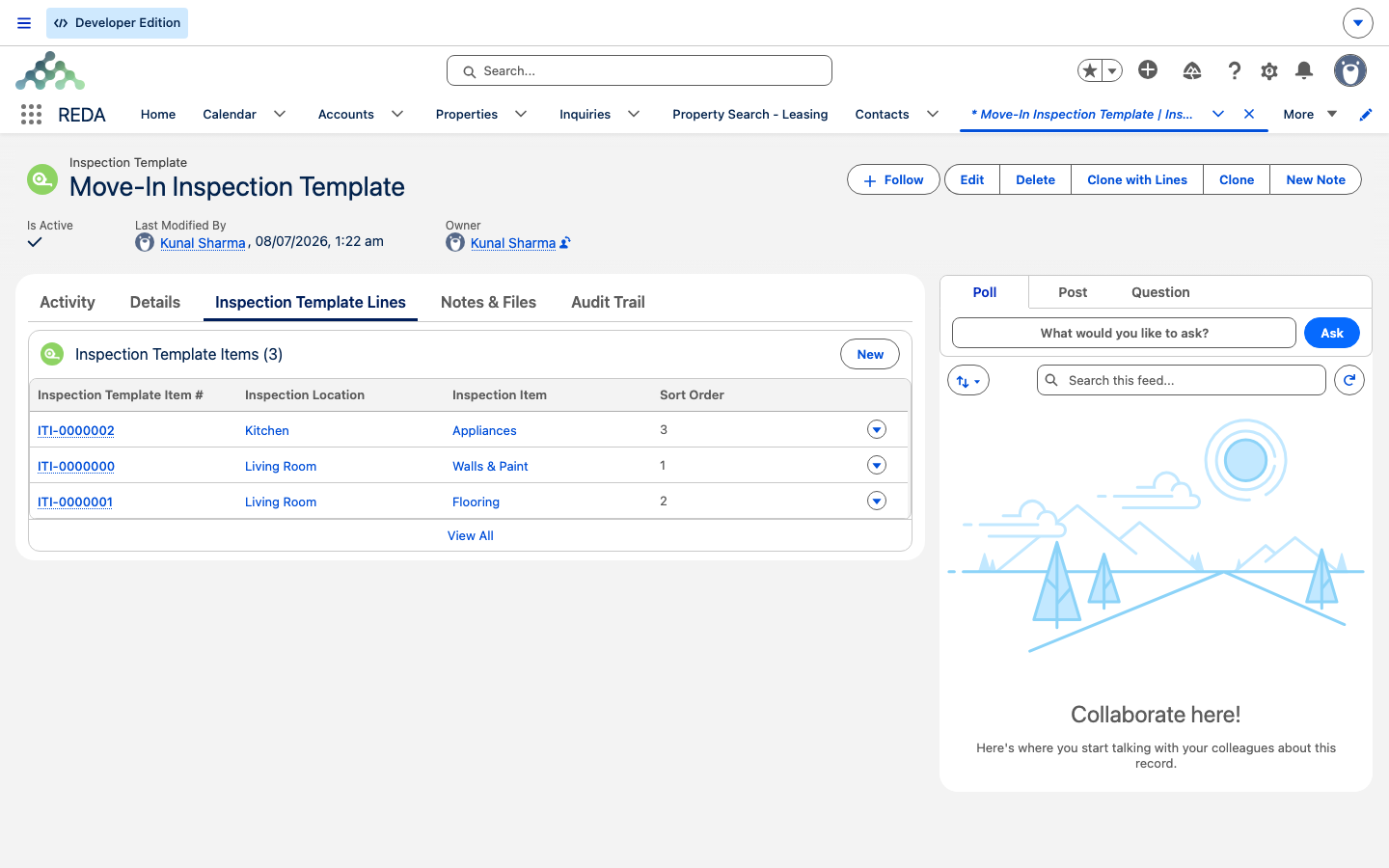
From the Inspection Templates tab, click New, give it a Template Name and optional Description (a template's Is Active is on by default), then add its lines. Each template item pairs the three ingredients:
| Template item field | Required | What it does |
|---|---|---|
| Item Master | Yes | What to check on this line |
| Location | Yes | Where to check it |
| Sort Order | No | Where the line falls on the inspector's screen |
On the inspector's screen, lines are ordered by Sort Order, then location, then name — so set Sort Order deliberately to group the walk-through the way an inspector would move through the unit. A template can also carry a Region for organizing regional catalogs.
Cloning a template with its lines
Rather than rebuild a similar checklist from scratch, use the Clone with Lines action on a template. It copies the template together with all its template items, giving you a new template you can rename and adjust. It's the fastest way to spin a "Furnished" variant off a base move-out checklist, for example.
How templates become checklists
When a template is applied to an inspection, REDA copies each template line onto the inspection as a checklist item, carrying the item, the location, and the guidance across, and keeping a link back to the template line it came from. If your team needs additional details to carry over, your administrator can extend which fields are copied without any code — but the everyday catalog needs none of that. For the inspector's side of this — including the important warning that re-applying a template rebuilds the checklist from scratch — see Running Inspections.
Worked example: a Standard Unit Move-Out template
You're building the "Standard Unit Move-Out" template that Meridian Properties uses when a tenant leaves a unit like Meridian Court #101. First the masters and locations, then the template:
| Build | Details |
|---|---|
| Item master "Walls & Paint" | Status Options Good;Fair;Needs Repair, notes "Check for holes larger than 5mm," uploads on |
| Item master "Smoke Detector" | Status Options Working;Not Working, uploads on |
| Item master "Keys Returned" | Status Options Yes;No, uploads off |
| Locations "Kitchen," "Bedroom," "Entrance" | Created, then activated (remember: they start off) |
| Template items | Entrance : Keys Returned (sort 1), Kitchen : Walls & Paint (sort 2), Bedroom : Walls & Paint (sort 3), Bedroom : Smoke Detector (sort 4) |
To make a furnished variant, use Clone with Lines to produce "Standard Unit Move-Out - Furnished," then add the extra lines to the copy.
Reference: catalog fields
Item master fields:
| Field | Default | Purpose |
|---|---|---|
| Item Name | — | What is being checked |
| Status Options | — | Semicolon list → the inspector's answer buttons (e.g. Good;Fair;Needs Repair) |
| Inspection Notes | — | Guidance shown to the inspector |
| Allow Files Upload | Checked | Per-item photo attachments |
| Is Active | Checked | Availability |
| Description | — | Internal notes |
Location fields:
| Field | Default | Purpose |
|---|---|---|
| Location Name | — | Where (Kitchen, Bedroom, Entrance…) |
| Is Active | Unchecked | Must be activated before use — the setup trap |
| Description | — | Internal notes |
Template and template-item fields:
| Field | Required | Purpose |
|---|---|---|
| Template Name / Description | Name yes | The checklist's identity |
| Is Active (template) | Default checked | Availability |
| Region | No | Regional catalogs |
| Template item: Item Master | Yes | What to check |
| Template item: Location | Yes | Where to check it |
| Template item: Sort Order | No | Screen position (Sort Order → Location → Name) |
Where to go next
- Running Inspections — apply a template, work the checklist, and complete an inspection.
- Move-In / Move-Out & Recurring Inspections — wire templates to properties so inspections create themselves.
Frequently asked questions
The item master's Status Options is empty or malformed. Enter the choices separated by semicolons, for example Good;Fair;Needs Repair.
New locations start with Is Active unchecked. Open the location and switch it on before using it.
Only where the item master's Allow Files Upload is on. It defaults on, so switch it off for items that don't need a photo.
Sort Order first, then location, then name. Set Sort Order deliberately to match how an inspector walks the unit.
No. A generated checklist is a copy; editing a template affects only inspections created from it afterward.
Yes. Your administrator can extend which fields copy across, without any code.
Was this article helpful?