
Calendar Slot Rules
A calendar slot rule defines when a space is available and how that availability is offered as bookable time slots. It's the single engine behind every calendar in REDA — the tour times a leasing agent sees, the reservation windows a booking clerk picks from, and the visit slots a maintenance scheduler chooses. This article shows you how to build a rule, choose between an evenly-cut time grid and hand-defined slots, attach rules to properties, and predict exactly which slots your users will see. It's written for administrators; the people who use the resulting calendars don't need to touch these rules directly.
Access you'll need. Setting up slot rules requires the REDA - Master Data - Admin permission set. The REDA - Master Data - Read Only set can view them but not change them; booking and scheduling users read them indirectly through the pickers they use.
One engine, three calendars
Every slot rule carries an Applicable For setting that decides which calendar it drives — Showing, Booking, or Maintenance. A property has one slot-rule field per use case, and each field only accepts a rule of the matching type: you can't put a Booking rule on the showing field. That keeps the three calendars independent even though they share the same underlying logic.
| Use case | Property field | Who uses the picker | Their article |
|---|---|---|---|
| Showings | Showing Slot Rule | Leasing agents | Scheduling Showings |
| Bookings | Booking Slot Rule | Booking staff | Short-Term Bookings |
| Maintenance | Maintenance Slot Rule | Maintenance teams | Work Orders |
Rules are reusable — attach the same rule to many properties. You only need a separate rule when the availability pattern genuinely differs.
Anatomy of a rule
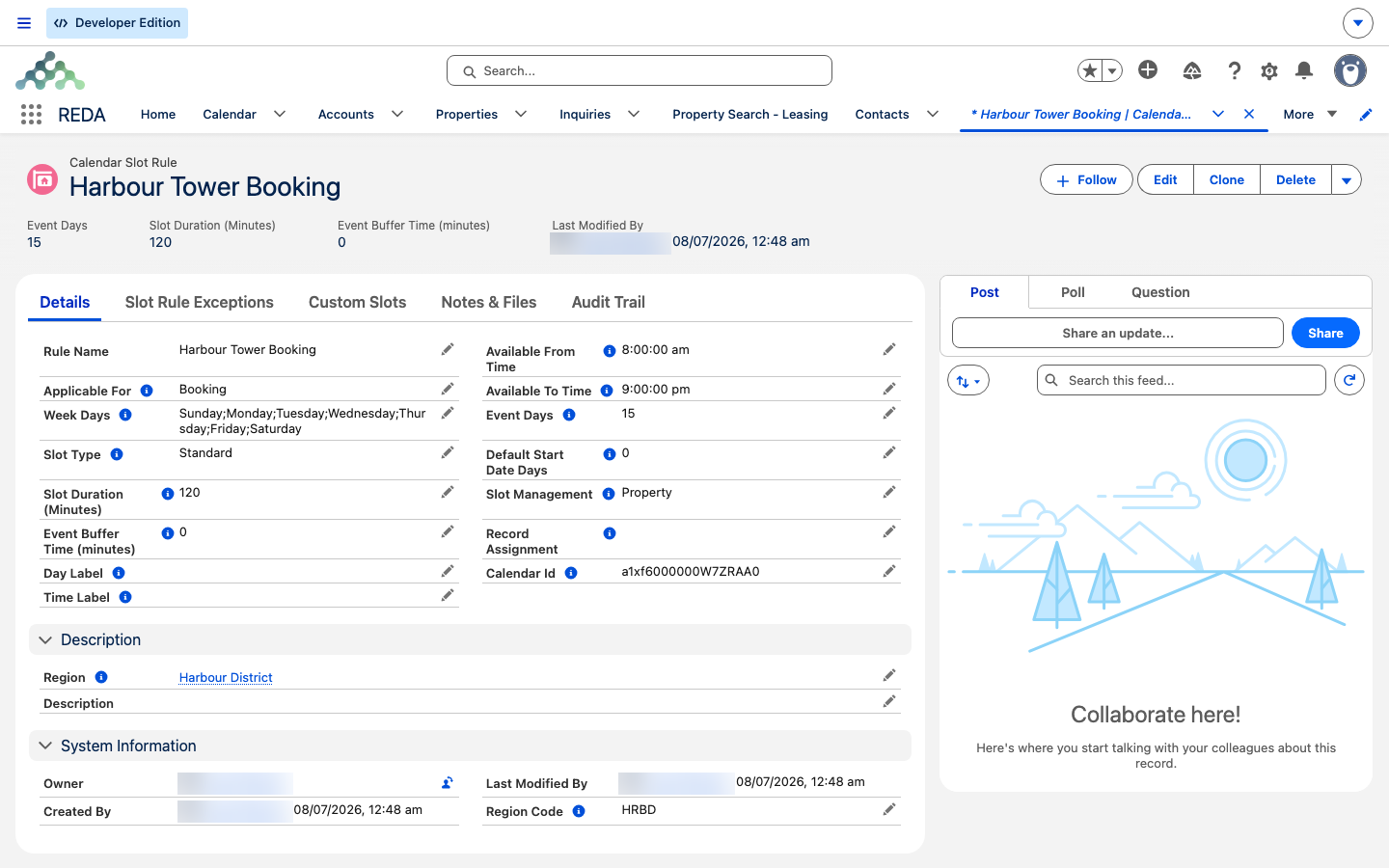
A standard rule is a daily availability window sliced into evenly-sized slots. These fields shape it:
Optional fields round out the rule: Calendar Id groups generated events on one shared calendar; Record Assignment names the user or queue that generated events are assigned to; Day Label and Time Label set display formats (leave them at their defaults unless you have a specific format in mind); and Region and Description help you classify and document the rule.
Record Assignment does double duty. Besides naming who owns the generated events, it also filters the busy check: only the assigned user's or queue's own events count against this rule's availability. So two rules on the same property assigned to different teams keep independent calendars, and one team's full day never blocks another's slots.
Standard slots vs custom slots
The Slot Type field chooses how availability is carved up. Standard — the default — cuts the daily window into equal slots of your Slot Duration. Custom lets you hand-define specific named windows with their own capacity.
| Standard | Custom | |
|---|---|---|
| How slots are made | The window is auto-sliced into equal Slot Duration steps | You define each slot's start and end by hand |
| Capacity | One reservation per slot | Set per slot — one, or many, concurrent events |
| Labels | Generated from the times | Your own Slot Label (e.g. "Afternoon", "Evening") |
| Best for | Regular tours, hourly rooms | Fixed sessions, shared-capacity spaces |
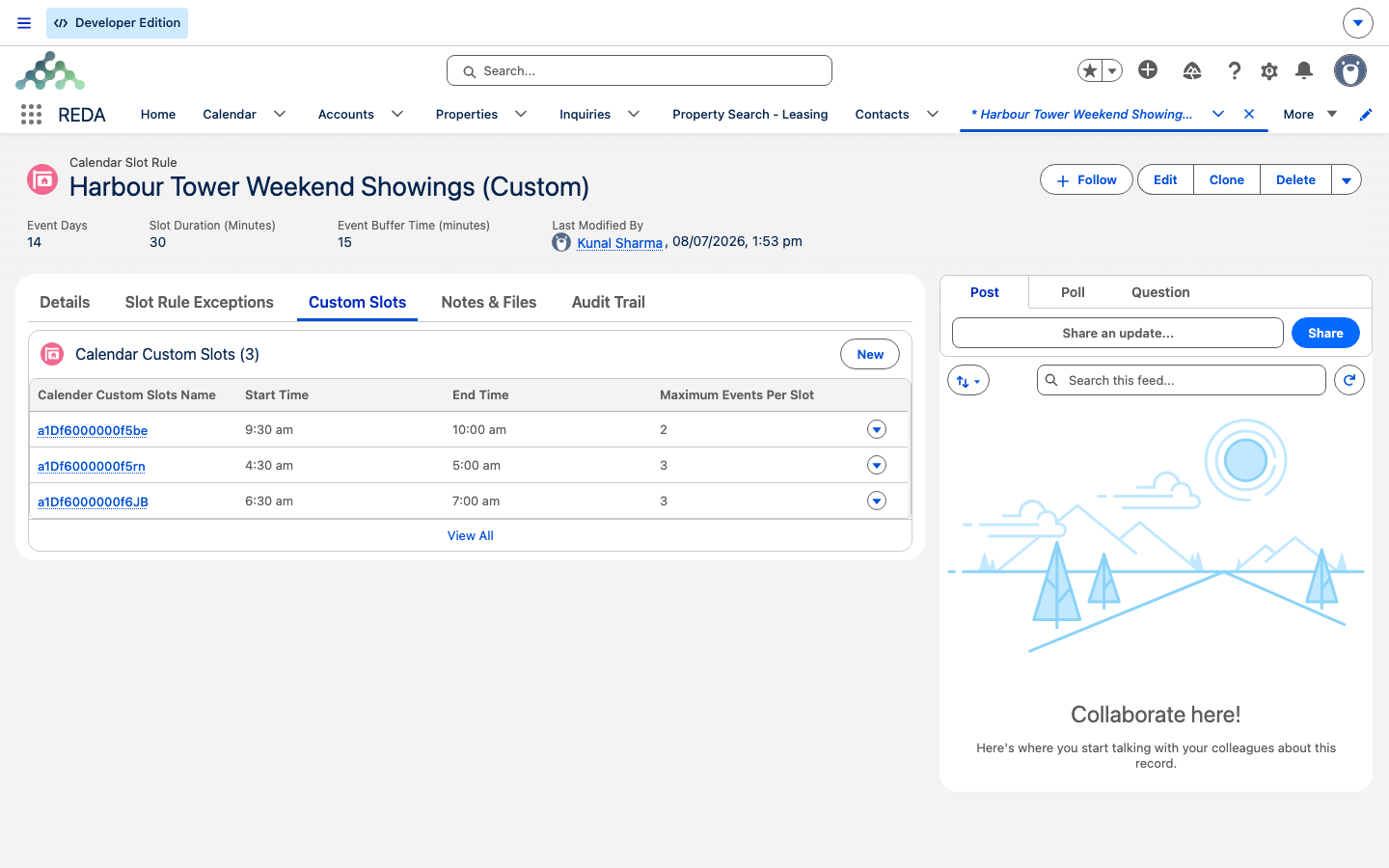
A custom slot is a child record of the rule with a Start Time and End Time (which must sit inside the rule's available hours), a Slot Label, and Maximum Events Per Slot — a capacity model. Set it to 1 (the default) and the slot is single-occupancy; set it to 3 and the slot stays available until three events overlap it, which is how you'd offer, say, three concurrent gym sessions.
REDA keeps custom slots inside the rule's window. Overrun either end and it stops you:
"Start Time must be after the Available From Time defined in Calendar Slot Rule."
A custom rule needs at least one custom slot: if none are defined, users opening the picker will hit an error, because there's nothing for REDA to offer.
Property vs parent management
The Slot Management field decides whose calendar the availability check runs against.
Use Parent when the resource is genuinely shared — a single tour agent covering a building, one event hall serving every unit — so that a reservation on one unit correctly blocks the rest. Use Property when units are independent.
Attaching a rule to a property
A rule does nothing until it's attached to a property. On the property record, set the field for the use case you want:
How REDA computes what users see
When a user opens a picker, REDA builds the list of offered slots in this order. Understanding it answers almost every "why do I see these times and not those?" question:
A worked trace
Take a Standard showing rule: available 09:00–17:00, Slot Duration (Minutes) 30, Event Buffer Time (minutes) 10, with one existing showing booked 10:00–10:45. Here's what the picker offers that morning:
| Slot | Offered? | Why |
|---|---|---|
| 09:00 | Yes | Free; ends 09:30 |
| 09:30 | Yes | Ends 10:00, just before the busy event |
| 10:00, 10:30 | No | Overlap the 10:00–10:45 event |
| 10:55 | Yes | Event ends 10:45, plus the 10-minute buffer |
| 11:25, 11:55… | Yes | The grid continues from 10:55 |
Notice that after a busy event the grid restarts from the post-buffer time (10:55), not back on the half-hour. Two edge cases worth remembering: an all-day event that day means no slots at all, and any time already past today is dropped.
Worked example: two rules
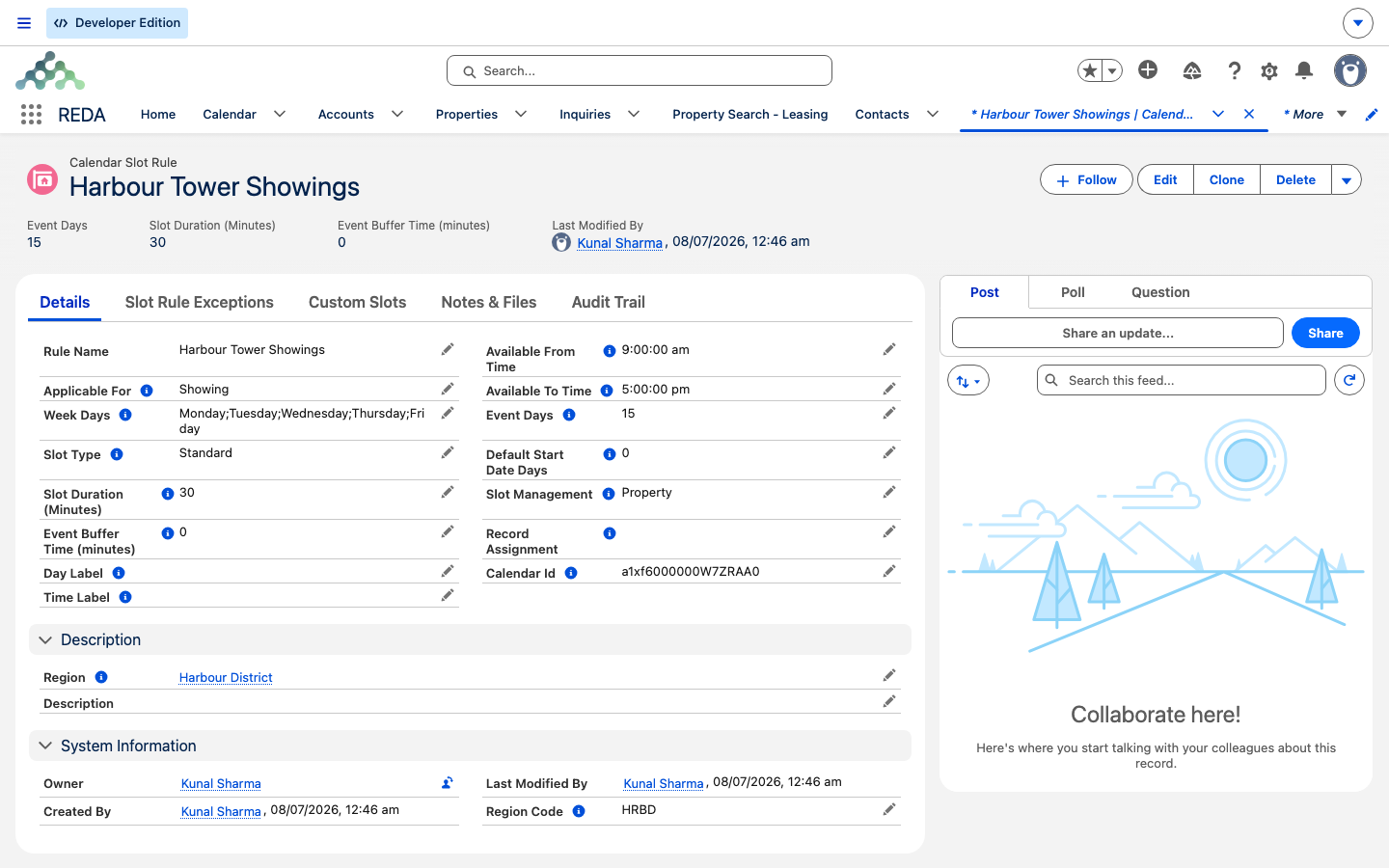
Two rules cover very different needs at Meridian Properties:
Field reference
The rule's own fields:
| Field | What it controls | Constraint |
|---|---|---|
| Rule Name | Identifies the rule | The record's name |
| Applicable For | Showing / Booking / Maintenance | Required; binds to the matching property field |
| Available From Time / Available To Time | The daily availability window | Both required |
| Slot Duration (Minutes) | Length of each offered slot | Required, at least 10 |
| Event Buffer Time (minutes) | Gap left after each busy event | Required, zero or more; internal 2-min minimum at 0 |
| Week Days | Which days offer slots | Required; Sun–Sat multi-select |
| Event Days | How many days ahead are shown | Required, at least 1 |
| Default Start Date Days | How many days out the calendar begins | Defaults to 0 |
| Slot Type | Standard grid or Custom slots | Standard by default |
| Slot Management | Property (per-unit) or Parent (building-wide) | |
| Calendar Id | Shared calendar for generated events | Optional |
| Record Assignment | User or queue that gets generated events; also filters the busy check to that team's own events | Optional |
| Day Label / Time Label | Display format patterns | Leave default unless needed |
| Region / Description | Classification and notes | Optional |
The custom-slot child record:
| Field | What it controls | Constraint |
|---|---|---|
| Start Time / End Time | The slot's window | Required; must sit inside the rule's hours |
| Maximum Events Per Slot | How many concurrent events the slot allows | Default 1 (single-occupancy) |
| Slot Label | Display name (e.g. "Evening") | Optional |
| Description | Notes | Optional |
Three checks keep a Standard rule valid, and REDA quotes them exactly as shipped:
"Event Days must be a positive number greater or equal to 1."
"The time between slots must a positive number equal or greater than 0."
Where to go next
- Blackouts & Slot Exceptions — close a rule for holidays or downtime, one-off or recurring.
- Short-Term Bookings — the Booking calendar in action.
- Scheduling Showings — the Showing calendar in action.
- Work Orders — the Maintenance calendar in action.
- Making a Property Leasable & Bookable — attaching rules and turning a space on.
Frequently asked questions
Slots can't be shorter than ten minutes: "Slot Duration must be a positive number greater than or equal to 10." Raise the Slot Duration (Minutes) to 10 or more.
REDA keeps a small internal minimum of two minutes between events even when Event Buffer Time (minutes) is 0. The short gap you see is that minimum, not a setting you can remove.
Its Applicable For doesn't match. Each property field accepts only a rule of its own type — a Booking field takes only Booking rules. Change the rule's Applicable For, or use a rule that already matches.
The rule's Slot Management is set to Parent, which runs the busy check against one shared calendar at the building level. Switch it to Property if each unit should keep its own independent calendar.
Check the usual suspects, in order: the weekday isn't in Week Days; the Event Days look-ahead window is exhausted; an all-day event covers the day; a blackout exception covers the window; or, for a Custom rule, no custom slots have been defined yet.
Yes, when the slot's Maximum Events Per Slot is greater than 1 — that's the capacity model (for example three concurrent gym sessions). Standard-grid slots are always single-occupancy.
No — rules are reusable, so attach one rule to as many properties as share its availability pattern. Use Parent management or slot exceptions to handle building-specific or one-off differences without cloning the rule.
Was this article helpful?