
Portfolios
A portfolio is how REDA groups one investor's property holdings for relationship management and growth planning. The single most important thing to learn here is counter-intuitive: you don't add properties to a portfolio — you add the owner accounts, and REDA pulls in the properties those accounts own for you, keeping them in step automatically. This article shows you how to build a portfolio, read its live property count and per-property columns correctly (including one column that catches almost everyone out), and deactivate members without losing history. No prior REDA experience is assumed.
Access you'll need. Creating and editing portfolios requires the REDA - Portfolio Management Admin permission set; REDA - Portfolio Management Read Only can view but not change them. You also need access to Accounts, which your administrator grants separately — it isn't part of the REDA permission sets.
What a portfolio is
A portfolio is a named grouping of a client's property investments, used to track the relationship and plan its growth. Think of it as the container for everything one investor owns with you: the accounts they hold property under, the properties themselves, and the targets you're steering the relationship toward.
Because a portfolio is defined by ownership, you build it from the owner side. You tell REDA which owner accounts belong to the portfolio, and REDA figures out — and keeps figuring out — which properties those accounts own. Add an account today, buy a property under it next month, and the property joins the portfolio on its own. This is the mental model to hold on to throughout: you add accounts; REDA adds the properties.
Creating a portfolio
From the Portfolios tab, click New and fill in the profile. Every field here is descriptive or planning-related — none of it drives billing or leasing:
| Field | What it's for |
|---|---|
| Portfolio Name | The name of the grouping — usually the investor or relationship. |
| Is Portfolio Active | The on/off switch for the portfolio. It defaults to off, so activate it deliberately once the portfolio is ready. |
| Inactive Date | Records when a portfolio was stood down. |
| Primary Contact / Secondary Contact | The people you deal with on this relationship. |
| Properties # | A live count of the active member properties. REDA maintains this for you — see Reading the portfolio. |
| Target Properties # + Target Year | Your growth target and the year you're aiming to hit it. |
| Portfolio Profile / Buying Plans / Referral Notes | Free-text notes on the relationship, the client's buying appetite, and any referrals. |
Portfolios are broadly visible across your team, so a relationship manager can find and read any portfolio. The membership records beneath a portfolio are more tightly controlled and follow the portfolio's own sharing.
Adding member accounts
With the portfolio saved, add its members. A Portfolio Account is a small record that says "this owner account is part of this portfolio." Create one for each owner account you want in the group:
The Is Active flag on a Portfolio Account is the master switch for that account's membership. Turn it on and every property that account owns joins the portfolio as an active member; turn it off and they all drop out together. You never add properties one by one.
Properties flow in automatically
The moment you activate a Portfolio Account — or create one, or later toggle it — REDA works out which properties that account owns and creates a membership row for each. It does the same when a new property is created under an account that's already a member. These membership rows are called Portfolio Properties, and REDA keeps them current for you:
- A property owned by an active member account gets an active membership row.
- A row re-activates when its account is switched back on.
- A row deactivates when its account is switched off, or when the property is no longer owned by any member account.
The recompute is all-or-nothing: if any part of it can't complete, REDA rolls the whole update back rather than leaving the portfolio half-synced. You never see a portfolio caught mid-recalculation.
Reading the portfolio
The Properties # field at the top of the portfolio is a live count of the active member properties only. Deactivated members drop out of that number even though their rows remain on the record — so the count can legitimately be lower than the number of rows you see in the list.
Each membership row carries several columns pulled live from the property and its lease: Active Lease, Current Rent, Market Rent, Lease Start Date, Lease End Date, and Acquisition Status. These update themselves as the underlying records change — you never type into them.
Occupied - No Notice), not the property's own Leasing Status. Likewise the Sale Status column shows the sale deal's stage, not the property's Sale Status — even though the column labels look identical to the property fields. When you need a property's true status, open the property record itself.
Deactivating and removing members
To take an account out of a portfolio, deactivate it: open the Portfolio Account and untick Is Active. Its properties' membership rows switch off, they drop out of the Properties # count, and the record of their membership is preserved.
REDA deliberately stops you deleting a member account while it's still active — an active member is locked for editing until you deactivate it. If you try, you'll see:
Deactivate the account first, then delete it if you truly want it gone. In practice, deactivating is usually all you need — it removes the account from the live portfolio while keeping the history.
A gap to know about: owner changes on existing properties
Worked example: Meridian Core Portfolio
You're building the Meridian Core Portfolio for a client, with a target of 25 properties by 2027. Continental Holdings is one of the investor's owning entities, and it owns three properties.
| You do | REDA does |
|---|---|
| Create the portfolio, set Target Properties # = 25 and Target Year = 2027, tick Is Portfolio Active | Opens the portfolio, ready for members |
| Add a Portfolio Account for Continental Holdings and tick Is Active | Creates three active Portfolio Property rows — one per property Continental Holdings owns; Properties # = 3 |
| Untick Is Active on the Continental Holdings member account | Deactivates the three rows (keeps them on record); Properties # = 0 |
| Try to delete the Continental Holdings member account while it's still active | Blocks it: "You cannot delete this record. Record is locked for editing." |
Open one of the member rows and you might see its Leasing Status column reading Occupied - No Notice — the stage of the lease — while the property record itself shows a different Leasing Status. Both are correct; they're just showing different things. The row shows the lease's stage; the property shows the property's own status.
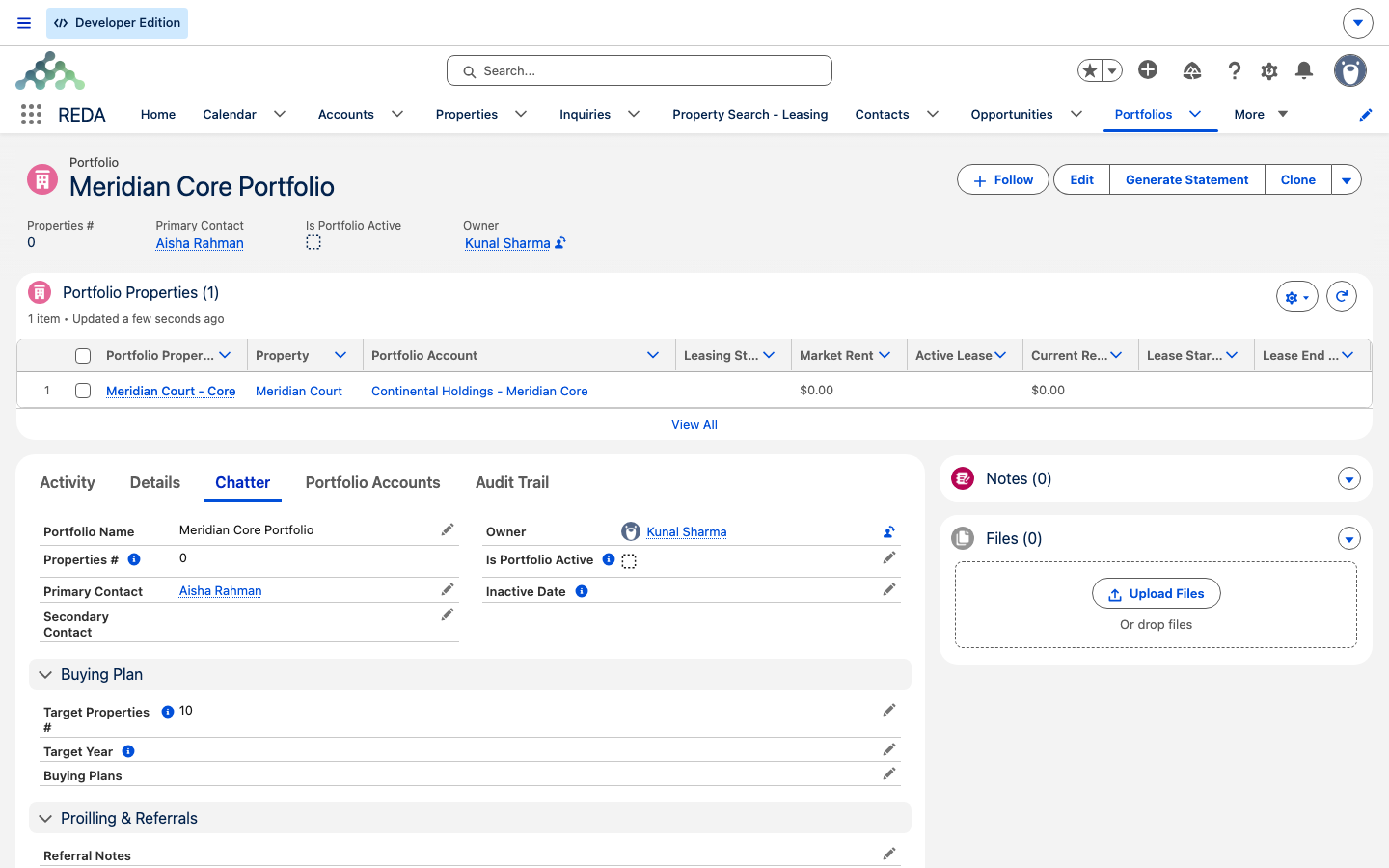
Properties # field and the Buying Plan in the details, with its Portfolio Properties related list — a member property tied back to its Continental Holdings portfolio account.Reference: the three membership records
A portfolio is really three layers of records working together. This is the whole picture in one place:
| Record | What it is | Who maintains it |
|---|---|---|
| Portfolio | The grouping itself, with its profile, targets, and live Properties # count | You |
| Portfolio Account | Says an owner account belongs to the portfolio; its Is Active flag switches that account's whole membership on or off | You |
| Portfolio Property | One membership row per property, with live columns off the property and lease; created, activated, and deactivated for you | REDA |
Where to go next
- Property Lists & Tags — the manual, hand-picked way to group properties when ownership isn't the basis.
- Entity Ownership Percentages — recording the investors behind an owner account.
- Property Statuses — what the property's real Leasing Status and Sale Status mean, versus the portfolio columns.
- Property Types — where the type-level "Portfolio" classifier lives (a different thing from a portfolio grouping).
Frequently asked questions
Portfolios are account-driven by design: you add the owning account as a member, and REDA brings in its properties automatically. If you hand-create a membership row, it has to belong to the same portfolio as its member account, or REDA stops you: "Property Portfolio and Portfolio Account must have same Portfolio."
An active member account is locked: "You cannot delete this record. Record is locked for editing." Untick its Is Active flag first, then delete it — though deactivating alone is usually all you need.
Both. The portfolio's Leasing Status column shows the lease's stage; the property's own Leasing Status field shows the property's status. They share a label but show different data. For the property's true status, open the property record.
Membership rows are deactivated, never deleted. The row drops out of the Properties # count but stays on the record so your history is preserved.
Changing the owner on a property that already exists doesn't re-sync portfolios from the property side. Re-save or toggle the affected member account(s) and REDA will recompute the membership.
Properties # counts active member rows only. Deactivated rows stay visible on the record but don't count.
Was this article helpful?