
Notice, Move-Out & Lease End
This is how a lease ends the normal way: the tenant gives notice, your team runs the Move Out ticket, and REDA handles the notice stage, the move-out inspection, the final dates, the property's return to market, and the shut-off of billing. This article covers which Move Out status writes which lease stage, what closing the ticket does (the lease reaches Expired, billing stops, and portal access is switched off), how holdover billing works when a tenant lingers, and how cancelling a move-out rewinds everything. A ticket is a short tracked checklist that drives the lease as you work its status Path.
Access you'll need. Working move-outs requires the REDA - Property Leasing User permission set.
The three ways a lease ends
A lease can end three ways, and all of them run through the same Move Out ticket:
Recording notice: create the Move Out ticket
Create the ticket from the lease's Tickets tab. It can only attach to an occupied lease — pick one at any other stage and REDA responds: "Only "Occupied" Leasing Opportunity can be selected." On the ticket you capture two dates: the Notice Date (the day notice was received) and the Move Out Date (the operative date the automation keys on). Notice Date is a plain record of when notice arrived — no automation depends on it — so don't expect REDA to compute a notice period from it. The ticket's statuses are New, In Process, Contract Sent, Contract Signed, Closed, and Cancelled.
The notice stage
Setting the ticket to In Process moves the lease to Occupied - Notice (Move Out) and stamps the lease's Scheduled Move Out Date from the ticket's Move Out Date. There's one exception: when the Move Out ticket is a child of an eviction or termination, this stage write is suppressed — the parent process owns the notice stage, so the lease shows the eviction or termination notice stage instead. The Contract Sent and Contract Signed statuses exist for move-out paperwork but don't change the lease stage; treat them as document-tracking steps.
The move-out inspection
When the property is configured for it, REDA creates a move-out inspection at the moment the ticket is created — subject "Move Out Inspection" with the property name, scheduled from the Move Out Date plus the property's move-out offset, with the checklist applied from the template (see Move-In / Move-Out Inspections).
Property re-availability
Once the lease is on a notice stage and its calculated end date is known, REDA stamps the property's next Leasing Availability Date as the calculated lease end plus the rule's Default Make Ready Days — the turnaround time to ready the unit — provided the property is available for leasing and shares the lease's rule. From there, the property's leasing status recomputes on its own, sending the unit back toward market (see Property Statuses).
Closing out: the lease reaches Expired
On the day the tenant hands back the unit, set the ticket to Closed. REDA stamps the lease's Actual Move Out Date and moves the Stage to Expired. That single transition switches several things off:
| What switches off at Expired |
|---|
| Recurring rent, late-fee, and month-to-month billing stops selecting the lease — the billing gate (Accounting Active) turns off. |
| Open future opted-in Renewal tickets are automatically cancelled. |
| Resident-portal users are deactivated, where the region runs the portal. |
| Property availability recomputes; the unit heads back to market after its make-ready days. |
| The lease's Won and Closed flags stay set — an expired lease still reports as won business. |
Expired does not create any refund transaction. Settling the security deposit — refund or deductions — is a separate billing exercise you do on the lease, not something the Move Out ticket does for you. To bill the tenant for damage or unpaid amounts, raise a charge on the lease; to hand money back, raise a credit memo. These run through the lease's charge tickets and the accounting side, entirely apart from the move-out.
If the tenant stays longer
Sometimes the tenant doesn't leave on the scheduled day. REDA has two layers for that, both of which depend on the billing jobs being scheduled (see Scheduling Background Jobs):
| Situation | What bills |
|---|---|
| Scheduled move-out passed, ticket still open, within one period | Delayed move-out billing: one extra period starting the day after the scheduled move-out (a month runs to the end of the following month; a week to the end of that week; a day is a single day) |
| Lease expiration passed, lease still billable, month-to-month configured | Month-to-month fees per the lease's MTM fields — monthly or per-day, with the optional rent-equals and market-variance options (see Month-to-Month Fees) |
| Actual move-out recorded (ticket closed) | Billing stops; any final balances remain collectible |
Changing your mind
If the move-out falls through, set the ticket to Cancelled. REDA clears the lease's move-out dates, reverts the Stage from Expired back to the snapshot the ticket captured when it was created, and cancels any related move-out inspection that hasn't already been cancelled. That stage snapshot is captured once, at ticket creation, and survives later edits — it's the anchor every cancellation reverts to.
Worked example: Aisha moves out
Aisha Rahman gives 60 days' notice on 1 Jun 2027 for her lease on Meridian Court #101 (rent 1,200.00), which ends 31 Jul 2027. Her building's rule has 5 make-ready days.
| You do | REDA does |
|---|---|
| Create the Move Out ticket: Notice Date 1 Jun, Move Out Date 31 Jul | Creates the move-out inspection (scheduled 31 Jul) |
| Set the ticket to In Process | Lease → Occupied - Notice (Move Out); Scheduled Move Out 31 Jul; property Leasing Availability Date = 31 Jul + 5 = 5 Aug 2027 |
| On 31 Jul, set the ticket to Closed | Stamps Actual Move Out Date 31 Jul; lease → Expired; billing stops; portal user deactivated |
Holdover variant: if Aisha hasn't left on 31 Jul and the ticket stays open, REDA bills August as the one extra delayed-move-out period. If she lingers past that, month-to-month fees take over per the lease's MTM policy.
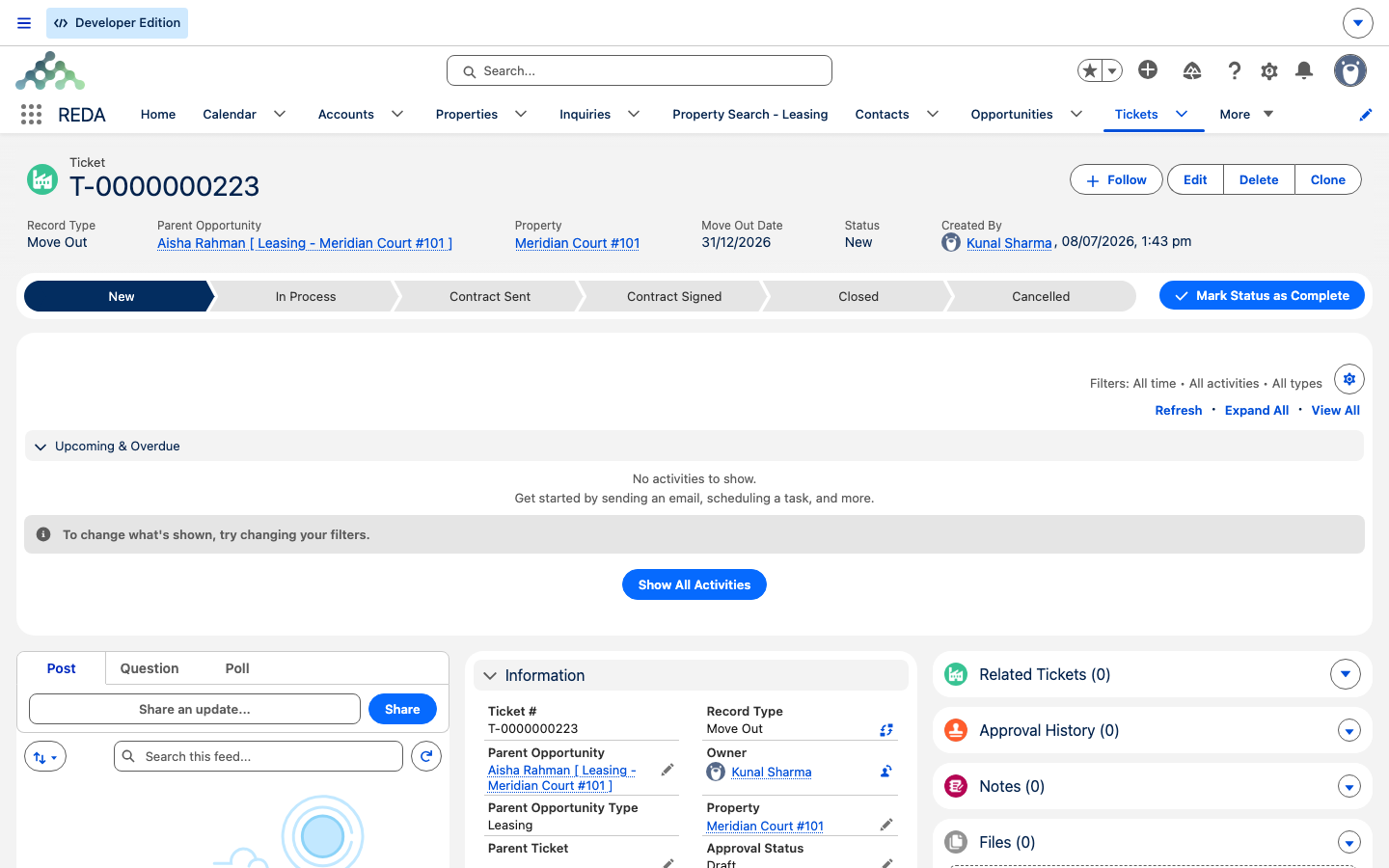
Reference: status → lease effect
What each Move Out status does to the lease, in a standalone move-out and when the ticket is a child of an eviction or termination.
| Ticket status | Standalone move-out | Child of Eviction / Termination |
|---|---|---|
| New | None — capture Notice Date + Move Out Date; inspection auto-created at ticket birth when configured | Same |
| In Process | Stage → Occupied - Notice (Move Out); Scheduled Move Out stamped | No stage write — the parent owns the notice stage |
| Contract Sent / Contract Signed | Document tracking only | Same |
| Closed | Actual Move Out Date stamped; Stage → Expired | Same |
| Cancelled | Move-out dates cleared; stage reverted from Expired to snapshot; inspections cancelled | Same |
Where to go next
- Evictions & Early Terminations — the involuntary paths that create a child move-out.
- Renewing a Lease — an opt-out spawns this same ticket.
- Month-to-Month Fees — how long holdovers are billed.
- Move-In / Move-Out Inspections — the inspection created here.
- Property Statuses — how the unit returns to market.
- The Lease Record — the date fields and flags this flow writes.
Frequently asked questions
A Move Out ticket only attaches to an occupied lease: "Only "Occupied" Leasing Opportunity can be selected." If the lease isn't yet occupied, there's nothing to move out of.
A move-out can't be closed without a Move Out Date — the date REDA stamps as the Actual Move Out Date. (The involuntary eviction path enforces the same rule explicitly: "Move Out Date must be provided for Closed Eviction.") Provide the Move Out Date, then close.
This Move Out ticket is a child of an eviction or termination, and that parent process owns the notice stage. The lease shows the eviction or termination notice stage instead.
Delayed move-out billing charges one extra period, by design, until the actual move-out is recorded by closing the ticket. Close the ticket to stop billing.
The lease's Stage reverts to the snapshot captured when the ticket was created, the move-out dates are cleared, and the move-out inspection is cancelled.
The property must have the move-out inspection template and its schedule settings configured. If an inspection schedule setting on the property is blank, the move-out inspection may not generate — check the property's inspection configuration.
Was this article helpful?