
Ads Connector: Setup & Enablement
This is the one-time, per-org setup an administrator does to switch the REDA Ads Connector on. It covers installing the package, giving the right people access, putting the Ad Account tab and its fields in front of them, exposing the attribution and conversion fields on your lead records, and loading the small set of platform settings the connector needs. Work through it in order — later steps assume the earlier ones are done. For what the connector actually does once it's on, see REDA Ads Connector: Overview.
Before you begin
- You need System Administrator access (or an equivalent profile) to install packages and edit Setup.
- You'll be working in Salesforce Setup throughout — permission sets, tabs, page layouts, remote site settings, and custom metadata.
- Authentication is handled entirely by REDA and by the self-service Connect flow. You never register apps with Google or Meta, and you never handle app credentials or secrets. When an administrator clicks Connect Ad Account, they sign in to your own Google or Meta account and grant access; REDA provisions the connection behind the scenes. Those steps are noted so you know what to expect and what not to touch.
Step 1 — Install the package
Install the edition-appropriate REDA managed package into your org. The connector's objects, tab, buttons, remote site settings, and automation all arrive with the package — you're enabling and exposing them in the steps that follow, not building them.
Step 2 — Grant access to the connector
Decide who manages ad connections. Two personas matter:
- Ad administrators — the people who create Ad Account records and run Connect Ad Account / Disconnect Ad Account / Select Conversion Target. They need full access to the connector.
- Lead workers — everyone who only views and works the captured leads. They need normal read access to your lead records (Inquiry or Lead); they don't need anything connector-specific, because the attribution fields are populated for them automatically.
On REDA One (OEM): assign the packaged permission set to your ad administrators.
| Permission set | API name | What it grants |
|---|---|---|
| REDA - Ads Integration | REDA_Ads_Integration |
Create/read/edit/delete on the Ad Account object, the three Ad Account buttons and their pages, the Ad Account tab, and read access to the ad-related fields. |
- The Advertising Platform picklist is required when an admin creates an Ad Account, but it isn't individually granted for editing by the permission set. Make sure your ad administrators can edit it through their profile or a supporting permission set.
- The Inquiry conversion fields — Is Converted, Conversion Sent, Conversion Sent Datetime, and Conversion Last Value — are not in the permission set. They rely on your admins' existing Inquiry access. Confirm your ad administrators can see (and, for Is Converted, set) these on the Inquiry.
Step 3 — Add the Ad Account tab
Make the Ad Account tab visible so administrators can find and manage Ad Account records. On OEM the REDA_Ads_Integration permission set already makes the tab visible to anyone it's assigned to; on ISV, REDA - Master Data - Admin does the same. Optionally add the tab to the app your ad administrators use day to day so it's one click away.
Step 4 — Put the fields and buttons on the Ad Account layout
Open the Ad Account page layout (or Lightning record page) and surface the fields an administrator uses to set up and connect an account:
| Field | Why it's on the layout |
|---|---|
| Advertising Platform | Required. Google or Meta — decides which platform Connect signs into. |
| Ad Account ID | The Google customer account ID or Meta ad-account id. |
| Manager / Business ID | The Google manager account or Meta business id, where applicable. |
| Page ID / Lead Webhook Key | For Meta, the Facebook Page ID; for Google, the shared lead key. |
| Webhook Base URL (Site) | The base address leads are delivered to. |
| Conversion Target | Where conversions are reported (Google conversion action, or Meta dataset/pixel). |
| Conversion Token (Meta CAPI) | Meta only — the token used to send conversions to Meta. |
| Active and Connected Date | Read-only status set by Connect/Disconnect — useful to display. |
| Promotion (OEM) / Campaign (ISV) | The campaign this account attributes its leads to. |
Then add the three buttons to the layout so administrators can run the connection lifecycle from the record:
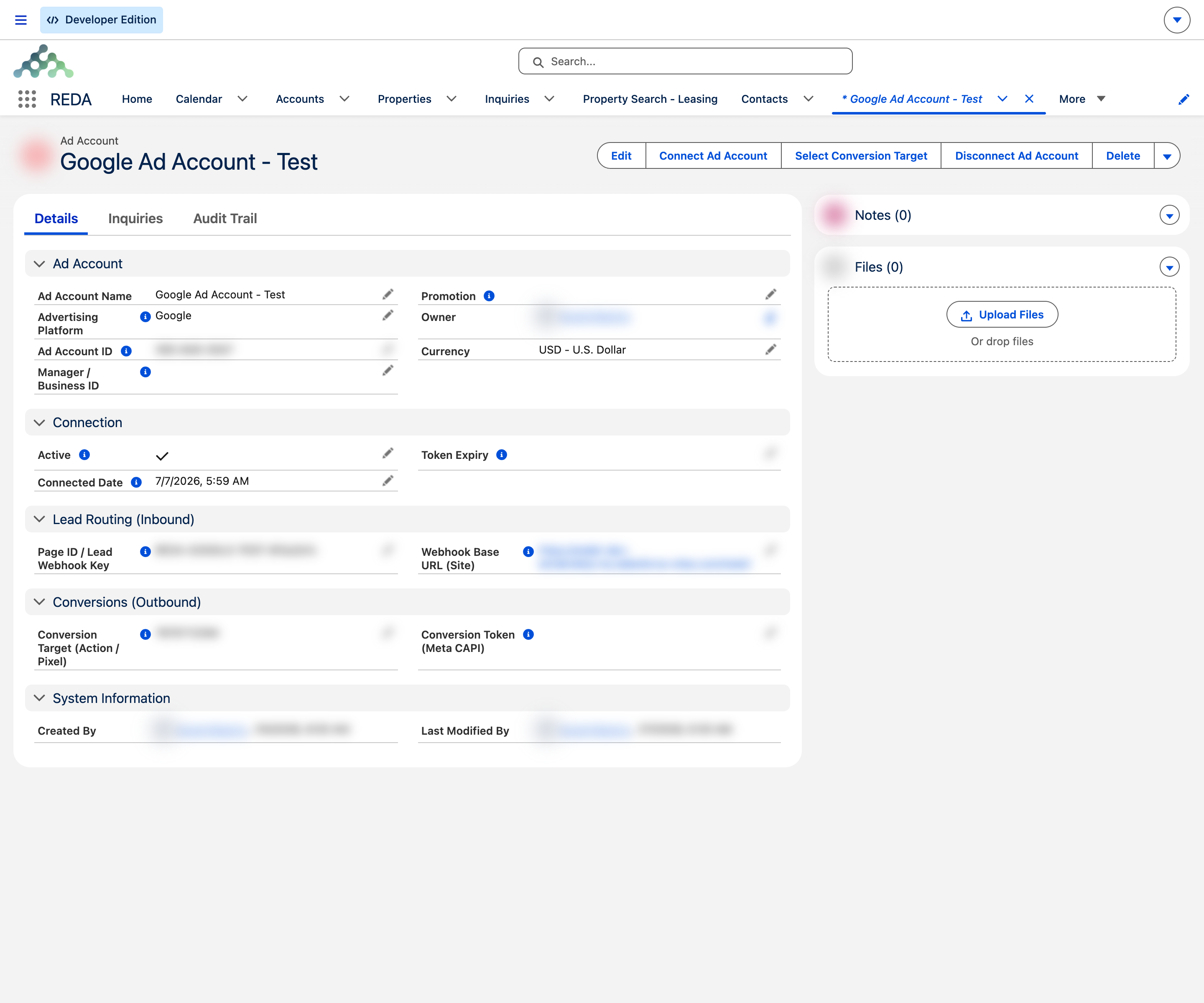
Step 5 — Expose attribution and conversion fields on your lead record
So your team can see where a lead came from — and so conversions can be reported — add the connector's fields to your lead record's page layout. On REDA One (OEM) that's the Inquiry layout; on REDA on Sales Cloud (ISV) it's the standard Lead layout.
Attribution fields (both editions) — add these as read-only; the connector fills them in:
- Ad Account, Ad Account Id, Ad Campaign Id, Ad Form Id
- Ad Platform, Ad Publisher Platform
- Web gclid, Web fbclid
- Ext Lead Id, Ad Unmapped Answers
| Edition | Add these conversion fields | To which record |
|---|---|---|
| REDA One (OEM) | Is Converted, Conversion Sent, Conversion Sent Datetime, Conversion Last Value | The Inquiry layout (the closed loop is driven from the Inquiry). |
| REDA on Sales Cloud (ISV) | Conversion Sent, Conversion Sent Datetime | The Opportunity layout (the value comes from the standard Opportunity Amount). |
Step 6 — Confirm the router remote site (for Disconnect)
The Disconnect Ad Account action needs one specific remote site to reach REDA's routing service and release the connection. Connecting doesn't need it (Connect is a browser redirect), but disconnecting does.
| Remote Site Setting name | Needed for |
|---|---|
REDA_Router | Disconnect Ad Account — releasing the connection on REDA's side. |
REDA_Router remote site, Disconnect can't reach the router and will fail safe (the account stays connected). If a disconnect returns a support reference, confirm this remote site exists and is active, then retry.
Step 7 — Confirm the connector's remote sites
The package ships five remote site settings the connector uses. Confirm all five are present and active in Setup → Remote Site Settings:
| Name | Used for |
|---|---|
REDA_Router | Disconnect (releasing the connection). |
Meta_Graph_API | Talking to Meta. |
Google_OAuth | Google sign-in. |
Google_Ads_API | Google Ads operations. |
Data_Manager_API | Reporting Google conversions. |
Step 8 — Turn on the platform switches
The connector has a master on/off switch per platform, stored in the Data Service Setup custom metadata. Lead capture only runs for a platform when its switch is on, so this is also your kill-switch if you ever need to pause intake.
| Switch | Turn on to |
|---|---|
| Google Lead Form Enabled | Capture Google lead-form submissions. |
| Meta Lead Ads Enabled | Capture Meta (Facebook & Instagram) lead submissions. |
Step 9 — Verify the setup
With those confirmed, you're ready to connect your first account. Follow Google Lead Connector or Meta Lead Connector to bring leads in, then Closed-loop Conversions & Conversion Target to report outcomes back.
Where to go next
- REDA Ads Connector: Overview — what the connector does and how the pieces fit.
- Google Lead Connector — connect a Google account and start capturing leads.
- Meta Lead Connector — connect a Facebook Page and capture Meta/Instagram leads.
- Closed-loop Conversions & Conversion Target — report won leads back to Google and Meta.
- Ads Connector: Troubleshooting — diagnose leads or conversions that don't arrive.
- Web Inquiries and Capturing Inquiries — how inbound leads reach REDA more broadly.
Frequently asked questions
The administrators who create Ad Account records and run Connect, Disconnect, and Select Conversion Target. People who only view captured leads just need normal read access to your Inquiry or Lead records. On ISV orgs there is no Ads permission set: assign REDA - Master Data - Admin instead.
The permission set grants the ad fields read-only, and the Inquiry conversion fields aren't in it at all. Grant edit access to the Advertising Platform picklist and confirm Inquiry conversion-field access through the admin's profile or a supporting permission set.
No. Authentication is handled entirely by REDA and by the self-service Connect flow. You never register apps or handle app credentials or secrets — when you click Connect Ad Account, you sign in to your own Google or Meta account and grant access, and REDA provisions the connection behind the scenes.
No — connecting is a browser redirect. Only Disconnect Ad Account calls the router, so the REDA_Router remote site must be active for disconnects to succeed.
Mostly the same. Leads land on standard Leads (not Inquiries), conversion fields go on the Opportunity, and there is no dedicated Ads permission set — assign REDA - Master Data - Admin instead, which already grants the Ad Account object and tab.
Was this article helpful?