
Getting Around: the REDA & REDA Admin Apps
REDA installs two apps, and knowing which one holds what saves you a lot of hunting. REDA is where day-to-day work happens — leases, properties, inquiries, invoices, tickets. REDA Admin is where setup and master data live — regions, charge codes, leasing rules, inspection templates. This article is the full tour: every tab on each app's nav bar with a one-line reminder of what it's for, a look at the four big record pages you'll spend the most time on, and the single most important habit in REDA — that most business operations are buttons on records, not menu items. No prior REDA experience is assumed; if you just need the raw mechanics of moving around, start with Navigation Basics and come back here for the map.
Access you'll need. Each REDA permission set surfaces its own tabs, so the exact list you see depends on the sets you've been assigned. Standard tabs — Accounts, Contacts, Calendar, Reports, Dashboards — are granted separately by your administrator and are not part of the REDA permission sets.
Opening the apps
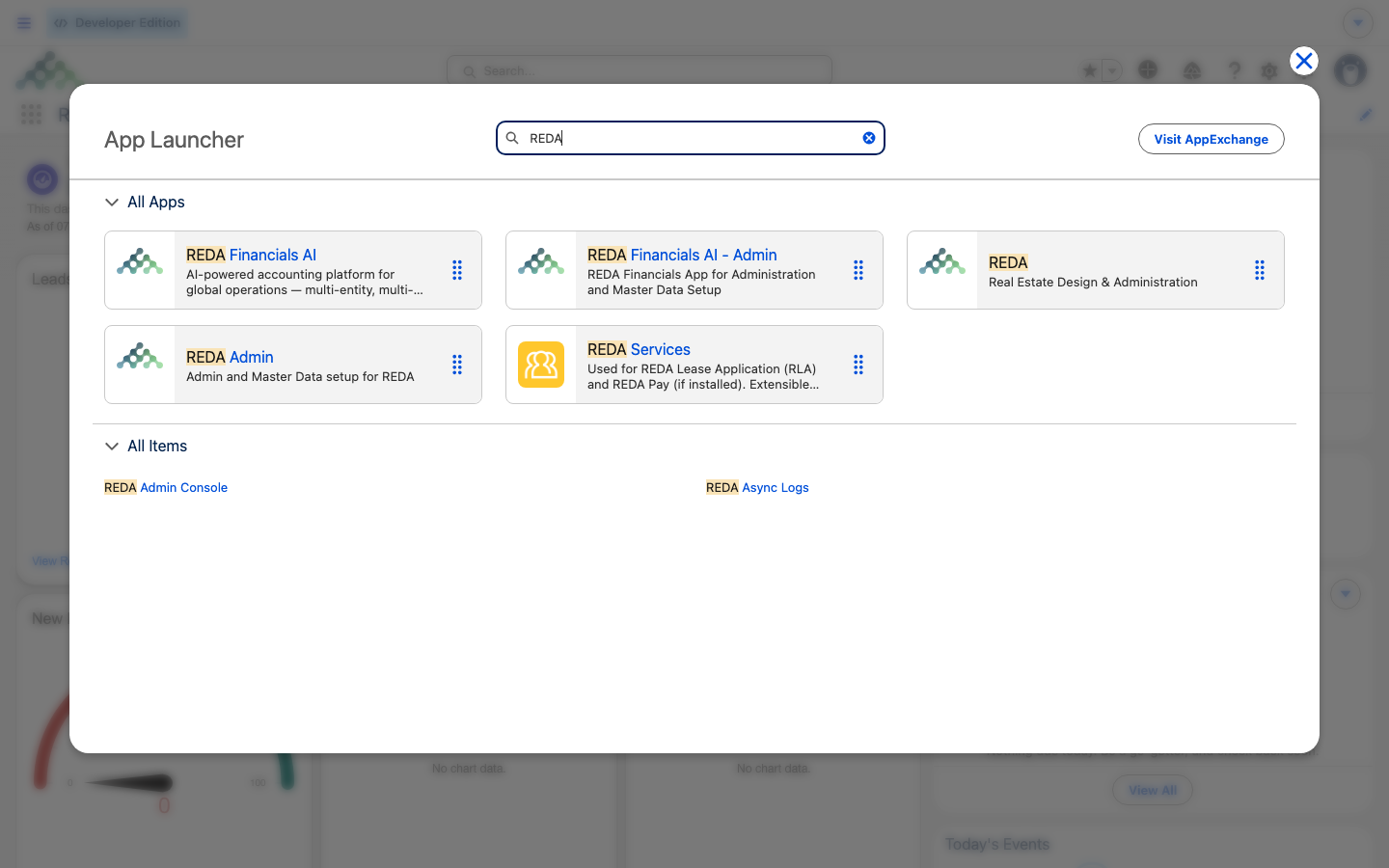
Both apps open the same way: click the App Launcher — the grid icon at the top-left — and pick the one you want. REDA describes itself as "Real Estate Design & Administration"; REDA Admin as "Admin and Master Data setup for REDA." Both run on desktop and on mobile.
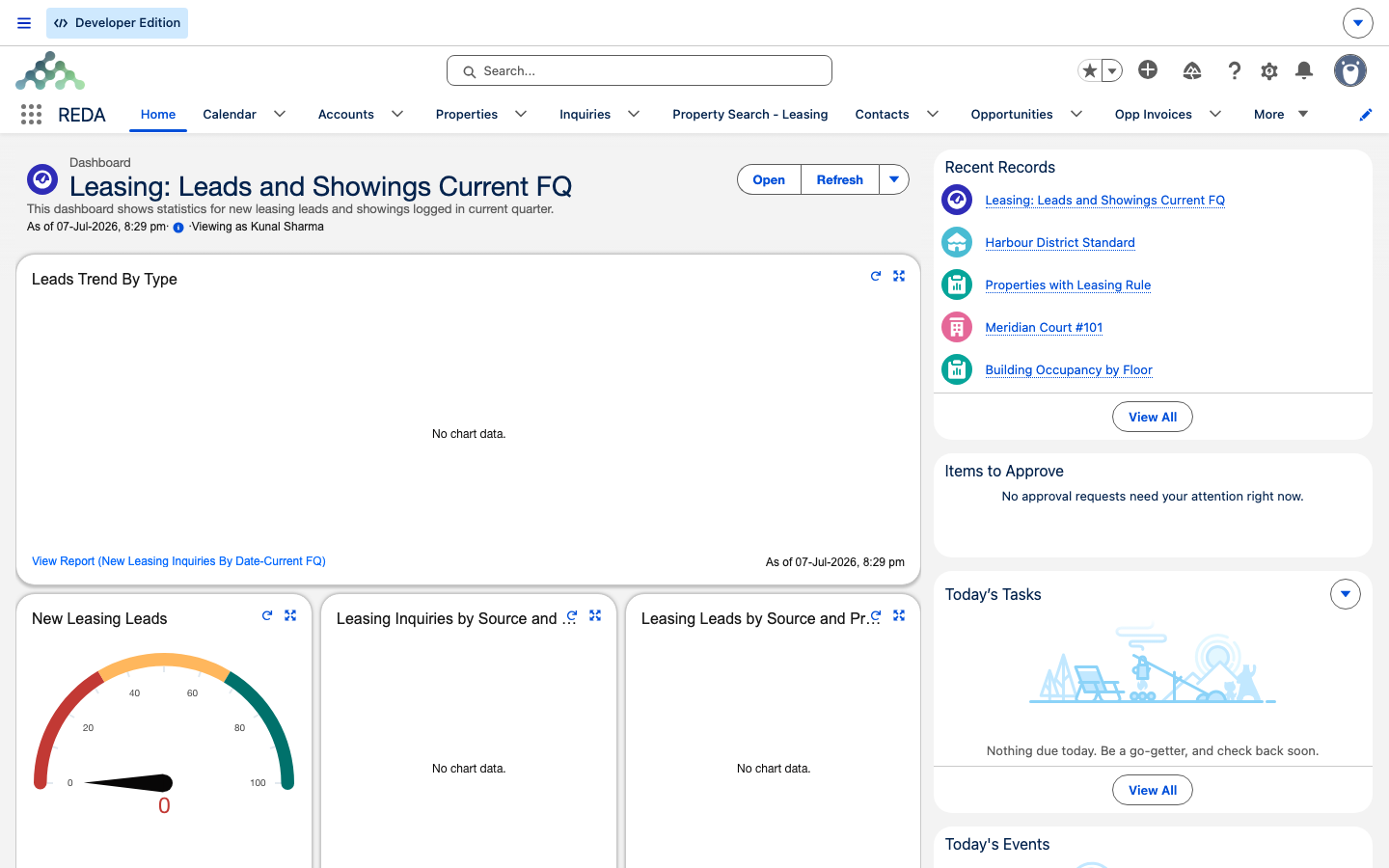
The REDA app opens on the Home tab, which shows the REDA Home page: an embedded dashboard alongside Today's Tasks, Pending Approvals, Recent Records, and Today's Events — a working summary of what needs your attention.
The REDA app tour
The REDA app's nav bar carries twenty-six tabs. If they don't all fit on screen, the overflow lives under a More dropdown at the end. Rather than reading them as a flat list, it helps to group them by the job they do. Here's the full set in nav-bar order, with a one-line reminder of each:
| Tab | What it's for |
|---|---|
| Home | The REDA Home page — dashboard plus Today's Tasks, Pending Approvals, Recent Records, and Today's Events |
| Calendar | The calendar surface where showings and bookings appear (a standard object; access is granted org-side) |
| Accounts | The companies and households you deal with (a standard object; access is granted org-side) |
| Properties | The asset hub — every building and unit you manage |
| Inquiries | Prospects; the New button opens a custom dialog, and each record type has its own Path (the row of stage chips across the top that tracks its lifecycle) |
| Property Search - Leasing | A full-screen tool for finding leasable units, with a 200-row default result cap an administrator can raise |
| Contacts | The people you deal with (a standard object; org-side access) |
| Opportunities | Deals and leases; a custom New dialog, and a Path on Stage per record type |
| Opp Invoices | Billed invoices raised against a lease or deal |
| Opp Invoice Batches | Consolidated invoices grouped into a batch |
| Tickets | REDA's process engine — short tracked checklists, with sixteen record-type Paths on Status |
| Portfolios | Investor groupings, maintained for you automatically |
| Service Requests | Maintenance intake; a Path on Status |
| Work Orders | Maintenance execution; a Path on Status |
| Inspections | Checklist execution on the ground (the templates live in REDA Admin) |
| Promotions | Leasing promotion records (the tab reads "Promotions"; the record is a "Promotion") |
| Straight-Line Schedules | Rent schedules generated by a lease's Calculate Straight-Line Schedule action |
| Expense Reconciliation Batches | CAM and expense reconciliation; posting a batch locks its lines |
| Council Events | HOA and council meetings and notifications |
| Commissions | Commission records and their splits |
| Payment Plans | Payment plans for sales |
| Payment Plan Milestones | The milestones that gate a plan's due dates |
| Bookings | Short-term bookings; a "Booking Journey" Path, protected against overlaps |
| Visitor Logs | The front-desk visitor registry, fed by Request Visitor Access |
| Reports | Standard reports (org-side access); REDA ships eight custom report types |
| Dashboards | Standard dashboards (org-side access) |
You don't need to hold all twenty-six in your head. The pattern to notice is that they run roughly from people and prospects (Inquiries, Contacts) through the assets and deals (Properties, Opportunities), into money (Opp Invoices, Commissions) and operations (Service Requests, Work Orders, Inspections, Bookings), and finish with analytics (Reports, Dashboards).
The REDA Admin app tour
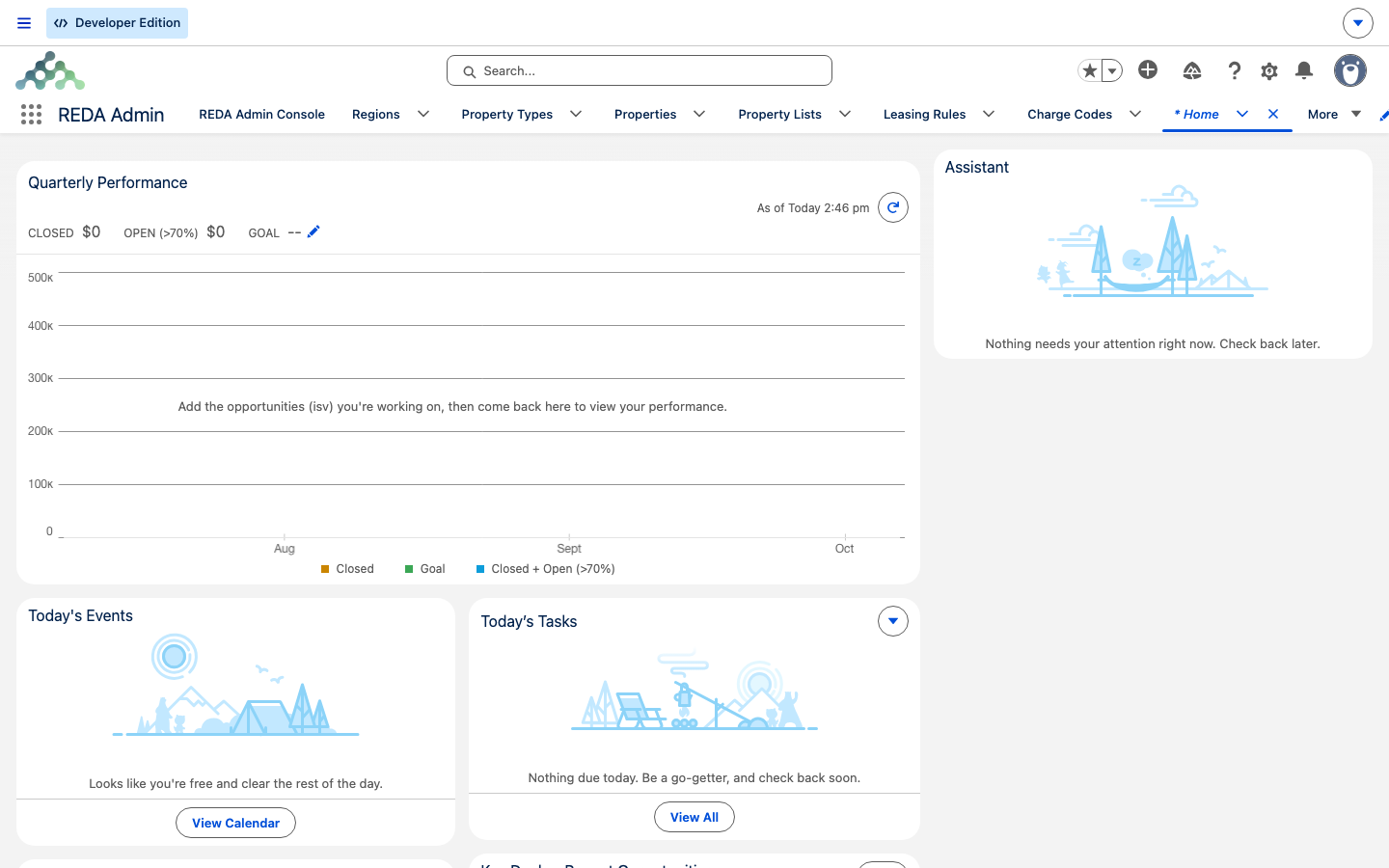
The REDA Admin app carries nineteen tabs. This is where master data — the reference records everything else depends on — is created and maintained. Most leasing and sales agents rarely open it; it's home base for administrators and master-data managers. In nav-bar order:
| Tab | What it's for |
|---|---|
| REDA Admin Console | The admin tool — Global App Settings and Scheduled Jobs (Master Data Admin only) |
| Regions | Geography and the currency anchor for a location |
| Property Types | Property classification, including the building/community structural flag |
| Properties | The same Properties as in the REDA app — a second home for them here |
| Property Lists | Manually tagged groups of properties |
| Leasing Rules | The lease policy engine (agents can read these, not change them) |
| Charge Codes | The billing vocabulary — the charges you can put on a lease |
| Amenity Codes | The catalogue of amenities |
| Settlement Codes | Closing-cost categories (also editable by an Acquisition User) |
| Calendar Slot Rules | Slot grids for showings, bookings, and maintenance |
| Inspection Templates | The checklist templates inspections are built from |
| Inspection Item Masters | Reusable checklist items |
| Inspection Locations | The catalogue of rooms and areas |
| Commission Rules | Commission policy and its items |
| Inflation Rules | Rent-escalation rules (a Run Manually action lives on each record) |
| Email Templates | Standard email templates, used by council mass email (org-side) |
| REDA Async Logs | The system job log — these records are generated by the system |
| Reports | Standard reports (org-side) |
| Dashboards | Standard dashboards (org-side) |
The REDA Admin Console
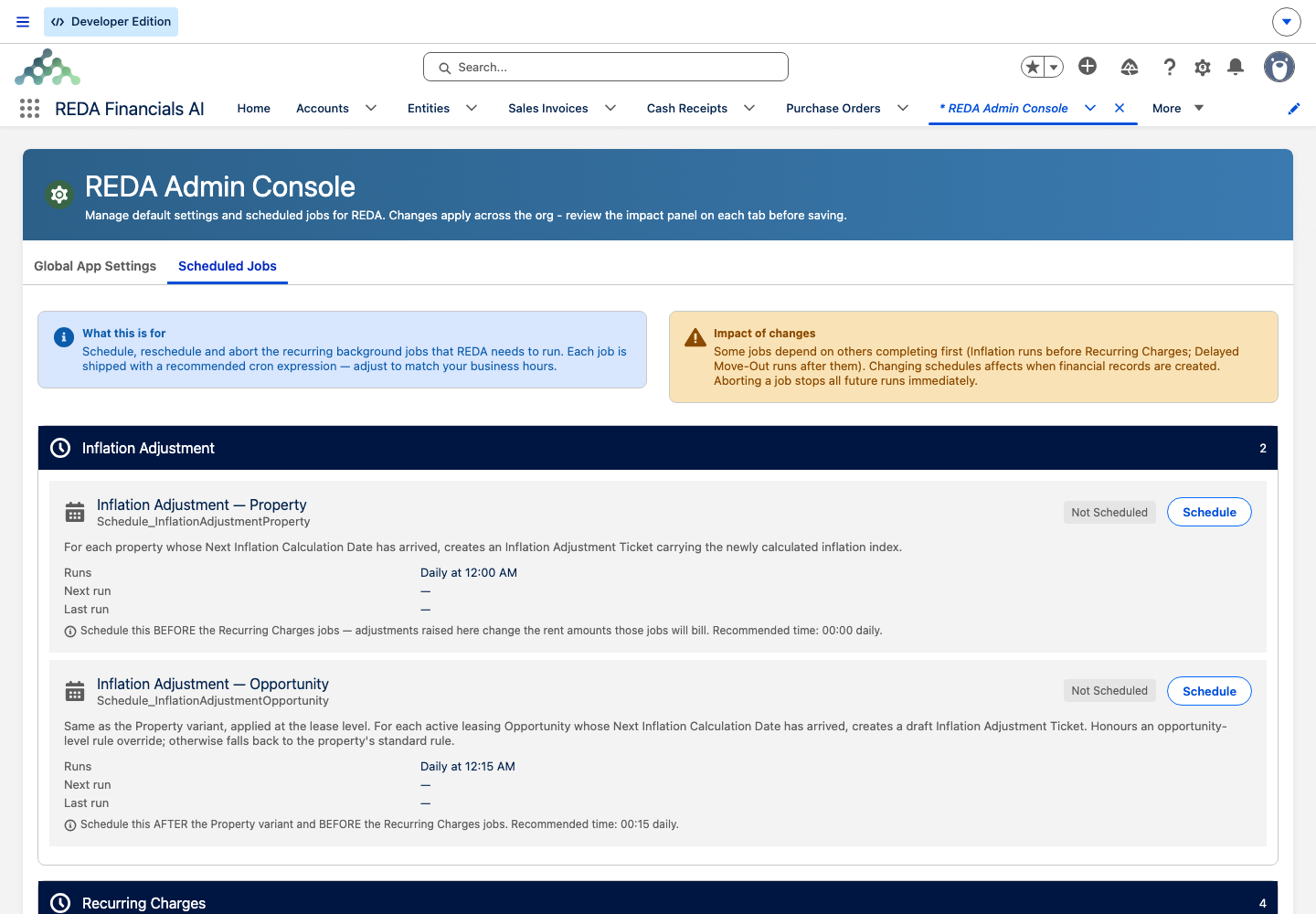
The first tab in REDA Admin, the REDA Admin Console, opens a dedicated tool rather than a list of records. Inside it are two areas: Global App Settings, which holds the switches that shape how REDA behaves, and Scheduled Jobs, where recurring background jobs — the ones that produce ongoing invoices and the like — are set to run.
Anatomy of the big four record pages
Four record pages carry the bulk of REDA work — the lease, the property, the inquiry, and the ticket. Each is covered in depth in Anatomy of a REDA Record Page; here is the map of the tabs on each, with labels quoted exactly:
| Record | Tabs (verbatim) |
|---|---|
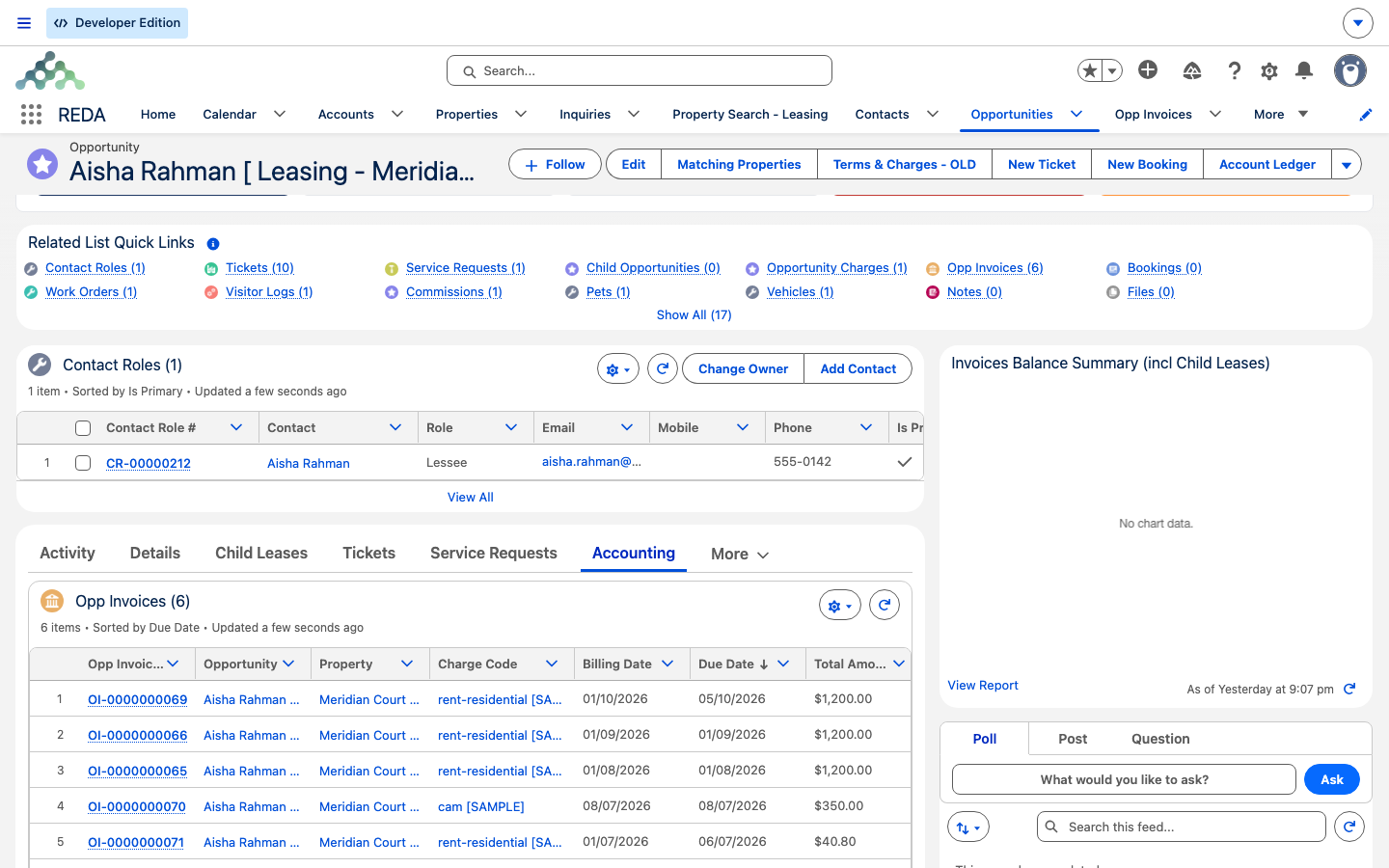
| Lease (a Leasing Opportunity) | Activity · Details · Child Leases · Tickets · Service Requests · Accounting (sub-tabs Active / Inactive) · Charge Setup · Bookings · Visitor Logs · Commissions · Notes & Files · Audit Trail; a Path on Stage in the header |
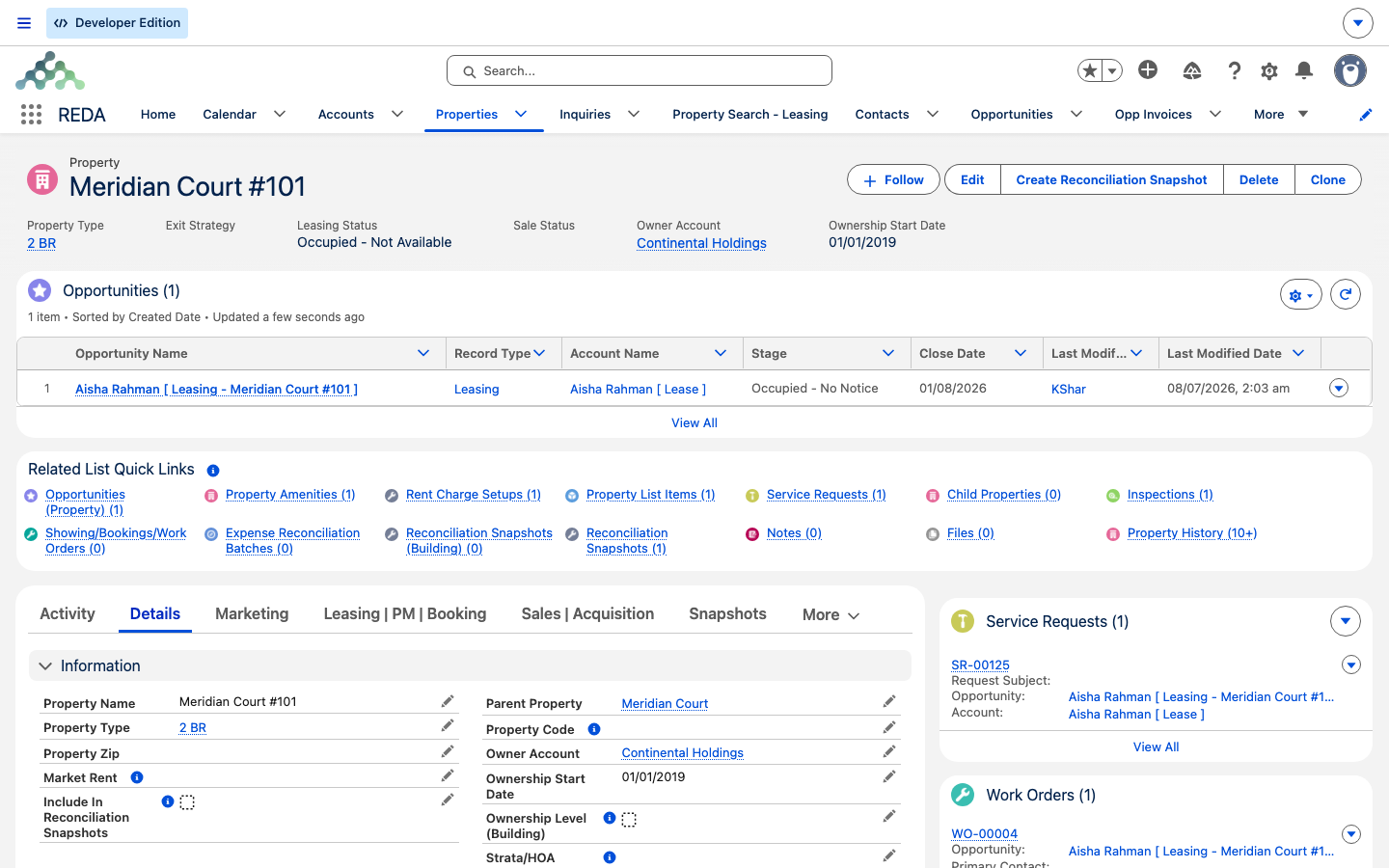
| Property | Activity · Details · Marketing · Leasing | PM | Booking · Sales | Acquisition · Snapshots · Tickets · Debt Summary · Notes & Files · Audit Trail; header related lists for Opportunities, Bookings, and Visitor Logs |
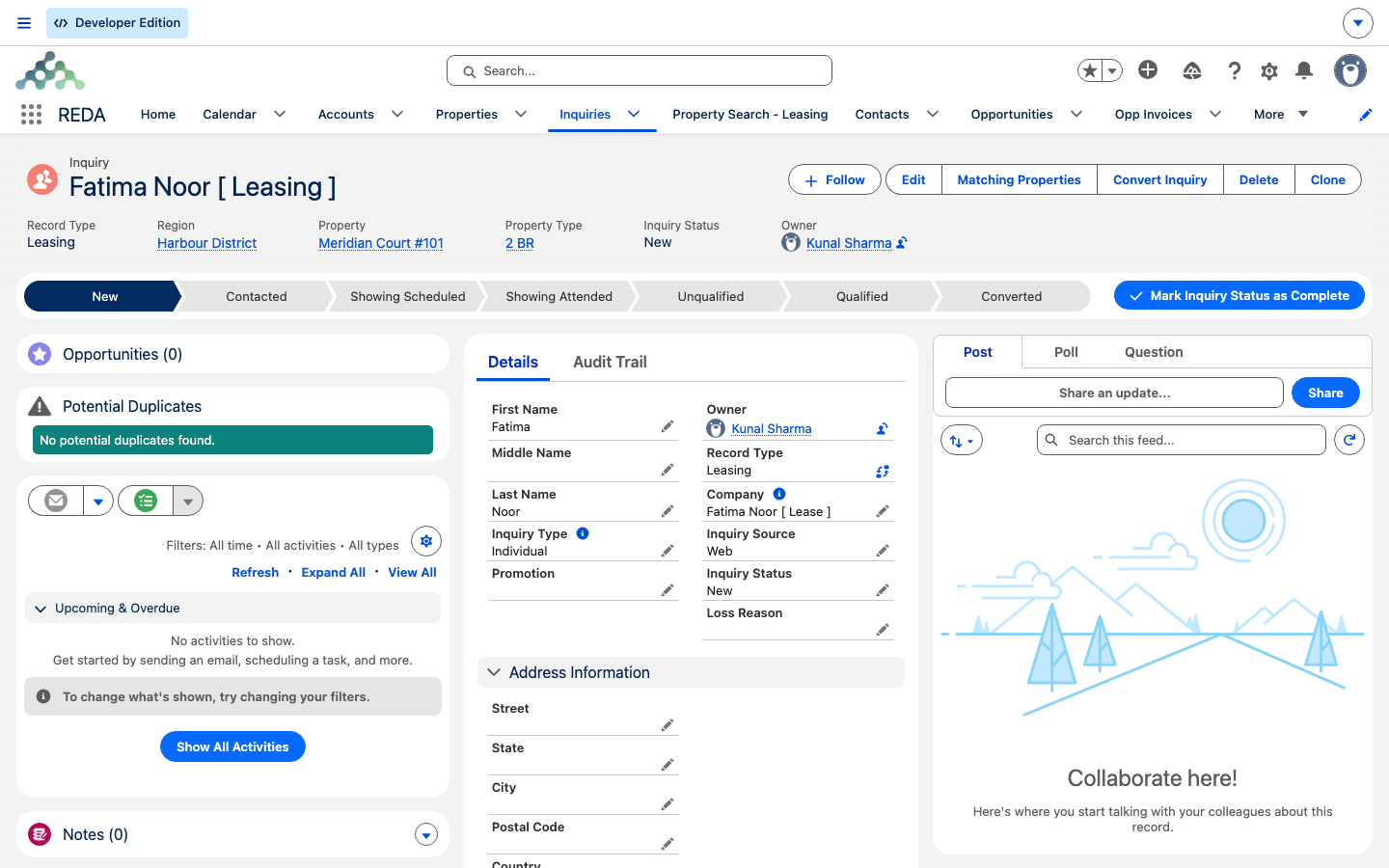
| Inquiry | Details · Audit Trail — plus a Potential Duplicates card with a Merge Duplicates button, an Opportunities related list, and a Path on Inquiry Status |
| Ticket | No custom tabset — highlights, a Path on Status, Activity, the record detail, and related lists |
Buttons do the work
Here's the habit that makes REDA click: most operations are buttons on records, not menu items. You don't go to a menu to convert an inquiry or set up charges — you open the record and press the button. Two consequences follow.
First, the standard New button is replaced by a custom dialog on Inquiries and Opportunities, so creating one of those looks different from creating other records — that's expected. Second, records carry quick actions that do the real work. REDA ships thirty-three of them; a few you'll meet early:
The global create button (the + in the header) offers a few actions from anywhere too — including New Ticket, New Package / Parcel, and Request Visitor Access. And every inquiry, opportunity, ticket, booking, service request, and work order is driven along its lifecycle by a Path — thirty-one of them ship in all. Because the exact placement of a button depends on your org's layout, this article says "on the record page" rather than pointing to a corner of the screen.
What's not part of REDA
A few REDA-branded things are separate products, not tabs in these two apps — worth knowing so you don't go looking for them here:
| Name | What it actually is |
|---|---|
| REDA Financials AI (and Admin) | A separate package with its own apps |
| REDA Connect | A separate package |
| REDA Front Desk | Built in your org, not part of the installed package |
| Residents / REDA Services | Community sites (your resident-facing site, if your administrator has set one up), not Lightning apps |
Find it in ten seconds
The proof that you know the map is being able to reach anything in a couple of clicks. Three common jobs, traced through the nav for a team at Meridian Properties:
Where to go next
- Navigation Basics in the REDA App — the App Launcher, tab bar, and search mechanics.
- Anatomy of a REDA Record Page — reading the four zones of any record.
- How Access Works in REDA — why you see the tabs you see.
- REDA Permission Sets — the sets behind each role.
- Understanding Tickets — the process engine behind so many buttons.
- Understanding Opportunities — deals and leases in depth.
Frequently asked questions
Tab visibility comes from your permission sets, so ask your administrator to check yours. Also remember that a full tab bar pushes tabs into the More dropdown, and that standard tabs like Accounts, Contacts, and Reports are granted separately from the REDA sets.
REDA replaces the standard New form with its own custom dialog on Inquiries and Opportunities. The different-looking dialog is the intended experience.
The console requires the REDA - Master Data - Admin permission set. Without it you'll see: "You do not have permission to perform this action in the REDA Admin Console." Ask your administrator if you need access.
The Property Search - Leasing tool caps its results and tells you so: "Search results are limited to 200 rows. Please use search filters to narrow down search results." Add filters to narrow the list.
Leases live on the Opportunities tab — in REDA, a lease is a kind of opportunity. See Key Concepts for how REDA names its objects.
Was this article helpful?