
REDA Dashboards — Packaged & Your Own
A dashboard is a single screen of charts and numbers that summarises your business at a glance. REDA installs a set of them for each business line, so a leasing manager, a sales lead, or an executive has something useful to open on day one — and the REDA Home page even opens with a dashboard already embedded. This article shows you where the packaged dashboards live, names them by their real folder and title, and walks the short path to building your own from a report you already have. The dashboard builder itself is standard Salesforce, so we hand off to the official documentation for its mechanics.
Access you'll need. Dashboard access is granted by your administrator, separately from your REDA permission sets — if you can't open the Dashboards tab, ask your admin. Building a dashboard also needs the reports behind it and read access to their data, which your REDA permission sets provide.
The dashboard on your Home page
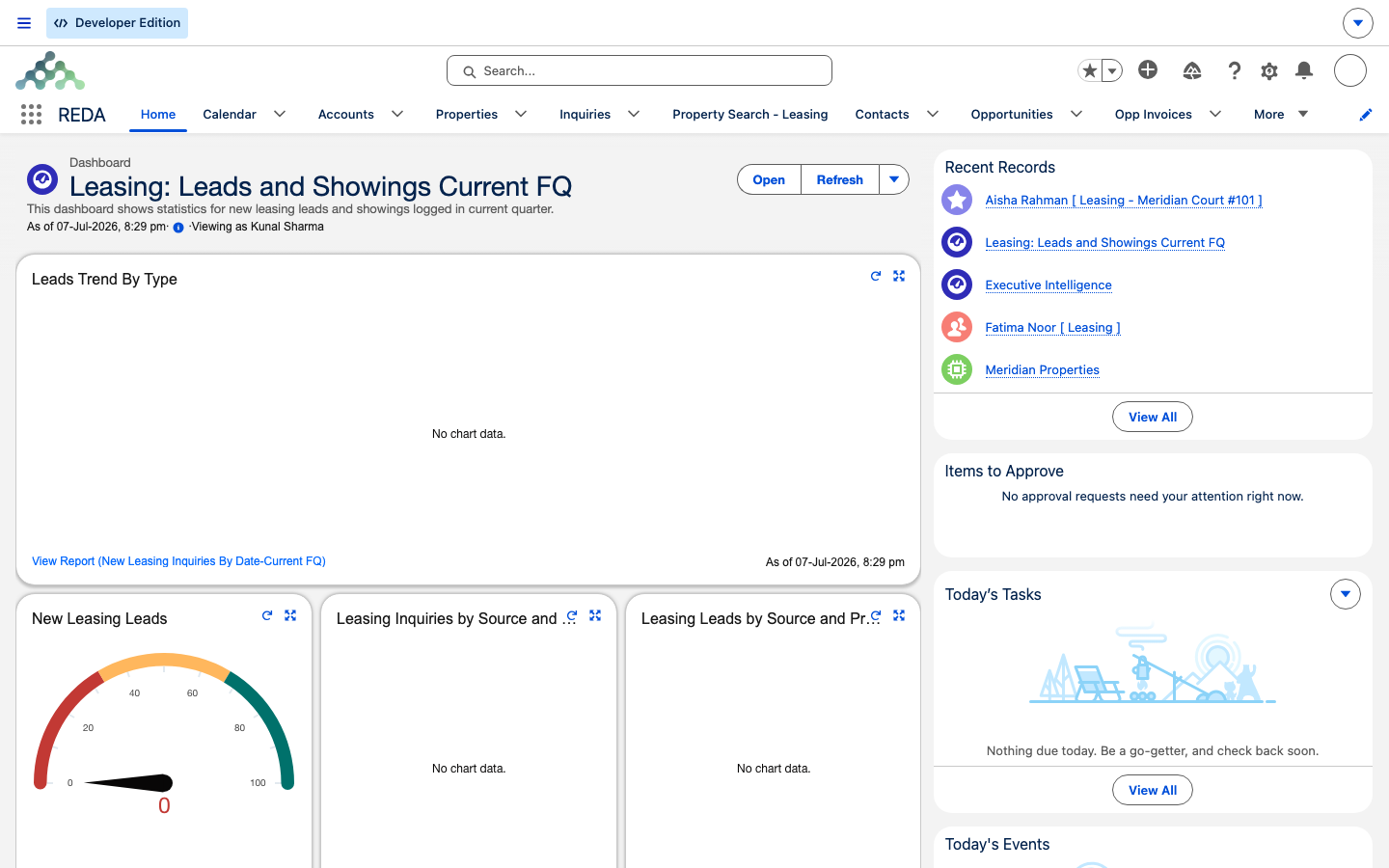
The first dashboard most people meet is the one they never opened on purpose: the REDA Home page opens with a dashboard already embedded. Because that dashboard is chosen and configured for your org, we call it your home dashboard rather than naming it — the exact one you see depends on how your administrator set things up. Alongside it, the Home page also surfaces Today's Tasks, Pending Approvals, Recent Records, and Today's Events, so the landing screen doubles as a daily worklist.
The packaged REDA dashboards
Open the Dashboards tab and you'll find REDA's dashboards grouped into folders by business line. Here is what ships, by folder and title:
| Folder | Dashboard | What it summarises |
|---|---|---|
| Leasing | Leasing Stats - Current FQ | Leasing pipeline for the current fiscal quarter. |
| Leasing | Leasing: Leads and Showings Current FQ | Lead and showing volume for the current fiscal quarter. |
| Acquisition | Acquisition Stats - Current FQ | Acquisition (buy-side) pipeline for the current fiscal quarter. |
| Sales & PMA | Sales & PMA Stats - Current FQ | Property-sales and property-management-agreement pipeline for the quarter. |
| Lending | Debt Summary | Loan and debt position. |
| Executive | REDA - Executive Intelligence (Leasing) | Executive-level leasing overview. |
"Current FQ" means the dashboard is pre-filtered to the current fiscal quarter. To make a lasting variation, clone a dashboard into your own folder and edit the copy, so an upgrade never overwrites your changes.
Building your own dashboard
A dashboard visualises one or more reports, so the reports have to exist first — build them from a REDA report type as described in Building Your Own Reports. With a report saved, the dashboard build is short:
Worked example: a Meridian leasing dashboard
Meridian's leasing manager opens the Dashboards tab → the Leasing folder → Leasing: Leads and Showings Current FQ, and reads its components against Meridian's data for the quarter — new inquiries, showings booked, showings completed across Meridian Court and Harbour Tower. Wanting a view the packaged dashboard doesn't offer, they then build a one-component dashboard from a saved Promotion with Inquiries report (see Building Your Own Reports) and save it to the team's shared folder — a promotion-return tile they can watch each campaign.
Where to go next
- Prebuilt REDA Reports — the full catalog of ready-to-run reports these dashboards feed on.
- Building Your Own Reports — build the reports a custom dashboard needs.
- REDA Report Types to Start From — the joined starting points behind custom reports.
- Subscribing to & Scheduling Reports — schedule a dashboard refresh and a snapshot email.
Frequently asked questions
On the Dashboards tab, in folders named for each business line — Leasing, Acquisition, Lending, Sales & PMA, and Executive. Open a folder to see the dashboards inside it.
A dashboard shows whatever your org's data contains and what you're allowed to see. A fresh install shows no chart data until business records exist and the reports behind the dashboard return rows.
The safe pattern is to clone the packaged dashboard into your own folder and edit the clone, leaving the shipped one intact so an upgrade doesn't overwrite your changes.
REDA's Home page opens with a dashboard your administrator configured — your home dashboard. Its exact name is specific to your org, so we refer to it that way rather than by a fixed name.
Dashboard access is granted by your administrator, separately from your REDA permission sets. If you can't open the Dashboards tab, ask your admin to grant access.
Was this article helpful?