
Anatomy of a REDA Record Page
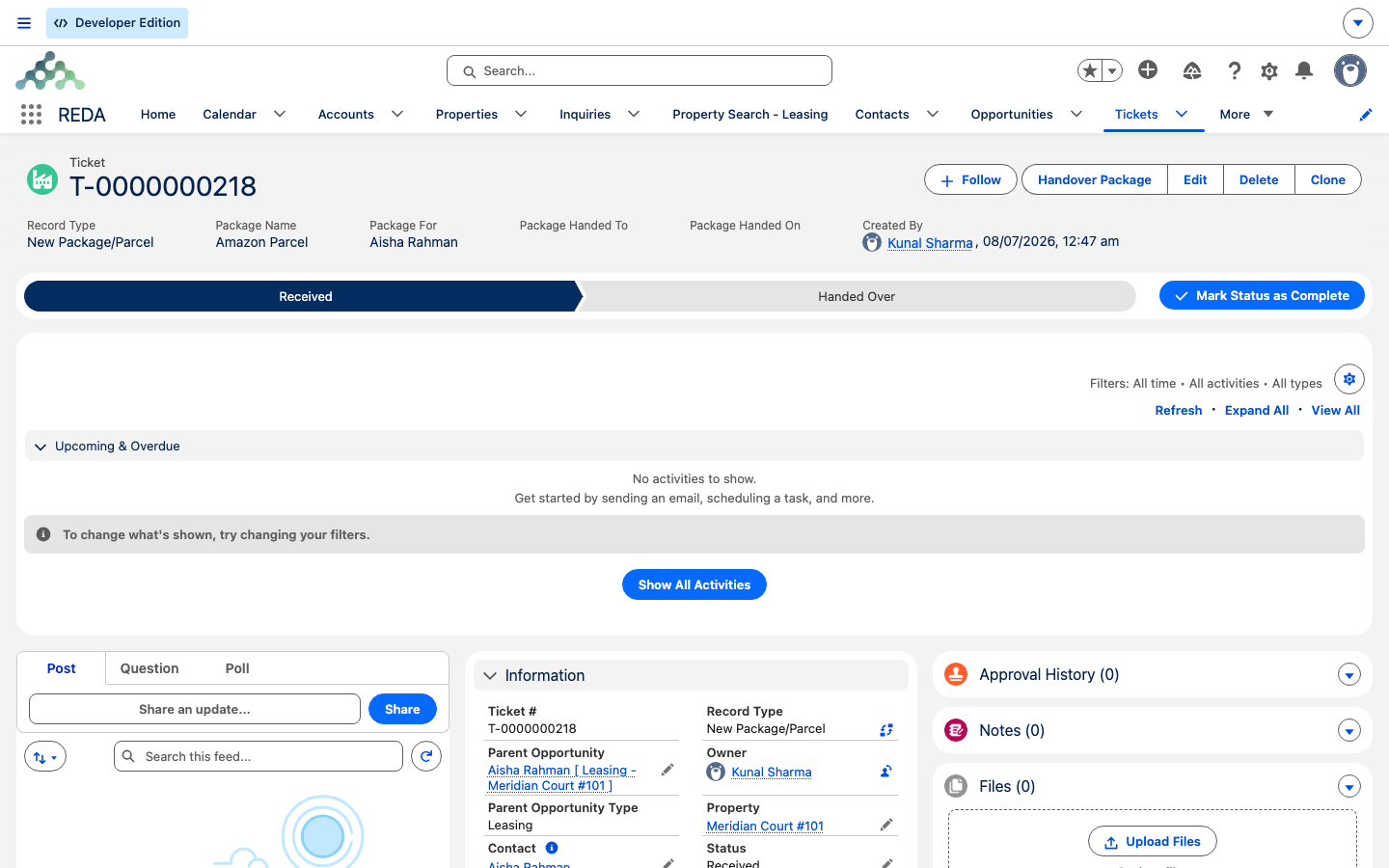
Open a lease, a property, an inquiry, or a ticket in REDA and you're looking at a record page. It can seem busy at first — a panel of key fields up top, a row of chips, several tabs, lists of linked records, a feed down one side. But every REDA record page is built from the same four zones, and once you can name them, any record becomes easy to read. This article walks those four zones and then shows how they play out on the big REDA objects — the lease, the property, the inquiry, and the ticket. No prior Salesforce experience is assumed. This is the general primer; each object's deep dive lives in its own domain article.
Access you'll need. Seeing a record needs read access from your REDA permission sets; editing its fields or advancing its Path needs edit access. Which record-page layout you see can vary from org to org, because page activation is an administrator setting.
The four zones of a record page
Whatever the object, a REDA record page is organized top to bottom into four zones:
The rest of this article takes each zone in turn, then lays the big four pages side by side.
The header: highlights + Path
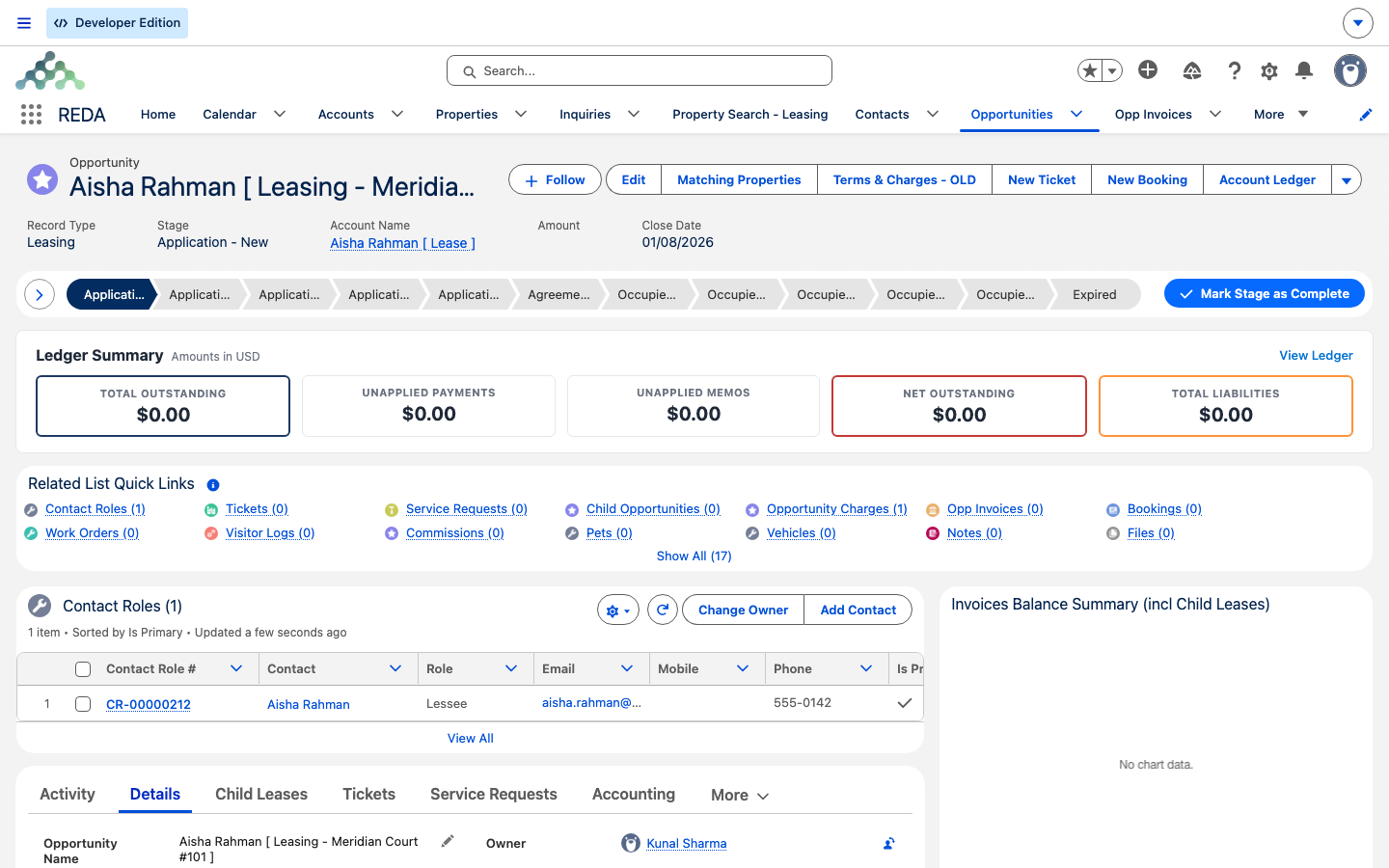
At the very top of every big REDA record is the highlights panel — a compact strip of the record's most important fields (a lease's rent and status, say) alongside its action buttons. It's the summary you read first.
Directly with it sits the Path: a row of chips across the top of the header that shows the record's lifecycle — which stage or status it's on now, and what comes next. REDA leans on Paths heavily. Thirty-one of them ship in all: six on Inquiry (on Inquiry Status), six on Opportunity (on Stage), sixteen on Ticket (on Status), plus one each for Booking (the "Booking Journey"), Service Request, and Work Order. Each kind of inquiry and each kind of opportunity has its own Path, and most kinds of ticket do too — so the chips you see are tailored to the record you opened, and a Leasing deal shows lease-flavored stages while a Property Sale shows sale-flavored ones.
To move a record along, you click a stage chip and then Mark as Current Stage — or, on deals and tickets, you use the driving action for that step. REDA's validation rules can block an advance until the required fields are filled in, so if a stage won't take, look for a message telling you what's missing — for example, advancing a sale before its price is entered returns "You must provide the value of Sale / Purchase Price prior updating the stage." And remember the model from Key Concepts: on a lease, many stage moves are driven by tickets, so you often advance the record by completing its tickets rather than clicking the Path yourself. Each lifecycle is covered in its domain article; for a worked ladder, see Sale Stages.
The middle: details and tabs
Below the header sits the record's tabset, and the Details tab within it holds the record's fields grouped into sections. The tabs themselves differ by object — a lease carries a different set from a property or an inquiry. Here are the verbatim labels on the big four, quoted exactly as they appear on screen:
| Record | Tabs you'll see (verbatim) |
|---|---|
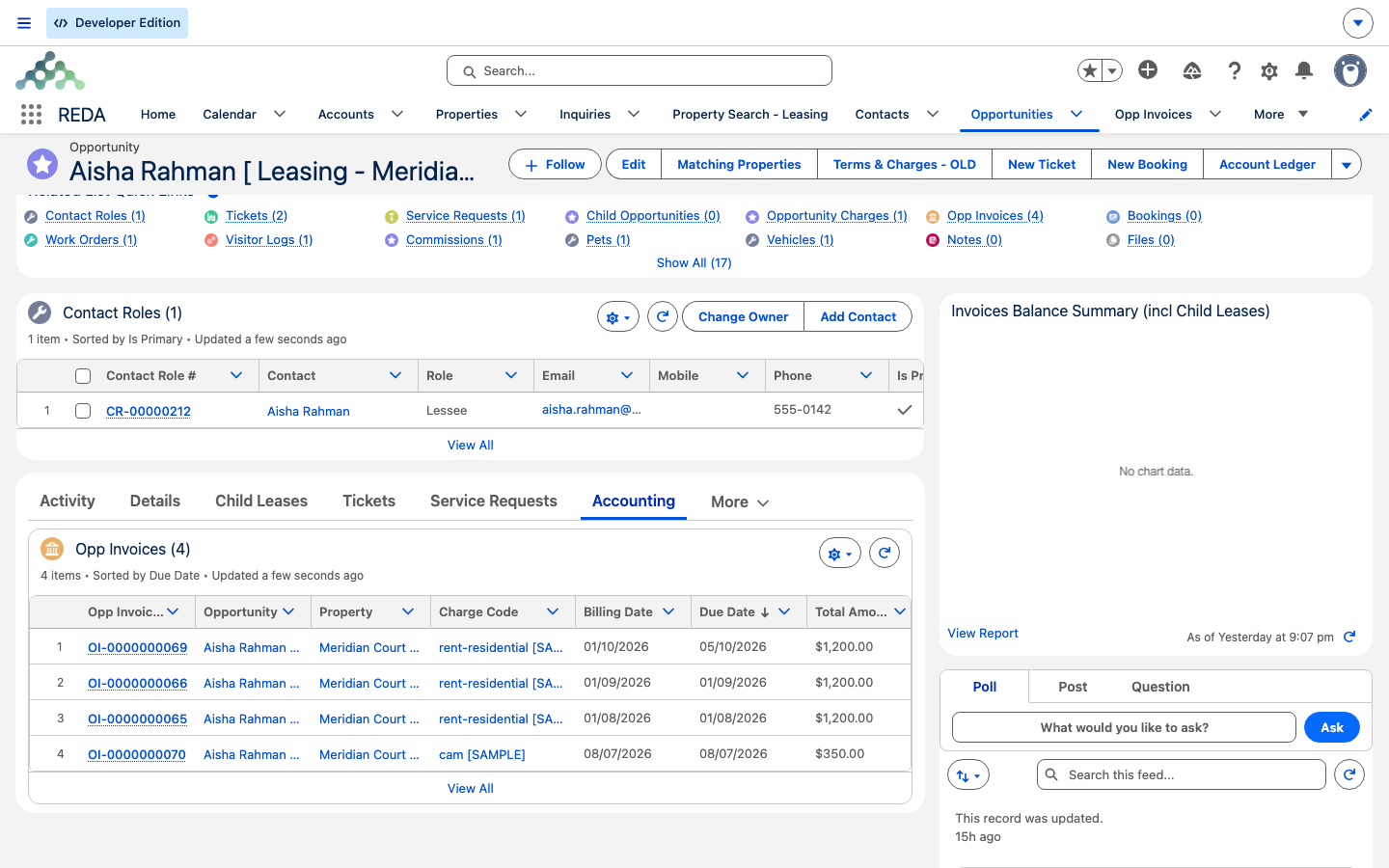
| Lease (a Leasing Opportunity) | Activity · Details · Child Leases · Tickets · Service Requests · Accounting (sub-tabs Active / Inactive: Opp Invoices, Opportunity Charges, Opp Invoice Batches, plus two invoice-balance charts) · Charge Setup · Bookings · Visitor Logs · Commissions · Notes & Files · Audit Trail |
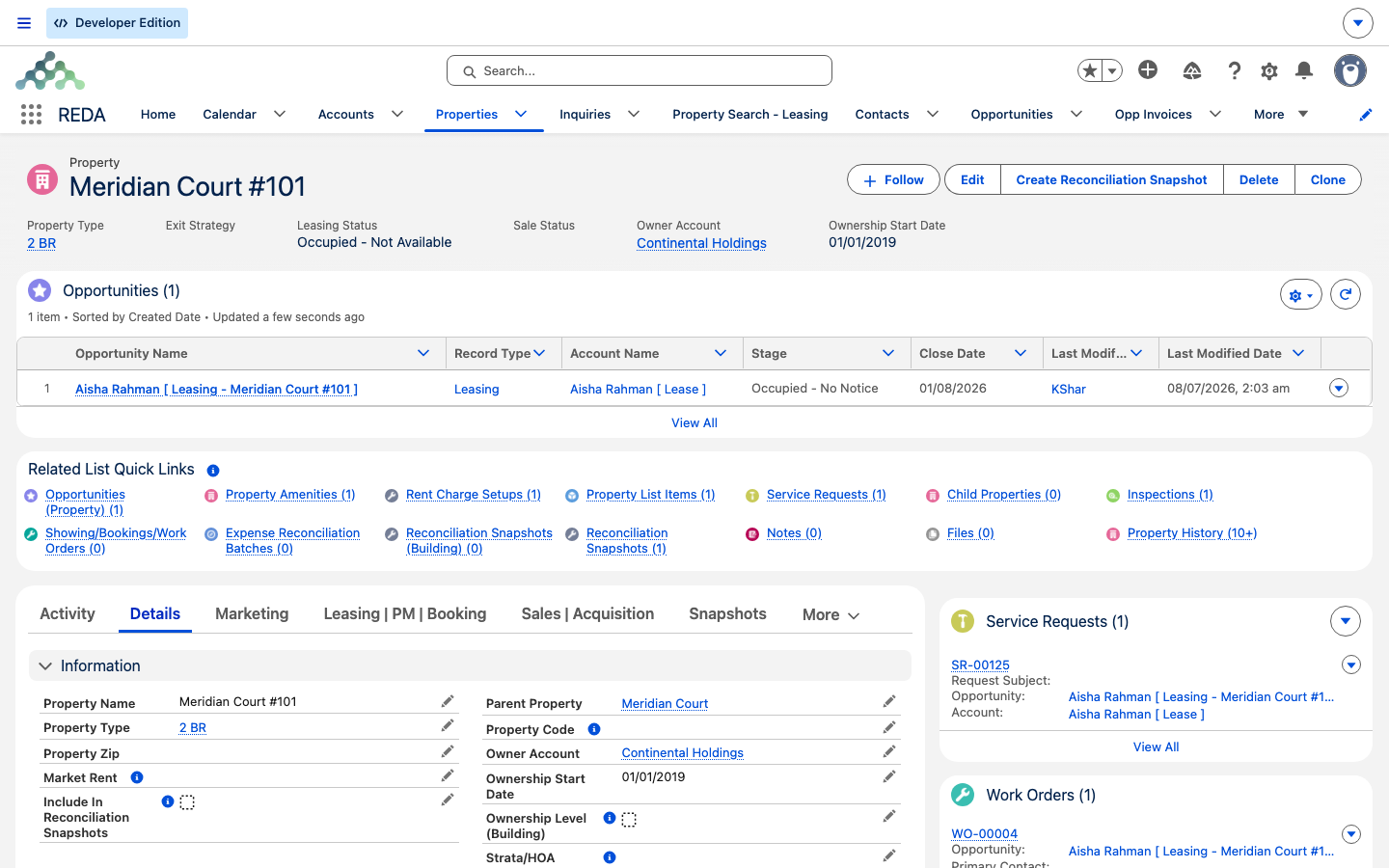
| Property | Activity · Details · Marketing · Leasing | PM | Booking (rent charge setup; Service Requests + Work Orders lists) · Sales | Acquisition (Ownership Trails) · Snapshots · Tickets · Debt Summary · Notes & Files · Audit Trail |
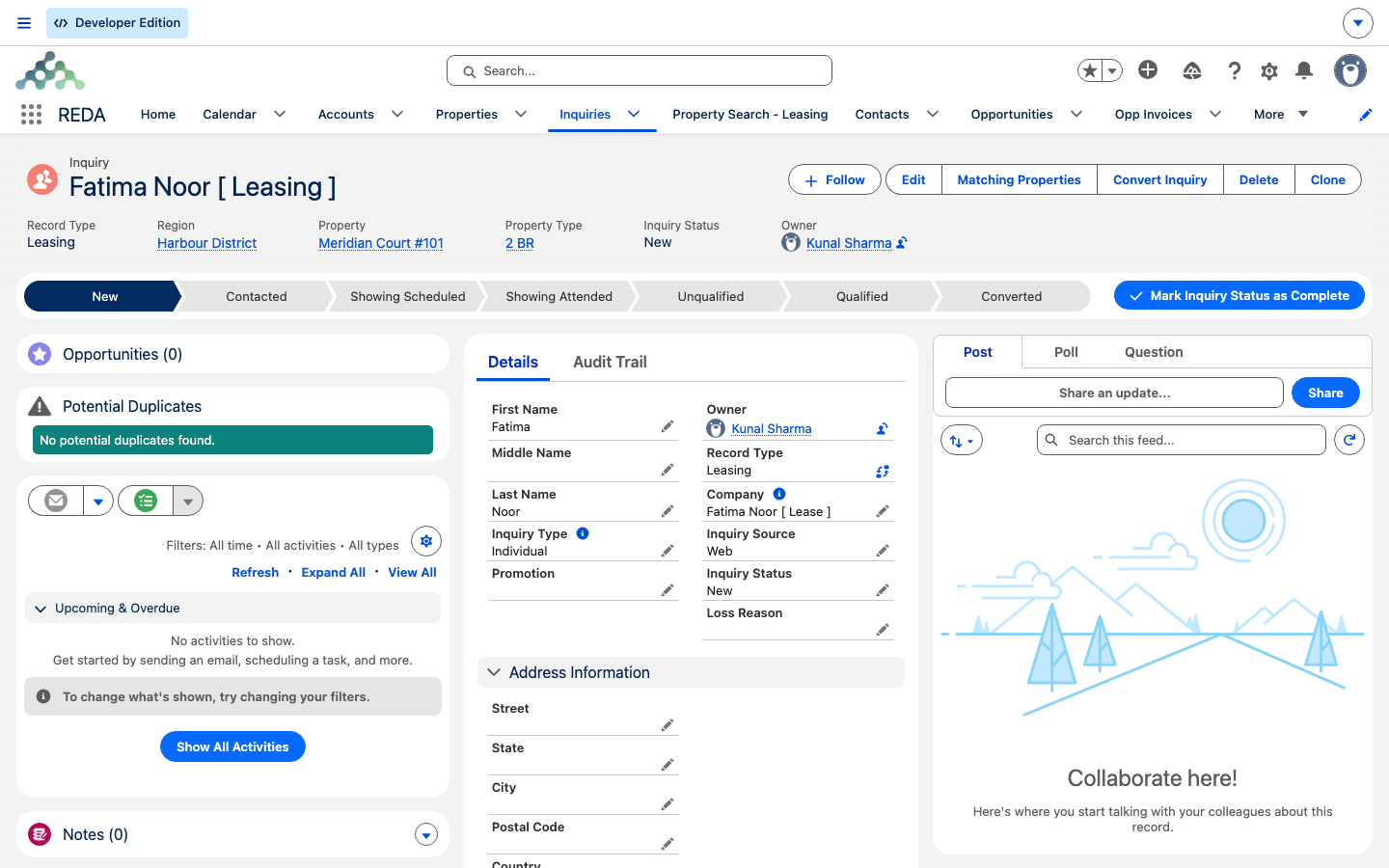
| Inquiry | Details · Audit Trail — plus a Potential Duplicates card and an Opportunities related list |
| Ticket | No custom tabset — highlights, Path, Activity, the record detail, and related lists |
The Details tab, wherever it appears, is simply the record's fields organized into labeled sections — that's the mental model to carry, rather than any single field name.
Related lists
Related lists are the records linked to the one you're viewing. On a lease, that's its child leases, tickets, invoices, charges, bookings, and commissions; on a property, its opportunities, bookings, visitor logs, and ownership trails. In REDA these appear in two ways: sometimes as their own tabs (the lease's Child Leases and Tickets tabs are related lists in tab form), and sometimes inside a region of another tab. Either way, they're your route from a record to everything attached to it.
The activity timeline & Chatter
The Activity tab or panel is where you log and review the calls, tasks, and events tied to a record — the running history of who did what. Alongside it, the Chatter feed is the record's stream of posts and comments, useful for keeping a conversation attached to the record it's about. Both appear on the big REDA pages.
The big four, side by side
Putting the pages next to each other shows how the same four zones adapt to each object. Every one of these has a header with highlights, most have a Path, and each carries the tabs listed above:
| Record | Path (on…) | What's distinctive |
|---|---|---|
| Lease (Leasing Opportunity) | Stage | The Accounting tab, split into Active and Inactive sub-tabs, is where its money lives |
| Property | — | Compound operational tabs: Leasing | PM | Booking and Sales | Acquisition |
| Inquiry | Inquiry Status | The Potential Duplicates card with its Merge Duplicates button |
| Ticket | Status | No tabset at all — a lean page of highlights, Path, and related lists |
REDA on mobile
Reading a record: Aisha's lease
Here's the anatomy in action. A leasing agent at Meridian Properties opens Aisha Rahman's lease and reads it zone by zone. The highlights show her rent and current status; the Path shows the lease's stage. On the Accounting tab's Active sub-tab, her invoices and charges are listed; the Tickets tab shows her open move-in ticket; the Activity tab shows the call the agent logged yesterday.
Then they open Harbour Tower, a property, and use the Leasing | PM | Booking tab to check its rent charge setup, and the Sales | Acquisition tab's Ownership Trails to see who has held it. Same four zones, two very different records — and nothing on either page is a mystery.
Where to go next
- Navigation Basics in the REDA App — finding and opening records in the first place.
- List Views & Kanban — working with lists and boards before you open a record.
- Getting Around: the REDA & REDA Admin Apps — the full tab-by-tab tour.
- Sale Stages — a Path ladder walked in depth.
- Understanding Inquiries — the inquiry page and its duplicate handling.
- REDA on Mobile — the full mobile guide.
Frequently asked questions
That's the Path — it shows the record's stage or status in its lifecycle. To advance it, click a chip and choose Mark as Current Stage. A validation rule may require you to fill a field first.
On the lease's Accounting tab, in the Active sub-tab — alongside its Opportunity Charges and Opp Invoice Batches.
They're the property's operational tabs. The first gathers rent charge setup and service records; the second holds sale and acquisition information, including Ownership Trails. The vertical bars are part of the exact labels.
On the Activity tab or panel. Logging tasks and events needs standard activity access, which your administrator grants separately from the REDA permission sets.
No — REDA runs in the Salesforce mobile app, showing the same page adapted to a smaller screen. See REDA on Mobile for the full walkthrough.
Was this article helpful?