
List Views & Kanban in REDA
You want to see just your leases, or just this building's tickets — and maybe work your pipeline as a board instead of a spreadsheet. Both are built in. Every REDA tab opens on a list view you can switch, filter, sort, and save your own copy of; and the Opportunities and Tickets tabs can flip into a Kanban board where you drag a card to advance it. The list and Kanban mechanics themselves are standard Salesforce, so this article keeps to what's REDA-specific: which tabs you'll use them on, which fields the board groups by, and the important detail that REDA's own rules still apply the moment you drag a card.
Access you'll need. You need read access to a record from your REDA permission sets to see its lists. Creating a view only you can see needs no extra rights; sharing a view with others needs an organization-side permission your administrator grants. Dragging a Kanban card that changes a record's stage or status needs edit access to that record.
What a list view is
A list view is a saved, filtered, sortable table of records on a tab. Every REDA tab opens on one — "Recently Viewed," "All Opportunities," and so on — and you switch between them from the view picker, the dropdown showing the current view's name at the top-left of the list. You can pin a view as your default so the tab always opens on it. Within a view, some columns can be edited inline, right in the list, without opening the record — though the same REDA rules that guard a field on the record page still apply, so an inline edit can be refused with the same message you'd see inside the record.
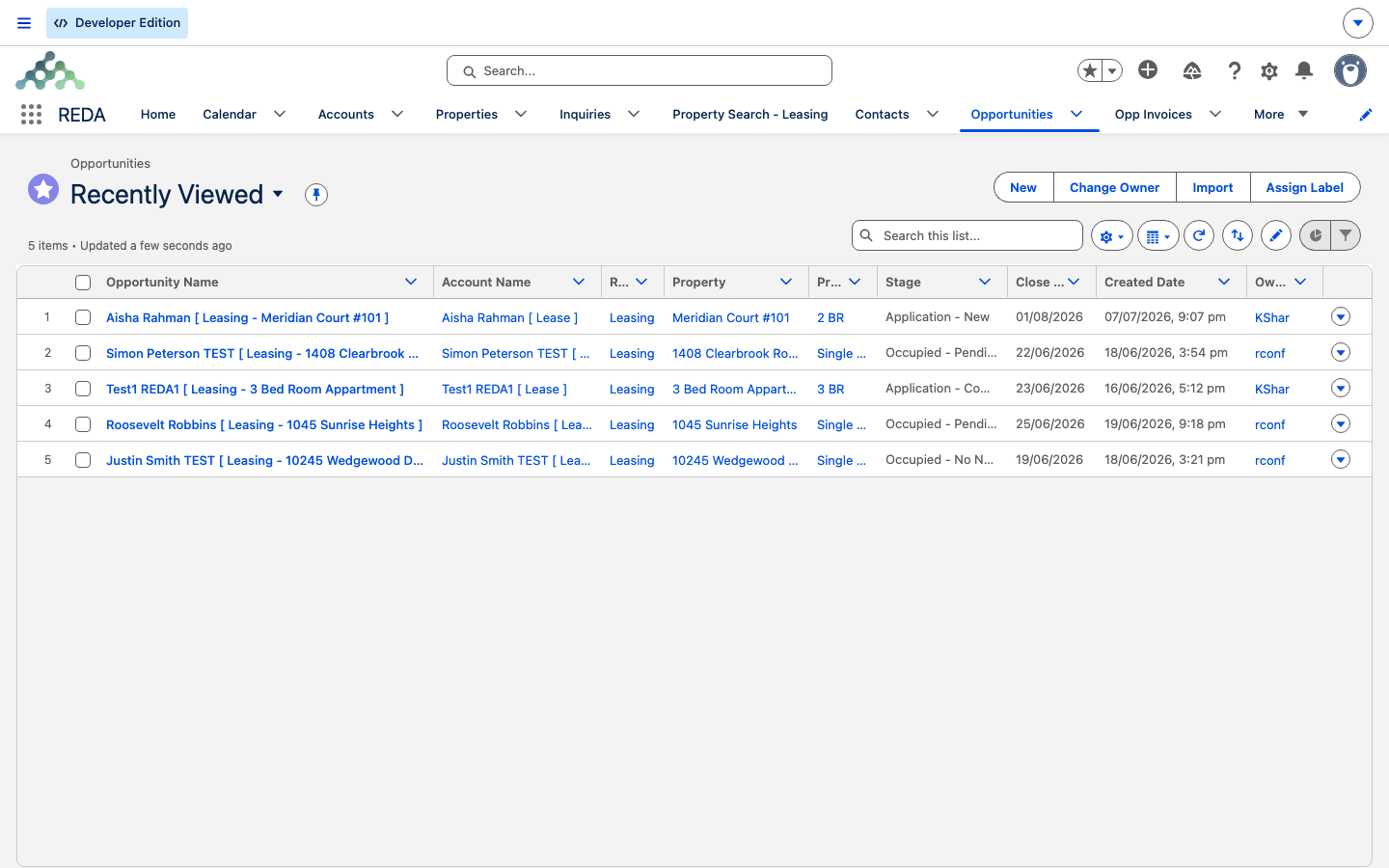
Filter and sort
To narrow a list, add a filter — for example "My Opportunities," or "Stage equals Under Contract," or on Tickets "Status equals Open." Click a column header to sort by it. This is how you turn a tab full of every record into the handful you care about right now.
A few filters earn their keep across REDA. On Opportunities, filtering by record type separates your leasing deals from sales and acquisitions — the same tab holds all of them, so a record-type filter is usually the first thing you set. On Tickets, filtering by status (Open, or a specific stage) keeps a busy queue readable. On Properties, filtering by region or by whether a unit is available for leasing turns the full portfolio into just the units you're working. Because a lease, a sale, and an acquisition all live on the Opportunities tab, list-view filters are the everyday tool that keeps each team looking at only its own pipeline.
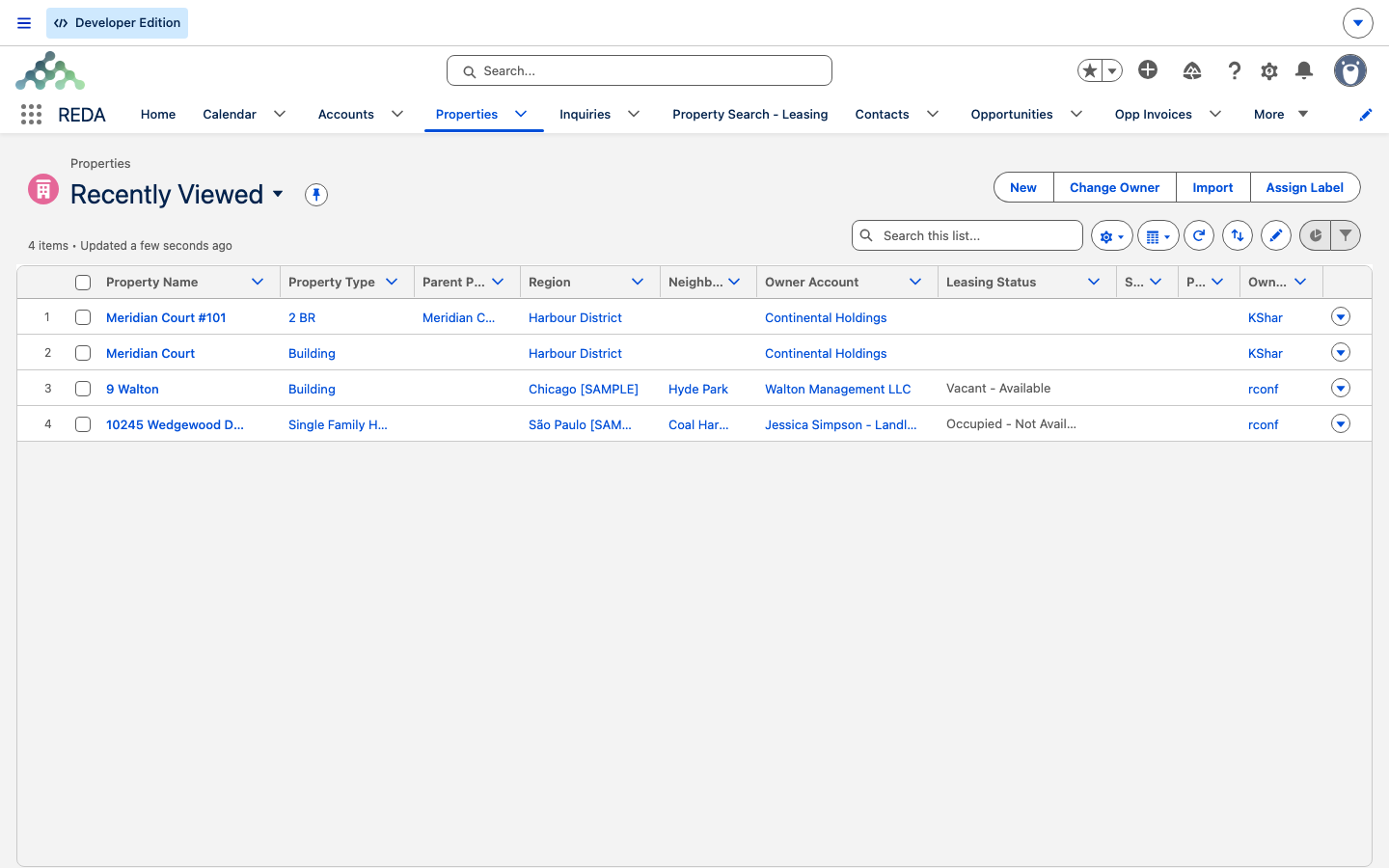
Create your own list view
Building a view of your own takes a few steps:
The REDA tabs people most often build views on are the operational ones: Opportunities (leases and deals), Tickets, Inquiries, Properties, Opp Invoices, Work Orders, and Bookings.
Kanban: work a board
On any list view, the Display As toggle at the top-right switches between Table and Kanban. Kanban lays the records out as columns grouped by a status-style field, so you can see your whole pipeline at a glance and drag records forward. Because a board needs a stage-style field to build its columns from, Kanban is at its best on records that carry one — in REDA that means the two tabs whose records ride a lifecycle Path:
| Tab | Group by | The columns are… |
|---|---|---|
| Opportunities | Stage | The deal's stage ladder — and each Opportunity type has its own ladder and its own Path (for a Property Sale, for example: Property Selection, Binder, Contract Out, Under Contract, Funded, Clear to Close, Closed Won / Closed Lost) |
| Tickets | Status | The ticket's status path — REDA has a status path for each kind of ticket (Move In, Move Out, Renewal, Lease Agreement, and more) |
Dragging a card moves the record's stage or status — and here's the REDA-specific part that matters most:
Kanban is for working a pipeline or board live. When you want to analyze or export the same data instead, use a report — see Building Reports.
Worked example: Meridian's sales board
Meridian's sales manager opens Opportunities and switches to a "Meridian Sales - Open" list view filtered to Property Sale deals that aren't closed. Then they flip Display As to Kanban, grouped by Stage, and every live sale lines up as a column. They drag David Okafor's Harbour Villa deal from Under Contract to Funded; because the sale price and under-contract date are already filled in, the drag succeeds. On a second deal that's missing its price, the card snaps back with "You must provide the value of Sale / Purchase Price prior updating the stage." — so they open that record, enter the price, and drag it across cleanly.
Where to go next
- Navigation Basics in the REDA App — finding your way to the right tab.
- Anatomy of a REDA Record Page — the Path on the record itself.
- Property Sale Stages — the sale ladder and the validation rules behind it.
- Understanding Tickets — the ticket statuses your Kanban groups by.
- Building Reports — analyzing the same data instead of working it.
Frequently asked questions
Switch to a filtered list view — like "My Opportunities" — or create one with a filter such as Status equals Open on Tickets. The view picker at the top-left of the list is where you switch.
On the Opportunities or Tickets tab, use Display As → Kanban. Deals group into columns by Stage, tickets by Status. Drag a card between columns to advance it.
A REDA validation rule blocked the change — the same rule that applies when you edit the record by hand. The message names the field that's needed; open the record, fill it in, and drag again. A common one on sales is "You must provide the value of Sale / Purchase Price prior updating the stage."
Yes — when you create the view, set its visibility to everyone or to specific groups. Sharing a view with others uses an organization-side permission your administrator grants; a view only you can see needs no extra rights.
Use a list view (and Kanban) to work records live. Use a report to analyze, summarize, or export the same data. They complement each other.
Was this article helpful?