
Installing REDA
This article takes you from an install link to a working REDA org. Installing REDA is a two-part job: you install the package itself — a standard Salesforce operation — and then you complete a short, REDA-specific post-install checklist that turns a freshly installed package into something your team can actually use. That checklist is the part people miss, so we spend most of our time there: confirm the apps, assign permission sets, grant the standard-object access REDA deliberately leaves to you, activate the record pages, and schedule the background jobs. No prior REDA experience is assumed. This covers installing REDA the package; standing up the full multi-package suite (Financials, messaging, portal, website) is a separate, partner-only sequence that we point to rather than repeat.
Access you'll need. Installing a package requires a Salesforce System Administrator with install rights on the target org. Assigning permission sets and activating record pages afterward are also administrator tasks. Your end users get their access through REDA permission sets once install is done — see Permission Sets & Personas and What Access Do I Need?.
Before you install
Three things to settle before you click anything:
Choose your edition
REDA comes in two editions that install as separate packages. Both deliver the same two apps, and most permission-set labels read the same — but not all of them, and six sets exist in only one edition (see REDA editions before you write any assignment script). The real difference is which base objects REDA works from:
| Edition | Works from | Choose it when |
|---|---|---|
| Platform edition | REDA's own Inquiry, Service Request, and Promotion records | You want REDA to be self-contained on the Salesforce Platform |
| Sales Cloud edition | The standard Lead, Case, and Campaign records | You standardize on Salesforce Sales/Service Cloud objects |
An easy way to tell which edition an org is running after install: if the REDA app shows an Inquiries tab, it's the Platform edition; if it works off the standard Leads tab, it's the Sales Cloud edition. For the full object-by-object mapping and how the difference plays out across REDA, see REDA Editions: Platform vs Sales Cloud — this article uses the Platform edition's names (Inquiries and so on) in its examples.
Install the package
Installing a managed package is a standard Salesforce flow, so we keep this thin:
After install: make REDA usable
A freshly installed package isn't yet usable by your team — this checklist is what turns it on. Work it in order:
Verify the install
Three quick smoke checks confirm the package landed and a permissioned user can work:
Installing the full suite (partners)
If the customer is deploying the whole REDA suite — REDA plus Financials, messaging, the website, and the resident portal — installation is a longer, ordered sequence of packages with glue configuration and master-data seeding, plus a different (profile-first) way of granting access. That is a partner-only procedure. Don't reproduce it here; follow The Full-Suite Implementation Sequence instead.
Worked example: Meridian Properties
Meridian Properties is standing up REDA for the first time. Their implementer installs the Platform edition into Meridian's sandbox from the install link, choosing Install for Admins Only. Then, working the post-install checklist:
| Step | What the implementer does at Meridian |
|---|---|
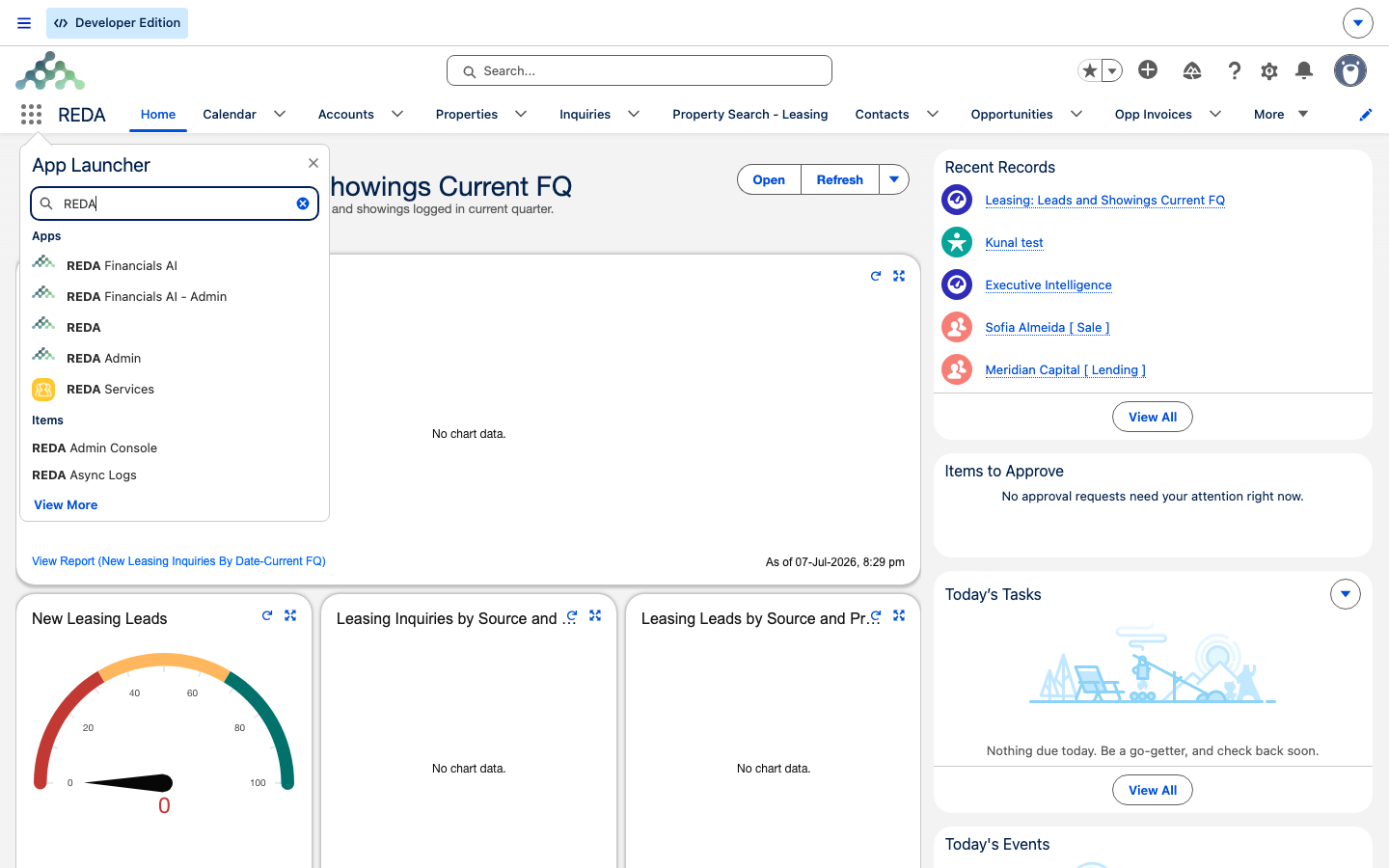
| Confirm the apps | Opens the App Launcher — REDA and REDA Admin are both there |
| Assign permission sets | REDA - Property Leasing User to the leasing team; REDA - Master Data - Admin to the REDA administrator |
| Grant standard-object access | Grants the team Account, Contact, and Report access through Meridian's profile |
| Activate record pages | Activates REDA's property, lease, inquiry, and ticket pages as org defaults |
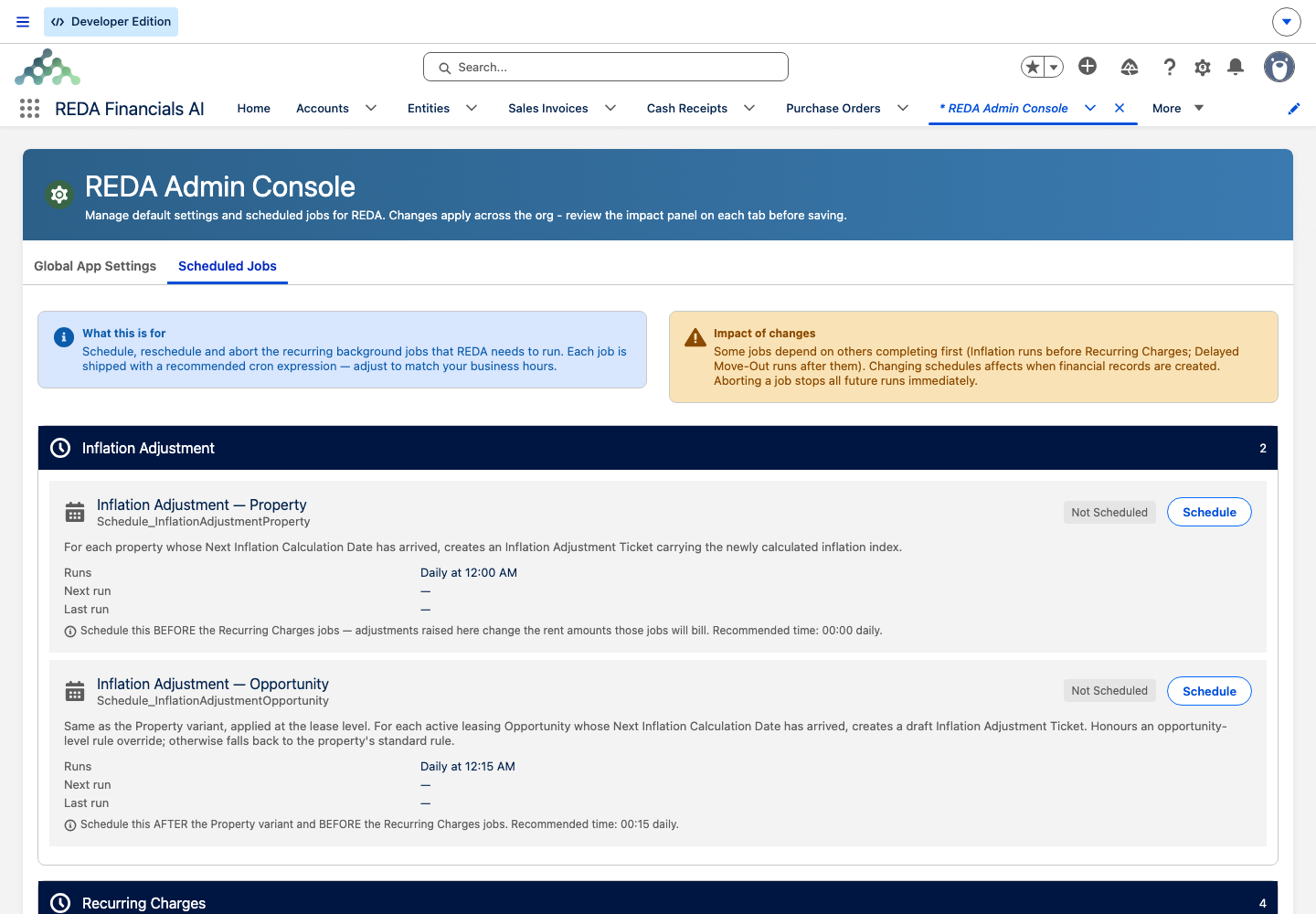
| Schedule the jobs | Opens REDA Admin Console → Scheduled Jobs and schedules the billing jobs |
A Meridian leasing agent logs into the sandbox and can open Inquiries and Opportunities. After the team completes user-acceptance testing, the implementer repeats the install and checklist in production and lets users in.
Where to go next
- REDA Editions: Platform vs Sales Cloud — which edition to install, with the full object mapping.
- Testing REDA in a Sandbox — install and validate before production.
- Permission Sets & Personas — the sets you assign after install.
- What Access Do I Need? — match each task to the set that grants it.
- Implementation Roadmap — the order to set up your master data next.
- Go-Live Checklist — schedule the jobs and pass the final pre-launch gate.
- The Full-Suite Implementation Sequence — partners deploying the whole REDA suite.
Frequently asked questions
Install the Platform edition if you want REDA to use its own Inquiry, Service Request, and Promotion records; install the Sales Cloud edition if you standardize on the Salesforce Lead, Case, and Campaign objects. See REDA Editions: Platform vs Sales Cloud for the full comparison.
Accounts, Contacts, and Reports are standard Salesforce objects, and REDA permission sets don't grant them. Grant that access the usual way — through your users' profiles or other permission sets — separately from the REDA sets.
REDA doesn't schedule its own recurring jobs. Almost nothing runs on a timer until an administrator schedules the background jobs in REDA Admin Console → Scheduled Jobs. Work through the Go-Live Checklist.
Exactly two from the REDA package: REDA and REDA Admin. Any other REDA-branded apps in the org (Financials, Connect, and so on) come from other packages, not from this install.
You can, but install into a sandbox and validate the whole post-install checklist first. See Testing REDA in a Sandbox.
Was this article helpful?