
Working Buyer Leads
Every property sale in REDA starts with a prospective buyer, and the record you use to capture, qualify, and track that buyer is the Inquiry. This article walks the whole path — from logging a fresh buyer inquiry, through the qualification funnel, to the single click that turns it into a working sale deal with an account, a contact, and a buyer role already in place. No prior REDA experience is assumed; every term and status is defined as we reach it.
Access you'll need. Creating and editing inquiries requires the REDA - Property Sales User permission set (it's also granted by the other operational sets). Converting an inquiry additionally needs the ability to create sale deals. You'll also need access to Accounts and Contacts, which your administrator grants separately — that access isn't part of the REDA permission sets.
What a buyer lead is
A buyer lead is an Inquiry — REDA's lead record — of the Property Sale type. Its shipped description says it plainly: "A prospective buyer for available properties." The Inquiry is where an interested buyer lives before they become a deal: you record who they are, which listing caught their eye, and how they're progressing, all without committing them to a sale.
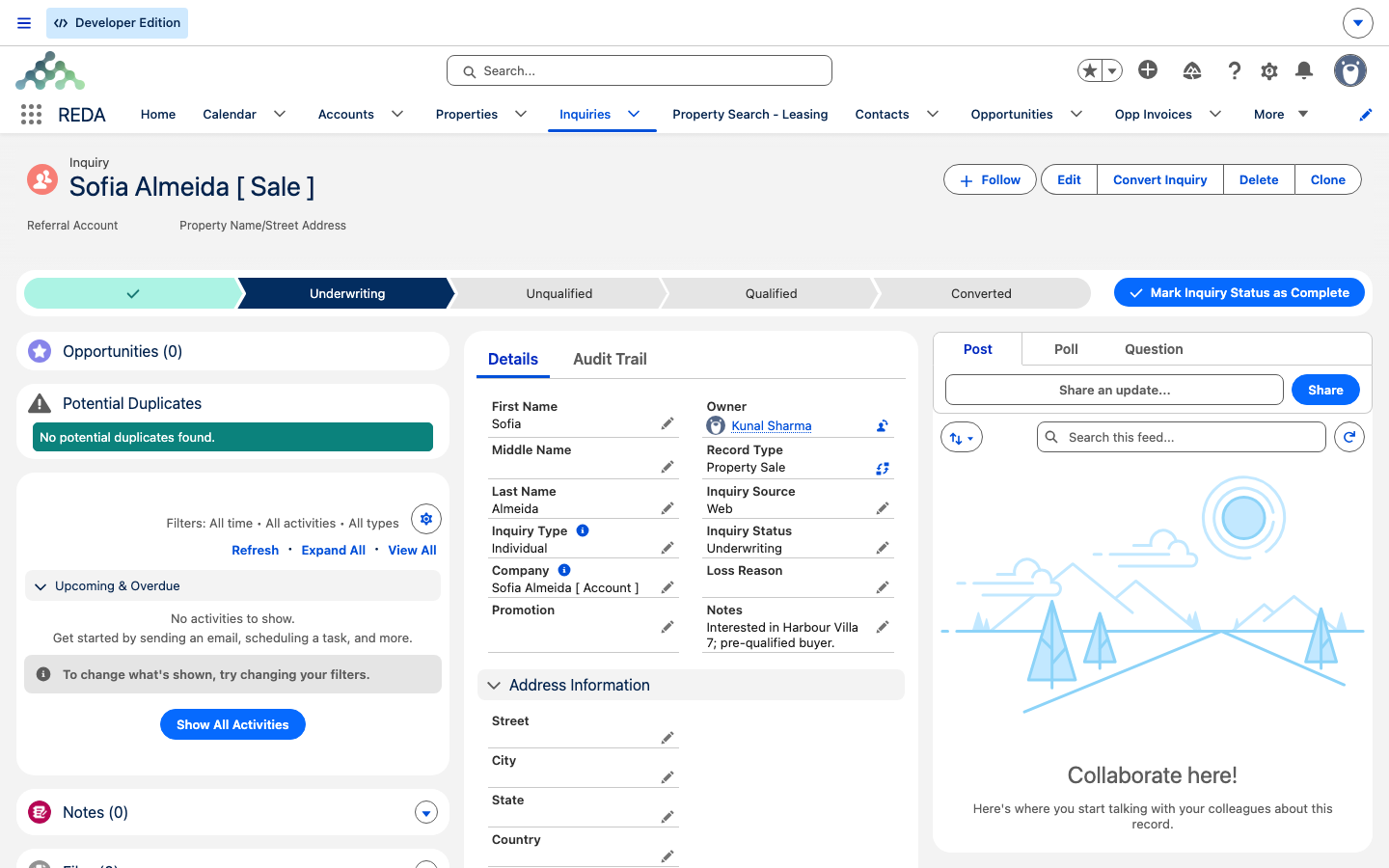
REDA keeps the inquiry's name tidy for you. However you enter the buyer, the record's name auto-formats to read First Last [ Sale ] — the [ Sale ] suffix marks it as a Property Sale inquiry at a glance in list views and search.
Capturing the inquiry
Whether a buyer calls in or arrives through your website, the essentials are the same. Work through these on the new inquiry:
Commercial fields on the inquiry deserve one note. A Referral Account and Referral Fee you enter here do carry over when you convert. A Commission Account and Commission Amount, though, are captured on the inquiry but do not transfer to the deal — re-enter those on the sale deal after converting (see Sale Commissions).
Qualifying the lead
A Property Sale inquiry moves through a short status funnel, shown as a Path across the top of the record. You set each step by hand — nothing advances it for you:
| Status | What it means | Set by |
|---|---|---|
| New (default) | A fresh lead, not yet worked | REDA, on create |
| Underwriting | The buyer's financing and fit are under review | You |
| Qualified | Ready to convert into a deal | You |
| Unqualified | A dead lead (record the reason) | You |
| Converted | A sale deal has been created | REDA only — via the Convert action |
Two fields sit alongside the funnel. When you mark a lead Unqualified, record why in Loss Reason so the dead lead is auditable. And while a lead is in Underwriting, the Underwrite Complete flag and Underwrite Date let you note that the financing review is finished — neither is required to move the status, but both keep the qualification trail clear.
Note there's no "Contacted" step on the sale funnel — a buyer inquiry goes straight from New into underwriting and qualification. You also can't hand-set the status to Converted; that's reserved for the Convert action. Try it and REDA responds:
While you qualify, two tools on the record page help. The Matching Properties action surfaces other listings that fit the inquiry, so you can offer alternatives to the property they first asked about. And a Potential Duplicates card flags inquiries that may be the same buyer, with a Merge Duplicates option to tidy them up.
Converting to a sale deal
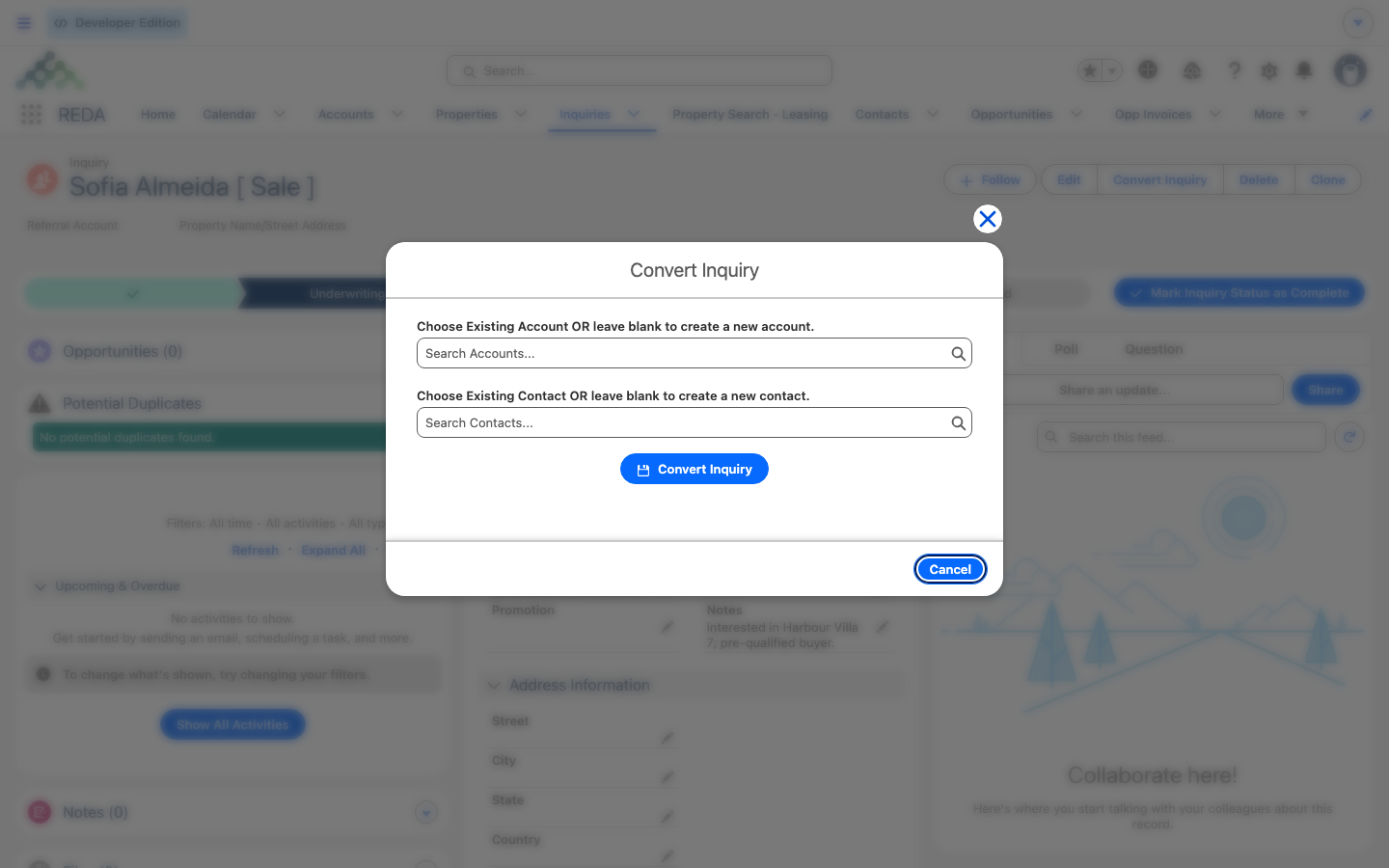
When the buyer is qualified, the Convert Inquiry action turns the lead into a live sale in one click. Conversion is all-or-nothing — if any part fails, the whole thing rolls back, so you never end up with a half-created deal. A successful convert creates four linked records at once:
| Record | What it holds |
|---|---|
| Account | The buyer's account — named from the inquiry, or the existing account you picked |
| Contact | The buyer's name, email, phone, and mailing address |
| Sale deal (an Opportunity, Property Sale type) | Opens at stage Property Selection, carrying the property interest, source, and referral details |
| Contact Role | Links the contact to the deal, marked Primary, with role Buyer |
When you open the action, the dialog gives you two optional choices — you can reuse existing records or let REDA create fresh ones:
"Choose Existing Contact OR leave blank to create a new contact."
Leave both blank for a brand-new buyer; pick an existing account or contact to attach the deal to a customer you already have. Duplicate matching is manual — REDA won't merge for you, so choose the right existing records yourself. Then click Convert Inquiry. On success you'll see:
Not everything on the inquiry copies to the deal. Here's what carries and what stays behind:
| Carries to the deal | Does NOT carry |
|---|---|
| Property, Property Type, Region, Neighbourhood | Buyer name, email, phone (these live on the Contact) |
| Inquiry Source | Web & campaign attribution fields (they stay on the inquiry) |
| Referral Account, Referral Fee | Commission Account, Commission Amount (re-enter on the deal) |
After conversion
Once you convert, REDA sets the inquiry's status to Converted and locks it against a second conversion. The new sale deal opens at stage Property Selection — the starting line of the sale — with the buyer already attached as the primary Buyer contact role. From here you continue in Selling a Property.
If you reopen the Convert action on an inquiry that's already converted — or try it without the right access — REDA tells you:
Worked example: David Okafor inquires on Harbour Villa 7
A web inquiry arrives for Harbour Villa 7, one of Meridian Properties' listings on the market at 1,000,000.00. The buyer is David Okafor, an Individual, source Web — REDA captures the campaign attribution automatically. The record shows in list views as David Okafor [ Sale ].
| You do | REDA does |
|---|---|
| Review David's financing, set status to Underwriting, then Qualified | Advances the Path; keeps the name formatted as David Okafor [ Sale ] |
| Run Matching Properties | Confirms Harbour Villa 7 plus one alternative listing |
| Open Convert Inquiry, leave both pickers blank, click Convert Inquiry | Creates David's Account and Contact, a sale deal at Property Selection, and David's Buyer contact role (marked Primary) |
| Land on the new deal | Sets the inquiry to Converted and locks it |
Reference: the sale inquiry funnel
The Property Sale inquiry statuses, in order, and who moves each:
| Status | Meaning | Set by |
|---|---|---|
| New (default) | Fresh lead, untouched | REDA on create |
| Underwriting | Financing and fit under review | You |
| Qualified | Ready to convert | You |
| Unqualified | Dead lead — record the reason | You |
| Converted | Deal created | REDA only — the Convert action; hand-setting is blocked |
Where to go next
- Selling a Property — run the sale deal you just created through its stages.
- Buyers & Co-Buyers on a Sale — add co-buyers and set the primary contact.
- Marking a Property Available for Sale — list a property so it appears in the inquiry's picker.
- Converting Inquiries — the general mechanics of inquiry conversion.
- Web & Campaign Attribution — how web inquiries capture their source automatically.
Frequently asked questions
The status only moves to Converted through the Convert action, not by hand. REDA shows: "Please convert inquiry prior updating status to "Converted"." Qualify the inquiry, then run Convert Inquiry.
The action hides once an inquiry is converted, and it also blocks if you lack the access to create a deal: "Bad Request. Either the inquiry is already converted OR you do not have sufficient privileges to convert an inquiry. Please contact your system administrator."
When the Inquiry Type is Company, REDA needs a real company name: "Please provide valid Company Name". Fill in the company, or change the Inquiry Type.
The Commission Account and Commission Amount on an inquiry don't transfer on conversion — re-enter them on the sale deal. The Referral Account and Referral Fee, by contrast, do carry over.
Yes — pick the existing account (and contact) in the Convert dialog. Leave the pickers blank and REDA creates new records. Duplicate matching is manual, so choose the right ones yourself.
The picker only offers properties that are Available For Sale, in the matching region, and of the matching property type. Confirm the property's Sale Status is Inventory - Available and that its region and property type line up with the inquiry — see Marking a Property Available for Sale.
Was this article helpful?