
REDA Async Logs
REDA's background engines — the nightly billing runs, expense reconciliation, snapshots, and the web forms that feed leads in from your website — do their work while nobody is watching. The REDA Async Log is their flight recorder. Every run that hits trouble leaves a record here, and when something fails, the failure comes to you as an email rather than hiding until a tenant calls. This article shows you how to read a log end to end, pull the error file attached to it, triage a list of them, understand who gets notified and when, and close a problem out cleanly. No prior REDA experience is assumed.
Access you'll need. Viewing logs comes with REDA - Master Data - Read Only, REDA - Expense Reconciliation Admin, or REDA - Inflation Adjustment User (the tab is also granted by REDA - Property Leasing User). System administrators use REDA - Master Data - Admin. Nobody creates a log by hand — REDA writes them as its jobs run.
What writes a log
A log is created automatically by a REDA background process. You don't schedule logs or turn them on; they appear on their own whenever one of REDA's engines runs and has something to report. The processes that write logs include:
- Expense reconciliation — when a calculation run hits a record it can't reconcile, it writes a log and links it back to the batch (a fully clean run finishes without one).
- Reconciliation snapshots — the snapshot run logs partial failures, such as a property missing its market-rent setup.
- Inbound web forms — each website submission that fails to become a lead inserts its own log holding the full submission and the reason it failed, so a "lost" web lead is never silently dropped.
- The nightly billing batches — recurring charges, late fees, month-to-month fees, inflation adjustments, and the rest raise the failure notification when a run hits record-level trouble.
- The retired-automation detector — if your org is still wired to a legacy process REDA has since retired, a log records the hit so your administrator can unwire it.
- The inbound email router — the email suite logs its own handled errors and setup warnings here, so a misrouted or unparseable inbound email surfaces in the same queue. These arrive with Batch Class
REDA_EmailInboundHandlerand, unusually, Process Type Future.
Anatomy of a log record
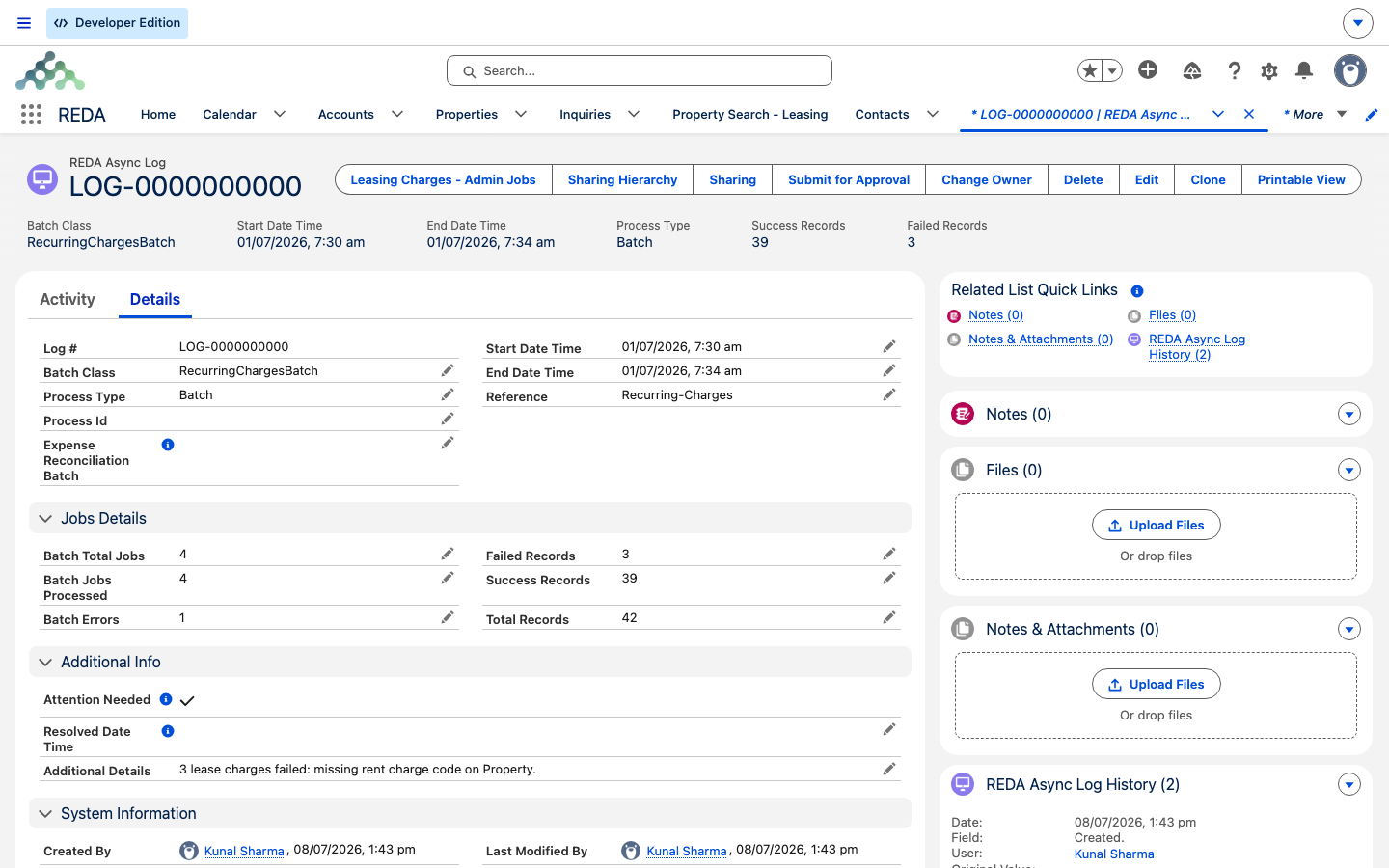
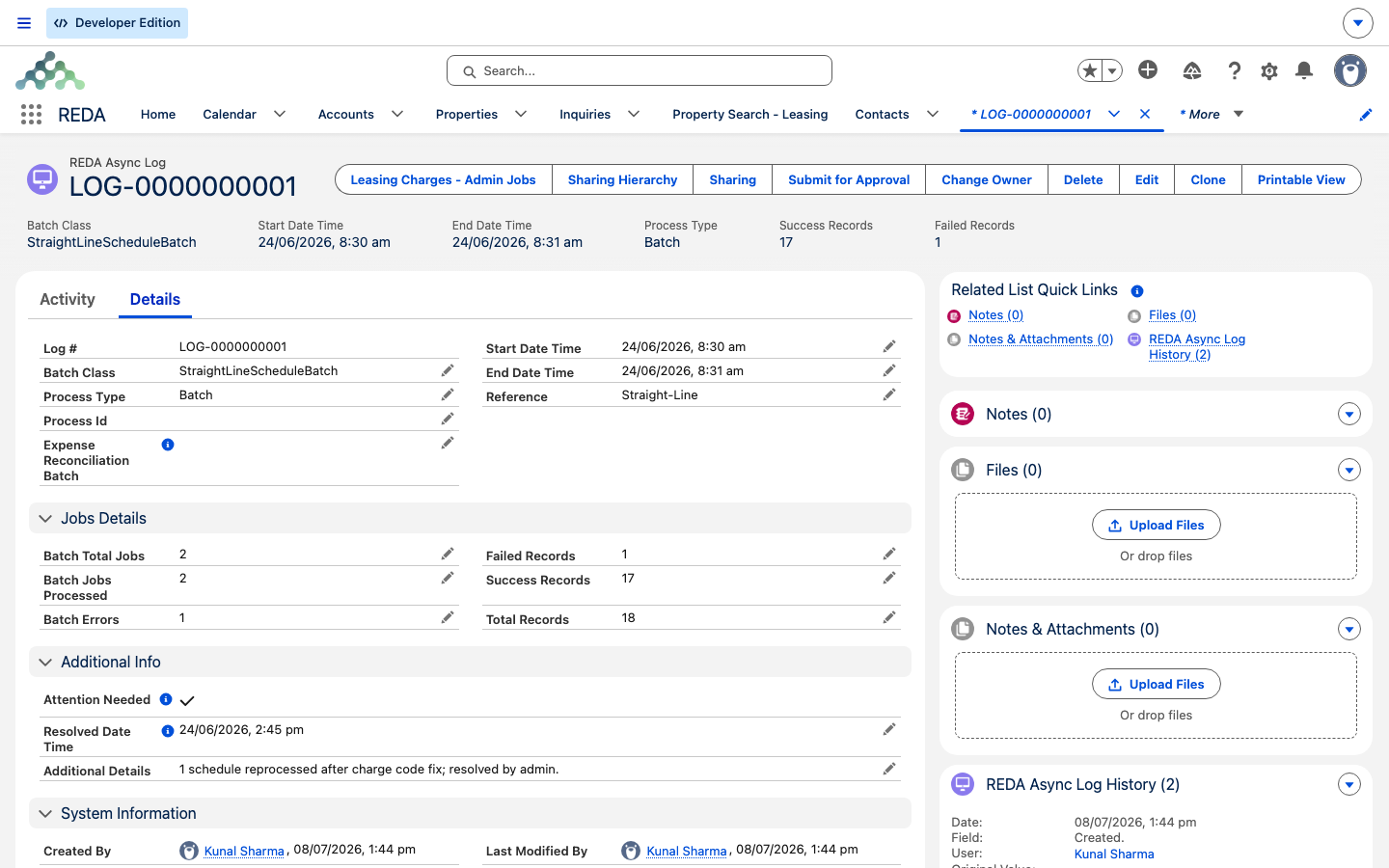
Open a log and you're looking at the story of one run: which process ran it, when, how many records it touched, and how many succeeded. Here is every field on the record and what it tells you.
| Field | What it tells you |
|---|---|
| Batch Class | Which REDA process wrote the log. In prose we translate this to a friendly name — "the nightly recurring-charge run", for example. |
| Process Type | How the run was carried out — Batch or Future. It's almost always Batch. |
| Process Id | The platform's own identifier for the run. Your administrator can look this up in Salesforce Setup if a deeper investigation is ever needed. |
| Start Date Time / End Date Time | The run window. The two together are the duration — there's no separate duration field. |
| Total / Success / Failed Records | The health headline: how many records the run tried, how many went through, and how many didn't. |
| Batch Total Jobs / Batch Jobs Processed / Batch Errors | Chunk-level statistics from the platform. A big run is processed in chunks, and these count them; Batch Errors above zero means the platform itself stumbled, even when no individual record failed. |
| Attention Needed | A calculated flag, on whenever Batch Errors or Failed Records is above zero. It is the triage flag — see below. |
| Additional Details | Up to 10,000 characters of detail: the error text, and for a failed web form the full submission that came in. |
| Reference | A free reference string the writing process sets for its own context. |
| Resolved Date Time | The one field meant for a human. Stamp it when you've handled the problem — it's your sign-off. |
| Notify Current User | Whether the person who launched the run was emailed too. The launching process sets this, not you. |
| Deprecated Automation Sobject | On a retired-automation log, names the record affected. Rare, and a signal to unwire a legacy process. |
| Expense Reconciliation Batch / Inflation Rule | On those processes' logs, a link straight back to the driver record so you can open it and rerun. |
The error file
The counts tell you how many records failed; the attached file tells you which ones. When a run has failures, REDA attaches a CSV file to the log — named after the log itself — with one row per failed record and, on each row, the message, the line, and a reference to where it broke. A clean run has its counts but no file, so the presence of an attachment is itself a signal.
To see the detail, open the log and go to its Attachments, then open the file named after the log. That's where "Failed Records: 1" becomes "unit #101 is missing its allocation percentage."
Triaging with the list view
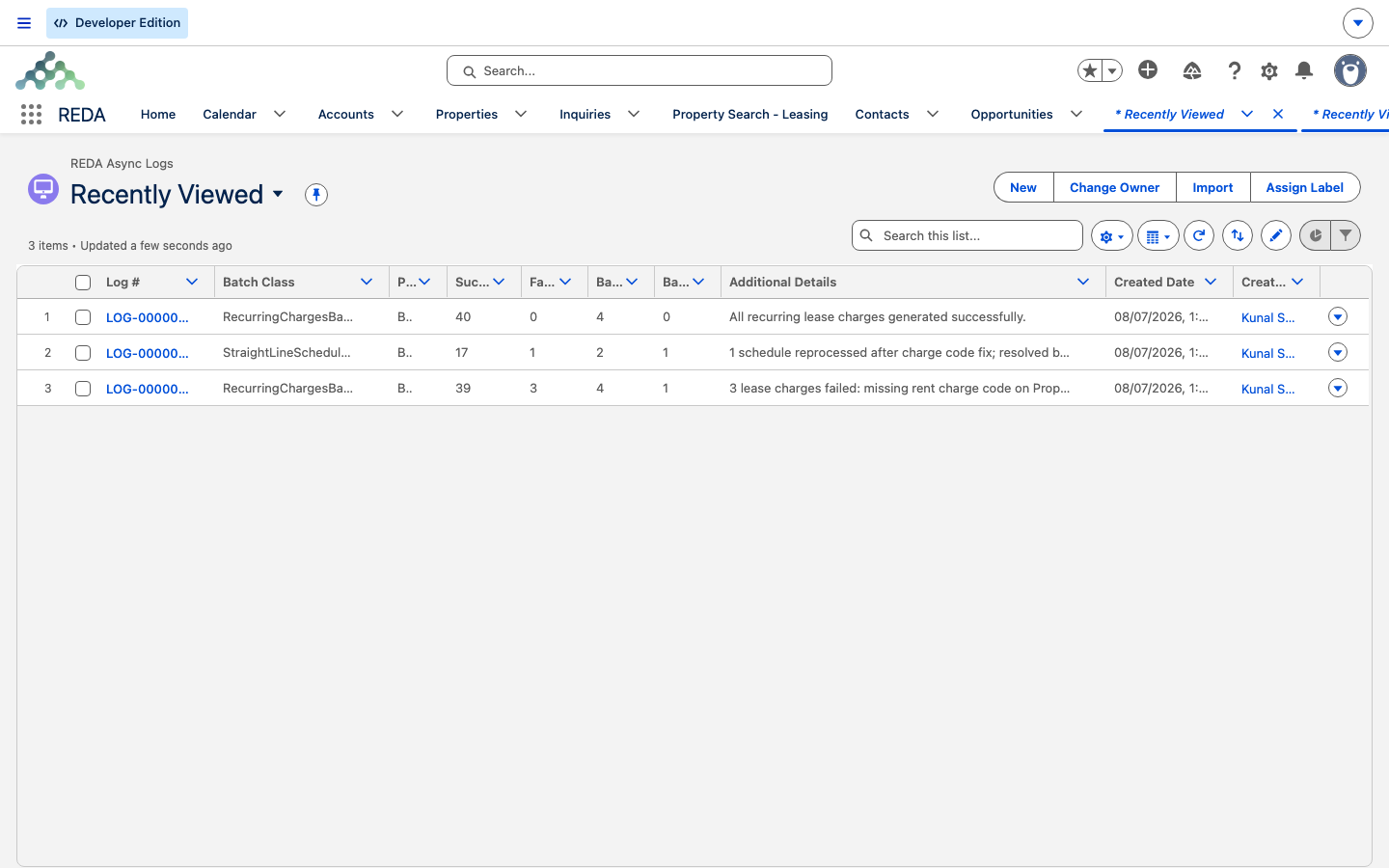
The list view is your daily dashboard. The Attention Needed flag is designed exactly for this — build a list view that filters on Attention Needed equal to true and Resolved Date Time empty, and you have a live "unresolved problems" queue. A healthy org keeps that view empty; anything sitting in it is waiting on you.
The two fields work together: Attention Needed surfaces the run that went wrong, and Resolved Date Time is how you take it off the queue once it's handled. Nothing else needs to be tracked — those two columns carry the whole workflow.
Who gets notified
REDA doesn't wait for you to check the tab. There are two separate notification channels, and it's worth knowing they're different:
- The admin email. Whenever a new log is created with error information, REDA emails a link straight to that log — but only to users whose Receive Async Error Notification checkbox is ticked on their User record. It is an opt-in, not a blanket send to administrators: if nobody is getting these alerts, that box is the switch, and if an inbox lights up at 1 AM it is because that user asked for it. If the launching process asked for it, the user who kicked off the run gets an extra copy.
- The reconciliation notification. When an expense-reconciliation calculation finishes, REDA additionally sends a bell notification — on desktop and mobile — to the person who ran it, pointed at the batch record. That one is specific to reconciliation and fires whether the run succeeded or failed.
Don't conflate the two. The admin email is your failure alarm across every engine; the reconciliation bell is a completion ping for one process's runner.
Resolving a problem
The resolution workflow is the same shape every time: read, find the cause, fix it, rerun, and sign off.
Which process wrote which log
When a log lands, the first question is "what ran this?". This map connects the common log sources to what they usually failed on.
| Log source | When it logs | Typical cause of a flag |
|---|---|---|
| Expense reconciliation calculation | When a run finishes with at least one record it couldn't reconcile | A missing allocation percentage, or bad scope data |
| Reconciliation snapshot run | When the run hits a partial failure | A flagged property with no market rent or rent setup |
| Web form intake | Only on a failed submission — one log each | A bad value in the submission, or a mapping mismatch |
| Nightly billing batches | When a run hits record-level trouble | A validation failure during invoice creation |
| Retired-automation detector | When a retired legacy process is invoked | Your org is still wired to a process REDA has retired |
Worked example: a reconciliation that missed one unit
Meridian Properties runs an expense reconciliation across 12 units in one building. One unit's allocation percentage was never set, so the run finishes as "Completed with Error." The next morning, everyone who opted in has an email with a link to the log.
| What you see | What it means |
|---|---|
| Total 12 / Success 11 / Failed 1 | Eleven units reconciled; one didn't |
| Attention Needed = true | The run had a failure — it's on the triage queue |
| Attachment: the error file | Opening it names the failing unit and says the allocation percentage is missing |
| Expense Reconciliation Batch link | Jumps straight to the run that produced this |
The admin sets the missing allocation percentage on the unit, opens the linked batch, and recalculates. The rerun writes a fresh, clean log (Total 12 / Success 12 / Failed 0). Back on the original log, they stamp Resolved Date Time — and the triage queue is empty again.
Where to go next
- Scheduling Background Jobs — the jobs whose runs you're monitoring here.
- Running an Expense Reconciliation — the process behind the most common log.
- The Inbound Data Service — where failed web-form submissions come from.
- Inflation Adjustments — its Processing Error path is the inflation-specific twin of this workflow.
- The REDA Admin Console — the control tower this tab sits beside.
Frequently asked questions
A new log with error information was created. REDA emails a link to every user who has ticked Receive Async Error Notification whenever a background process logs a failure, so someone can act on it quickly. Open the linked log and its error file to see what went wrong.
Open the log's Attachments. The row-level detail lives in the file named after the log — one row per failed record, with the message and where it broke.
No — logs are written by REDA's background processes. The only field meant for you is Resolved Date Time, which you stamp to sign off that a problem has been handled.
Each failed inbound submission inserts a log holding the full submission and the reason it failed, in Additional Details. Nothing is silently dropped — the failed submission is here waiting to be corrected and resubmitted.
That flag is calculated from the run's error counts, so it never unchecks — even after you fix the cause. Record that it's handled by stamping Resolved Date Time; that's what takes it off your triage queue.
Was this article helpful?