
Amenities & Amenity Pricing
Amenities in REDA work in two layers: a shared catalogue of amenity codes you build once, and the pricing you attach to each property from that catalogue. This article walks both layers. By the end you'll be able to build the catalogue, add an amenity to a property with the right charge type, predict exactly which amenities raise the advertised rent, configure the recurring, prorated, quantity-based and step-up options on optional amenities, and sidestep one billing gotcha that generates support tickets. No prior REDA experience is assumed.
Access you'll need. Building the Amenity Codes catalogue requires the REDA - Master Data - Admin permission set; REDA - Master Data - Read Only can view it. Your administrator can tell you which permission set carries the right to add amenity pricing rows on a property in your org.
Two layers: catalogue and pricing
Keeping the two layers straight is the key to amenities.
- An Amenity Code is a catalogue entry — "Pool", "Parking", "Gym". You define it once and reuse it across every property. It has no price of its own.
- A Property Amenity is that catalogue entry applied to one specific property, with a price and a charge type. This is where "the pool at this property costs this much and is billed like this" lives.
So you build the catalogue first, then draw from it to price amenities property by property.
Building the Amenity Code catalogue
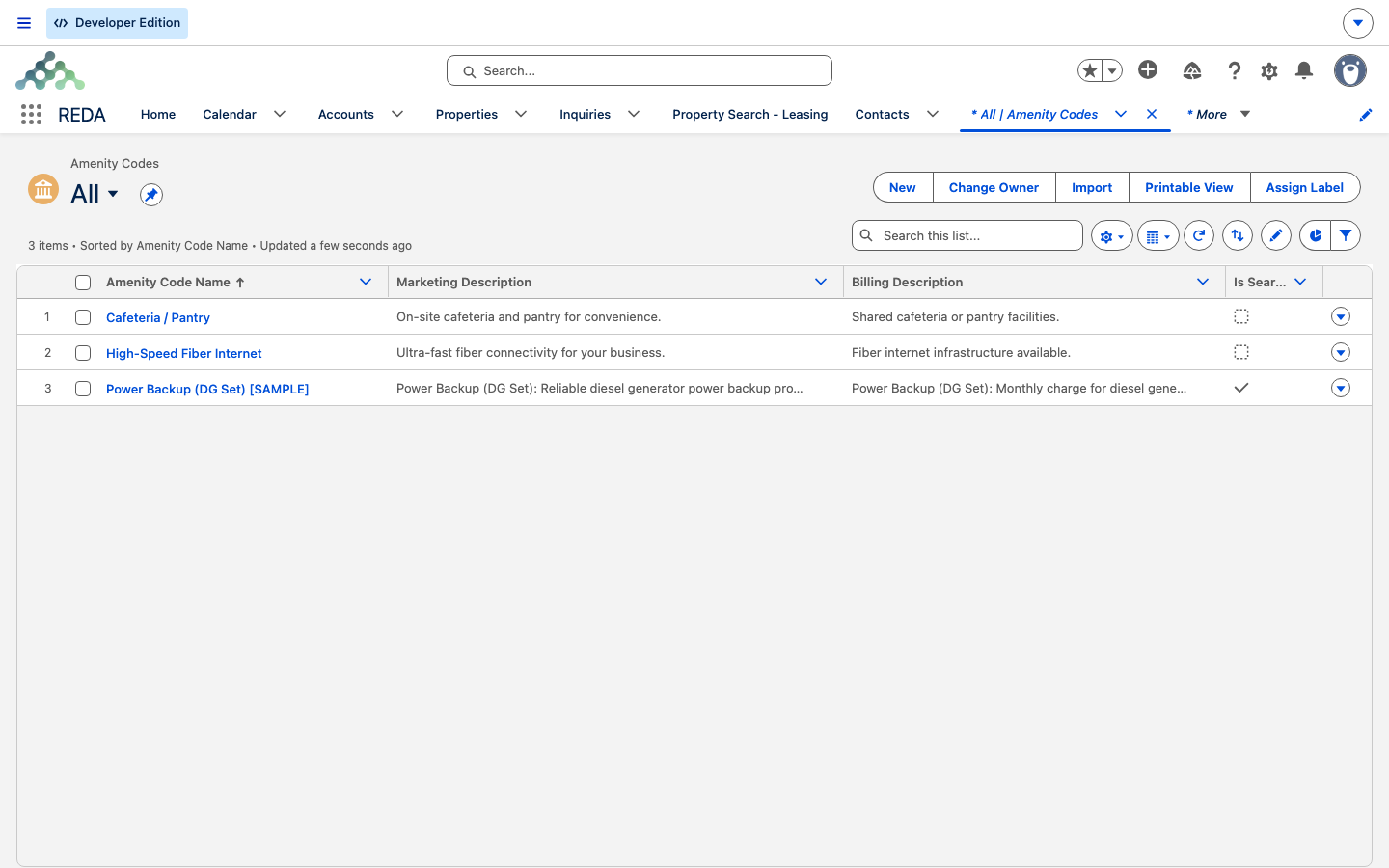
From the Amenity Codes tab, click New:
| Field | What it's for |
|---|---|
| Unique Code | A short, unique code (up to 20 characters). This is the matching key that powers amenity filters in property search. |
| Amenity Group | Required. The category the amenity belongs to — View, General, Unit, Parking, Recreation, Pet, Security, Building, Common Areas, Office, Operations, Logistics or Shared Facilities — which is how the search filters are grouped for prospects. |
| Is Searchable | Offers this amenity as a filter in property search. |
| Marketing Description | The listing blurb shown to prospects. |
| Billing Description | Default invoice text for the charge. A property's own billing description falls back to this when it's left blank. |
| Region | The region the code belongs to; REDA stamps its code on for you. |
An amenity code that's in use on any property can't be deleted — REDA protects it so pricing rows never lose their catalogue entry. Retire codes by removing them from properties rather than deleting the code.
Adding an amenity to a property
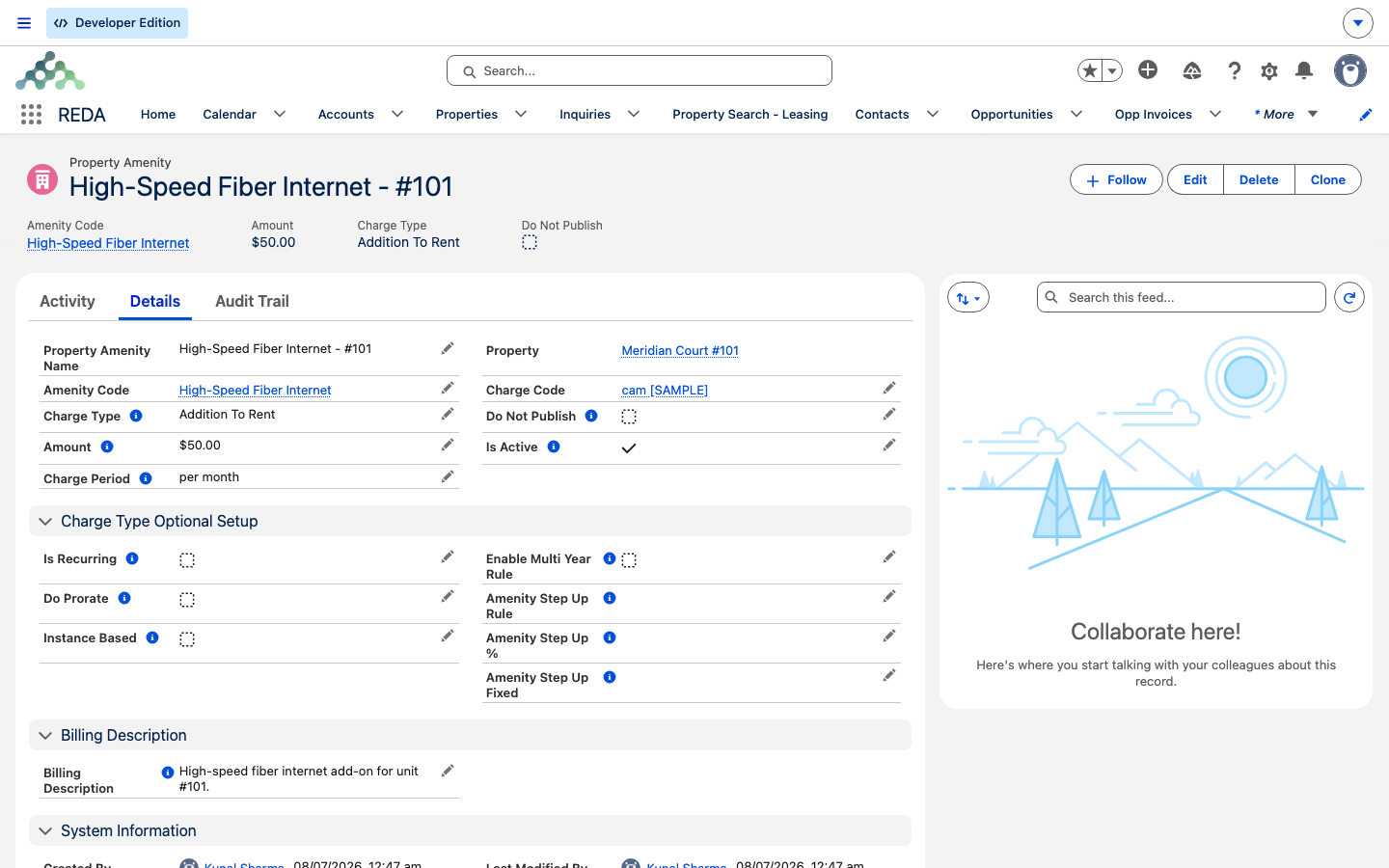
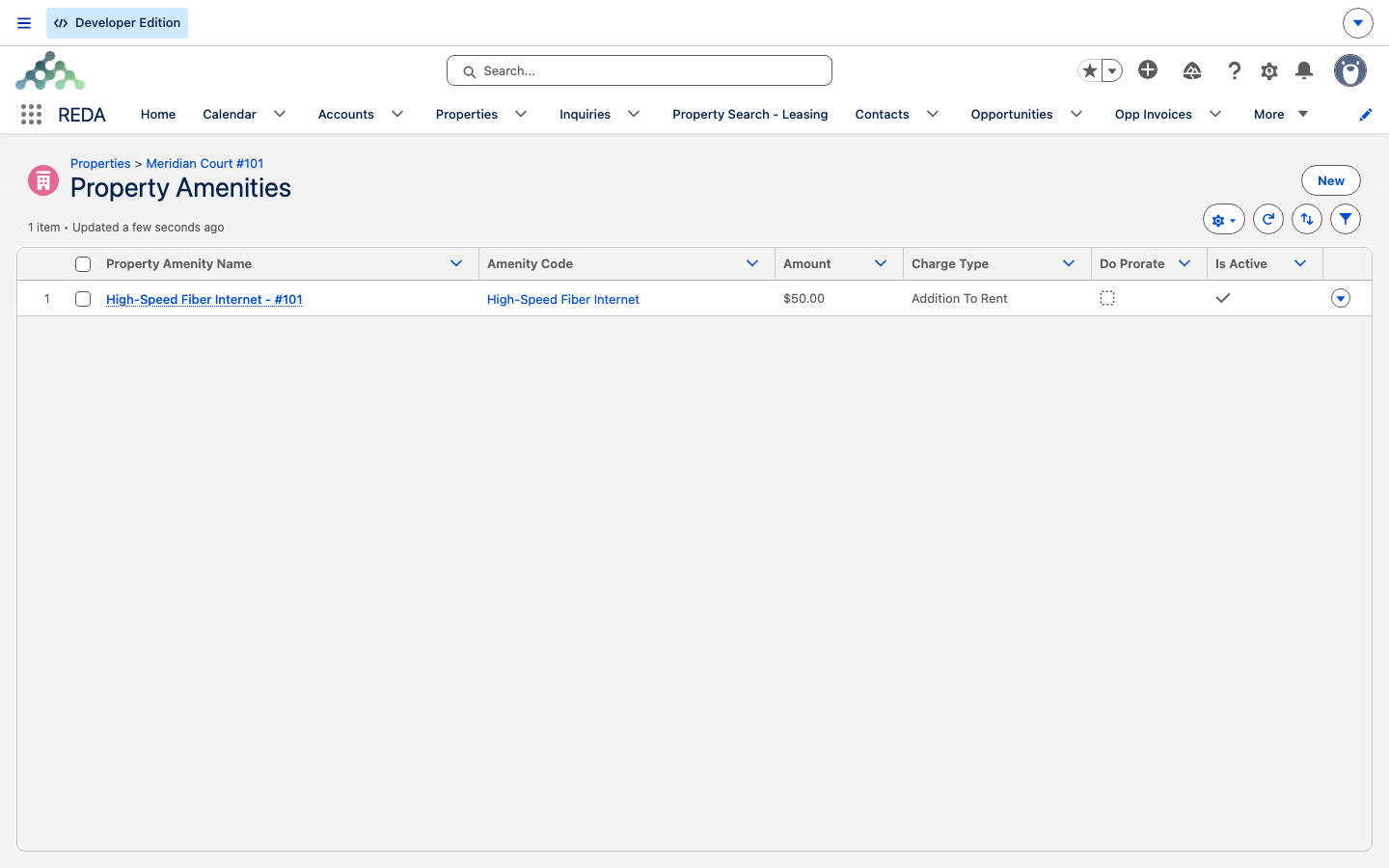
Open the property, go to its amenities related list, and click New. The most important choice is the Charge Type, because it decides how the amenity affects rent:
| Charge Type | What it means |
|---|---|
| Inclusive ("Inclusive In Rent") | Part of the advertised rent already — no separate charge. Use it for amenities baked into the price, like an included view. |
| Addition ("Addition To Rent") | Raises the advertised rent by its Amount. Use it for amenities that lift the headline price, like a gym. |
| Optional | The tenant opts in on the lease. Only optional amenities can be recurring, prorated, quantity-based or stepped — like a parking bay. |
Then set the money:
- Amount — required, the amenity's price.
- Charge Code — required for every charge type except Inclusive. Leave it off a non-inclusive amenity and REDA stops you: "Please provide Charge Code."
- Is Active — defaults to on. Only active amenities are offered on leases and counted in the rollups. Untick it to retire an amenity without deleting it.
- Do Not Publish — hides the amenity from the public website.
What raises the advertised rent
REDA keeps a field on the property called Amenity Additional Rent. Understanding exactly what feeds it saves a lot of confusion:
REDA also keeps a system-written list of the property's active amenity codes that powers the search filters. Deactivate an amenity and it drops straight out of both the rent rollup and the search list. You don't edit that list by hand.
Optional-amenity billing options
Optional amenities unlock a set of billing controls that the other charge types don't have. REDA enforces this: try to set proration, quantity or recurring on a non-optional amenity and you'll see:
| Option | What it does |
|---|---|
| Is Recurring + Charge Period | Bills the amenity on a repeating cycle — per month, week or day. A recurring amenity must have a Charge Period (see the gotcha below). |
| Do Prorate | Prorates the charge for partial periods. |
| Instance Based | Multiplies the charge by a quantity — for example two parking bays bill at twice the amount. |
| Enable Multi Year Rule + Amenity Step Up Rule + Amenity Step Up % / Amenity Step Up Fixed | Steps the charge up year over year. The rule decides how: Year 1 Base Amount % and Previous Year Base Amount % raise it by a percentage (of the first year's amount, or of last year's, respectively), while Fixed adds a set amount each year. |
The step-up options come with their own guards. If you enable the multi-year rule without choosing a step-up rule, REDA responds:
And if you choose a rule but don't supply the matching value:
Amenities in search
Any amenity code flagged Is Searchable becomes a filter in property search, grouped by its Amenity Group. On each property, only its active amenities feed the searchable list — so an amenity you deactivate stops appearing as a match. This is why the catalogue's codes and groups matter: they're what prospects filter on.
Retiring an amenity
To take an amenity off a property without losing its history, untick Is Active rather than deleting the row. It immediately drops out of the rent rollup, the search list, and the amenities offered on new leases — but the record stays, so you can see it was once there and switch it back on later.
Worked example: Meridian Court #101
Your catalogue holds POOL (View group, searchable), GYM (General), and PKG parking (General, searchable). Base rent on Meridian Court #101 is 1,200.00.
| You do | REDA does |
|---|---|
| Add POOL as Inclusive, Amount 0 | Nothing added on top — it's already in the rent; advertised total stays 1,200.00 |
| Add GYM as Addition, Amount 50, active | Sets Amenity Additional Rent to 50.00; advertised total becomes 1,250.00 |
| Add PKG as Optional, Amount 75, recurring per month, Instance Based | Adds nothing to the advertised rent; a tenant who takes 2 bays is billed 150.00 per month on the lease |
| Untick Is Active on the Gym | Amenity Additional Rent back to 0.00; advertised total back to 1,200.00 |
Reference: charge types at a glance
| Charge Type | Raises advertised rent? | Charge Code needed? | Recurring / prorate / quantity / step-up? |
|---|---|---|---|
| Inclusive | No — already in the rent | No | No |
| Addition | Yes — by its Amount | Yes | No |
| Optional | No — billed only if the tenant opts in | Yes | Yes |
Where to go next
- Rent & Charge Setups — how Amenity Additional Rent lands in the advertised total.
- Property Search — how searchable amenities become filters for prospects.
- Making a Property Leasable — getting a property ready to advertise and lease.
Frequently asked questions
Only active amenities with Charge Type Addition To Rent raise Amenity Additional Rent. Inclusive amenities are already in the base rent, and Optional amenities are billed only when a tenant opts in — neither changes the advertised figure.
Every charge type except Inclusive needs one: "Please provide Charge Code." Add the Charge Code and save again.
Those options are only for optional amenities: "Proration, Instance Based and Recurring setup rules are only applicable for "Optional" amenities." Set the Charge Type to Optional first.
Either you enabled the multi-year rule without a rule — "Please provide Step Up Rule for Multi Year rule." — or you chose a rule without its value — "Please provide Amenity Step Up % if Amenity Step Up Rule is % based OR Amenity Step Up Fixed if Amenity Step UP Rule is Fixed." Supply the missing piece and save.
The Charge Period check runs when an amenity is first created; an amenity later flipped to recurring can slip through without one. Open it and set the Charge Period manually.
Untick Is Active. It drops out of the rent rollup, the search list and lease offerings, but the record stays and can be switched back on.
Was this article helpful?